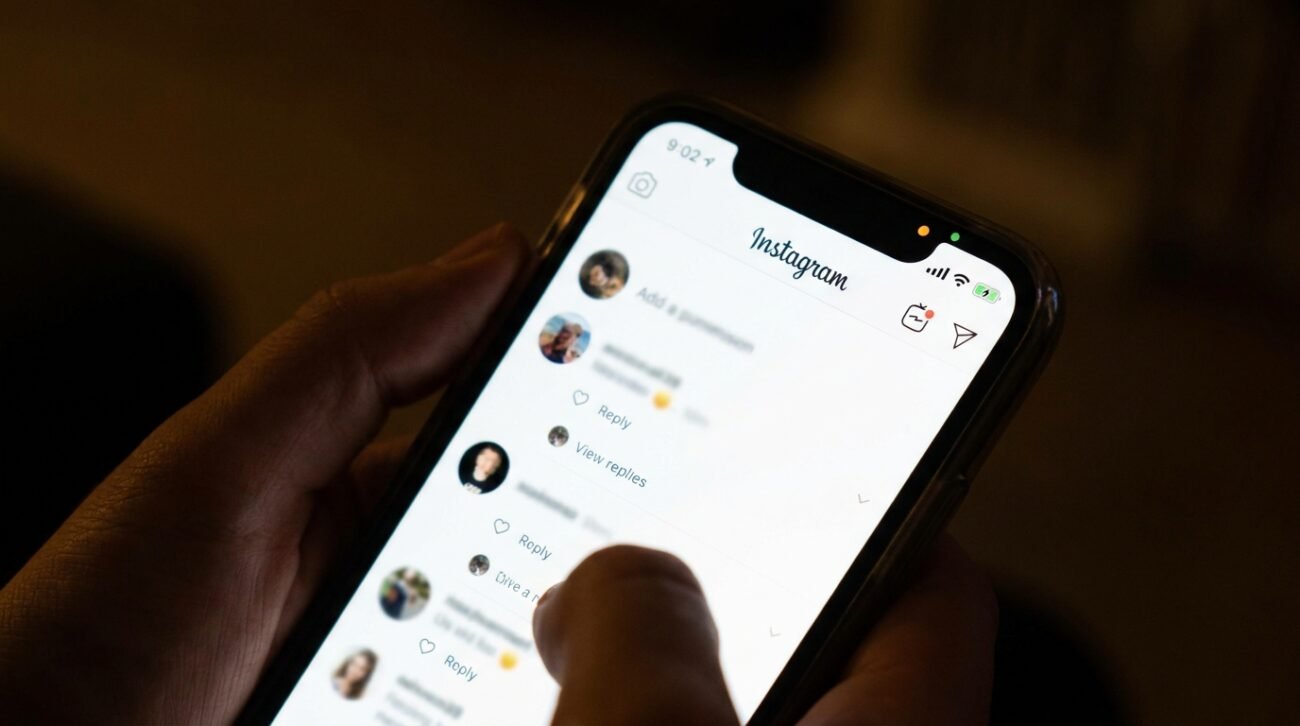
There’s nothing like seeing out of the corner of your eye a bright light that catches you off guard; albeit in the modern context, you’re looking at it through your smartphone. Apple’s reports on cybersecurity and documentation on privacy highlight that these small visual cues are intended to provide you with feedback on what permissions are active or not at the moment. Let’s dissect what these colorful icons are and what they can tell you about your everyday online security.
Decoding the Bright Green Signal
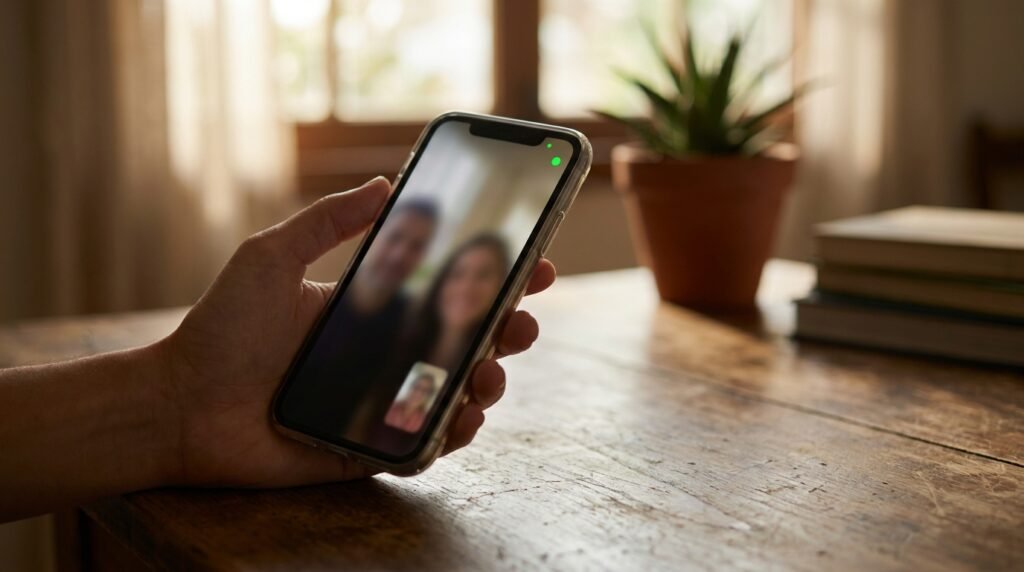
When a distinct green point lights up near the top of your panel, it means an application is actively utilizing your camera. It behaves much like the webcam light on a laptop computer.
Understanding the Subtle Orange Light
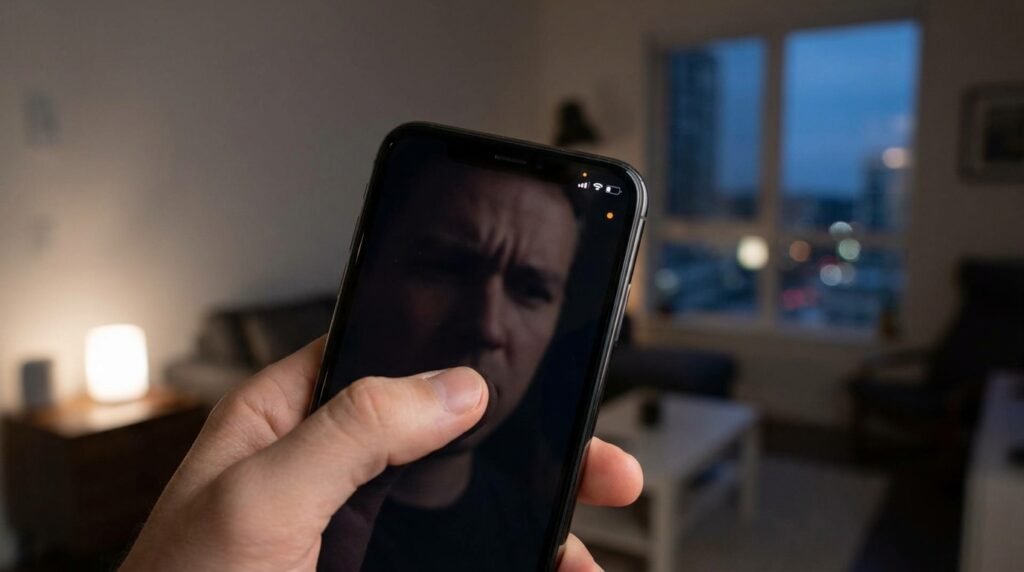
An orange indicator glowing on your display means an application is currently utilizing your microphone. This might happen while you are recording a quick voice note or chatting on a phone call.
Spotting the Hidden Blue Marker
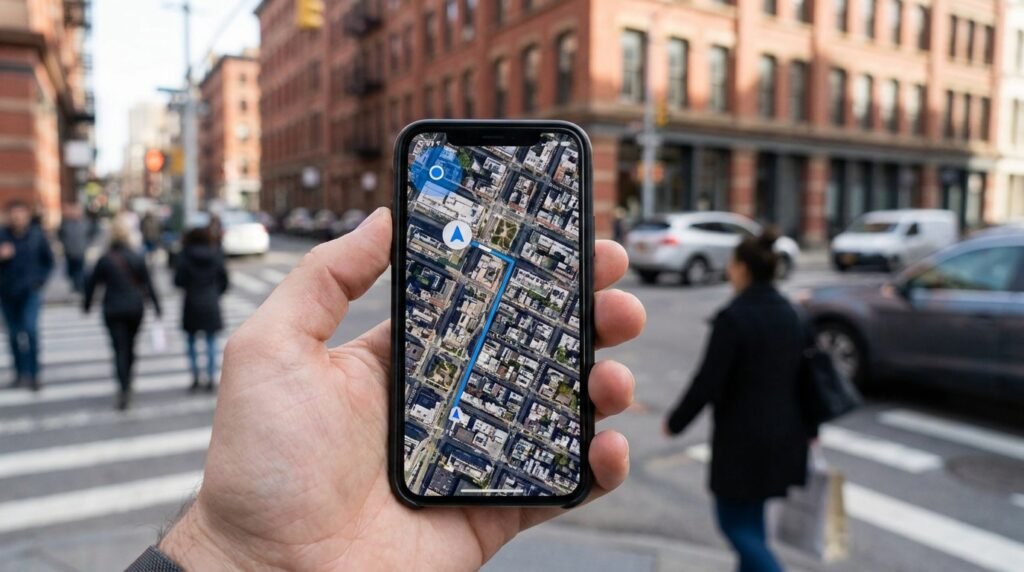
A blue status indicator sometimes appears to notify you that location services are actively pulling your current coordinates. Navigation programs and local weather tools frequently request this background data to function correctly.
Tracking Sudden Unfamiliar Background Activity

Seeing these lights when you do not have a recording or camera application open can feel quite alarming. It occasionally suggests a background tool might be accessing your hardware without your direct interaction.
Investigating the Culprit via Control Center
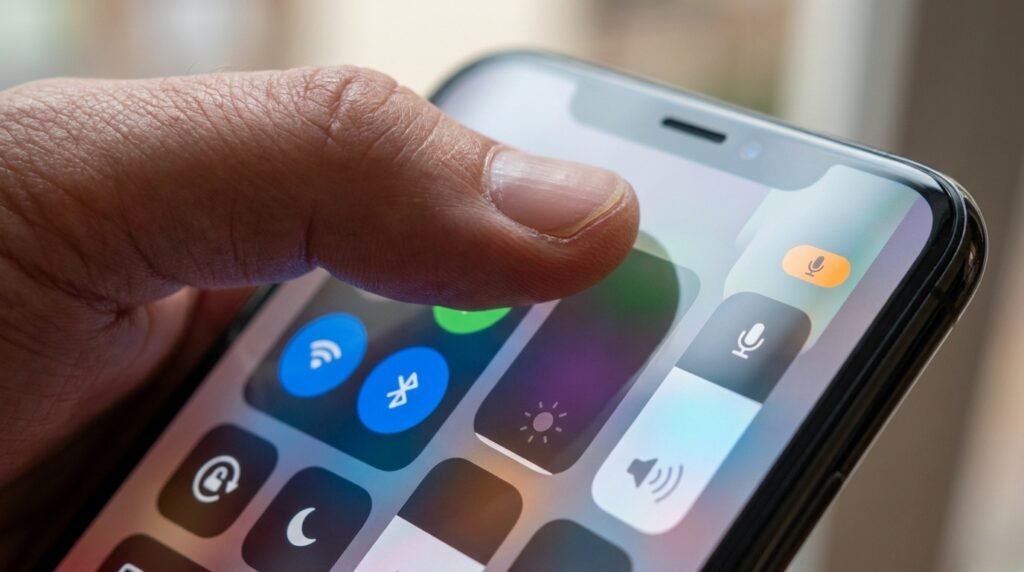
Uncovering which tool triggered the alert takes only a brief moment. Swiping down from the top right corner of your panel reveals the exact name of the application responsible for the light.
Stopping Intrusive Application Permissions Safely
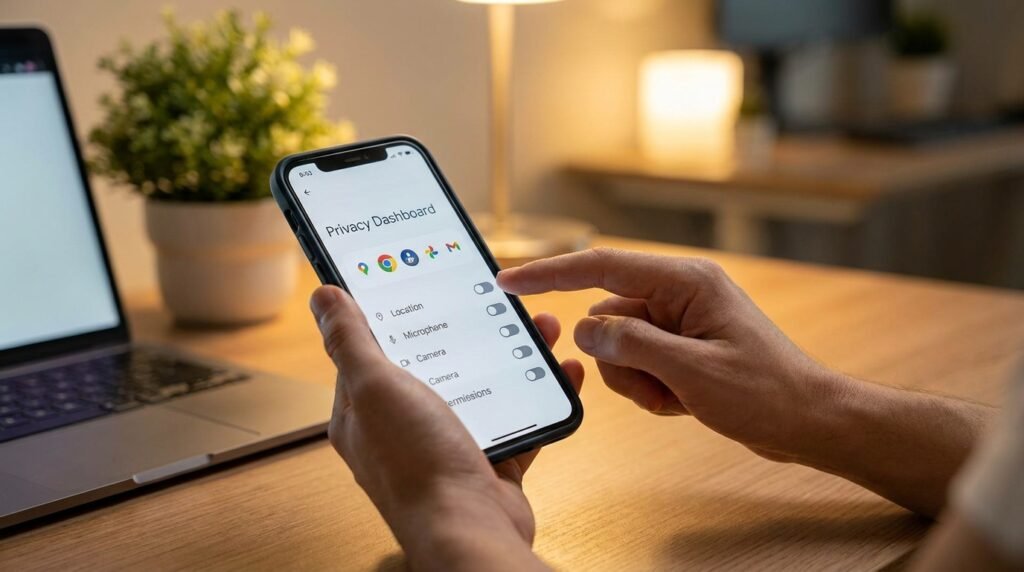
You always retain ultimate control over which tools can peek into your daily life. Heading into your primary system settings allows you to manually toggle off hardware access for any untrusted program.
Reviewing Your Security Settings Regularly

Security analysts generally recommend auditing your installed applications every few months. Stripping away unnecessary privileges from old, forgotten utilities helps keep your device running in a much safer posture.
Differentiating Hardware Failures From Alerts
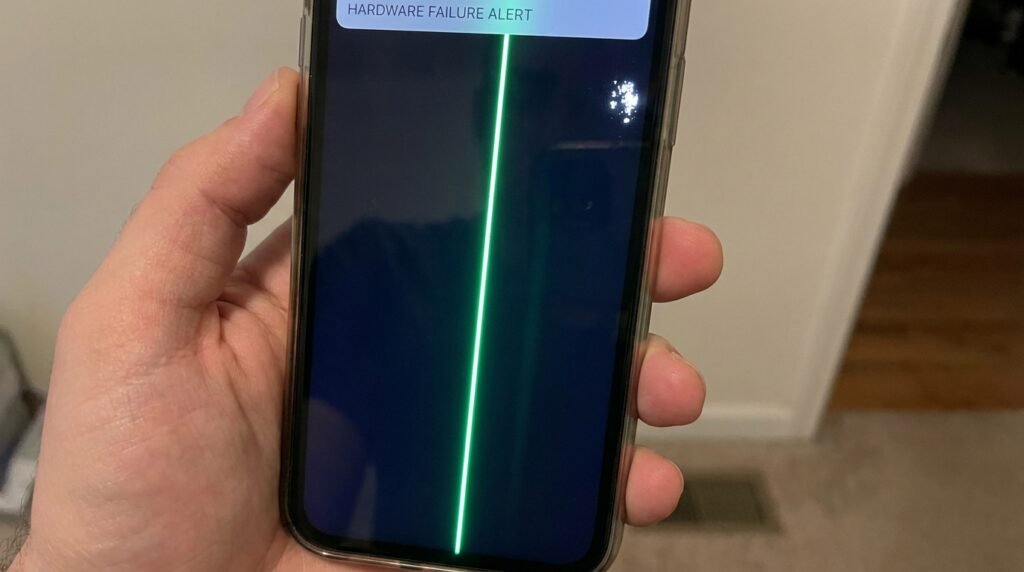
It remains entirely possible that a bright line or dot is actually a cluster of broken pixels. If the glowing mark never shifts position when you rotate your panel, physical damage might be present.
Recognizing the New Dynamic Island Placement
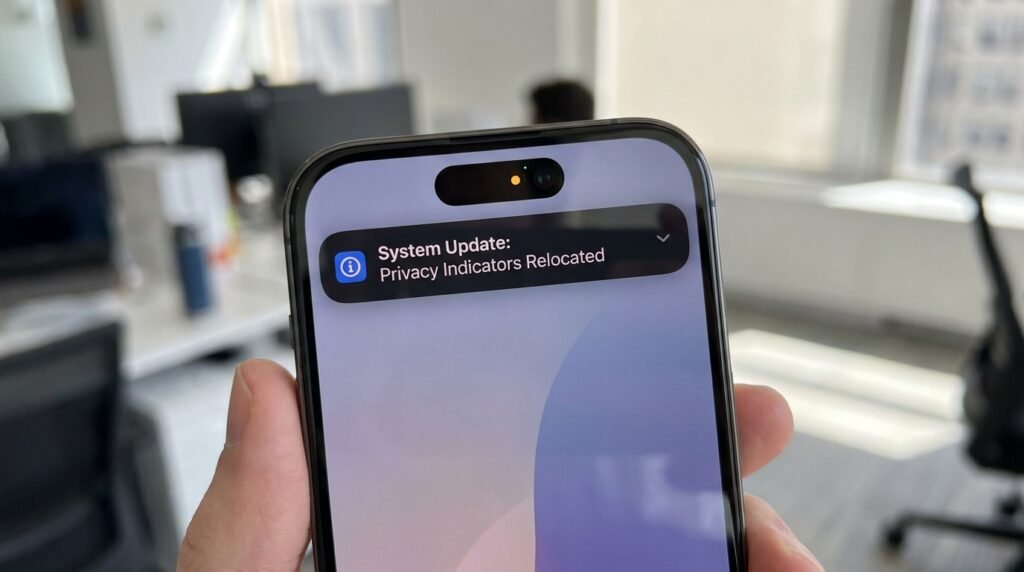
Recent operating system updates have subtly shifted where these privacy lights choose to display. Moving them directly inside the dark upper camera cutout makes them look cleaner while remaining highly visible to users.
Addressing Fears of Remote Device Access

Finding an active indicator when your device is resting quietly on a table frequently sparks immediate hacking worries. While malware is possible, a misconfigured mainstream application is usually the actual cause.
Testing Your Built-In Accessibility Options
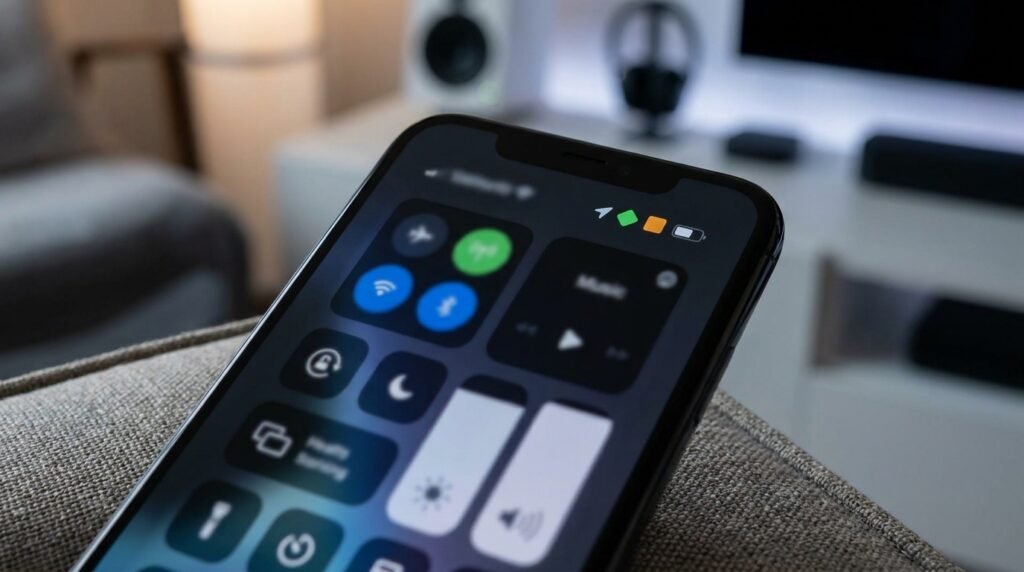
For individuals who experience difficulty distinguishing subtle shades, the operating system offers helpful shape modifications. Enabling these settings changes the round orange circle into a clear, easily recognizable square instead.
