
Sitting at a home office desk, watching the spinning beach ball, or waiting for a slow computer to bring up a basic web page can kill the whole day. According to the IEEE International Conference on Computer Communications technical white papers, aggressive background processes are constantly taking the necessary system memory resources in the Web browser. A few hidden settings could bring you back that fast out-of-the-box experience. Let’s see how to bring your machine back to life with simple modifications.
Disabling Aggressive Background App Processing
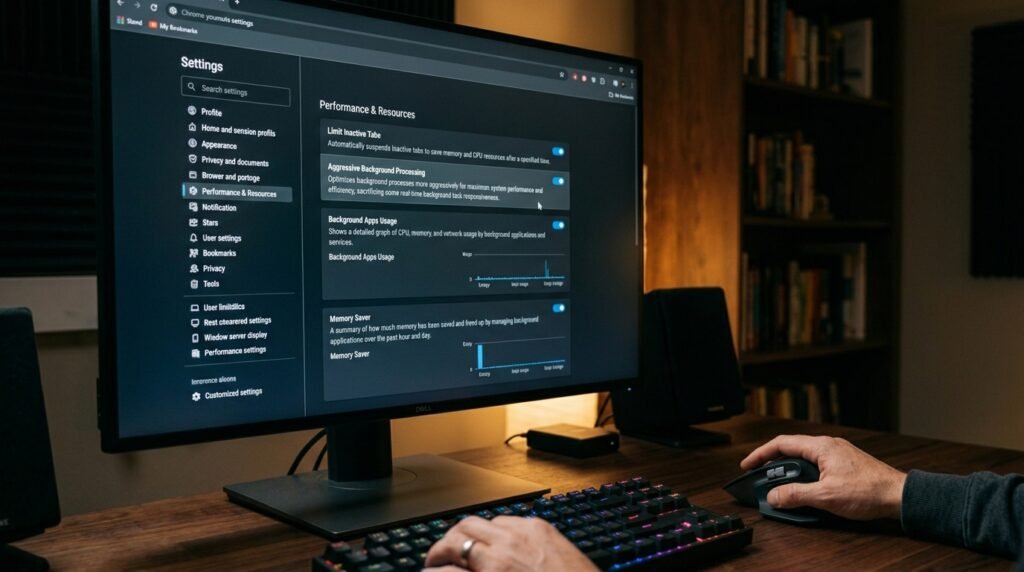
Running software silently after it’s closed consumes valuable battery power. Research on systems indicates that stopping background processes could release your processor for active processing operations immediately.
Toggling Off Hardware Acceleration Settings

Forcing the graphics card to render basic text can occasionally cause older systems to stutter. Turning this off might allow the central processor to manage standard layouts much more smoothly.
Pausing Invasive Preloading of Pages

Predictive page loading guesses where you will click next by downloading data in advance. While it sounds convenient, it may tie up network bandwidth and cause noticeable system lag.
Restricting Autoplay for Video Content

Allowing every media clip to launch automatically can overwhelm an open tab. Restricting this setting prevents unexpected audio and heavy video rendering from freezing up your desktop workspace.
Turning Off Unnecessary Notification Permissions

Websites constantly asking to send desktop alerts create quiet background polling cycles. Silencing these requests might reduce minor interruptions and lower your overall central processing unit utilization.
Managing Bulky Extension Activity Permissions

Many add-ons read every single page you visit in real time. Restricting their access to specific clicks might prevent third-party code from slowing down your scrolling experience.
Clearing Deeply Cached Image Files

An oversized temporary storage folder can sometimes confuse the software index. Frequent cleaning may solve the slow loading of the pages, which is one of the problems mentioned in the basic guide for digital optimization.
Adjusting Tight Memory Saver Thresholds

Enabling built-in memory management tools automatically puts idle tabs to sleep. Industry telemetry indicates this adjustment might drastically reduce random-access memory pressure on mid-range laptops.
Limiting Heavy Third-Party Cookies

Building an ad network behavioral profile needs constant data sync. Your web experience and browsing may feel noticeably cleaner and much more responsive if you block non-essential tracking cookies.
Stopping Predictive Text Suggestions

Typing while the search engine performs real-time predictions can slow down typing. Disabling this feature might make your address bar inputs feel instantaneous.
Turning Off Heavy Visual Themes
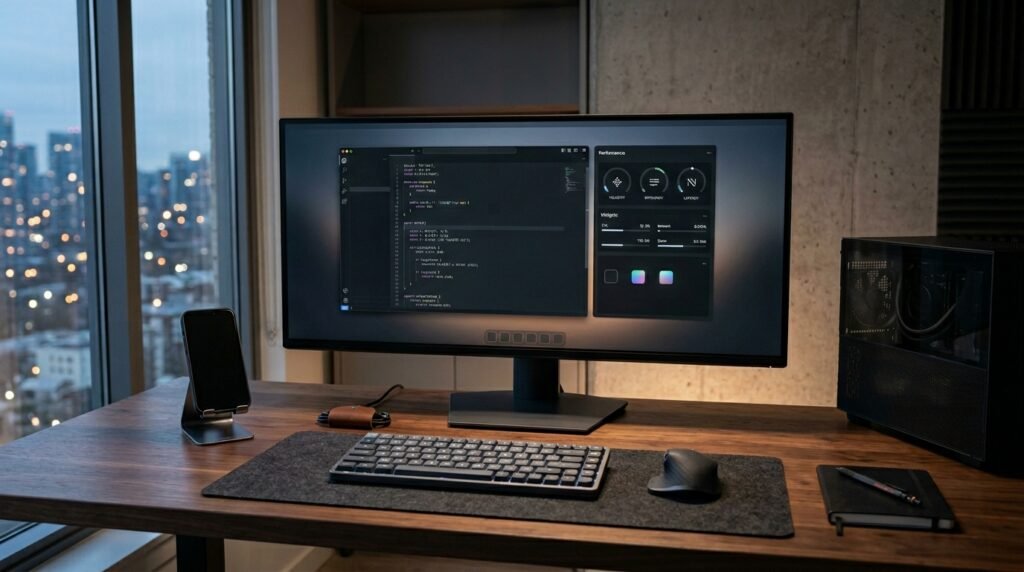
Custom animated backgrounds look great but require constant graphical rendering. Switching to a dark, minimalist interface could be a way to conserve resources for processing actual web content.
