
You sit down, you’re ready to end a long day at work or gaming, and you click the button that says “power off.” Your monitor doesn’t go dark; rather, it flashes and restarts or keeps spinning without ever going to sleep. According to official threads from Microsoft, they’ve just implemented a strange power loop issue that renders some operating systems totally incapable of following a regular shutdown sequence when powering down the hardware.
Spotting the Infinite Restart Loop

Many impacted users notice that hitting the power off button triggers an immediate system reboot instead. Your machine behaves as if you selected the restart button, spinning its wheels indefinitely.
Finding the Culprit Patch Number

Technology documentation notes that this unusual power behavior began appearing right after a recent monthly security patch. Pinpointing the exact date your system updated might help you verify the underlying cause.
The Secure Launch Component Conflict
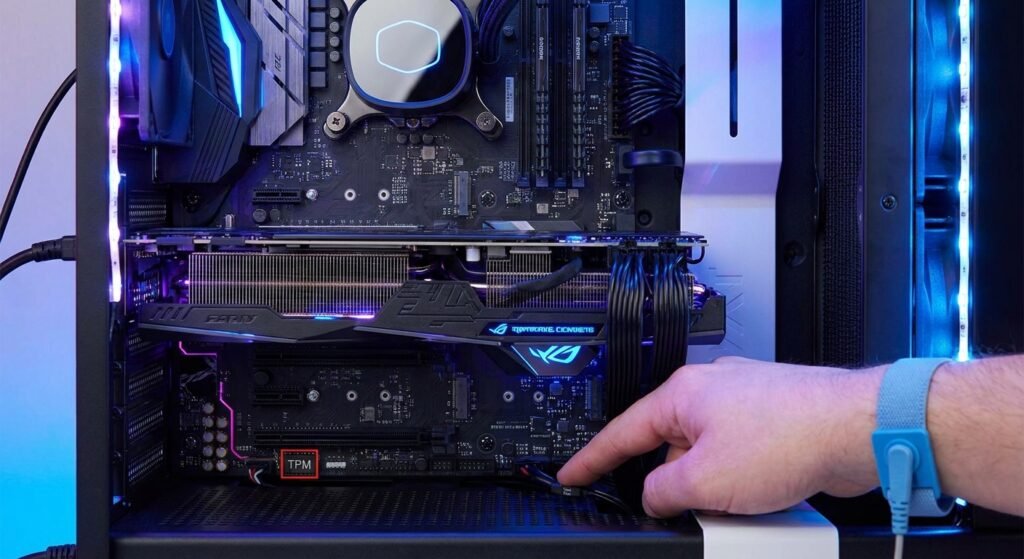
Under the hood, a security feature called Secure Launch may be clashing with new system instructions. Official advisory notes suggest this specific hardware virtualization tool might be misinterpreting the power-down command.
Disabling the Fast Startup Option
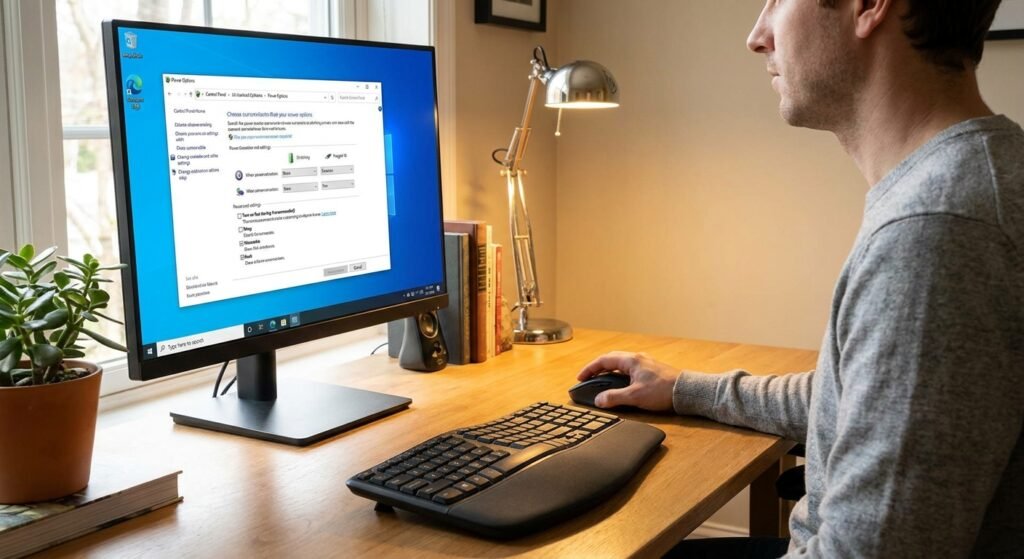
Turning off a feature called Fast Startup might help fix your power cycle issues. This option keeps a tiny snapshot of memory active, which sometimes traps your machine in a loop.
Turning Off Virtual Security Services
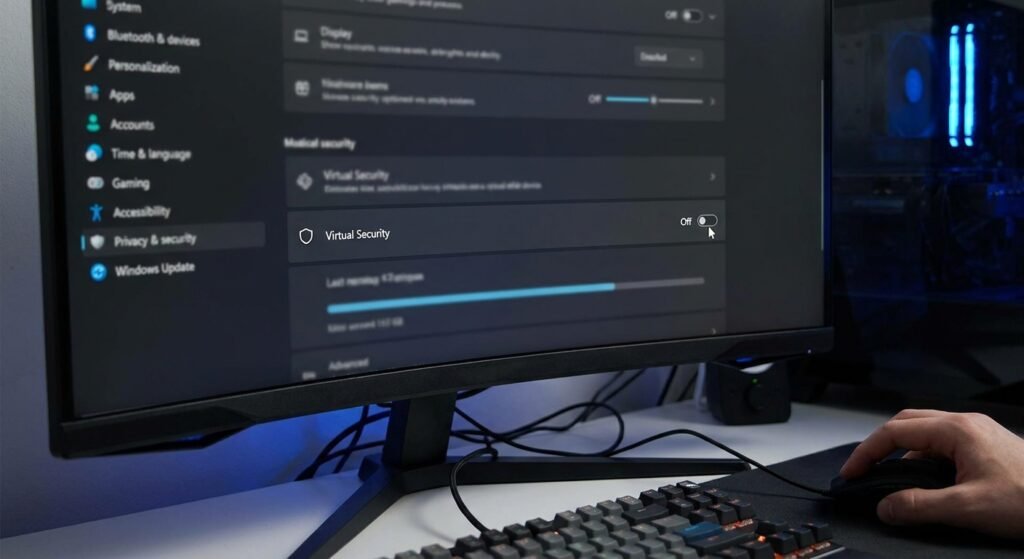
Adjusting your internal security architecture settings could potentially give your machine its power back. Temporarily pausing virtualization-based security options seems to allow the power-down code to execute normally.
Adjusting the Device Manager Settings
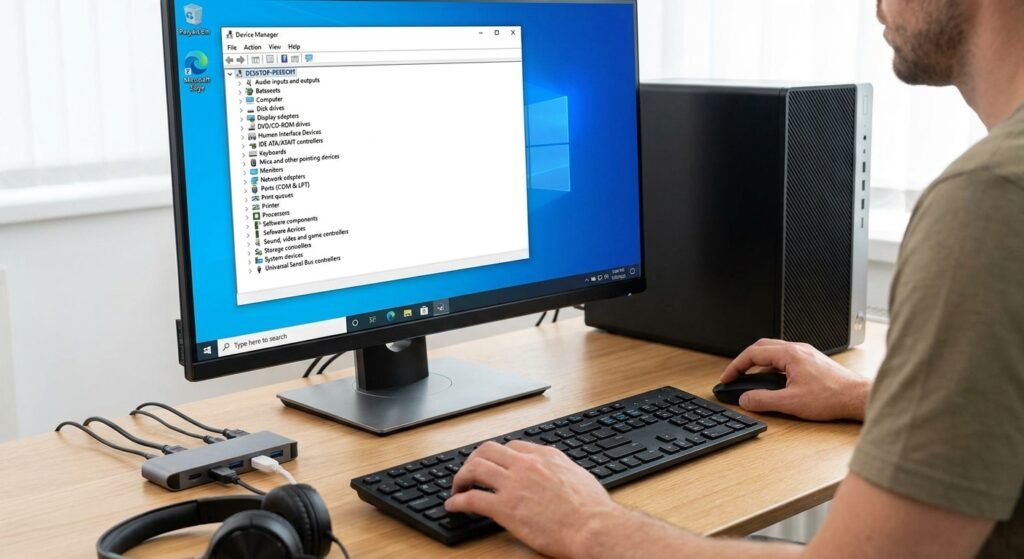
Sometimes your connected network cards or accessories intercept the signal to power off entirely. Giving your device manager a quick look can reveal if a component is forcing an unwanted wakeup.
Looking for New Emergency Patches

Because this issue disrupted so many routines, an out-of-band emergency fix was quietly prepared. Checking your system settings panel for secondary optional updates might deliver the necessary repair code.
Visiting the Microsoft Update Catalog

If the automatic delivery system stalls, you can hunt down the required fix manually online. Sifting through the official catalog allows you to download independent patches tailored to your build.
Pausing Your Automatic Update Requests
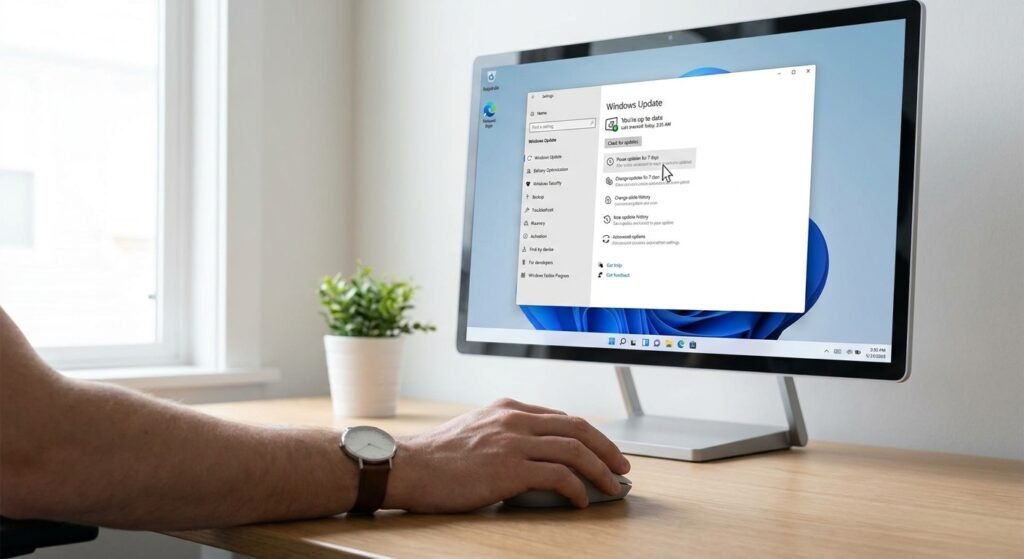
If you manage to stabilize your machine, you might want to hit the pause switch. Halting new downloads for a couple of weeks gives developers time to smooth out lingering bugs.
Refreshing Your Motherboard Firmware
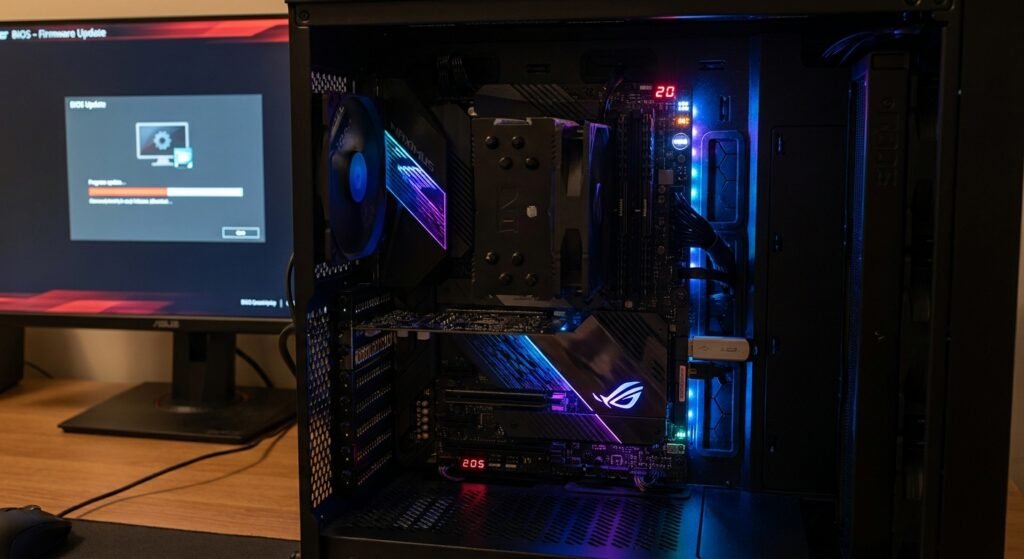
Outdated system firmware can sometimes cause modern power management commands to fail completely. Visiting your device manufacturer’s website for a clean BIOS update might bridge the digital communication gap smoothly.
Running the Native Update Troubleshooter

When code gets tangled, letting the built-in diagnostic tool take a look can be highly beneficial. The automated utility might scan your local configuration files and fix the broken power states.
Enjoying a Properly Functioning Machine

Once the patch layer is sorted, your system should start resting peacefully when told. Getting your machine to turn off cleanly ensures your hardware stays protected and ready for tomorrow.
