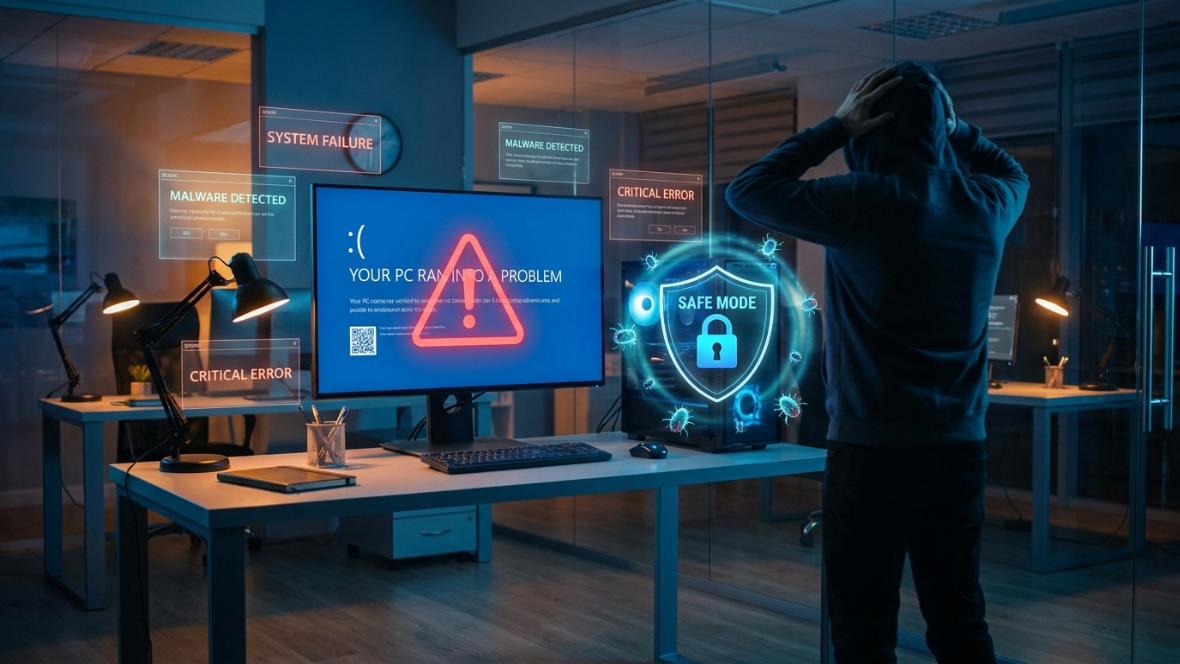
Watching your computer screen freeze or throw a sudden blue screen error right before a major deadline can trigger instant panic. However, official support documentation from Microsoft TechNet reveals that utilizing a built-in diagnostic state can strip away problematic background elements instantly. By loading only the absolute bare-minimum files, this specialized environment gives you a clean workspace to isolate stubborn glitches. Let us unpack how this native recovery tool can save your digital sanity.
Stripping Away Chaotic Background Noise
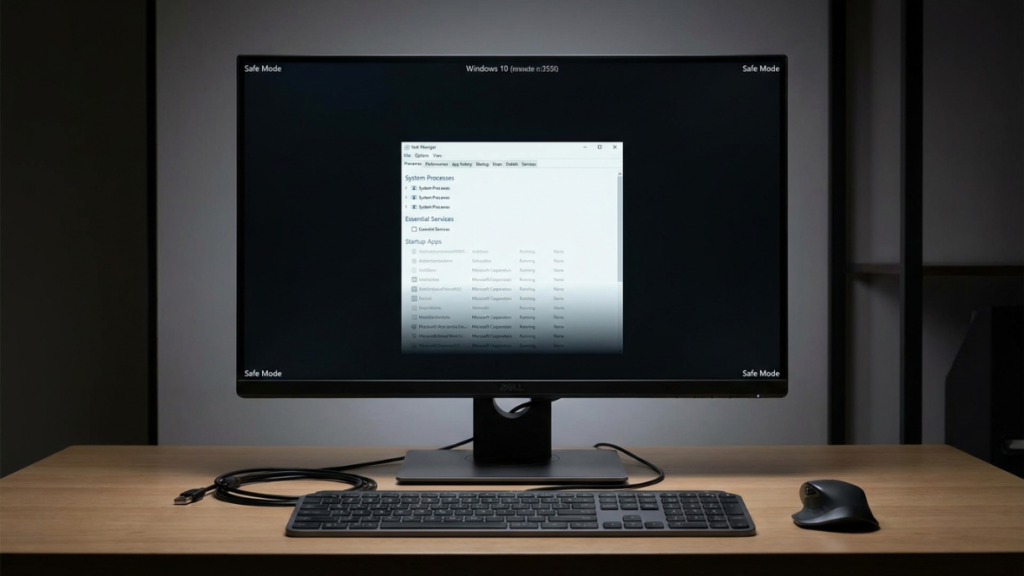
Booting into this basic environment disables non-essential startup applications automatically. This clean slate might allow you to figure out if a recently installed third-party program is causing your system to crash.
Bypassing Finicky Graphics Driver Glitches
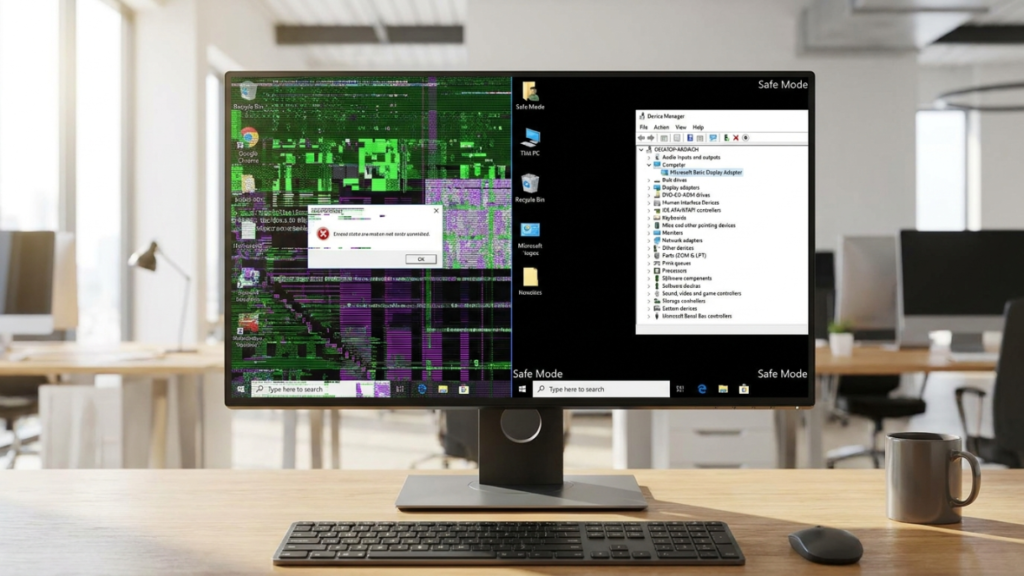
A corrupted video card update can easily cause your display to freeze or glitch out completely. This diagnostic state loads a generic visual driver, potentially restoring a clear screen to fix errors.
Isolating Unruly Software Update Hiccups
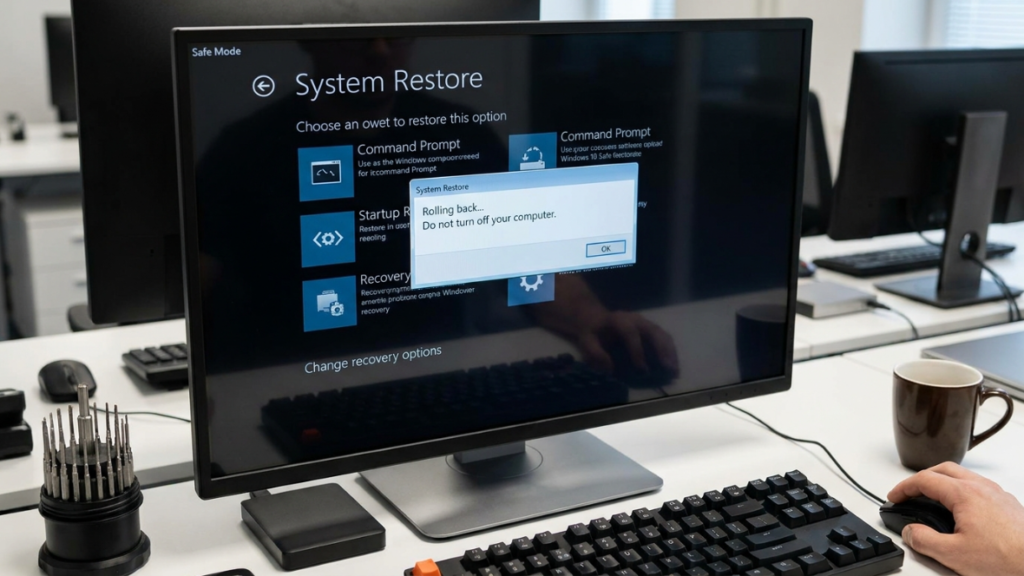
Sometimes a monthly operating system patch does not install quite right, leading to strange performance loops. Entering the stripped-down mode often provides a stable platform to roll back problematic installations smoothly.
Uninstalling Deeply Rooted Rogue Applications
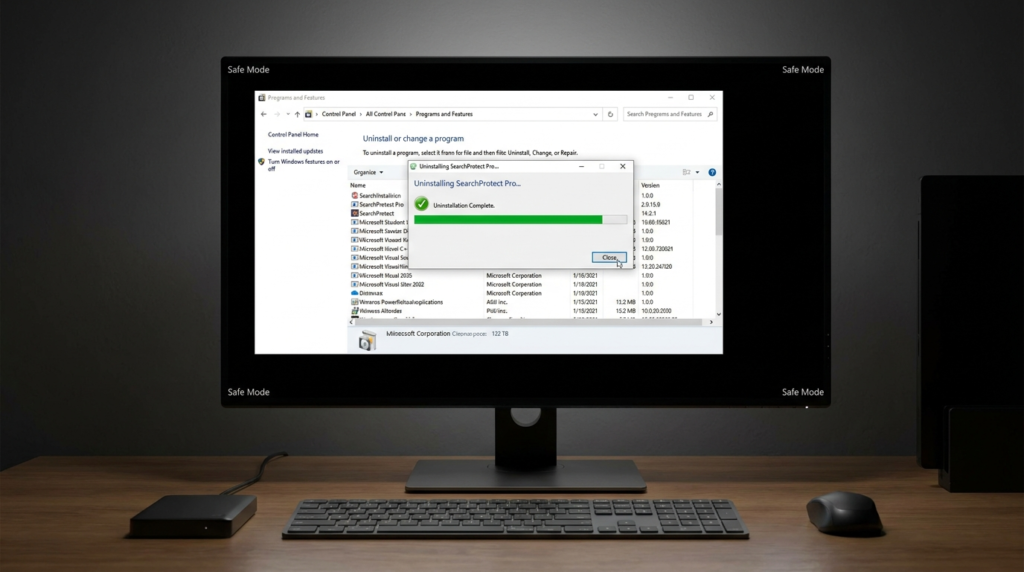
Certain stubborn programs refuse to close or uninstall because they run continuously in the background. The recovery environment stops them from launching, finally allowing you to remove them through the control panel.
Scanning for Deeply Hidden Malware Threats
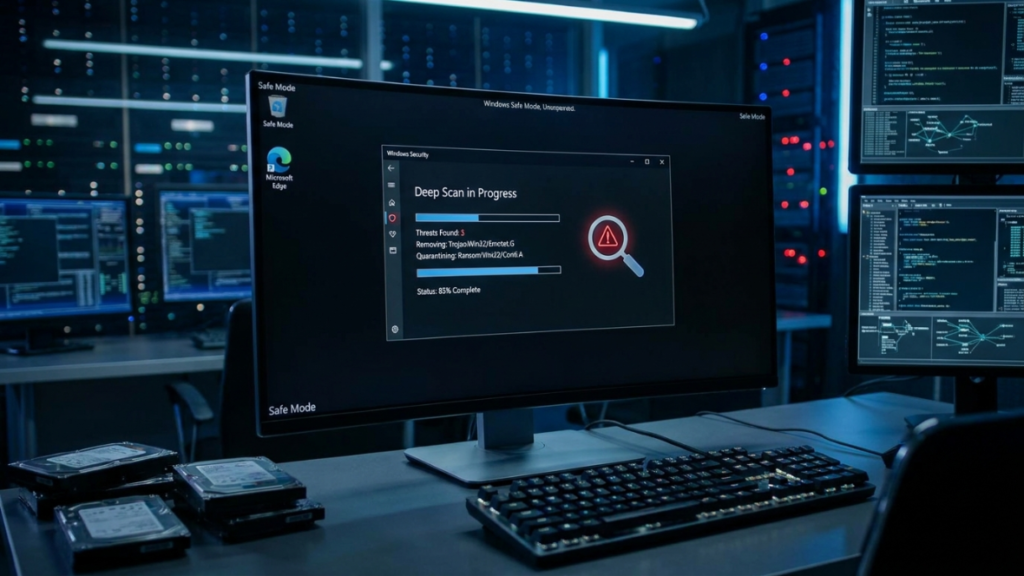
Nasty digital bugs often protect themselves by locking down your standard security tools during a normal boot. Running a thorough antivirus scan in this restricted state can catch those elusive system vulnerabilities.
Checking for Faulty Hardware Memory Links
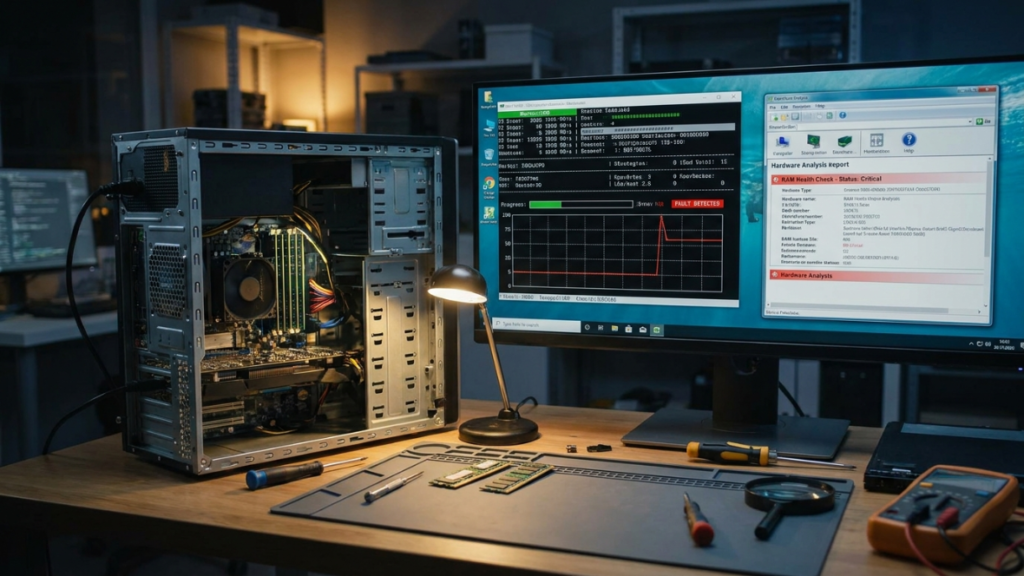
If your machine continues to behave erratically even inside this minimal environment, physical components might be struggling. Hardware diagnostics can help determine if a failing RAM stick is the real underlying issue.
Fixing Stubborn Corrupted System Files
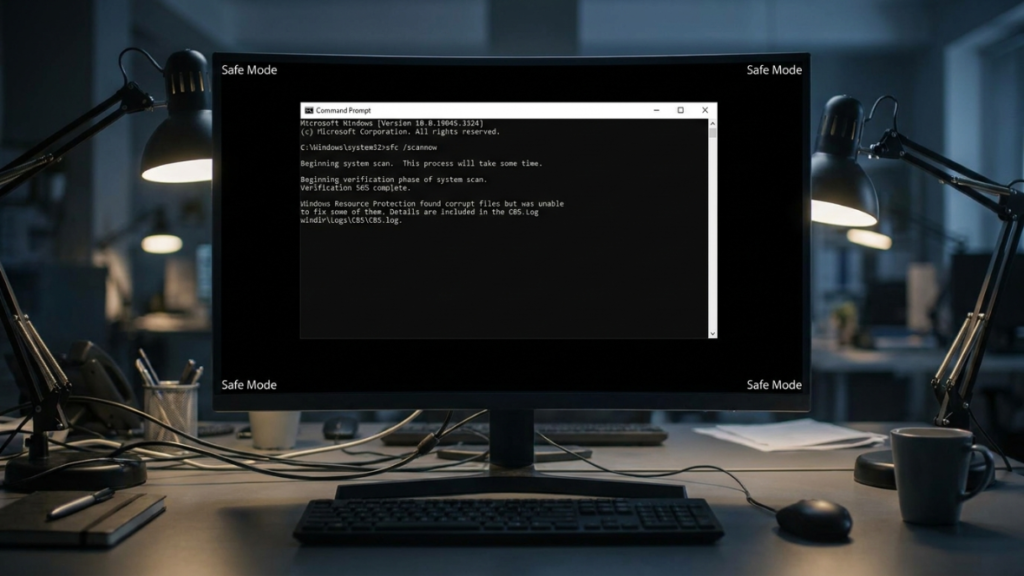
Running internal repair utilities like System File Checker during normal operation can sometimes encounter frustrating file locks. The diagnostic state releases these locks, allowing the tool to patch broken code successfully.
Choosing the Right Safe Mode Flavor
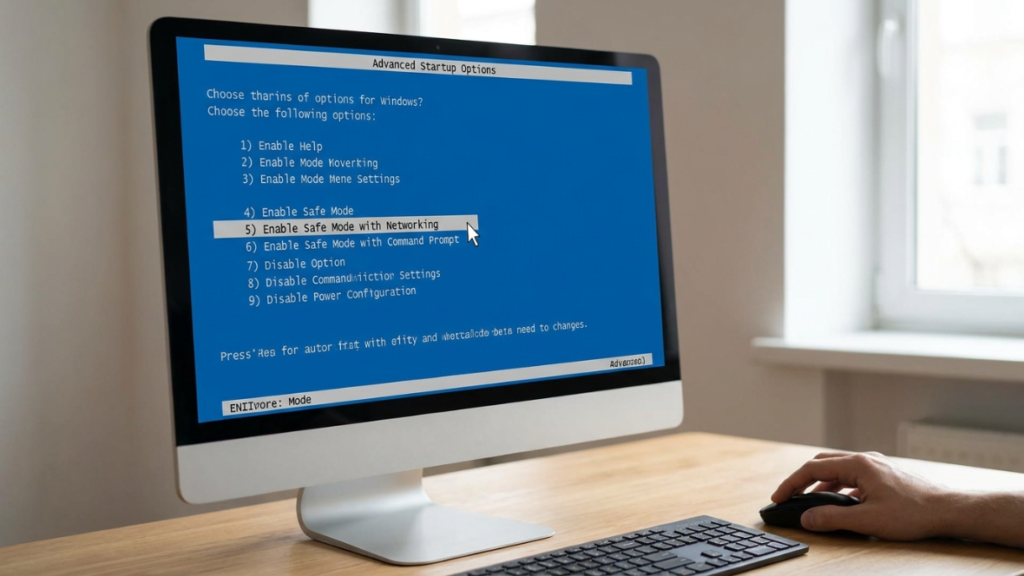
You will generally face a choice between a standard offline version and one that permits network access. Opting for the network-enabled variation is ideal if you desperately need to download a patch.
Utilizing the Built-In System Restore Points
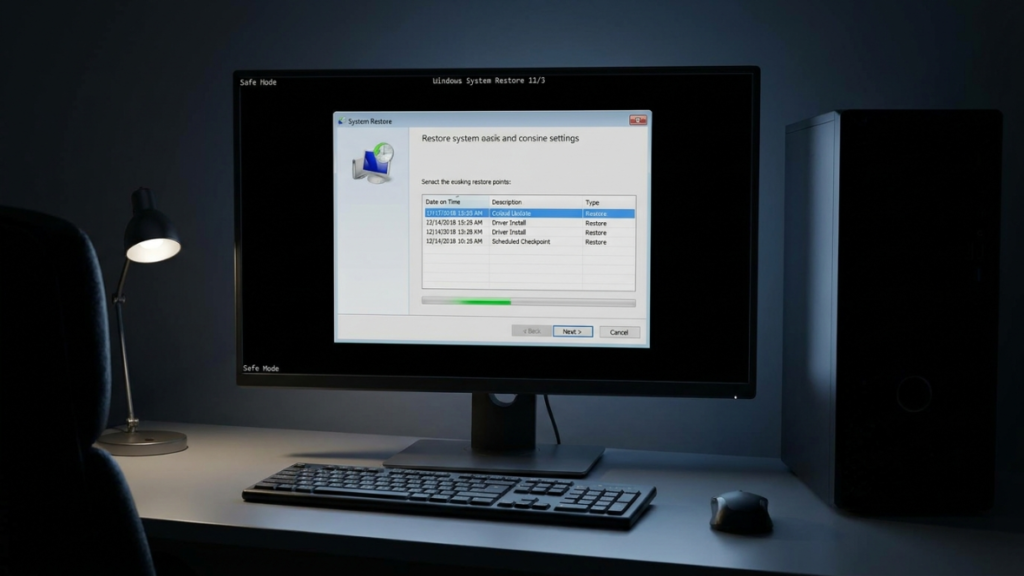
If a recent setting adjustment completely broke your workflow, traveling back in time might help. Launching older system snapshots within the quiet recovery zone tends to execute far more reliably.
Resolving Frustrating External Peripheral Clashes
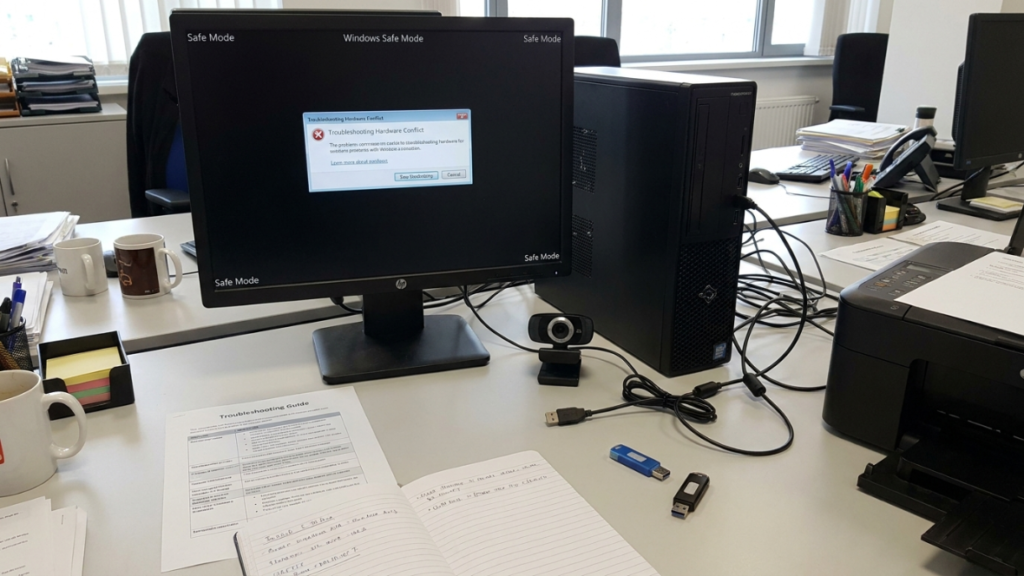
Plugging in new webcams or external drives can occasionally introduce major system stability conflicts. Because this specialized state ignores non-essential drivers, it makes identifying the offending accessory incredibly easy.
Checking Your Hard Drive Health Status
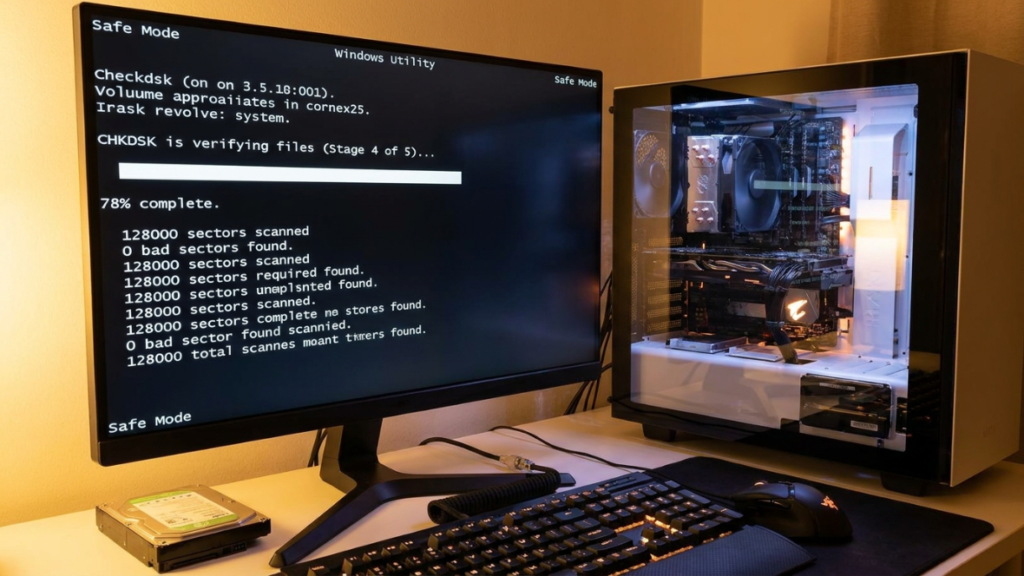
Disk errors can quietly corrupt important data sectors, causing unexpected freezes during your afternoon work. Running the native check-disk tool while in the recovery state provides a highly accurate diagnostic reading.
Exiting the Recovery State Seamlessly

Once you have finished tweaking settings, returning to normal operation usually requires nothing more than a simple reboot. The computer should automatically welcome you back to your standard, full-featured desktop environment.
