We all know how frustrating it can be when Apple TV is running slow. It can quickly ruin a relaxed movie night when apps take longer to open, the menu feels laggy, and doesn’t feel smooth as expected. But there should be a reason behind lagging or running slow. It may be a good idea to look at a few simple settings. Sometimes, it can be due to performance issues connected to background features, storage, or network preference.
Restart Apple TV Regularly
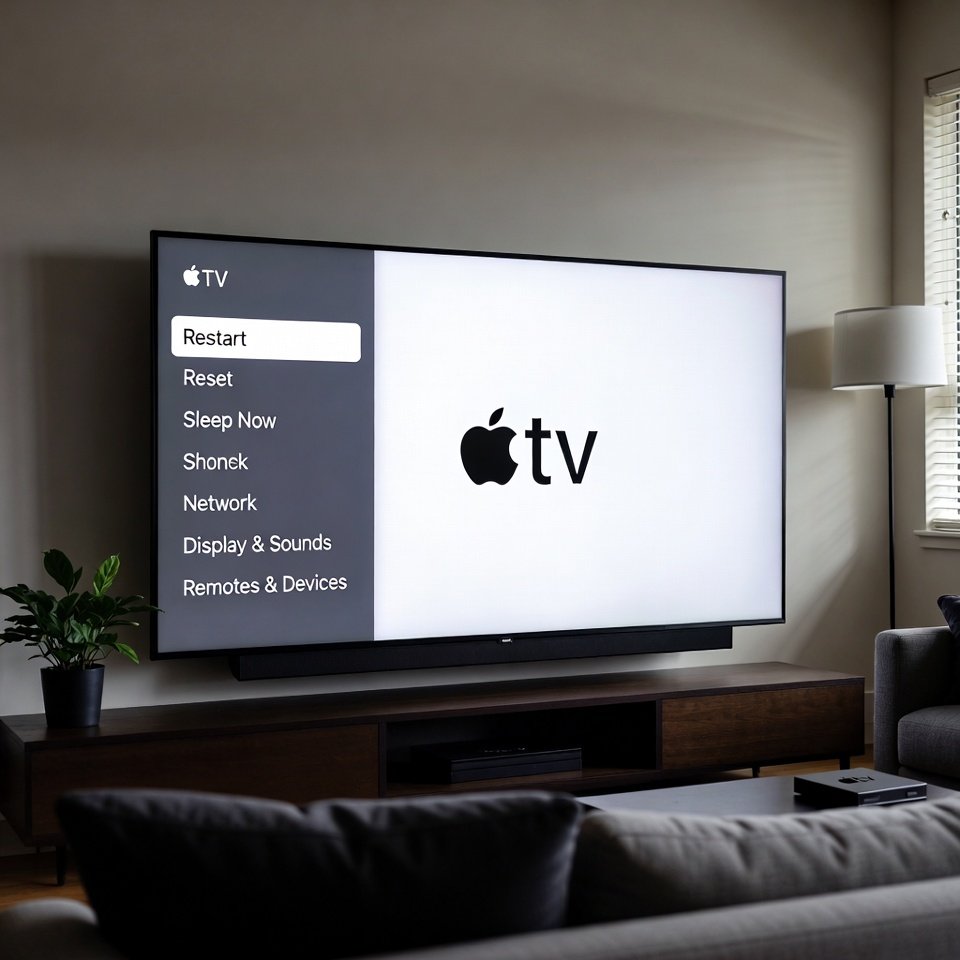
It may happen because you leave Apple TV running nonstop and can slow things down over time. Restarting clears temporary processes and refreshes the system. This simple trick can improve lagging issues or any other thing.
Check Available Storage
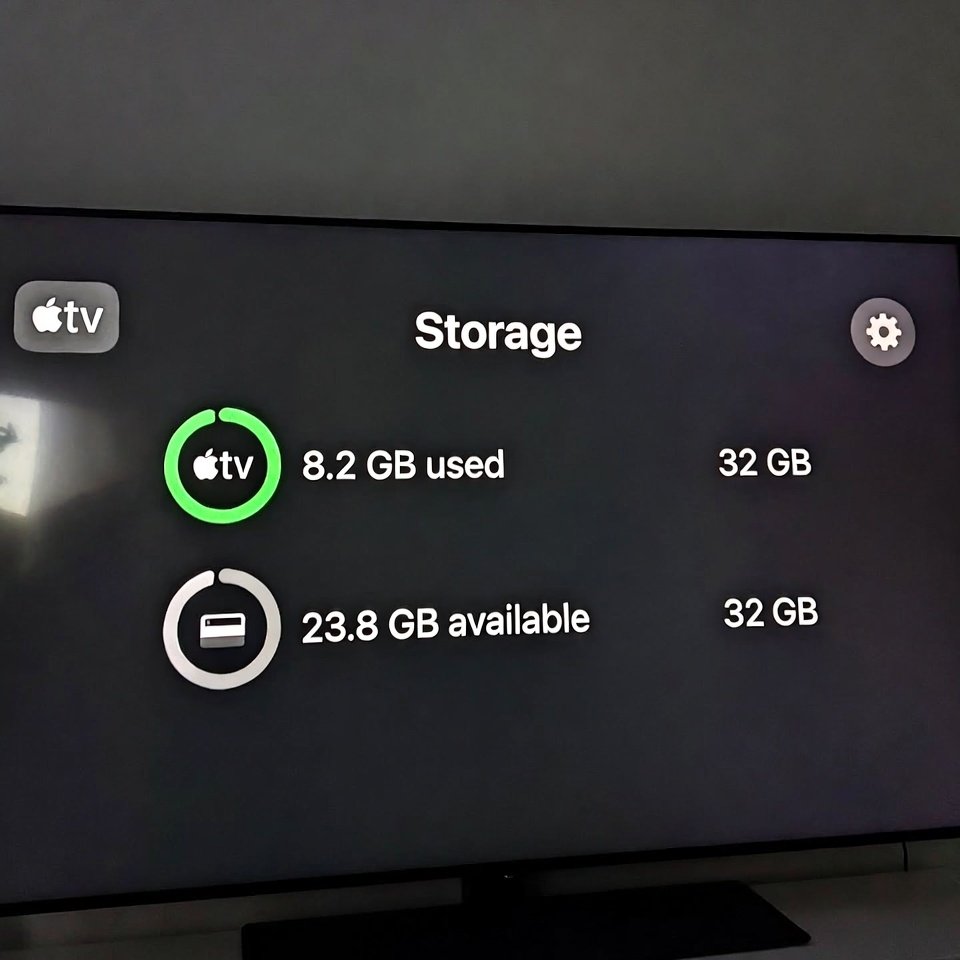
Indeed, low storage affects performance which results in app crashes frequently. Checking storage helps spot unused apps that can be removed to free up room and keep things running smoother.
Close Unused Apps
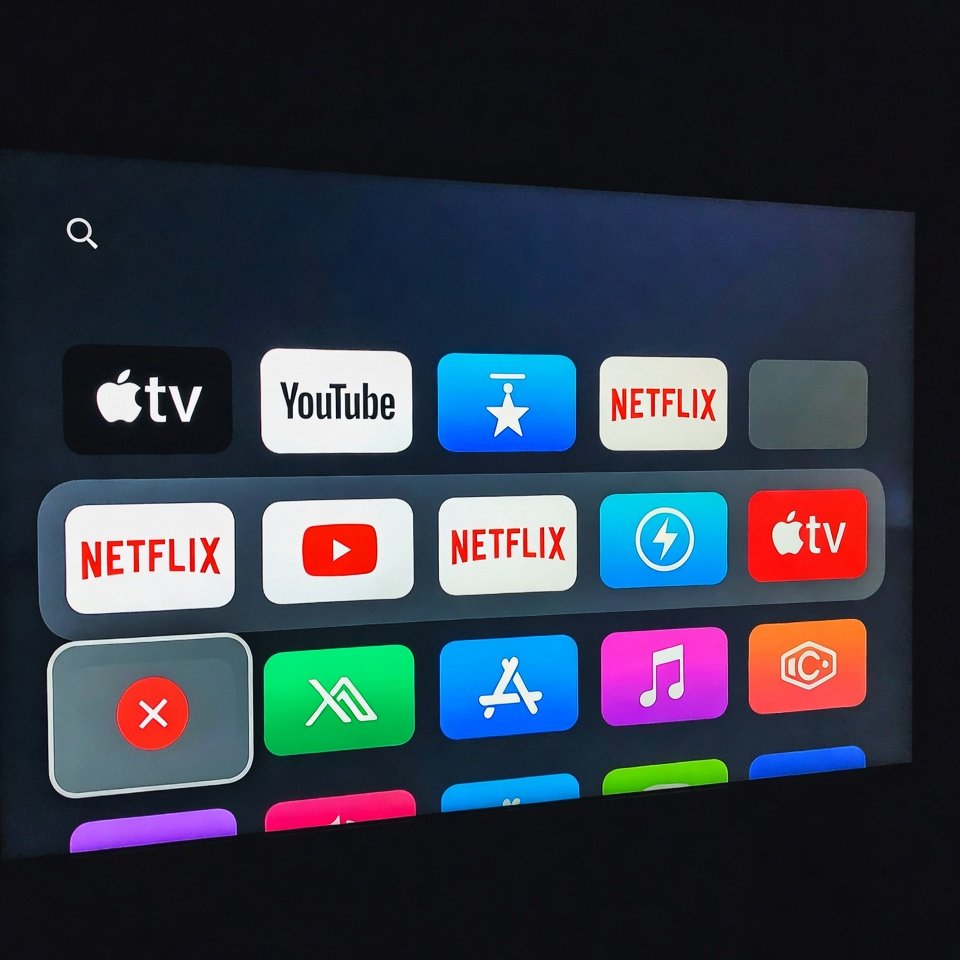
Sometimes, without your knowledge, background apps stay active even when not visible. Therefore, closing apps you no longer use reduces system load. This trick may help you quickly solve the problem of apple tv running slow.
Update OS Software
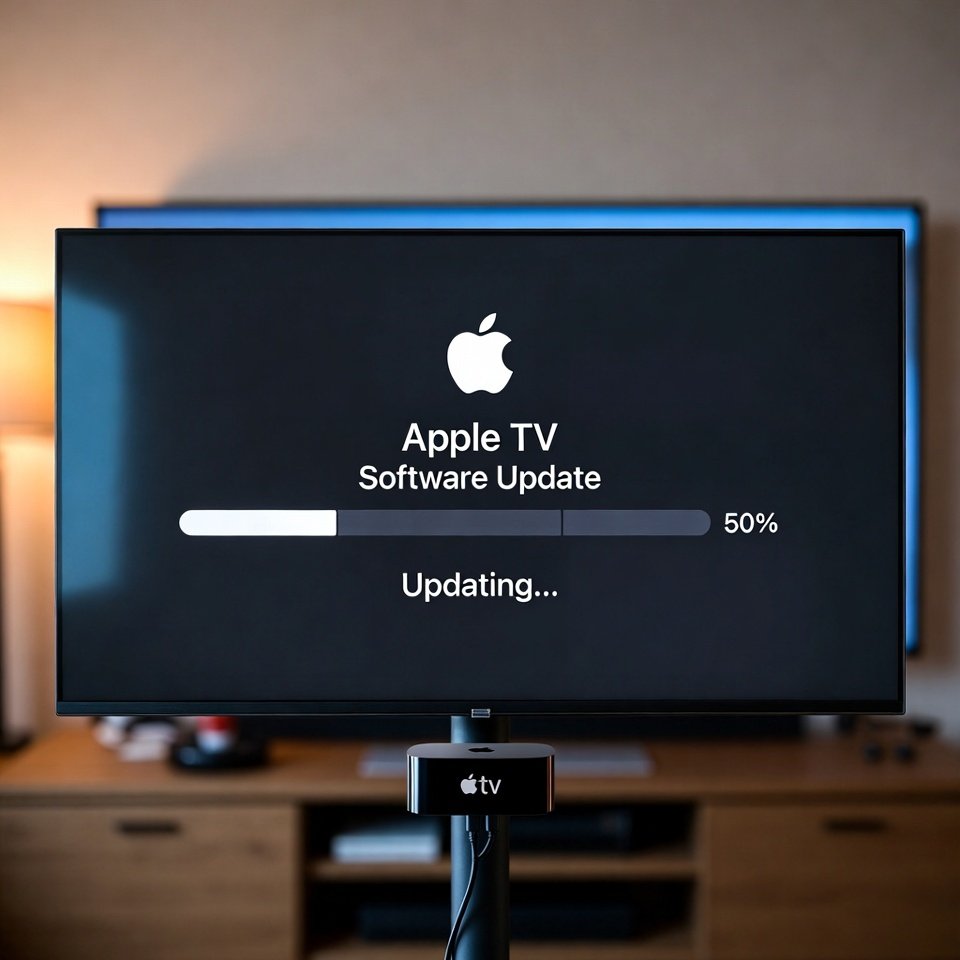
If you haven’t updated TV OS software, do it now because running your apple tv in an older version may slow down the overall performance and ruin your experience too. Software updates often include performance improvements and bug fixes.
Update Individual Apps
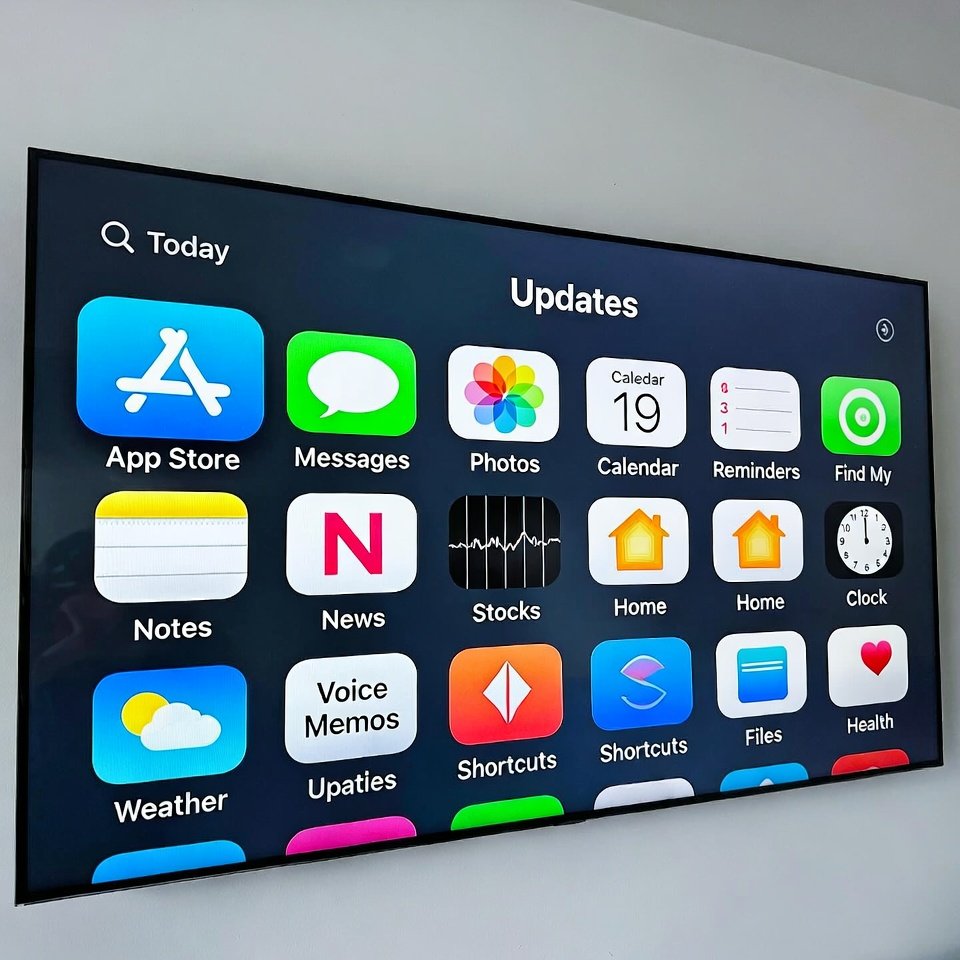
Apps also receive updates separately from tvOS. Outdated apps may feel slow or glitchy. Opening the App Store and checking for updates helps ensure smoother performance during streaming or navigation.
Review Background App Refresh
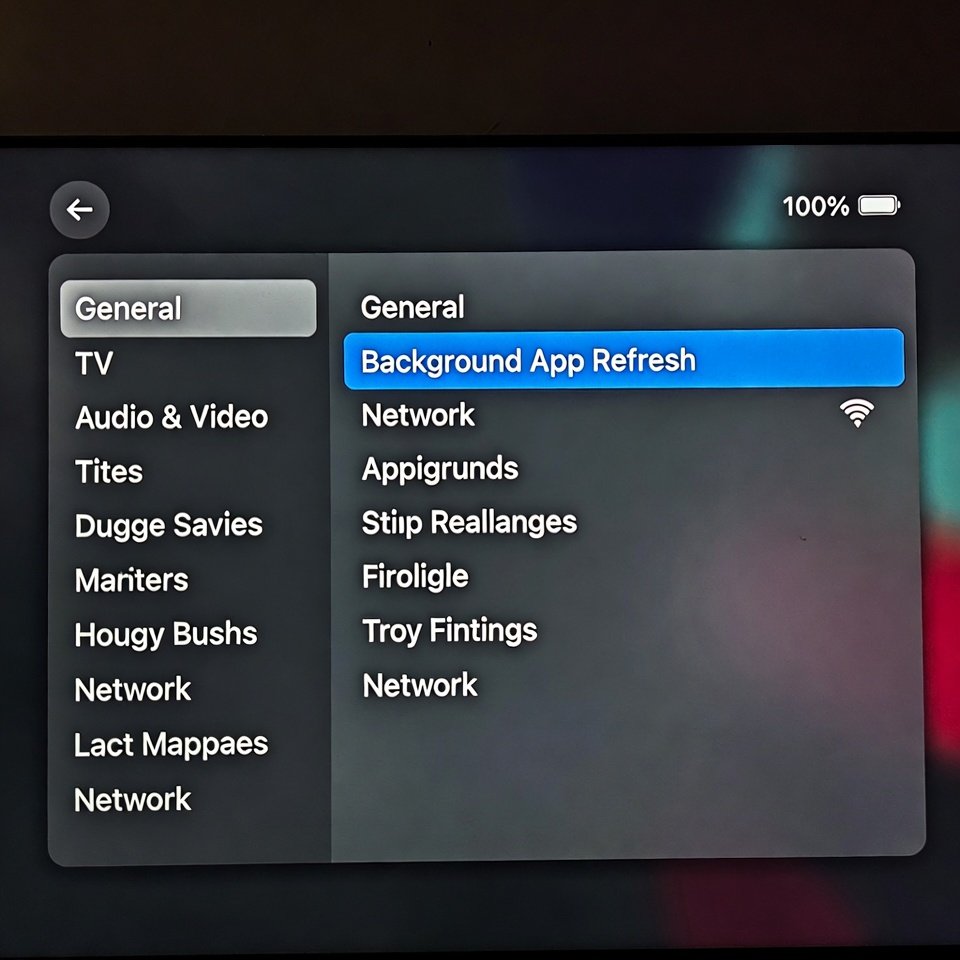
Some apps refresh content in the background. Disabling this for apps you rarely use reduces unnecessary activity. This setting helps free up system resources without affecting daily viewing habits.
Check Internet Connection Quality
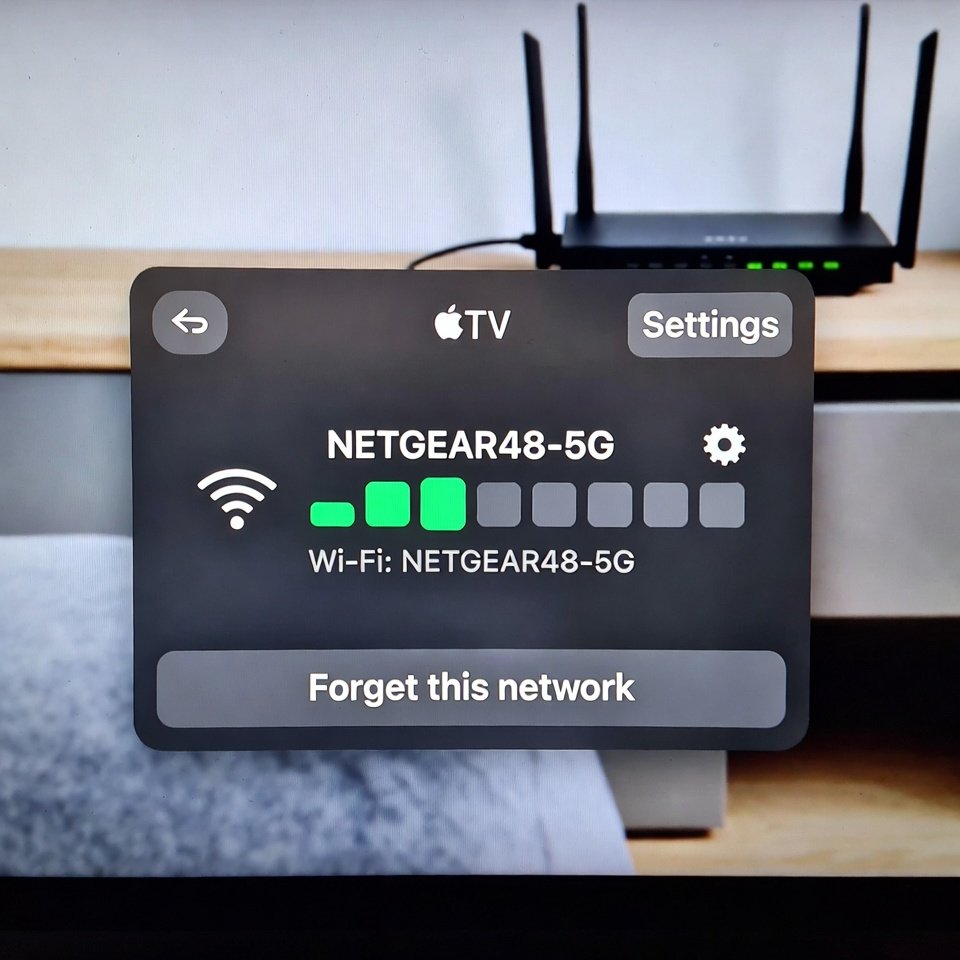
Streaming relies heavily on network stability. Checking Wi-Fi strength or switching to a wired connection helps improve consistency. Weak or unstable connections often cause buffering and slow menu loading.
Reduce Motion and Animations
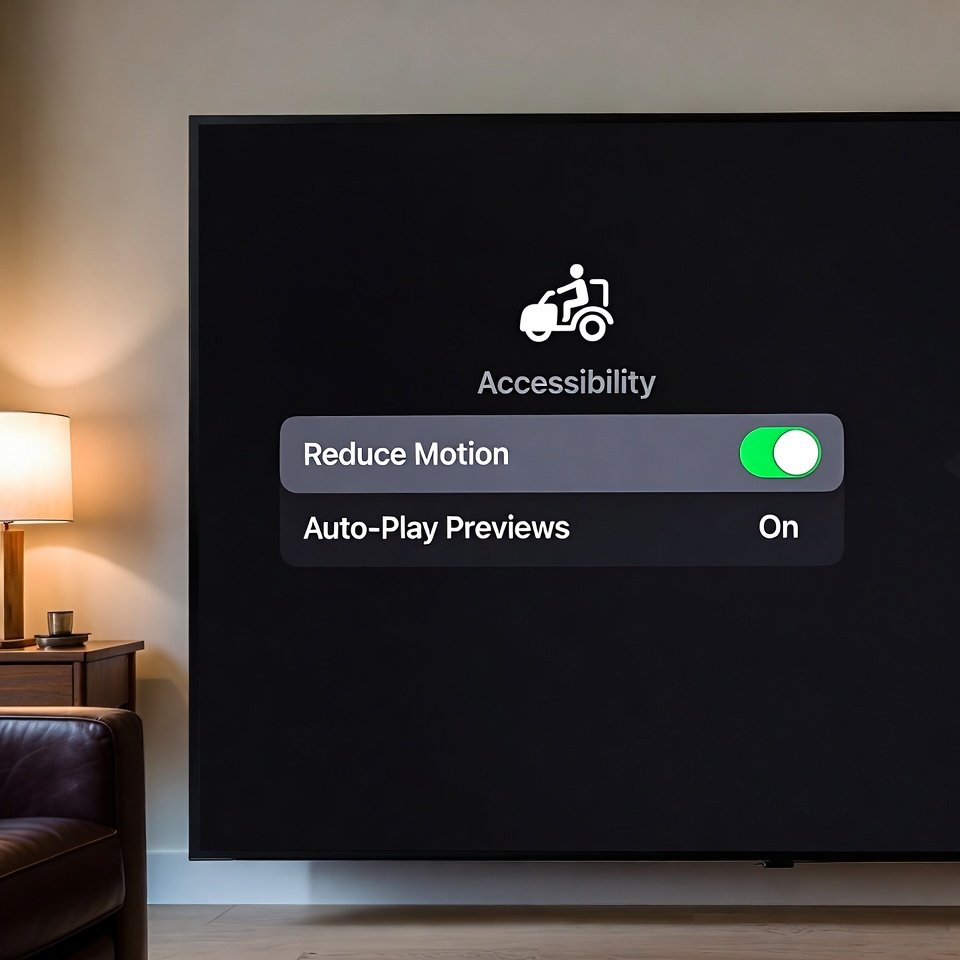
Visual effects look nice but use system resources. Reducing motion effects makes navigation feel snappier. This setting focuses more on function than appearance, especially helpful on older Apple TV models.
Adjust Video Output Settings
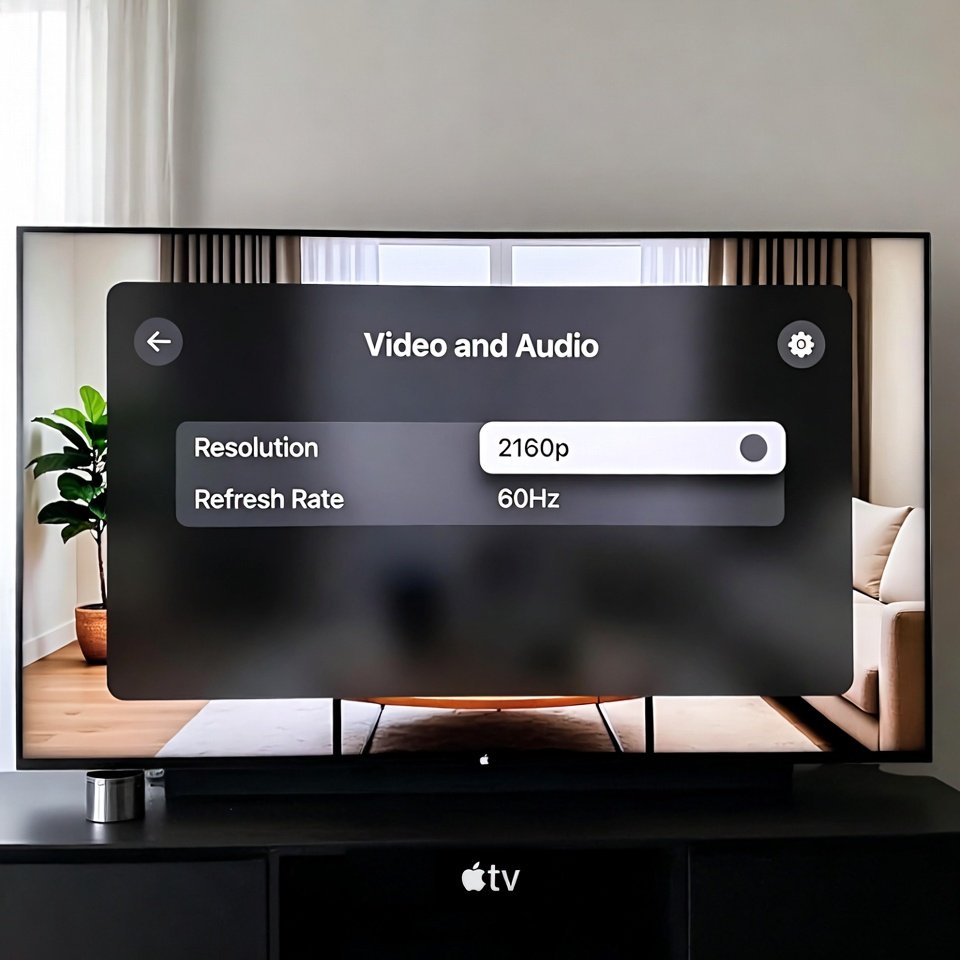
Incorrect video settings can strain performance. Matching resolution and refresh rate to the TV’s native settings helps Apple TV operate more efficiently and reduces unnecessary processing.
Turn Off Automatic Screensavers
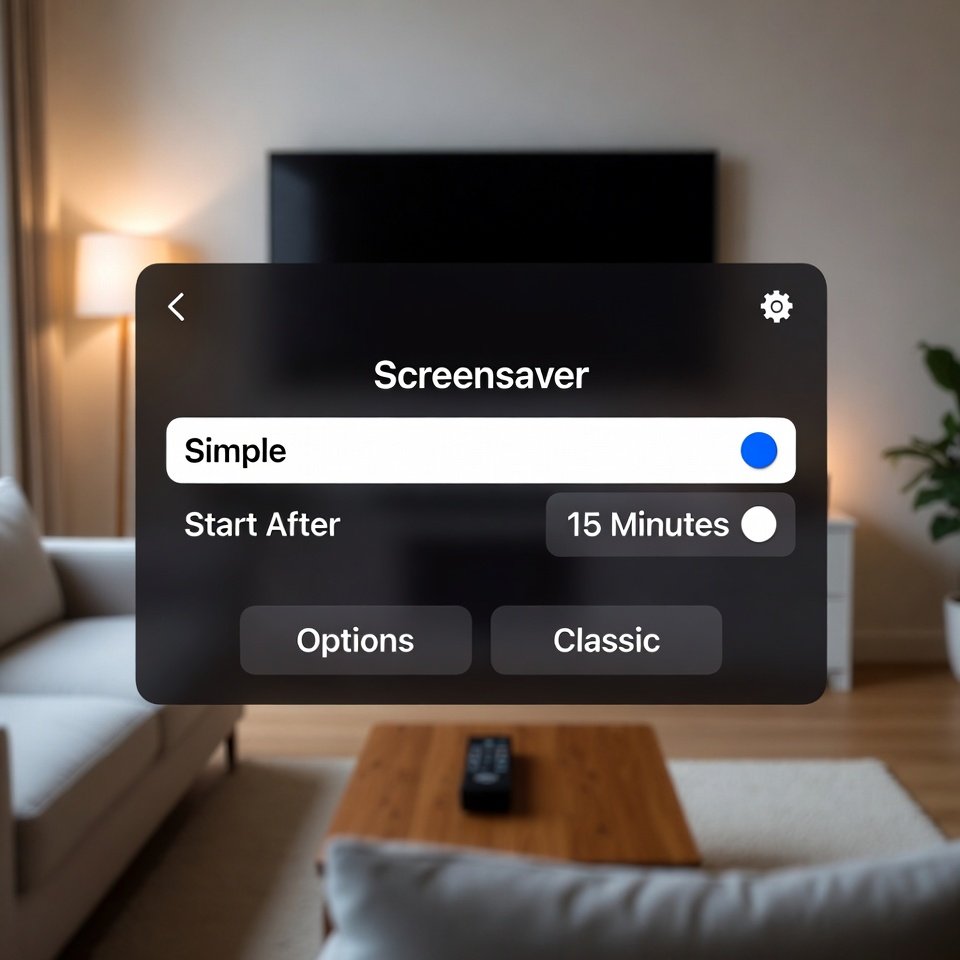
High-resolution screensavers look great but consume memory. Switching to simpler options or increasing the activation delay reduces background activity and keeps the system feeling lighter.
Reset Settings as a Last Step
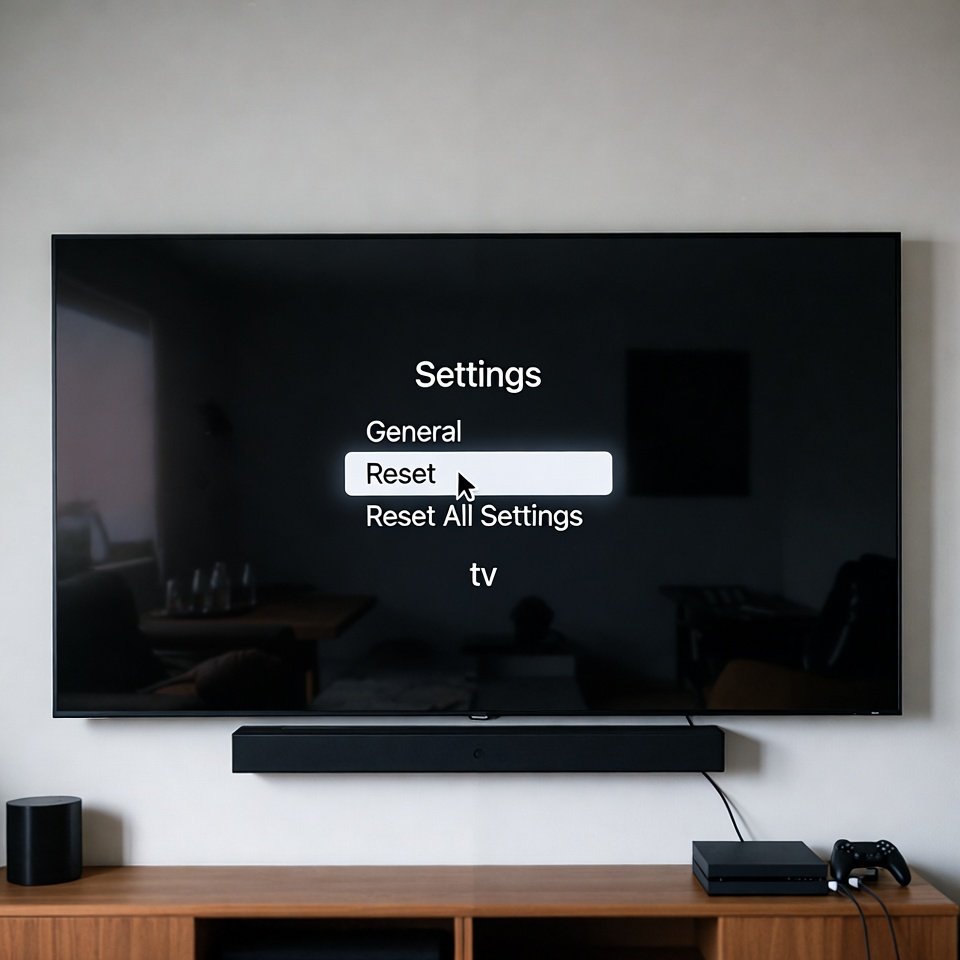
Resetting settings refreshes the system without deleting content. This option helps clear persistent issues linked to configuration changes while keeping apps and data intact for continued use.
