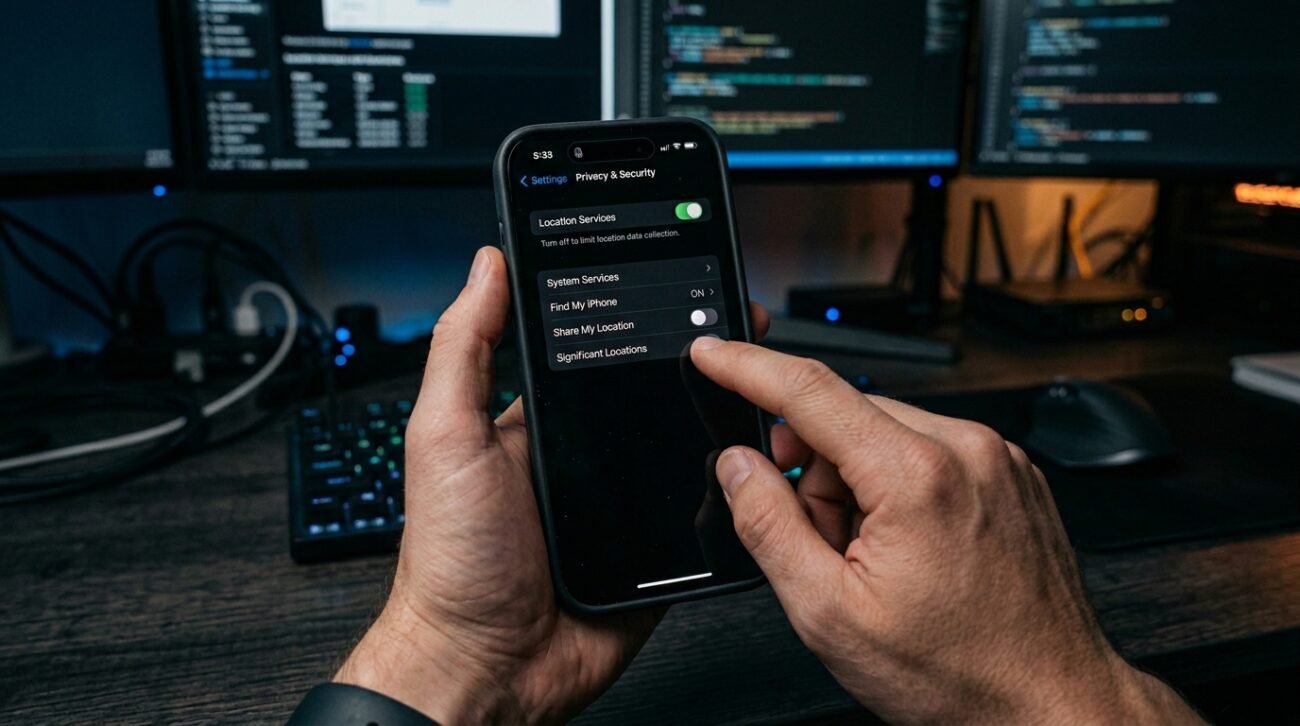
The issue of mobile privacy largely shifted gears after sweeping regulations targeted the biggest wireless providers. Federal Communications Commission reports claim the largest telecom networks incurred close to $200 million worth of penalties for giving out your whereabouts without your permission. While these legal battles work themselves out, there are things you can do right now with your cell phone to start protecting your private information.
Discover the Power of iOS Settings

Deep within your smartphone operating system lies a series of toggles designed to limit how much telemetry and background data your wireless provider can easily pull from your active device.
Access Your Privacy and Security Menu
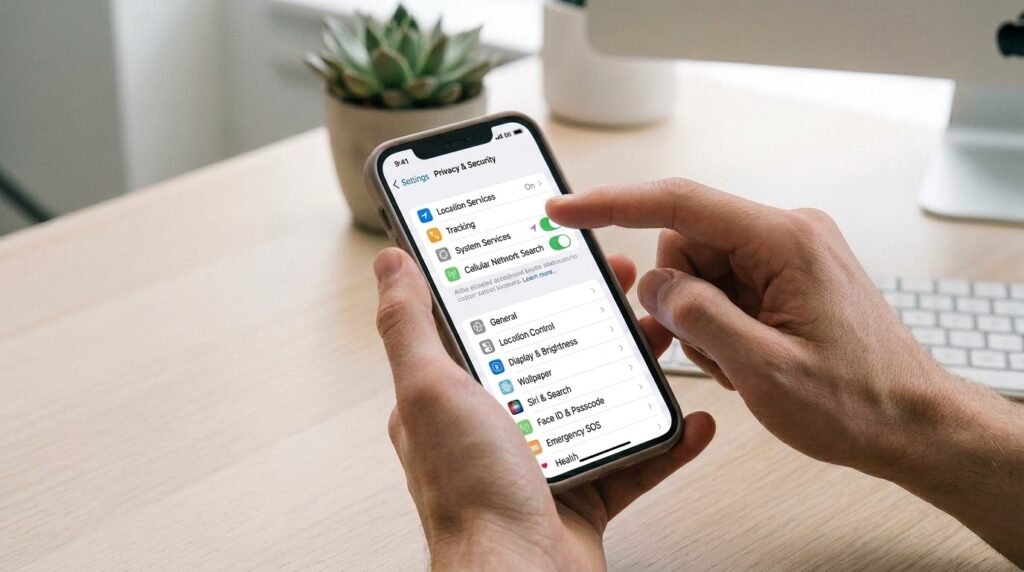
To start securing your device, open your primary system application and navigate to the privacy section. This central hub governs every single permission granted to local applications and hardware systems.
Find the Hidden Location Services Toggle
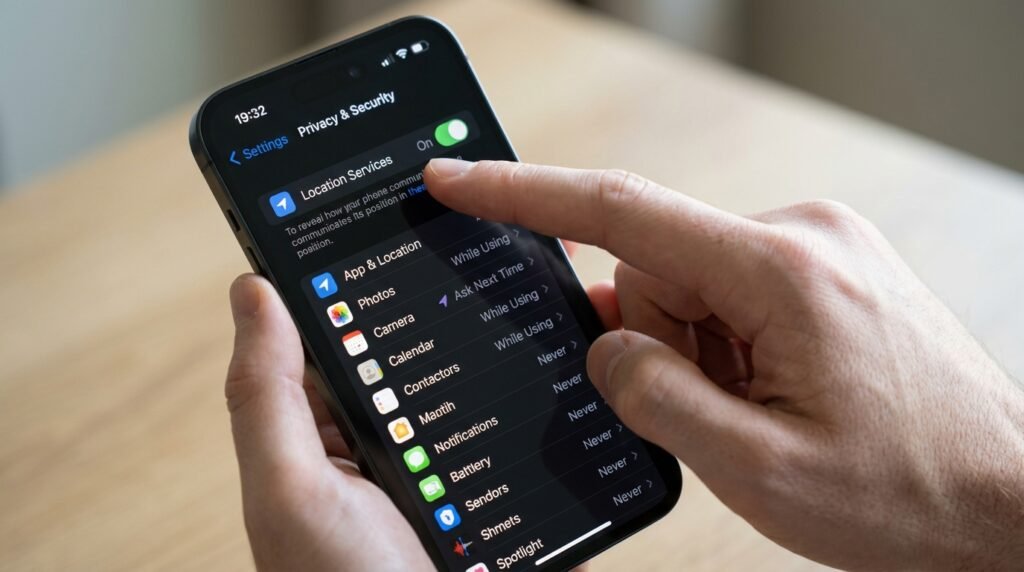
At the very top of your privacy screen, you will find a dedicated tab managing all geographic coordinates. Tapping into this area reveals exactly how your phone communicates its real-time position.
Check for New Precise Location Limits
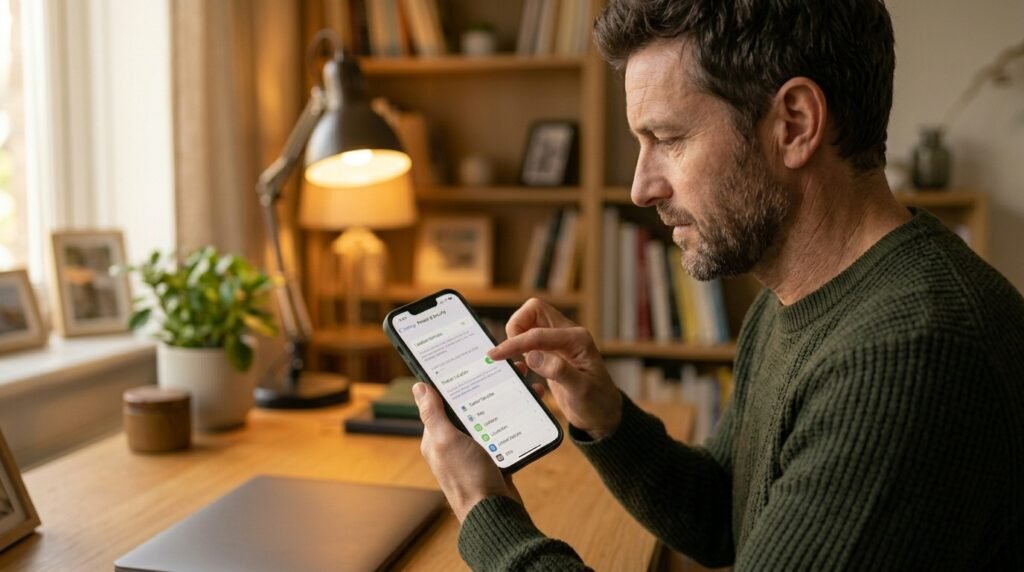
Recent updates to modern mobile software introduce a special feature called “Limit Precise Location.” This setting restricts the detail of geographical information broadcast back to nearby cellular towers and nodes.
Understand the Neighborhood Radius Trick
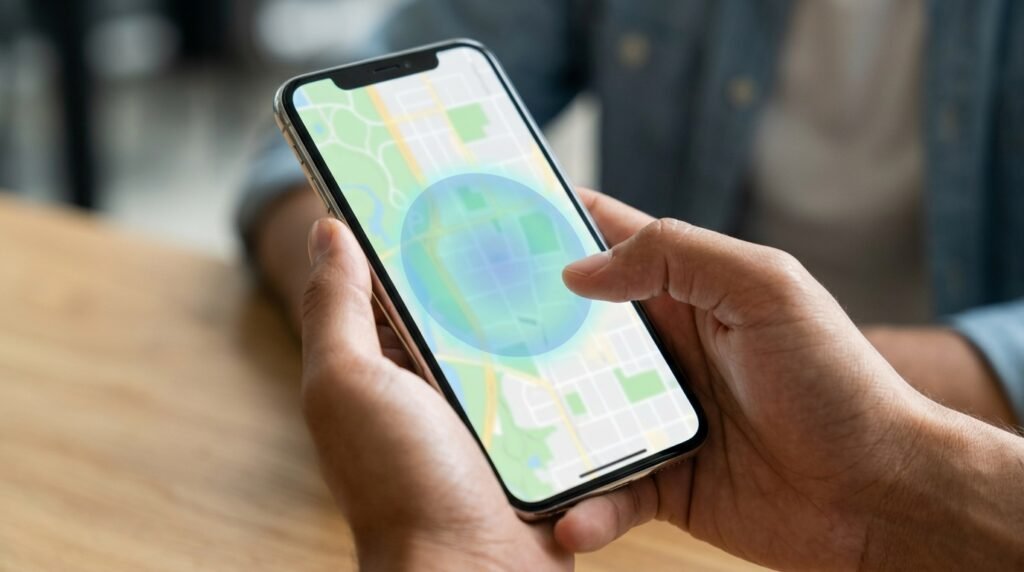
Turning on this specialized limit ensures that the network may only pinpoint your general vicinity rather than a pinpoint address. It effectively keeps your specific street coordinates hidden from automated collection.
Review Individual Carrier App Permissions
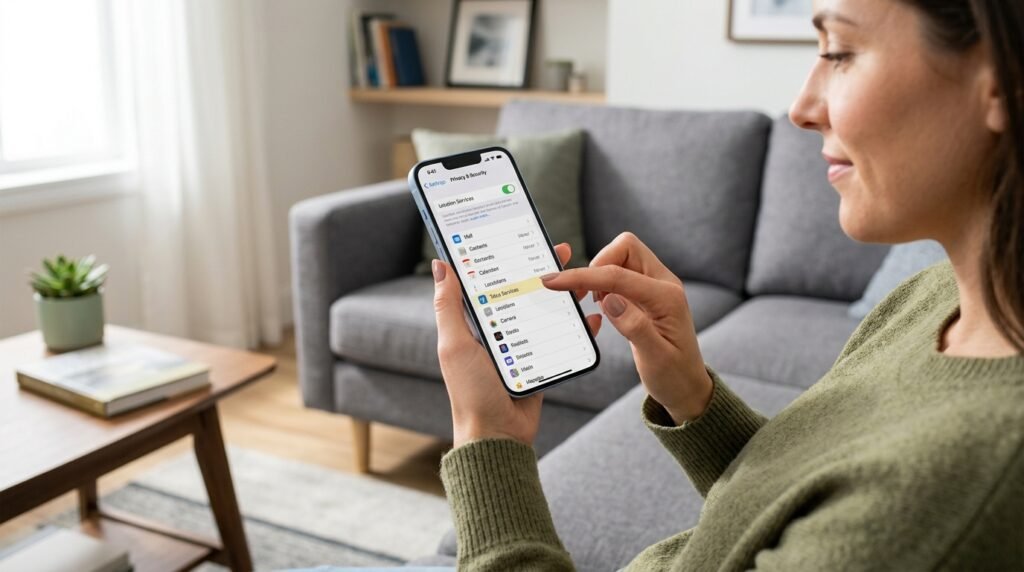
Many users download dedicated utility applications provided by their network company to pay monthly bills. Make sure these specific programs are set to never access your background coordinates while closed.
Investigate Hidden Background System Services
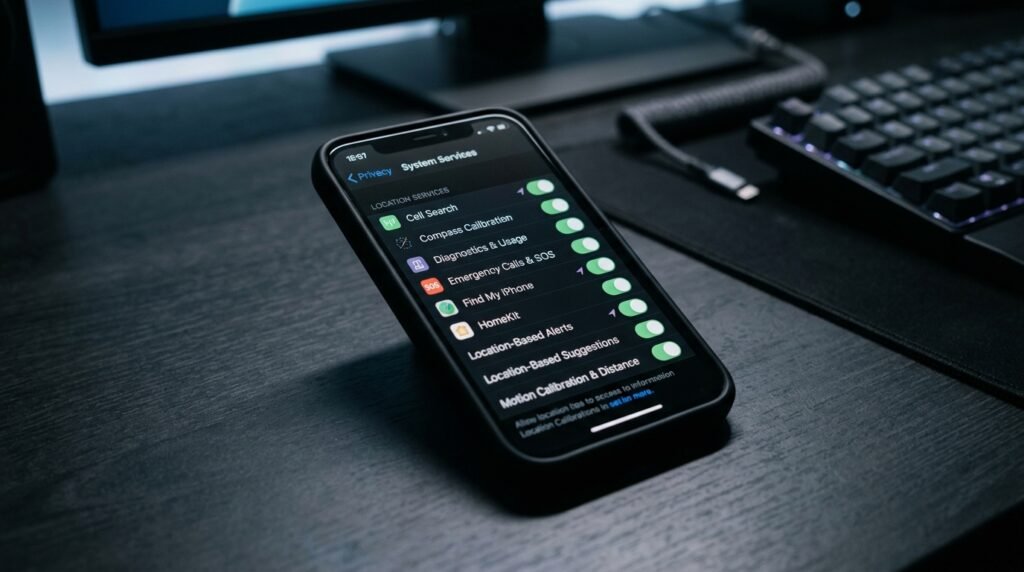
Scroll completely to the very bottom of your geographic settings page to uncover background tasks. These silent tools constantly use network hardware to calibrate features you might not even actively use.
Turn Off Significant Locations Tracking
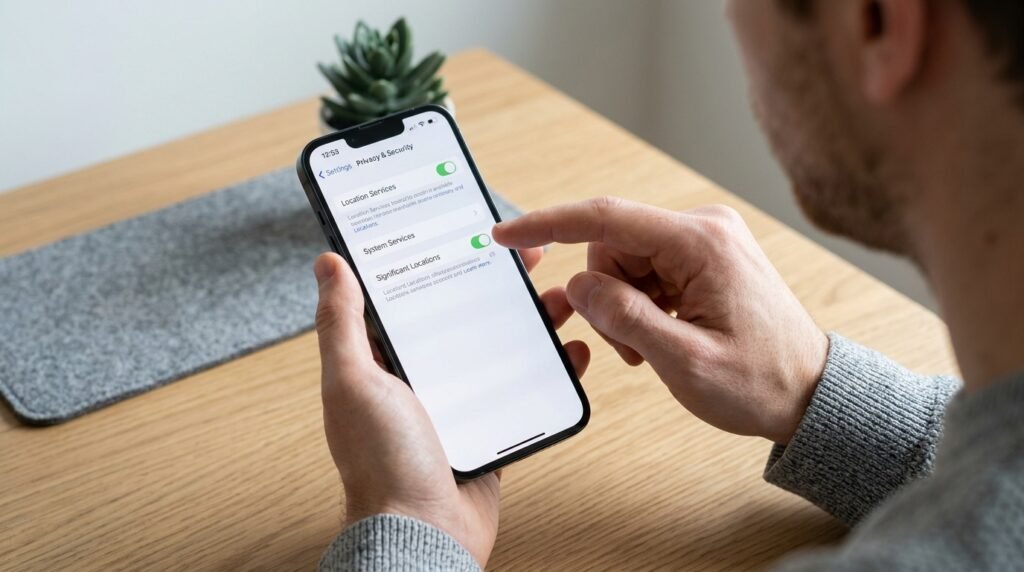
Your smartphone secretly logs frequently visited spots to provide automated calendar suggestions. Disabling this function ensures that a comprehensive history of your daily routine is not stored on the device network.
Monitor the Arrow in Your Status Bar
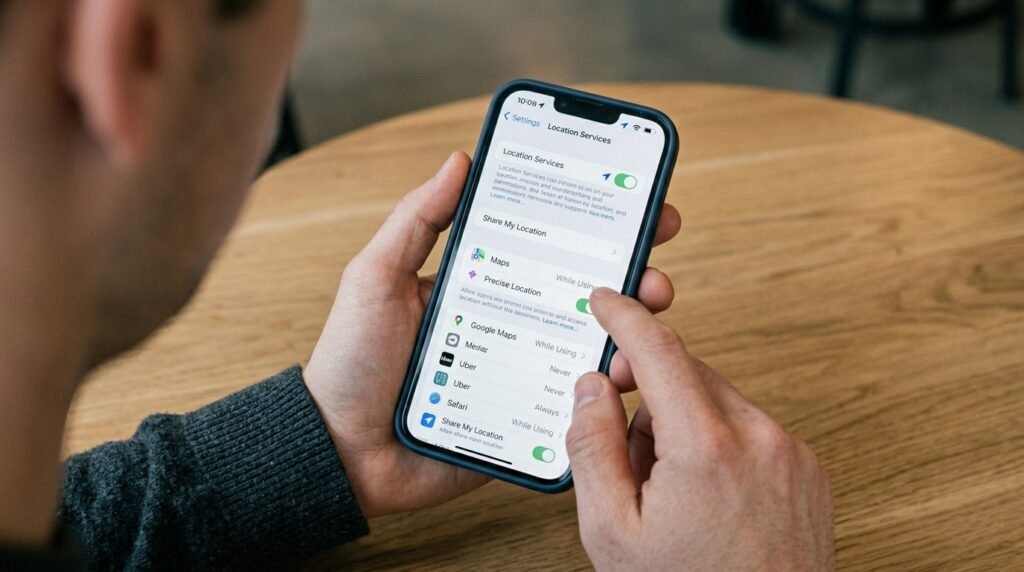
You can enable a visual icon that appears whenever an application or service requests your coordinates. This tiny visual cue lets you instantly know when background data tracking is actively occurring.
Review Your Broad Cellular Data Modes

Navigating to your primary cellular options allows you to toggle data choices like Low Data Mode. This slows down automatic background tasks, which may limit the frequency of silent data transmissions.
Realize Why Telecom Fines Happen

Regulatory investigations show that location aggregators frequently buy and resell consumer coordinates. Taking personal control of your digital footprint helps mitigate the risk of your information landing in massive corporate databases.
Match Your True Privacy Expectations

While these software toggles provide a powerful shield, they might not completely block every form of tower triangulation. However, they significantly reduce the easy monetization of your precise physical movements.
Stay Updated on Privacy Trends
Mobile operating systems constantly evolve to fight back against corporate data harvesting tactics. Checking your security settings after every major software patch ensures your data stays as private as possible.
