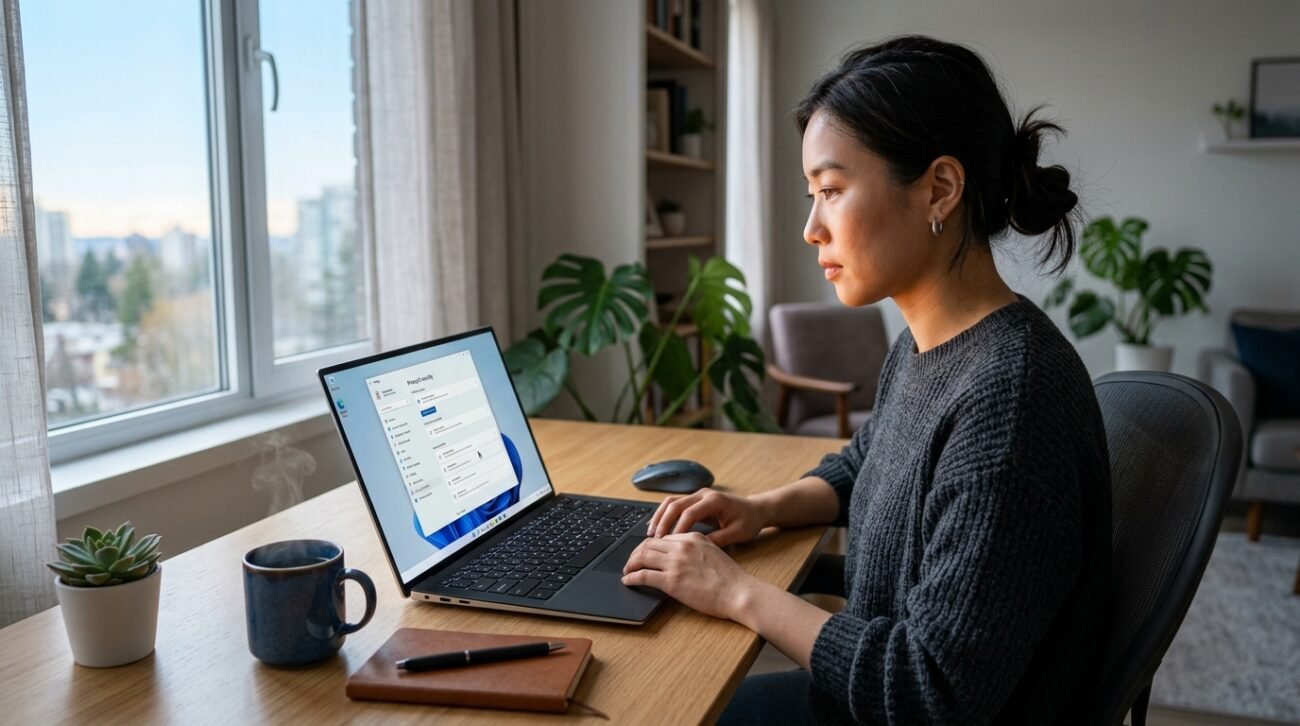
We have all been victims of this: we are sitting with a fresh cup of coffee and are about to go to work when our PC suddenly feels somewhat slow or weak. The 2026 Microsoft Data Security Index confirms the fact that the digital landscape is changing faster than ever, due to the fact that almost 82% of organizations are now integrating AI into their defense activities. Although Windows 11 has relatively powerful built-in protection, several toggles can be adjusted, which will potentially make your digital life much safer.
Activate Memory Integrity
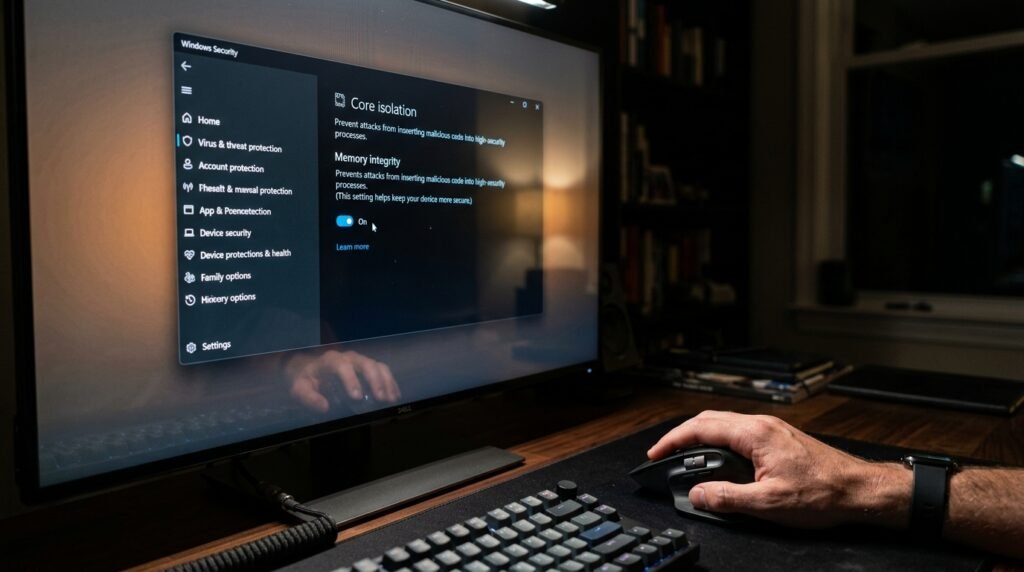
This core isolation capability assists in ensuring that malicious code is not able to hijack high-security processes. Studies show that leaving this toggle on implements hardware-level virtualization to provide a more resilient barrier to modern and sophisticated kernel-level exploits.
Turn on Phishing Protection
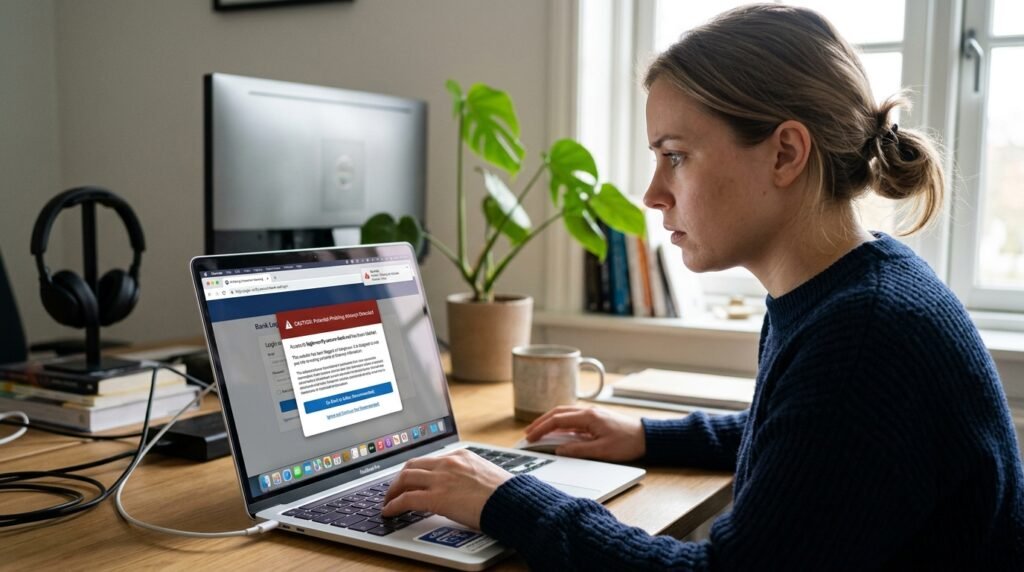
As scams continue to look more and more believable, it is necessary to enable reputation-based protection. In a genuine study conducted by AV-TEST, it was realized that real-time signals have the potential to alert you before you fill in credentials on a suspicious site.
Use DNS Over HTTPS
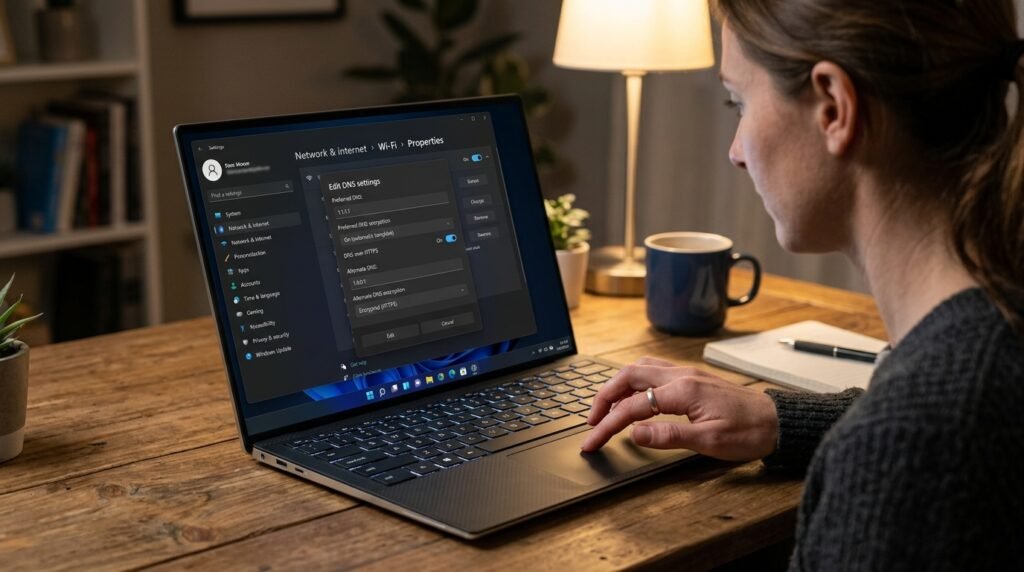
Privacy activists recommend encrypting your DNS requests to ensure that outsiders cannot spy on your web traffic. This bare set on your network panel may be just enough to keep your browsing patterns out of the view of local network snoopers.
Set up Periodic Scanning
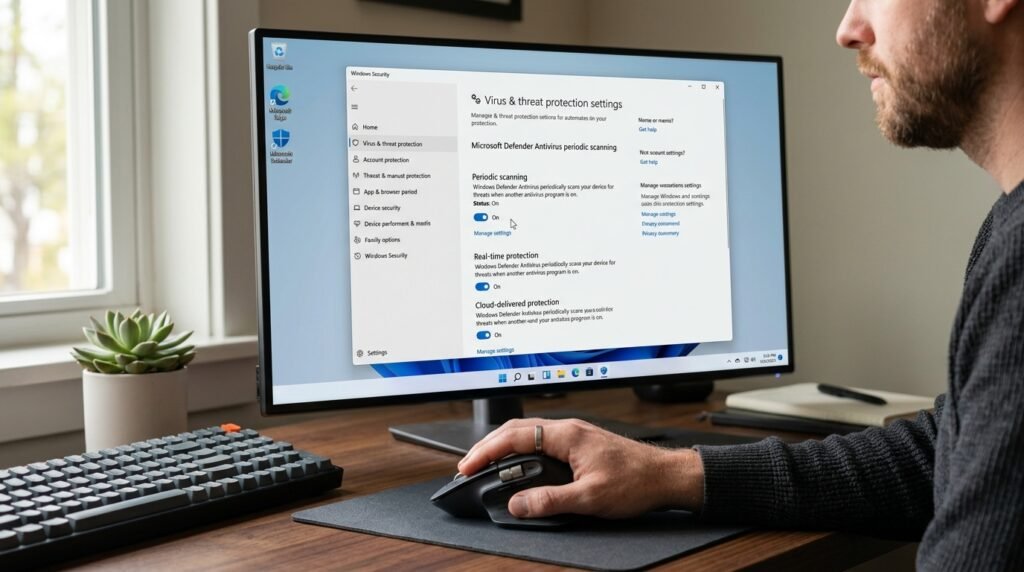
Although you may be using a third-party antivirus, Windows has “Limited Periodic Scanning” allowed. This provides an additional layer of protection since Microsoft Defender can sometimes scan to identify the threat that your main software could be missing.
Configure Ransomware Data Recovery
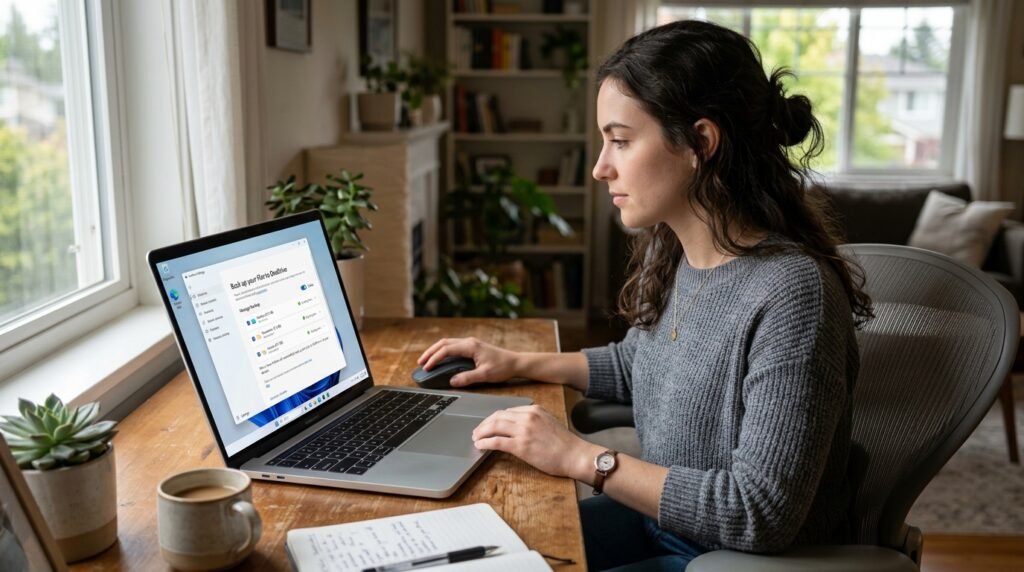
It can be a savior to connect your Windows account to a cloud backup, OneDrive. Should your files ever be compromised, this setup may perhaps have allowed you to restore your data to a prior version.
Disable Unnecessary Startup Apps
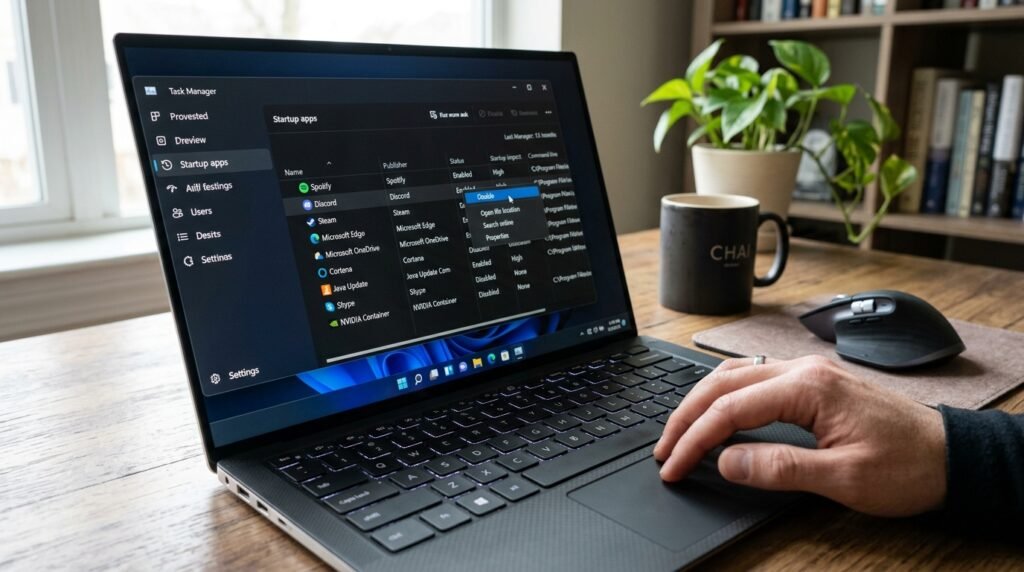
Security is not only about blocks but also about visibility. Minimizing startup items may also potentially reduce your attack surface as well as make your morning boot-up experience much faster and more reactive.
Use Random Hardware Addresses
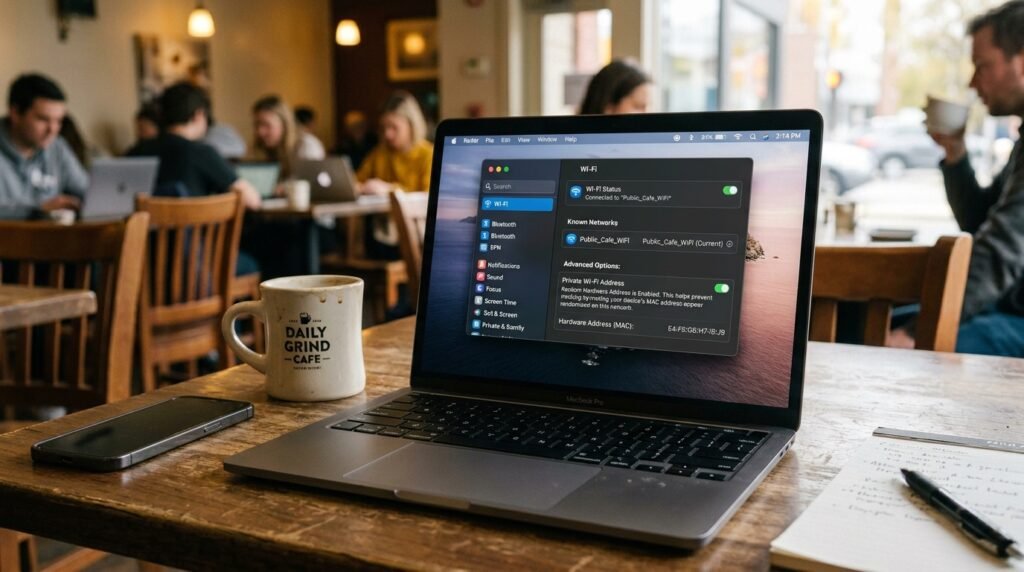
This kind of setting prevents trackers from monitoring your device when you connect to any public Wi-Fi. It may also enhance your anonymity in coffee shops or airports by altering your distinctive MAC address.
Enable Windows Sandbox
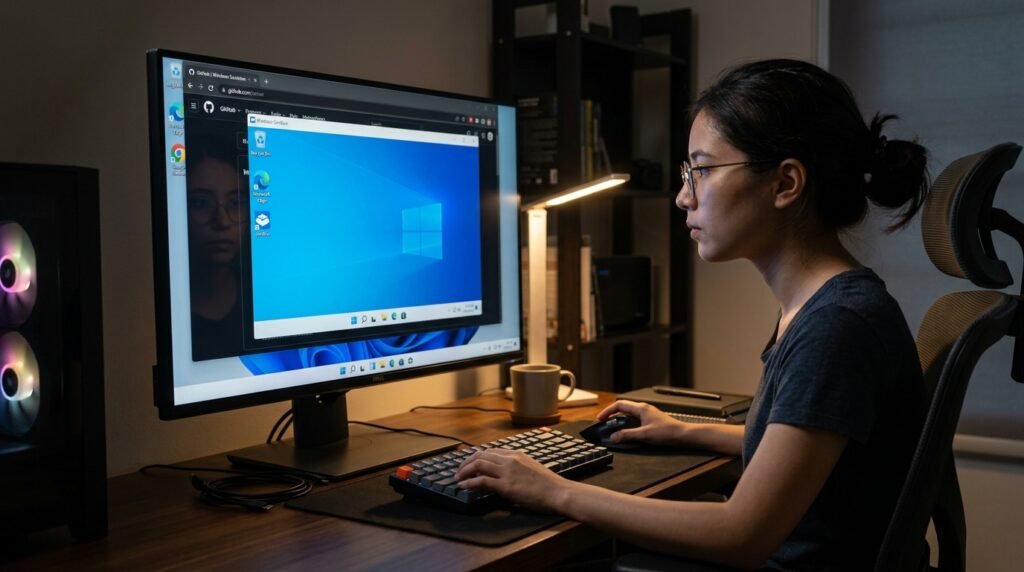
To the tech-curious, Sandbox develops a temporary and isolated desktop environment. According to research, this is the safest manner of testing a suspicious file without the risk of causing permanent damage to your actual operating system.
Adjust Privacy Diagnostic Data
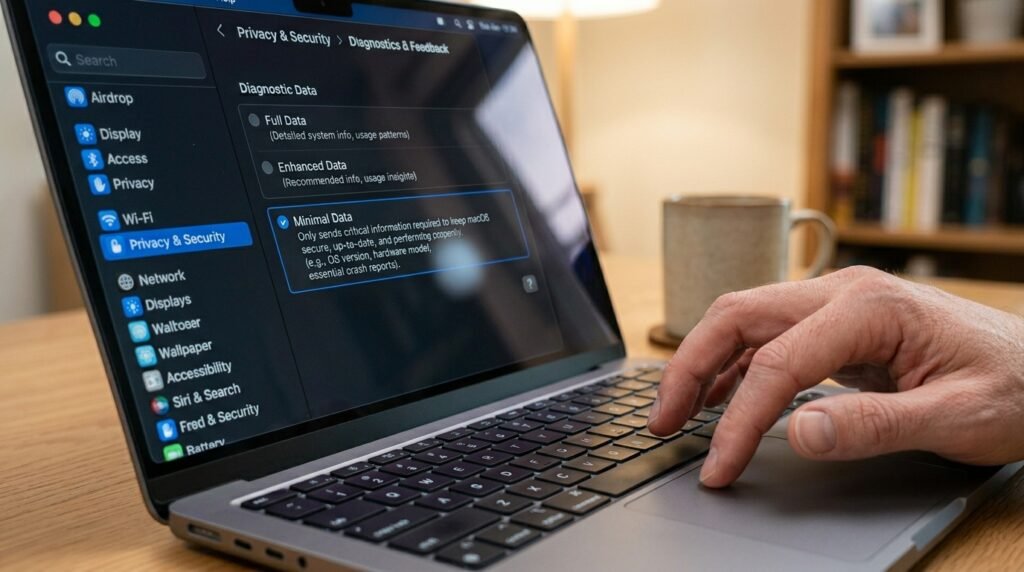
To enhance Windows, Microsoft gathers information, but you can make this mandatory only. Sending as little data to the cloud as possible may potentially improve your own personal privacy, as well as not breaking any features of the system.
Lock Your Screen Automatically
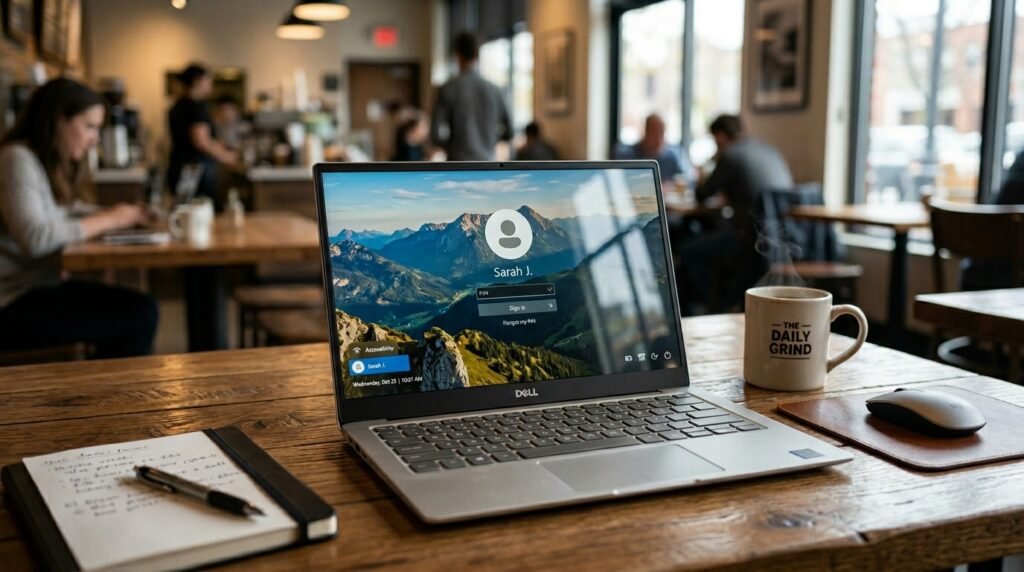
This is a basic physical security measure, yet it is frequently ignored. By locking your PC a minute after going idle, you may very well secure your data in case you move out to a crowded area.
Check App Permissions Regularly
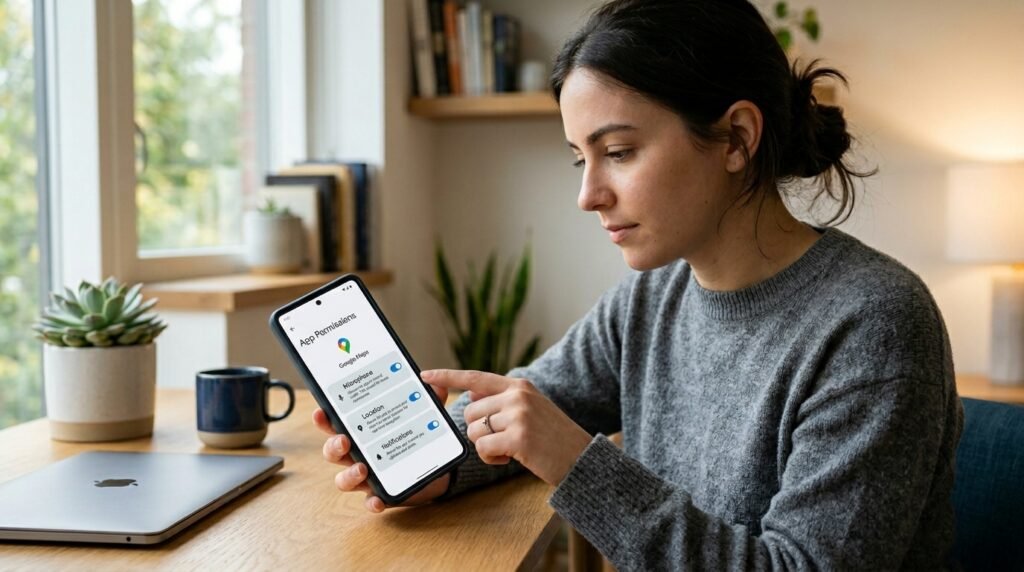
A lot of apps that ask to access your microphone or location are unnecessary. In settings, reviewing these permissions may potentially prevent background apps from eavesdropping on your personal life or tracking your physical movements.
