Most Windows computers slow down with time, although they might be relatively new. This usually makes one tend to believe that the primary cause is ageing hardware. As a matter of fact, a number of built-in Windows applications unobtrusively consume memory, processing resources and background services on a daily basis. These tools are put in place to enhance convenience, appearance or connectivity, yet they may subject system resources to steady pressure. When they are run in large numbers, the boot-up process is made even sluggish, the applications take more time to open, and battery life is reduced at an alarming rate. The knowledge of the Windows settings that are worthwhile will allow users to experience a smoother operation without necessarily spending their money to upgrade the system. Minor modifications, done with caution, will restore speed, enhance stability, and feel like shaving pounds and making it feel significantly lighter and more responsive in routine computer use.
Startup Applications

Start-up programs are loaded as Windows starts, and they consume memory and processor resources instantly. Many are rarely needed. By minimising this list, one gets less boot time, decreased responsiveness, reduced background activity, and more resources to do day-to-day work and smooth running of applications.
Search Indexing

Windows indexing searches files to offer quicker searches. Storage and processor power can be used for continuous indexing in slower systems. Background load can be minimised by limiting indexed locations or halting the service so that needless activity can be avoided when using the computer in its normal manner.
Visual Effects
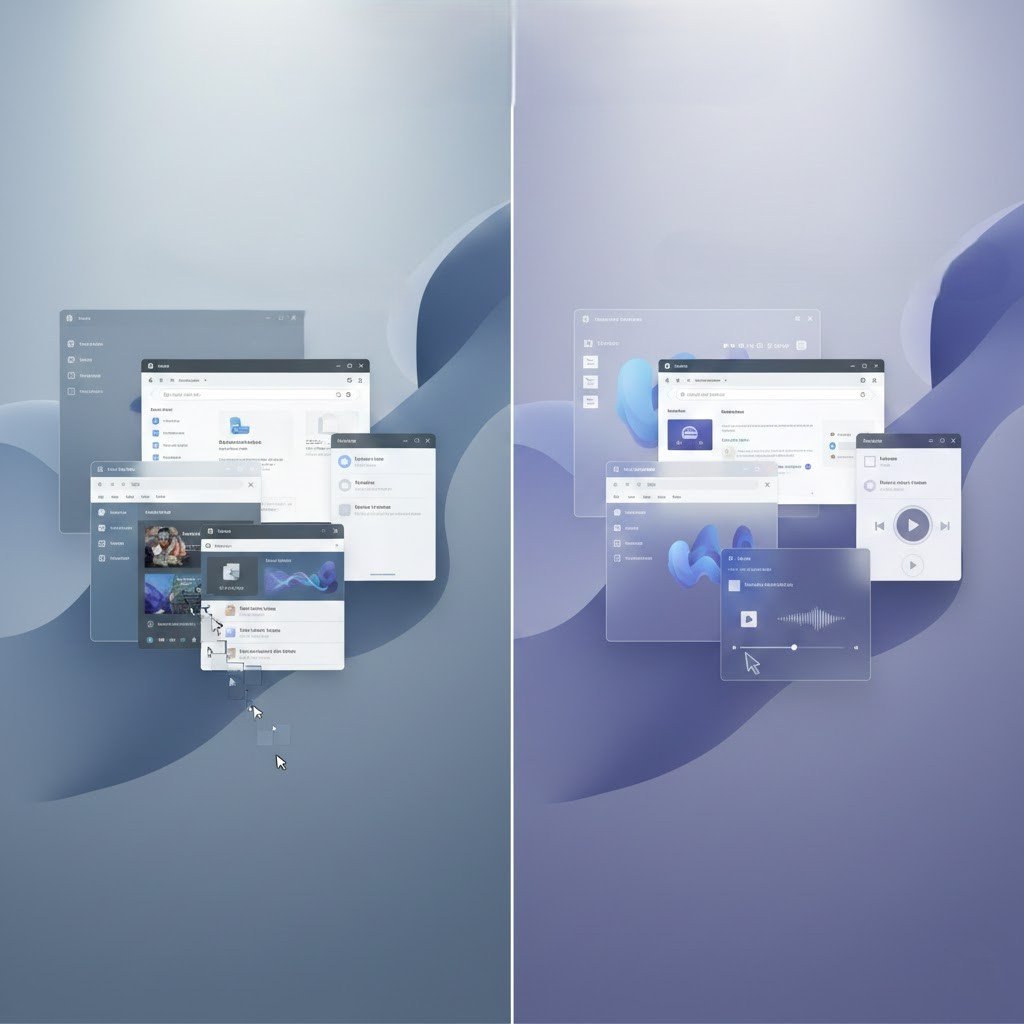
There is the use of animations, shadows, and transparency, which enhance appearance but demand extra processing. Lessening visual effects can decrease the weight of the systems to give faster responses to applications. This is particularly useful in laptops or older desktops which have very poor performance capabilities in graphics.
OneDrive Sync

Cloud synchronisation is an application that runs in the background and synchronises files and makes changes. Continuous synchronisation can have an impact on storage operations and the application of the network. It is possible to adjust a sync configuration and restrict folders to minimise the amount of resources used when performing daily activities.
Background Apps
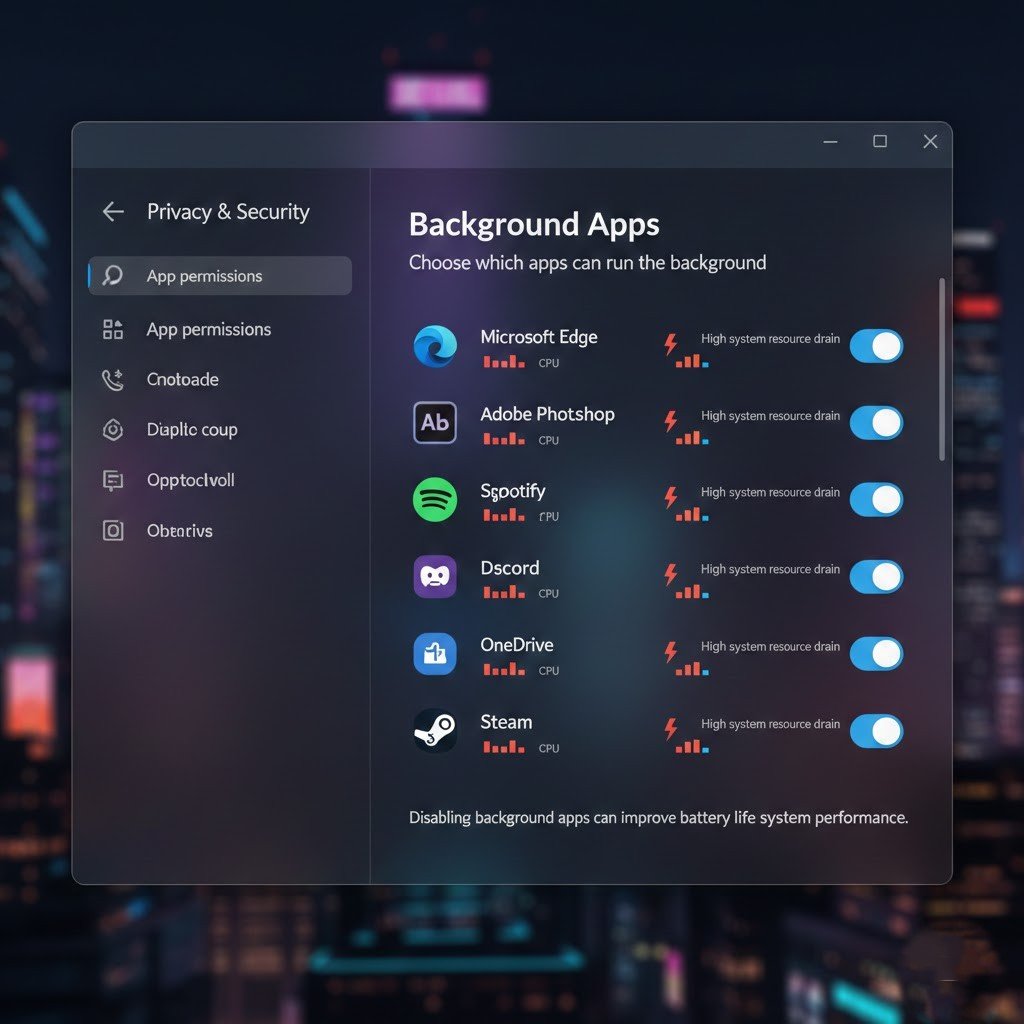
Applications do not end with the closing of their main window. These background apps can consume memory and processing power. Disabling surplus background permissions guarantees that solely critical programs utilise the system resources, besides enhancing the responsiveness.
Live Tiles

Live Tiles are real-time updated. Although useful, they are based on background relationships and system resources. Substituting them with non-animated icons will decrease the background network traffic and minimise processor consumption, especially on systems with small amounts of memory.
Automatic Updates
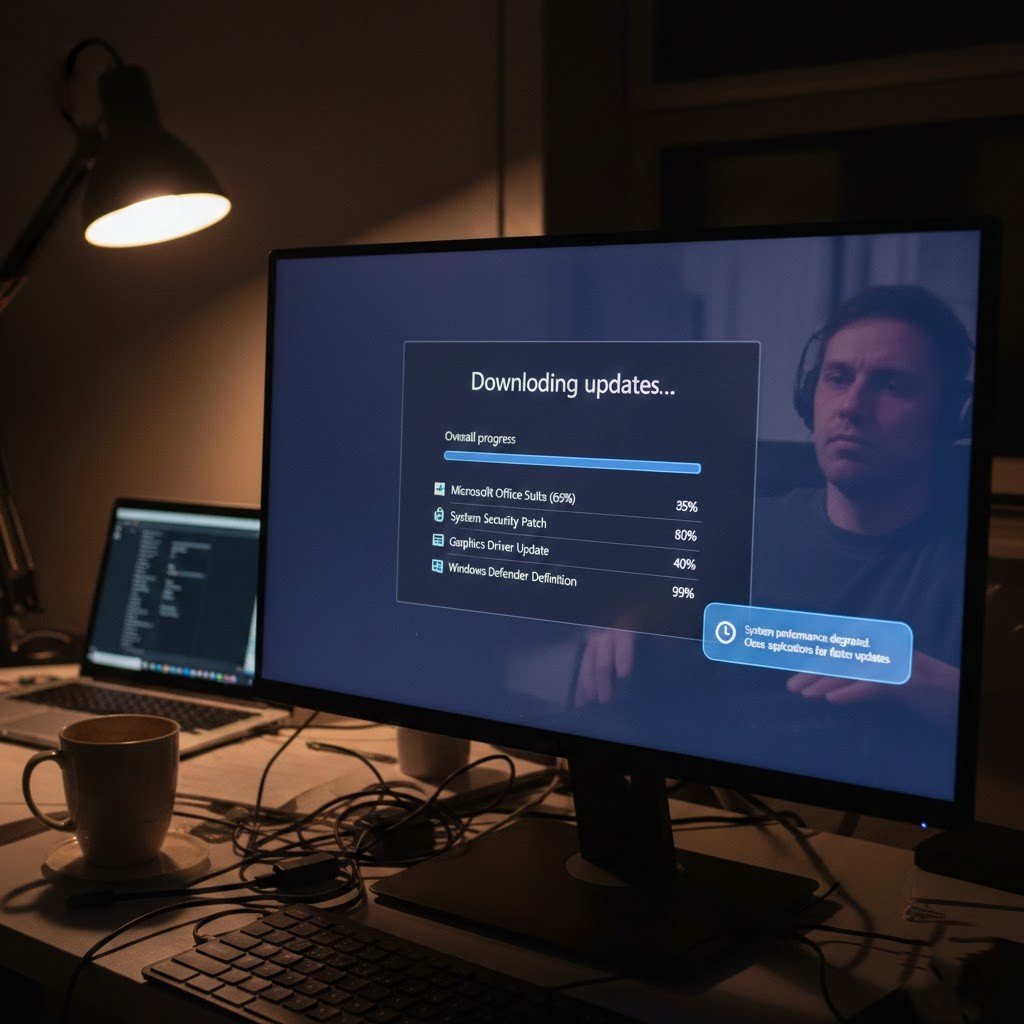
Background downloads and installations may reduce performance, which is necessary: Windows updates. When the update is set to an off hour, you will be able to have a much better work time and still keep all your stuff up-to-date and safe without having background goings-on occurring constantly.
Disk Cleanup and Storage Sense
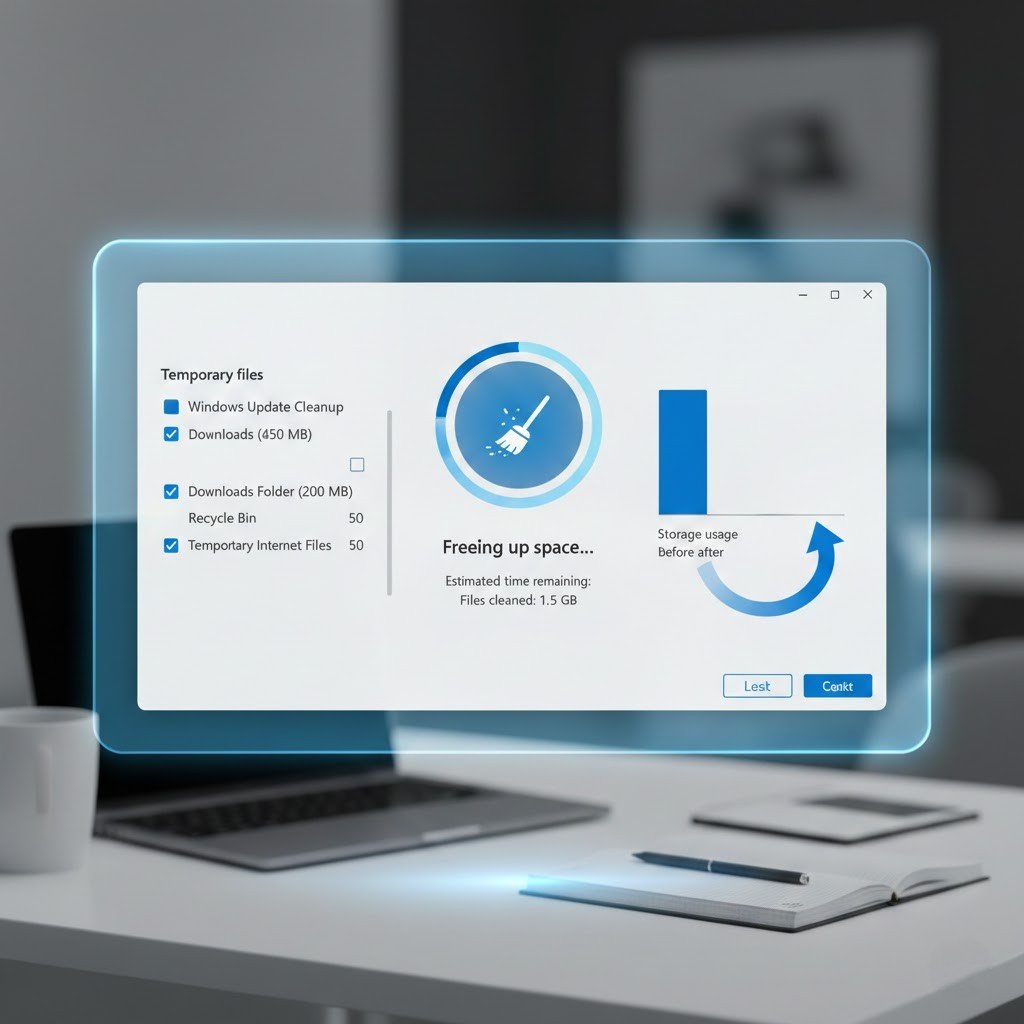
Temporary files keep piling silently. Storage Sense and disk cleanup applications clear data that is not required. Enabling these capabilities avoids congested drives, increases the speed of accessing files, and lessens background file scanning of normal system processes.
Power Plan Settings
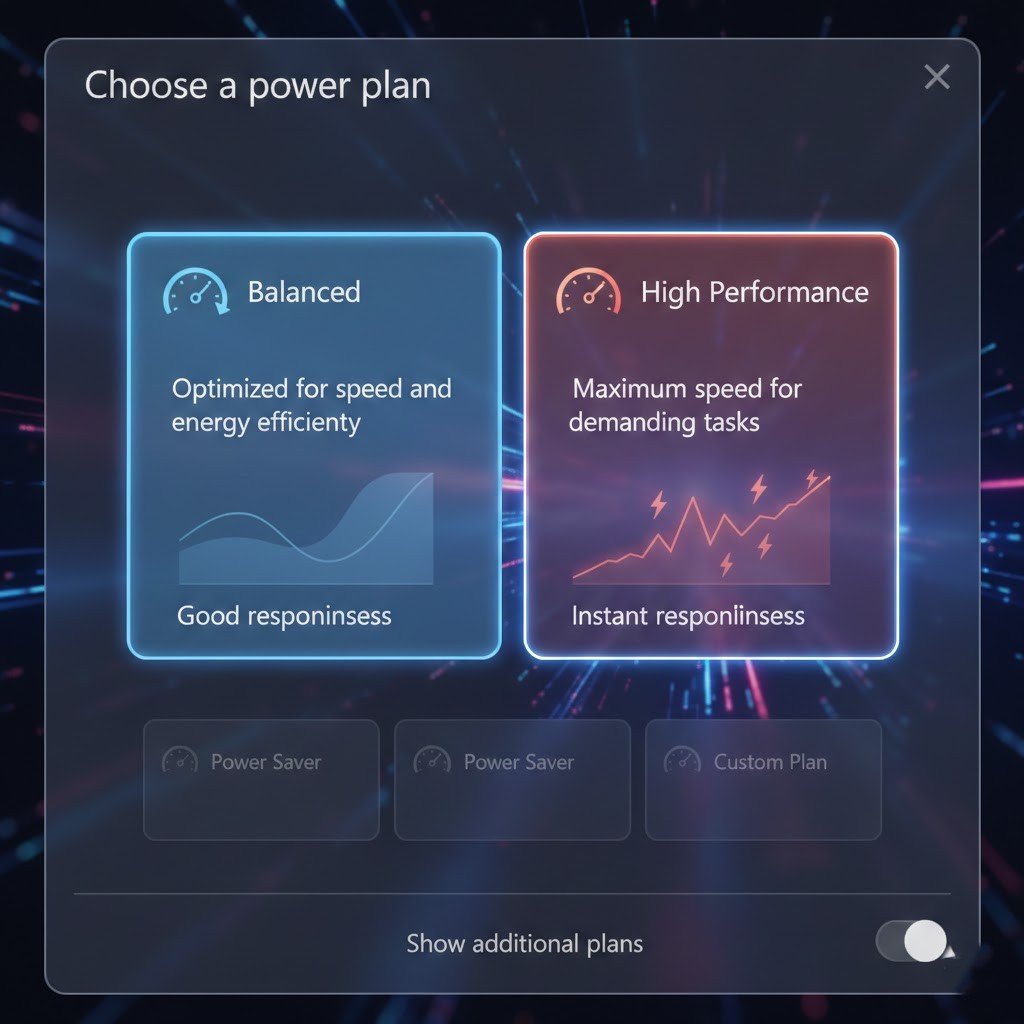
The speed of processors can be restricted by balanced or power-saving modes. Performance-oriented Plan A change will offer more performance smoothness in the applications required, faster response time, and more predictable performance when faced with tasks that require it.
Unnecessary Services
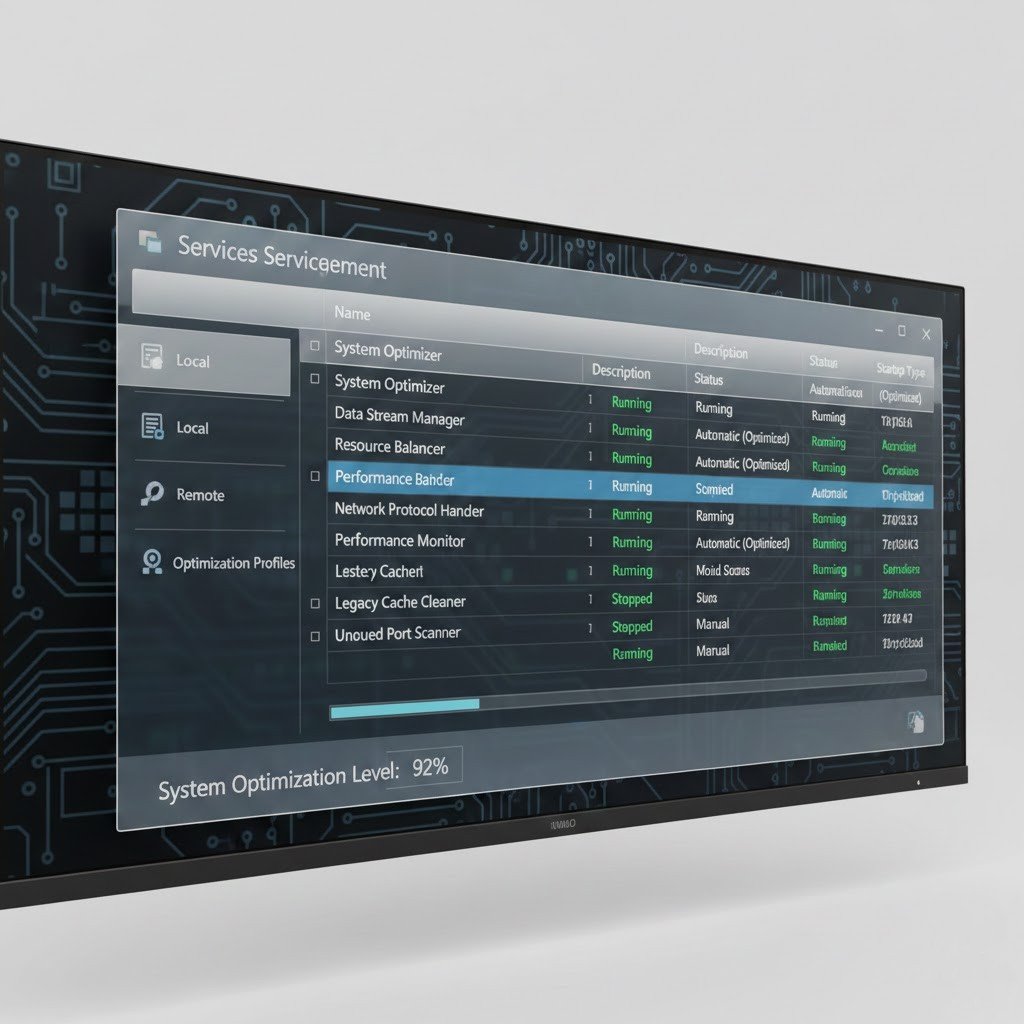
Windows has a lot of services in default mode. There are a few features that are not frequently used. The process of review and disablement of unnecessary services decreases background activity, memory usage, and enhances system stability with no effect on daily productivity.
