
When a computer screen is frozen and seemingly stuck, or a computer boots up slowly, we are tempted to use flashy and heavily advertised third-party tune-up software. But PCMag has consistently found that third-party registry cleaners and paid optimization products typically use massive background resources without offering any tangible benefits. Rather than shoot yourself in the foot with the potential for software conflicts with other external software, the best and safest idea may be to use the tools that are already built into your operating system.
Deploying the Deployment Image Servicing Tool

When deep operational errors occur, running the deployment image servicing command provides an incredible baseline. Microsoft technical documentation confirms this process compares your local software state directly against pristine, cloud-based master files.
Restoring Integrity With System File Checker
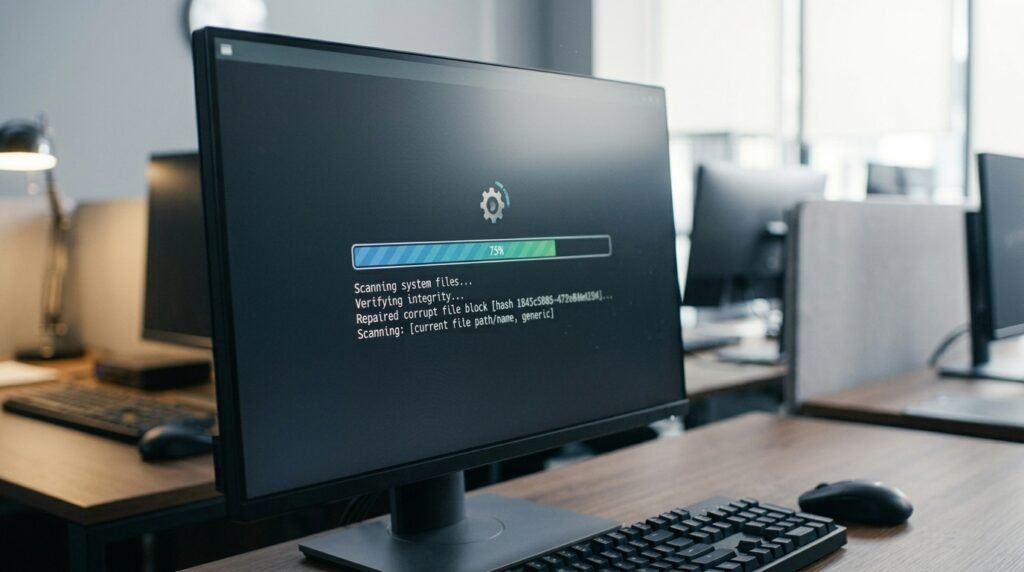
Following up with a standard integrity scan allows the system to inspect individual files. If any core components show signs of unexpected damage, the system instantly replaces them using a secure local cache.
Reclaiming Space via Disk Cleanup Utilities
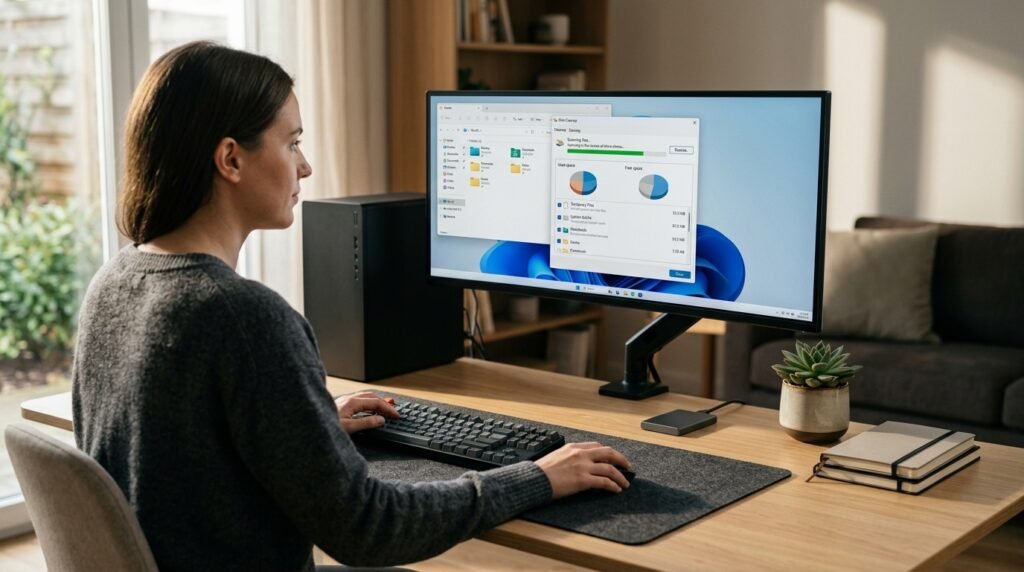
Optimizers often say that they can discover gigabytes of junk that you can’t reach by yourself. In fact, the integrated cleanup manager will remove any temporary setup logs and outdated update files without costing a penny.
Managing Startup Applications via Task Manager

The number one reason for a frustrated slow start-up is a cluttered start-up sequence. The native manager gives you the ability to easily and safely disable heavy background programs with a one-click operation.
Optimizing Storage Automatically With Storage Sense
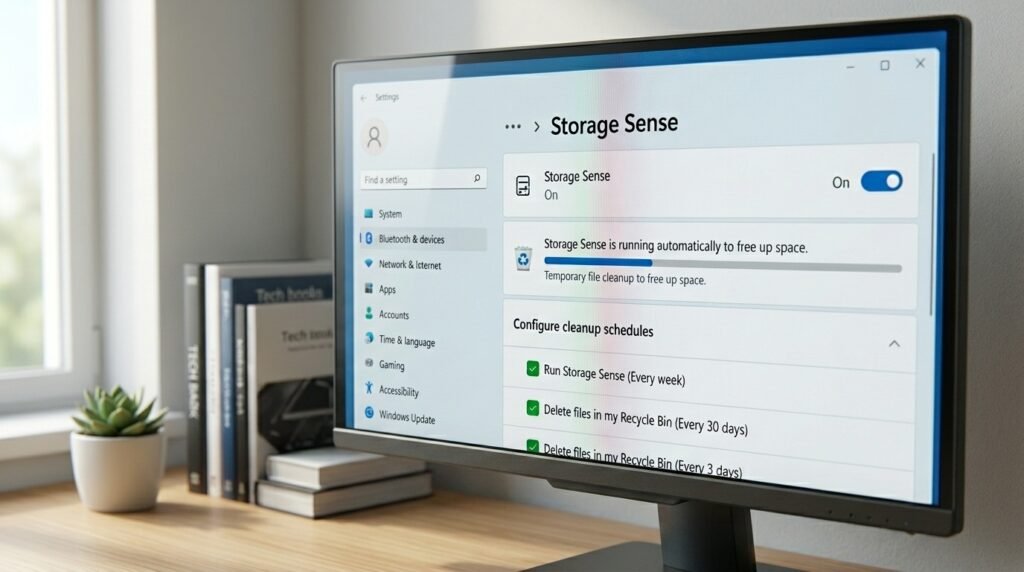
It’s simple to train your machine to do daily household tasks all by itself. This silent assistant automatically clears away items that have been reused and the temporary internet files when your local storage space is low.
Checking Drive Health via Check Disk
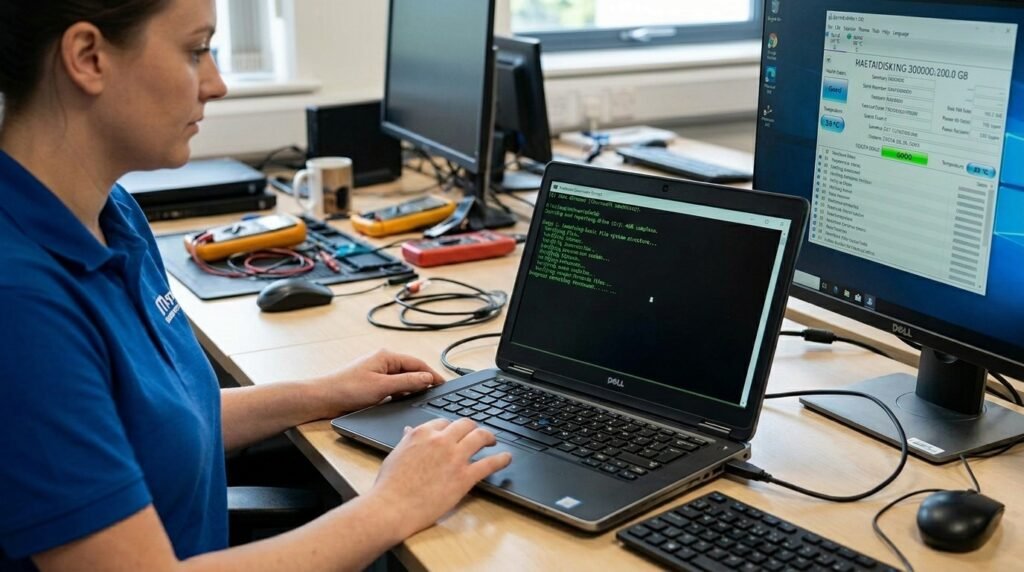
Sometimes, hidden file system problems can simulate a big hardware problem or a serious malware attack. The classic drive diagnostic is a scan that runs throughout your storage sectors to ensure that they are in good condition without any structural problems before data loss occurs.
Leveraging Natively Integrated Windows Security Tools
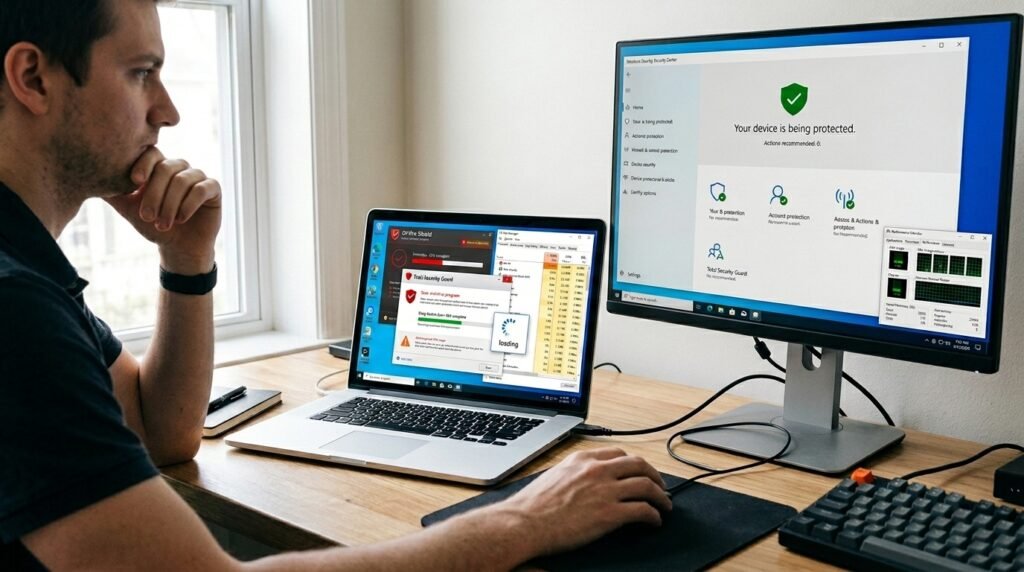
Running two or more large anti-virus programs at once can certainly bring a midrange system to a standstill. The native security center delivers world-class, lightweight protection and rarely slows down your active processor.
Reviewing System Stability With Reliability Monitor

You don’t have to guess what caused a particular application to crash on a specific day, but rather, you can see a timeline. This secret graphical tool will help you identify both hardware and software failures, plus nail down which days the problem occurred.
Restoring Peace of Mind With System Restore
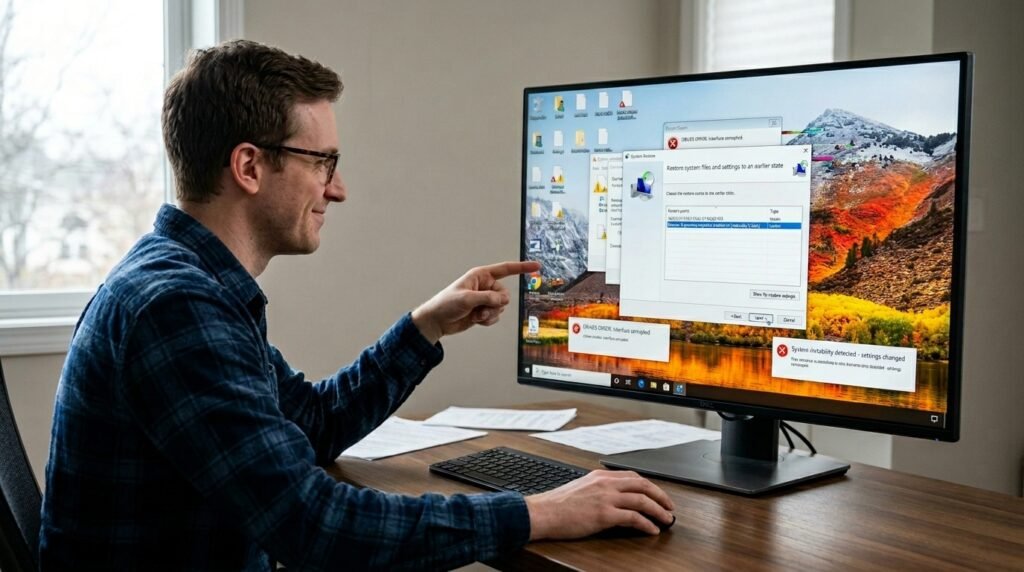
If a new computer driver totally messes up your preferred desktop setup, there’s no need to panic. Restoring to a previous automatically created snapshot reverses any changes that caused an error but does not affect personal files.
Avoiding the Dangers of Registry Cleaners
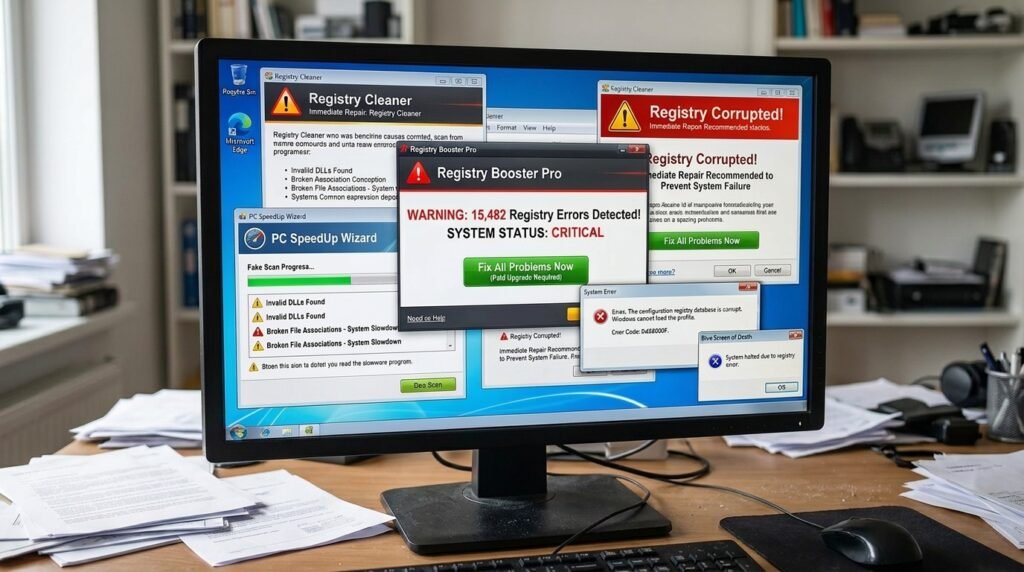
There are many paid packages that aggressively claim to clean the registry and solve all performance problems. A change in these fragile databases will occasionally result in permanent system instability and errors that prevent the system from booting.
