Recent updates to Windows 11 have introduced unexpected issues for many users, affecting everyday tools like OneDrive, Edge, and system features. While updates are meant to improve performance and security, occasional bugs can disrupt workflows and create confusion. If your apps are crashing, files aren’t syncing, or your browser is behaving strangely, you’re not alone. The good news is that most of these problems have straightforward fixes that don’t require advanced technical knowledge. By following a few practical steps, you can restore normal performance and avoid unnecessary frustration while continuing to benefit from the latest Windows enhancements.
Restart Your PC
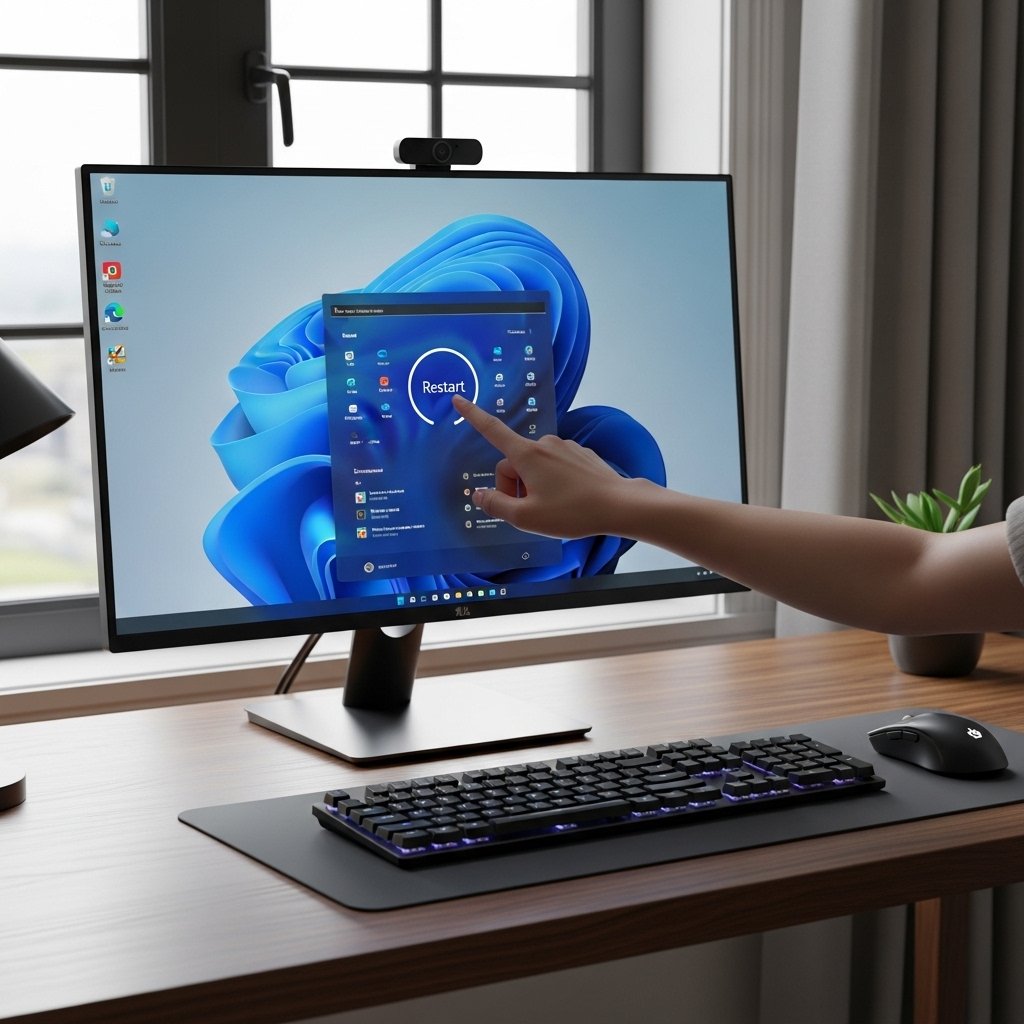
A simple restart often resolves temporary glitches caused by updates. It refreshes system processes, clears memory conflicts, and can quickly restore normal functionality without requiring deeper troubleshooting steps.
Check for Another Update
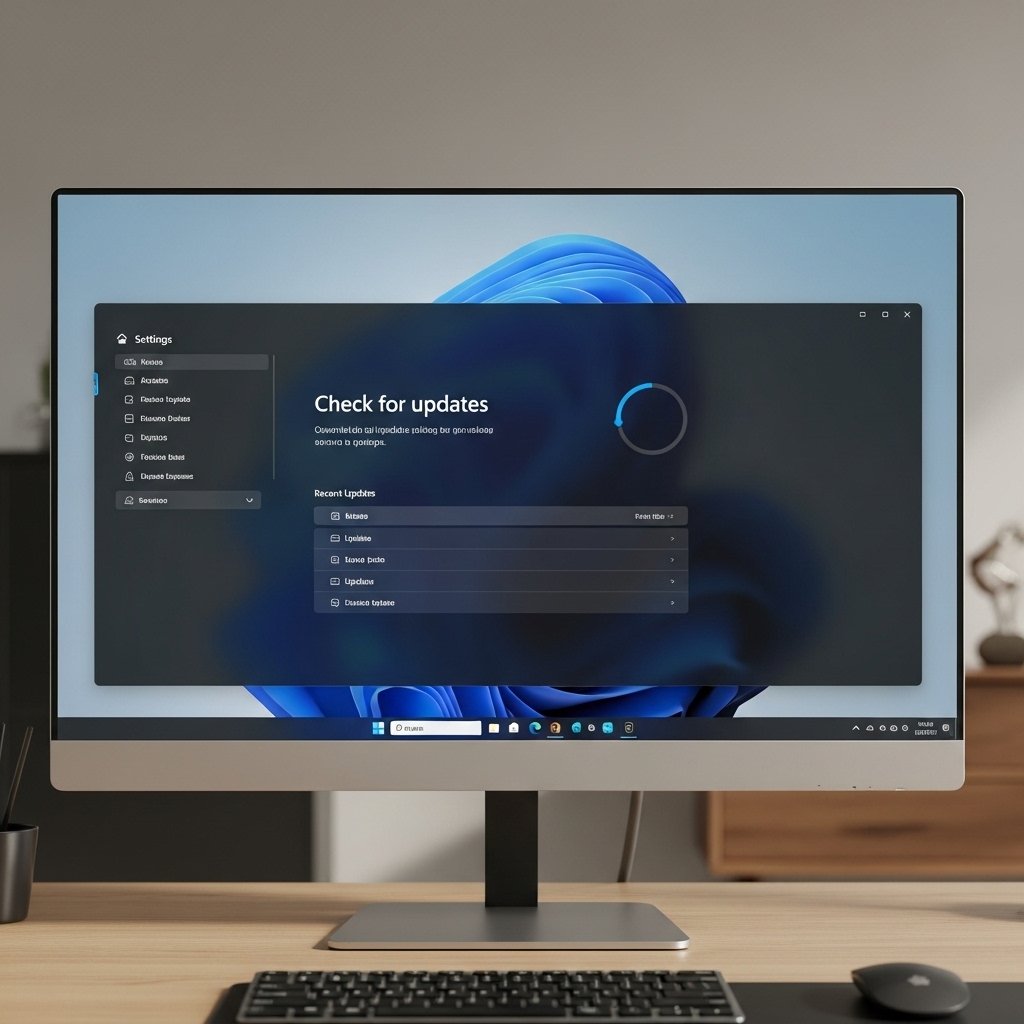
Microsoft frequently releases quick patches after problematic updates. Go to Windows Update and check for newer fixes that may already address issues with apps like OneDrive or Edge.
Restart OneDrive Manually
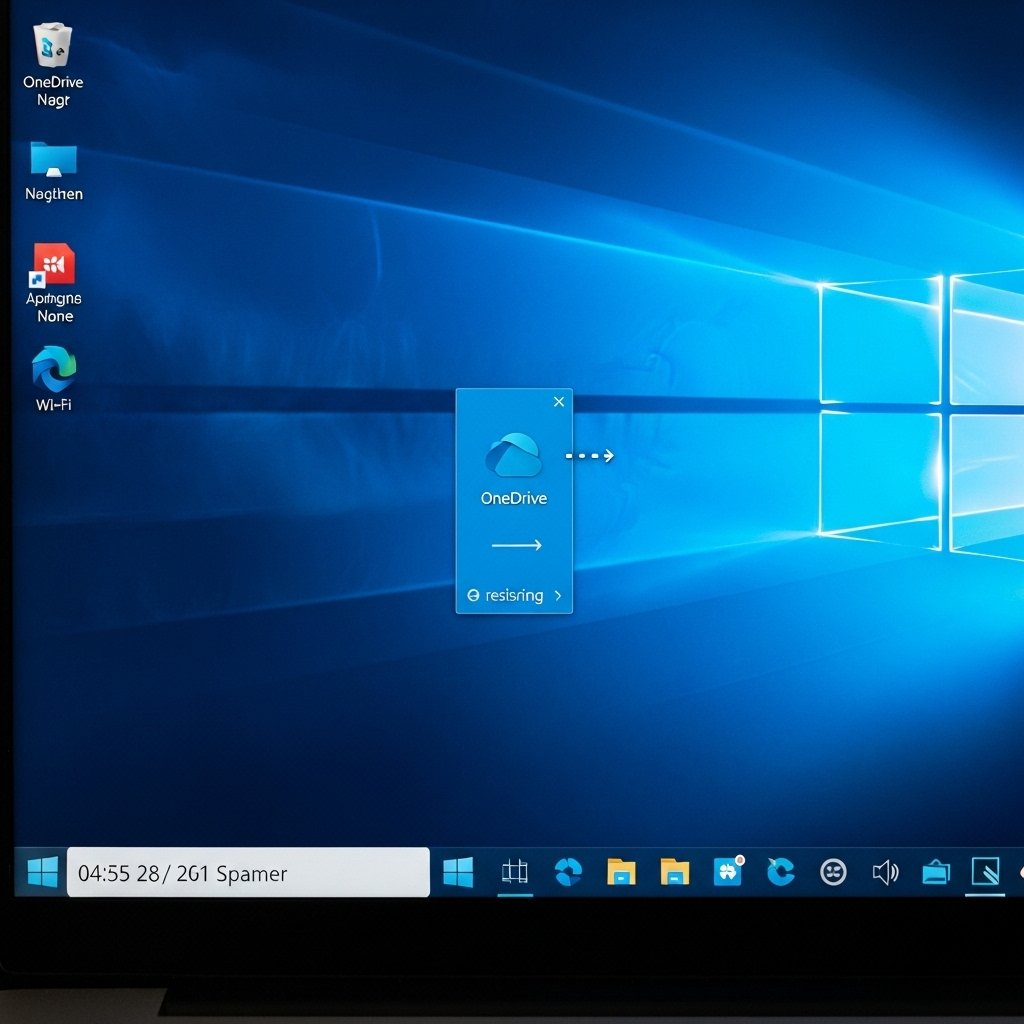
If file syncing has stopped, close OneDrive completely and reopen it. This refresh can fix connection errors and resume syncing without affecting your stored files.
Reset Microsoft Edge
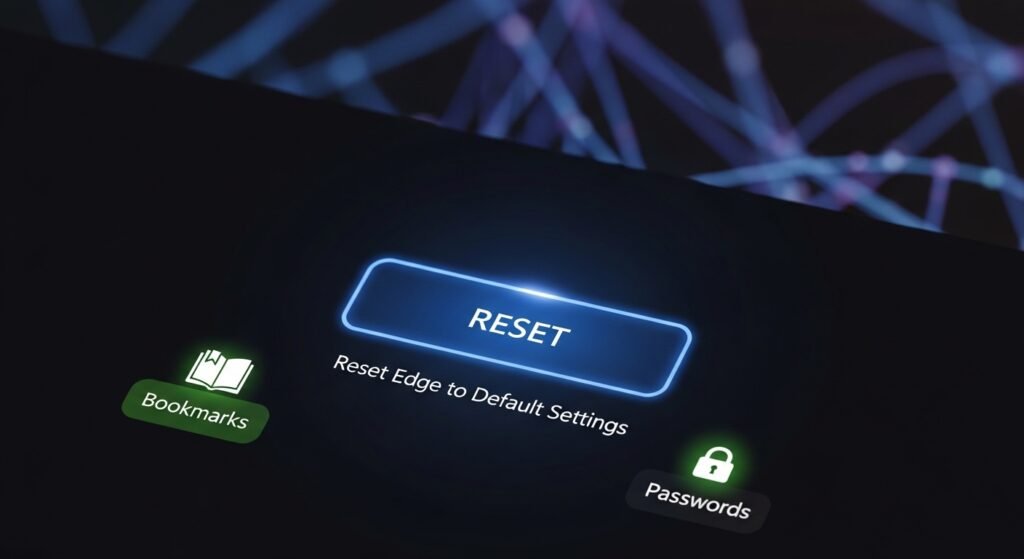
When Edge becomes unstable, resetting it to default settings can remove corrupted configurations while keeping your saved bookmarks and passwords intact.
Clear Cache and Temporary Files

Overloaded cache files may cause performance issues. Use Disk Cleanup or Storage settings to remove unnecessary temporary files and improve system responsiveness.
Reinstall Problematic Apps
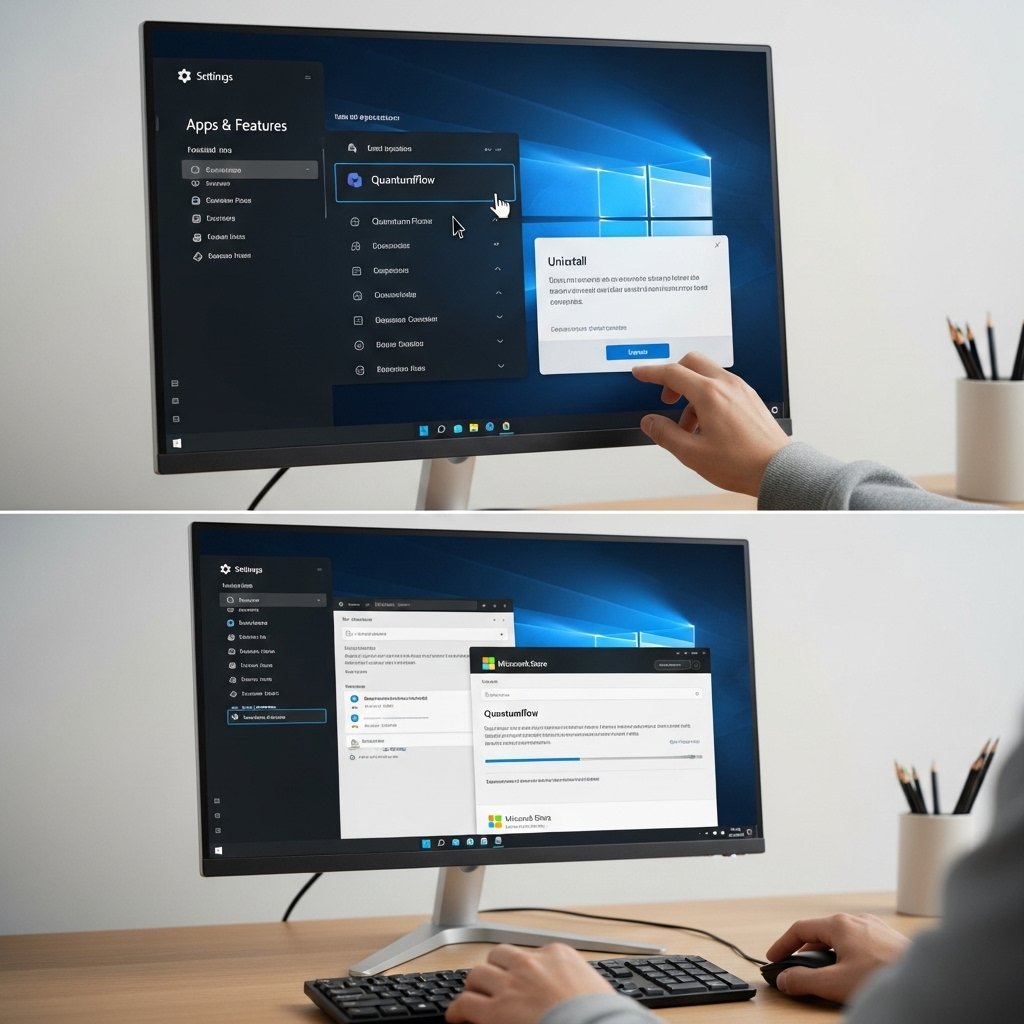
If certain apps continue to crash, uninstalling and reinstalling them ensures a fresh setup free from update-related corruption.
Run Windows Troubleshooter
Built-in troubleshooters can automatically detect and fix common issues with updates, apps, and connectivity without requiring manual intervention.
Check Internet Connection

Some problems, especially with OneDrive and Edge, stem from unstable internet. Ensure your connection is consistent and working properly before exploring complex fixes.
Roll Back the Update
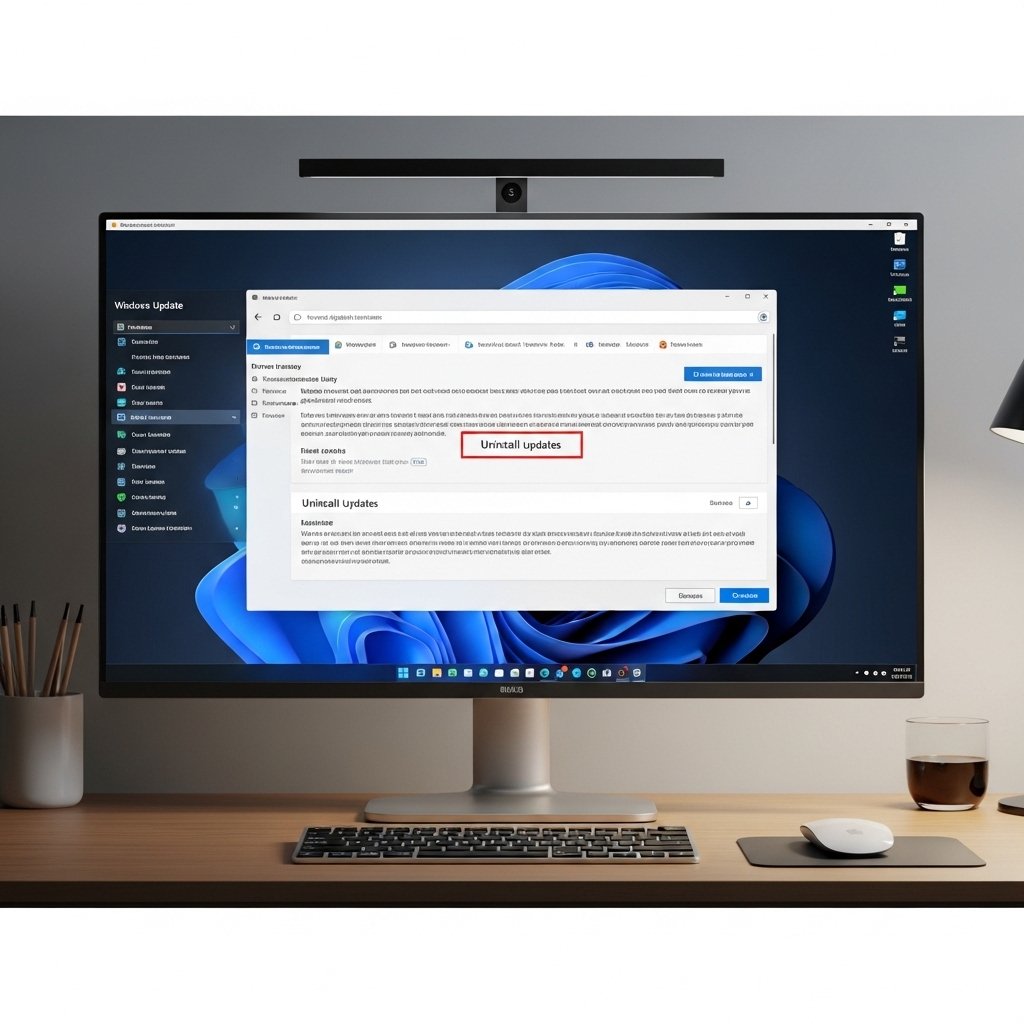
If issues started immediately after an update, consider uninstalling the latest update. This restores your system to a previously stable state.
Update Drivers
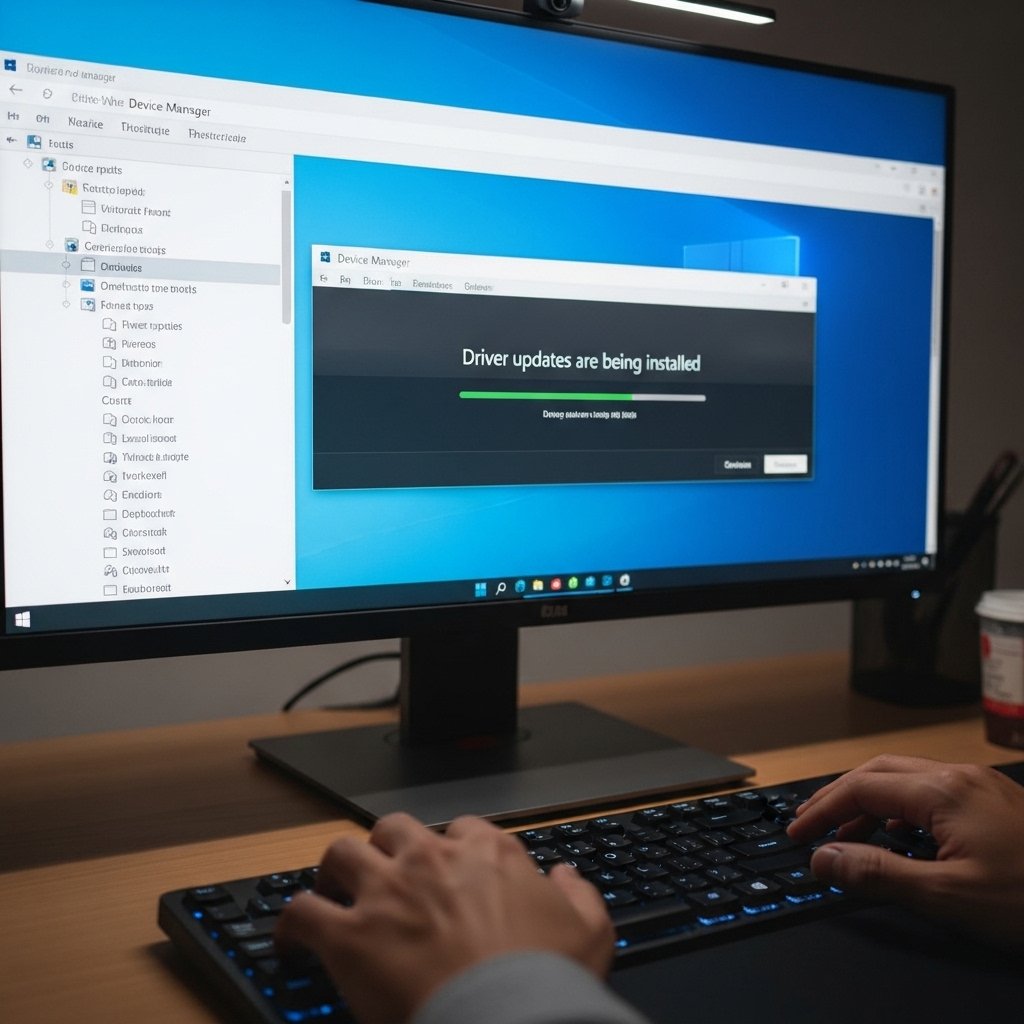
Outdated or incompatible drivers can conflict with system updates. Updating graphics, network, and system drivers can resolve many unexpected errors.
Scan for System Errors
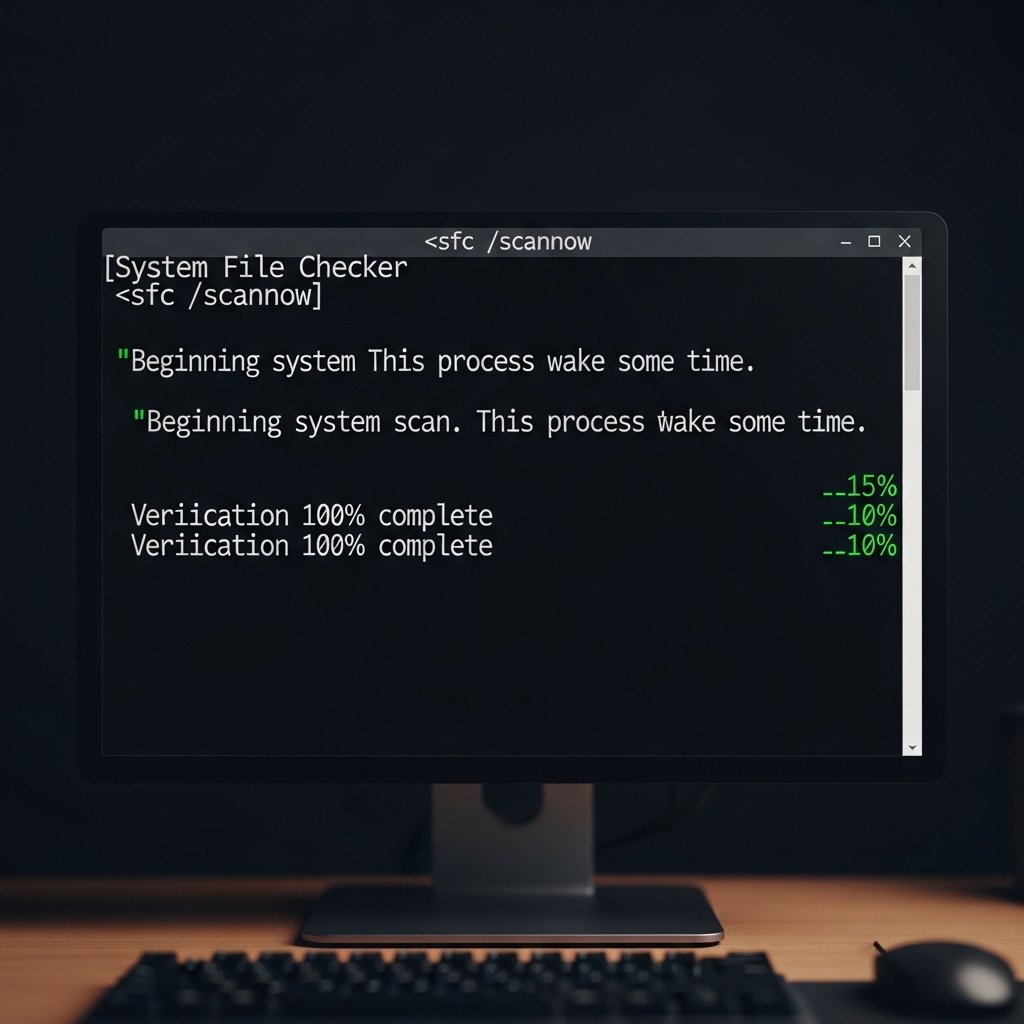
Use built-in tools like System File Checker to detect and repair corrupted system files that may have been affected during the update process.
Disable Startup Programs
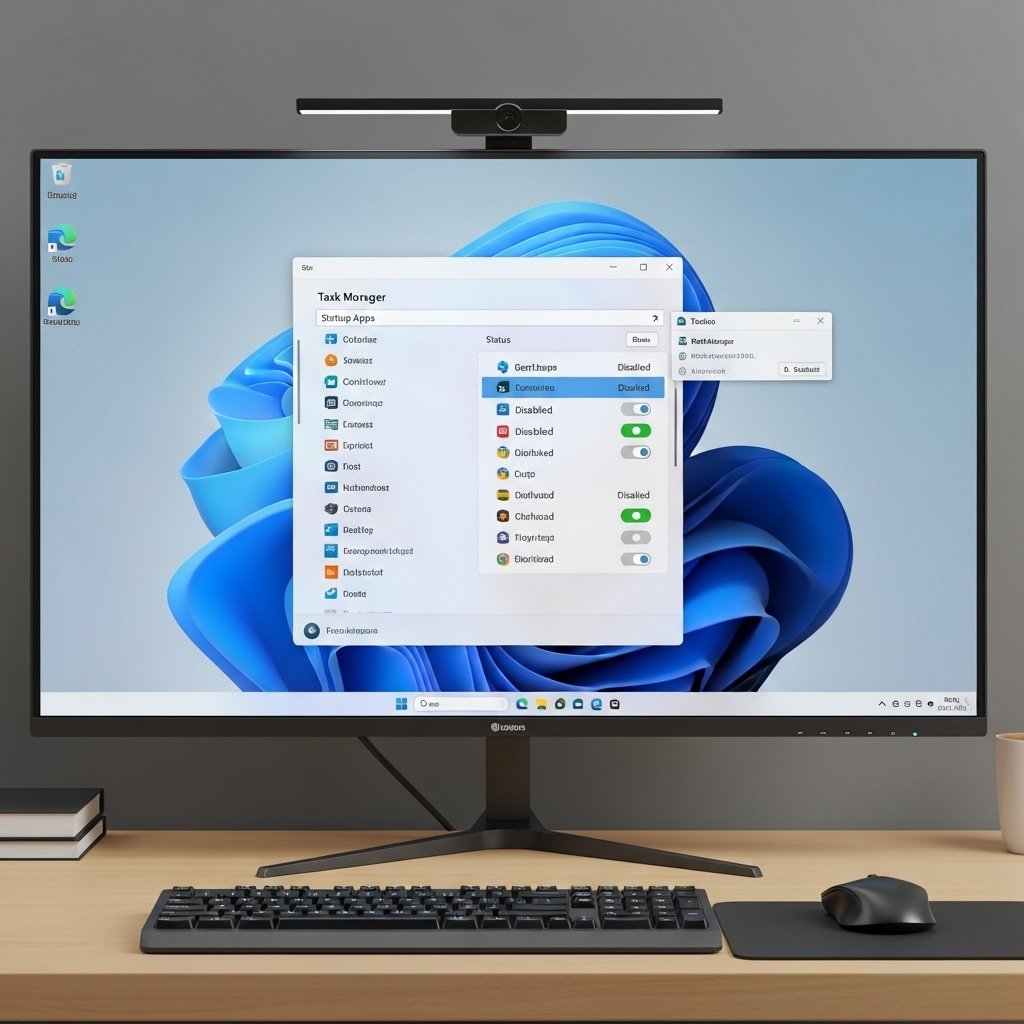
Too many startup applications can slow your system and cause conflicts. Disabling unnecessary programs can improve performance and reduce errors.
Check Storage Space
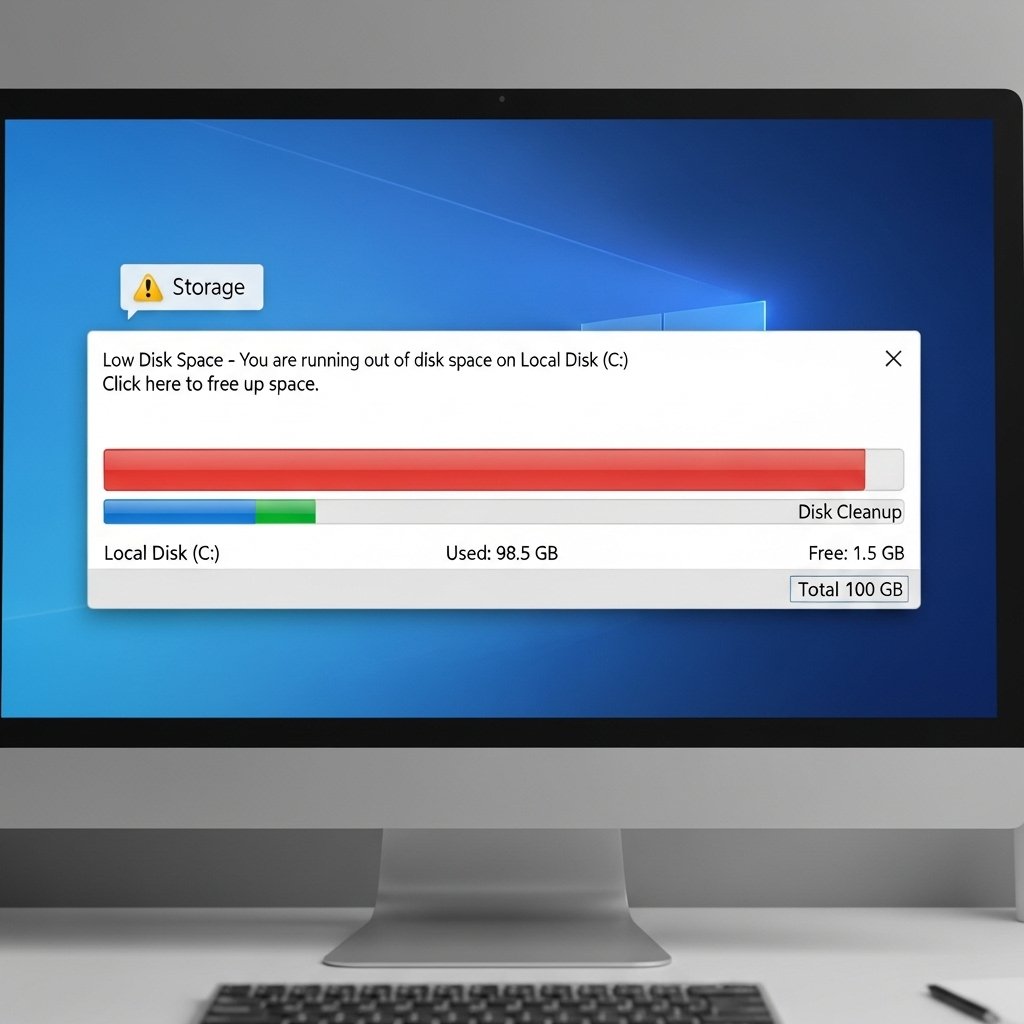
Low disk space can prevent updates and apps from functioning correctly. Free up space to ensure smooth system operations.
Sign Out and Back In
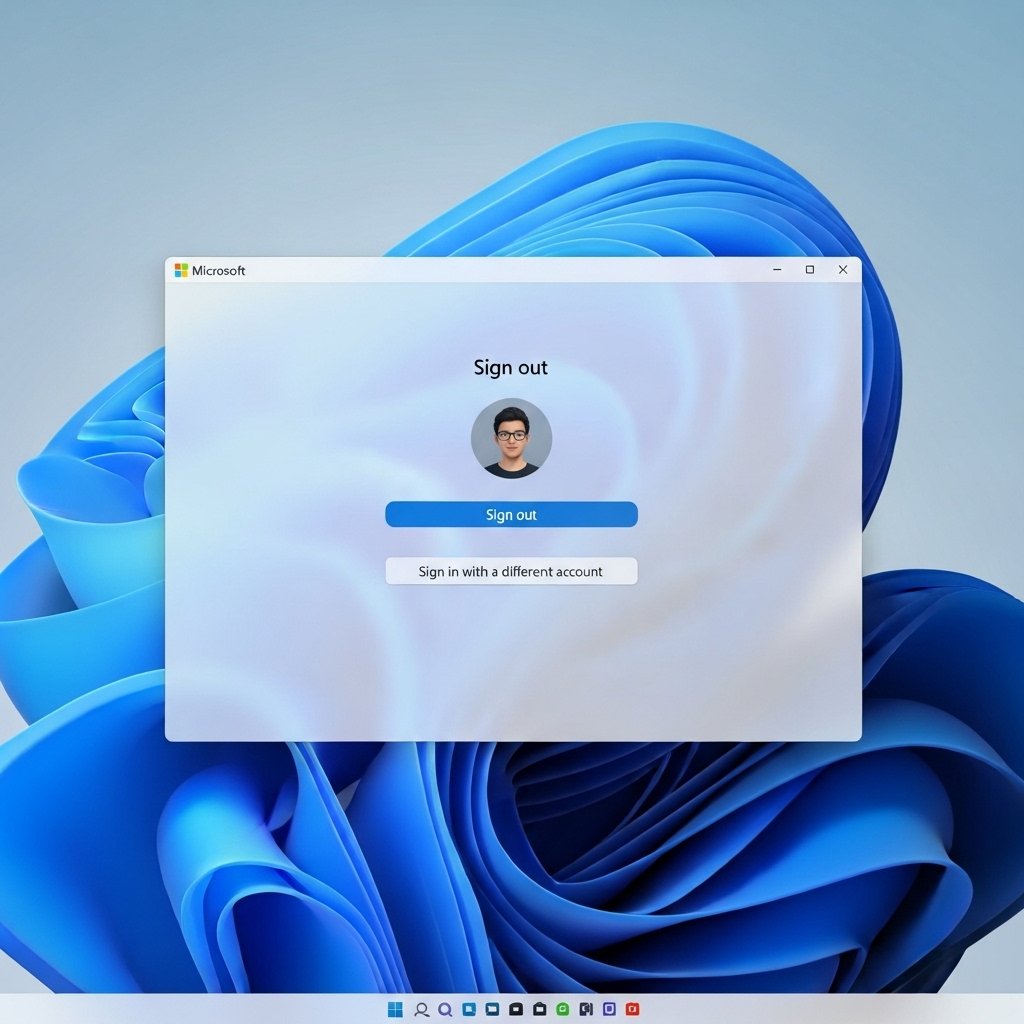
Logging out of your Microsoft account and signing back in can fix syncing and account-related glitches affecting OneDrive and other services.
Reset Your PC
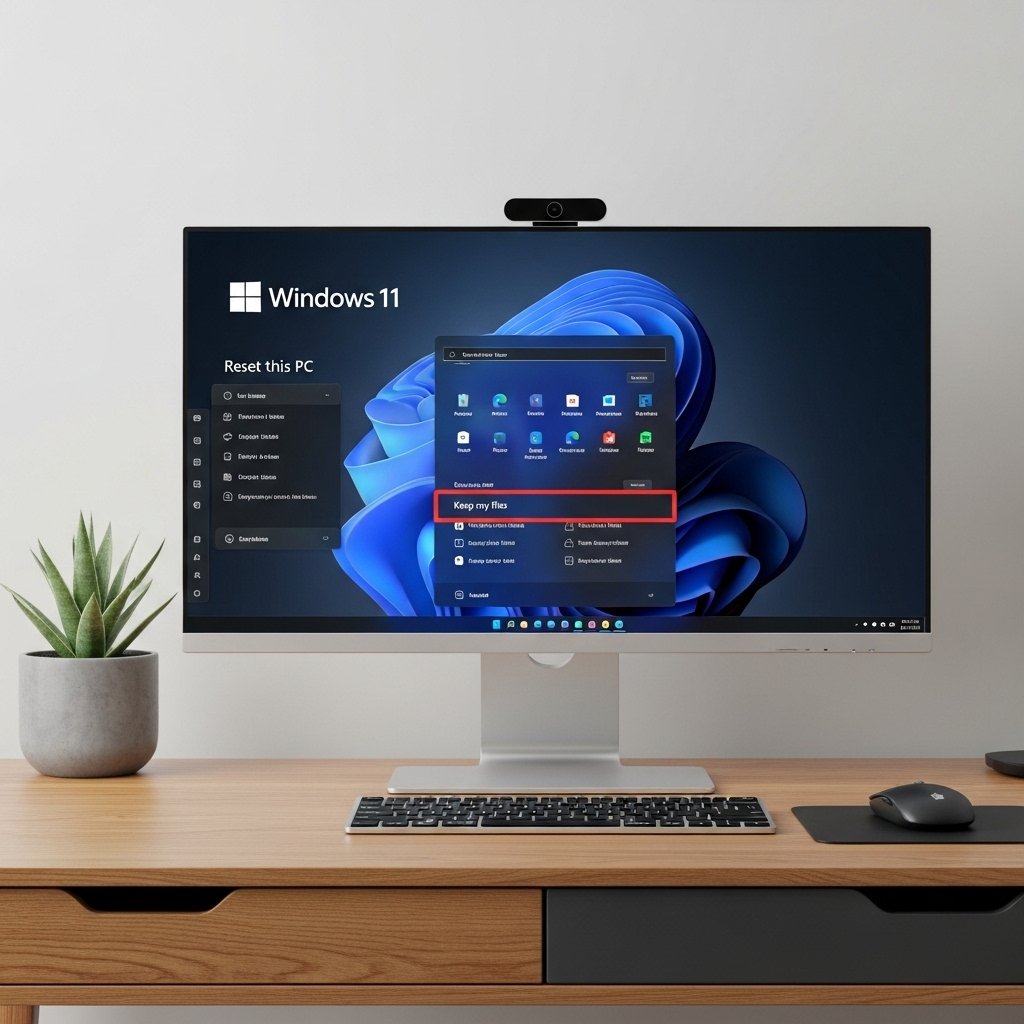
If nothing works, resetting your PC while keeping personal files can resolve persistent issues and restore system stability.
