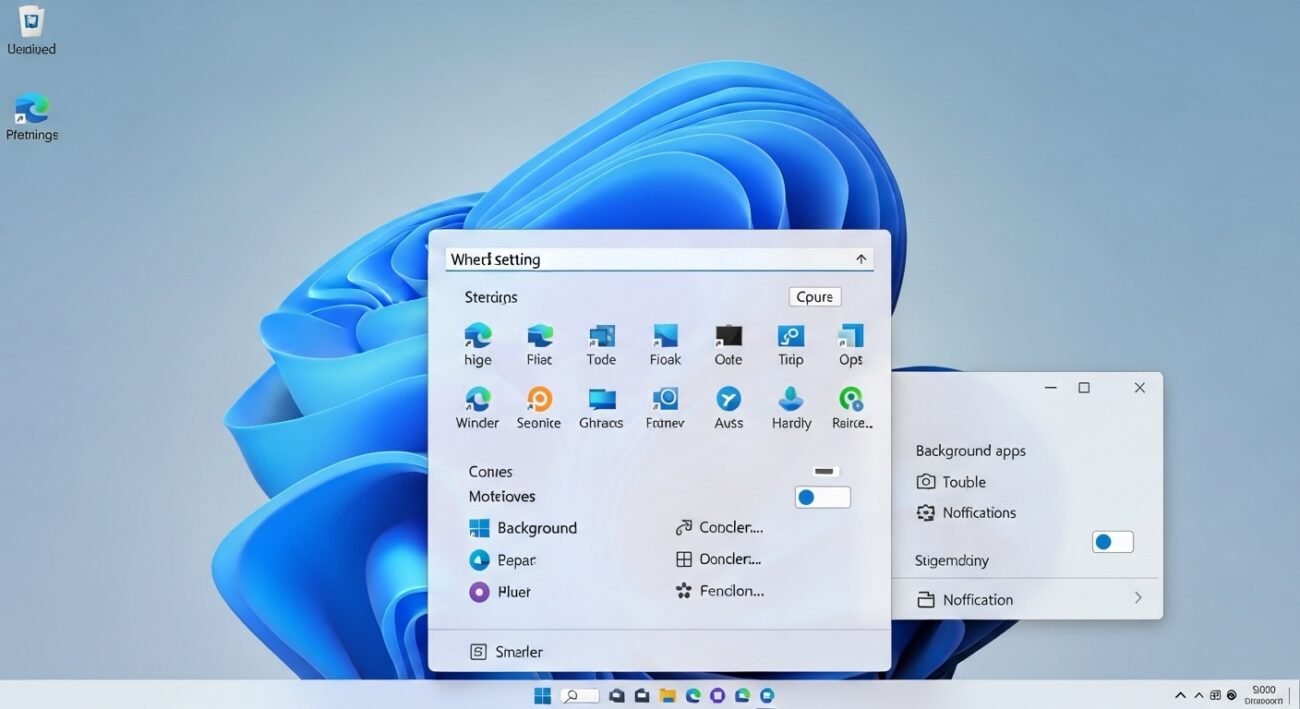
Windows 11 offers a polished interface, but many of its most useful settings are tucked away beneath layers of menus. These hidden options can quietly shape your experience affecting privacy, performance, and daily convenience. While most users stick to default configurations, exploring these lesser-known controls can help you personalize your system in smarter ways. From managing background apps to fine-tuning notifications, these settings give you more control than you might expect. If you’ve ever felt your PC could run smoother or behave differently, chances are these overlooked features hold the answer. Here’s a closer look at the settings worth uncovering.
Background App Permissions
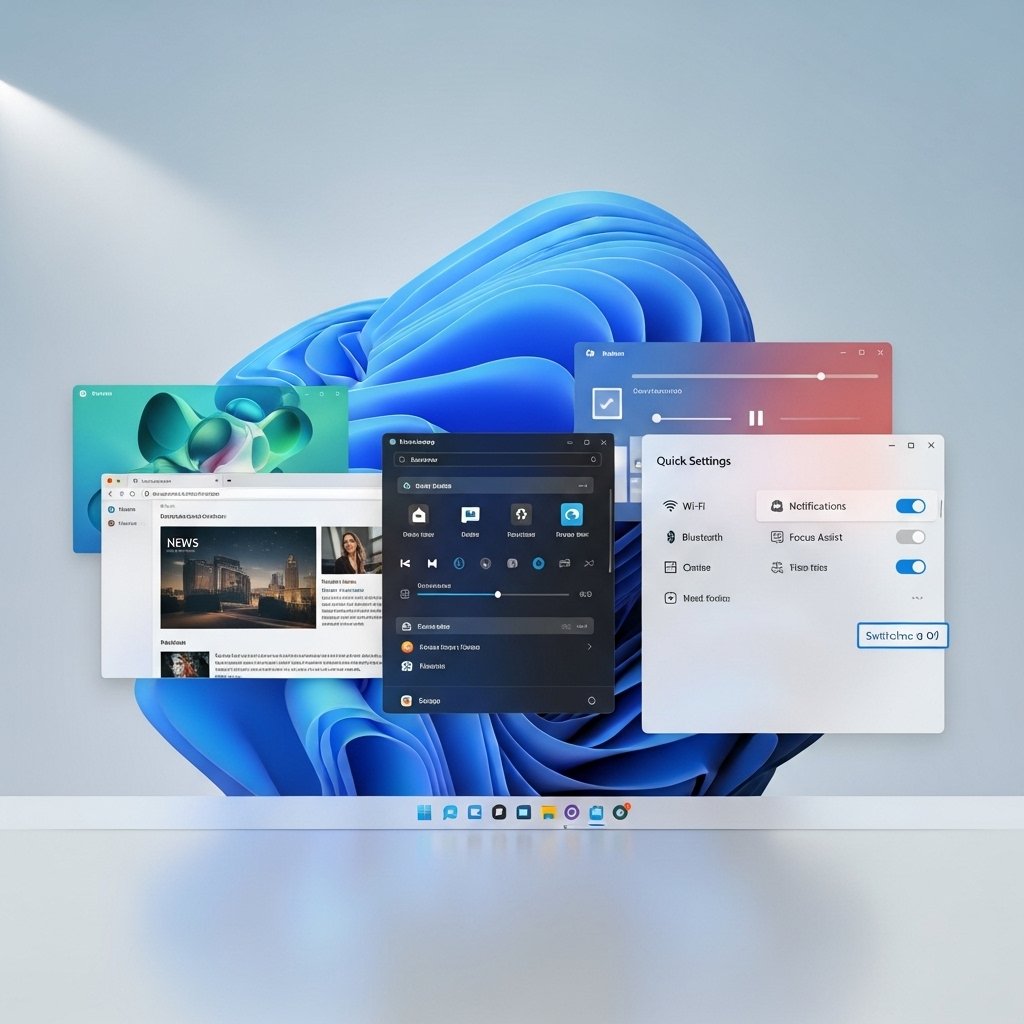
Windows 11 allows certain apps to run silently in the background, even when you’re not using them. Disabling unnecessary apps can improve battery life and system performance without affecting your daily workflow or essential notifications.
Diagnostic Data Settings
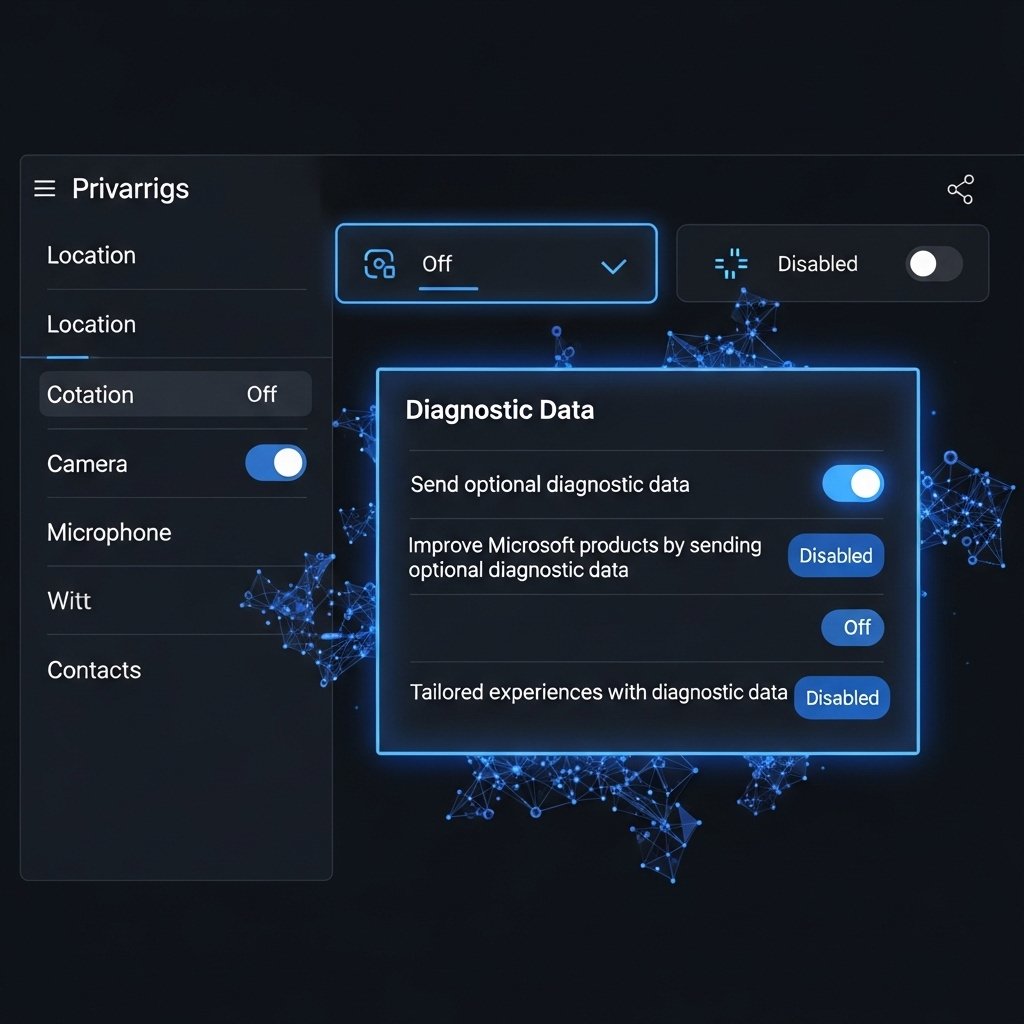
Your system shares diagnostic data by default to improve services. Adjusting these settings gives you more control over what information is sent, helping you strike a balance between privacy and insights into system improvements.
Notification Priority Control
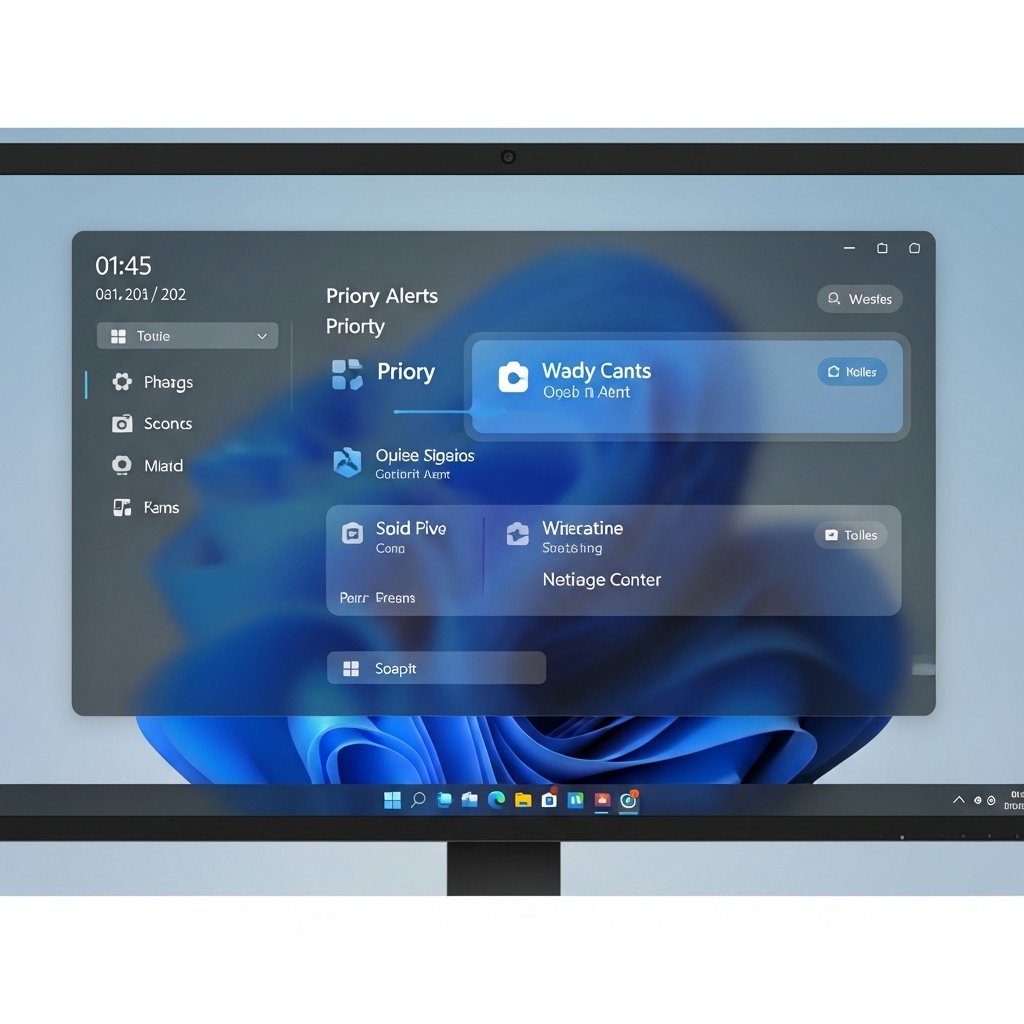
Not all notifications deserve equal attention. Hidden options let you prioritise important alerts while muting less relevant ones, keeping your focus uninterrupted during work or personal tasks.
Startup App Management
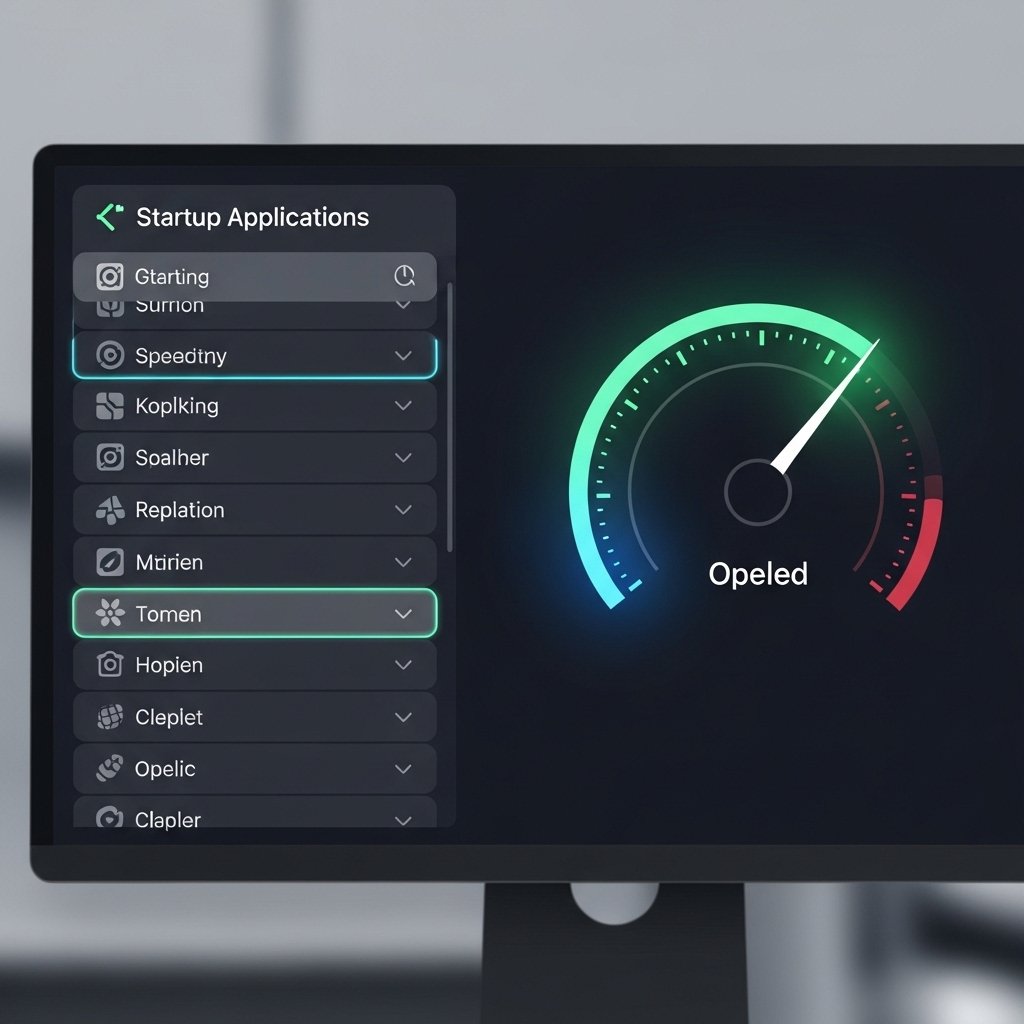
Some apps automatically launch when your PC starts, slowing down boot time. Reviewing and disabling non-essential startup apps can significantly speed up your system’s performance and reduce unnecessary background activity.
Clipboard History Feature
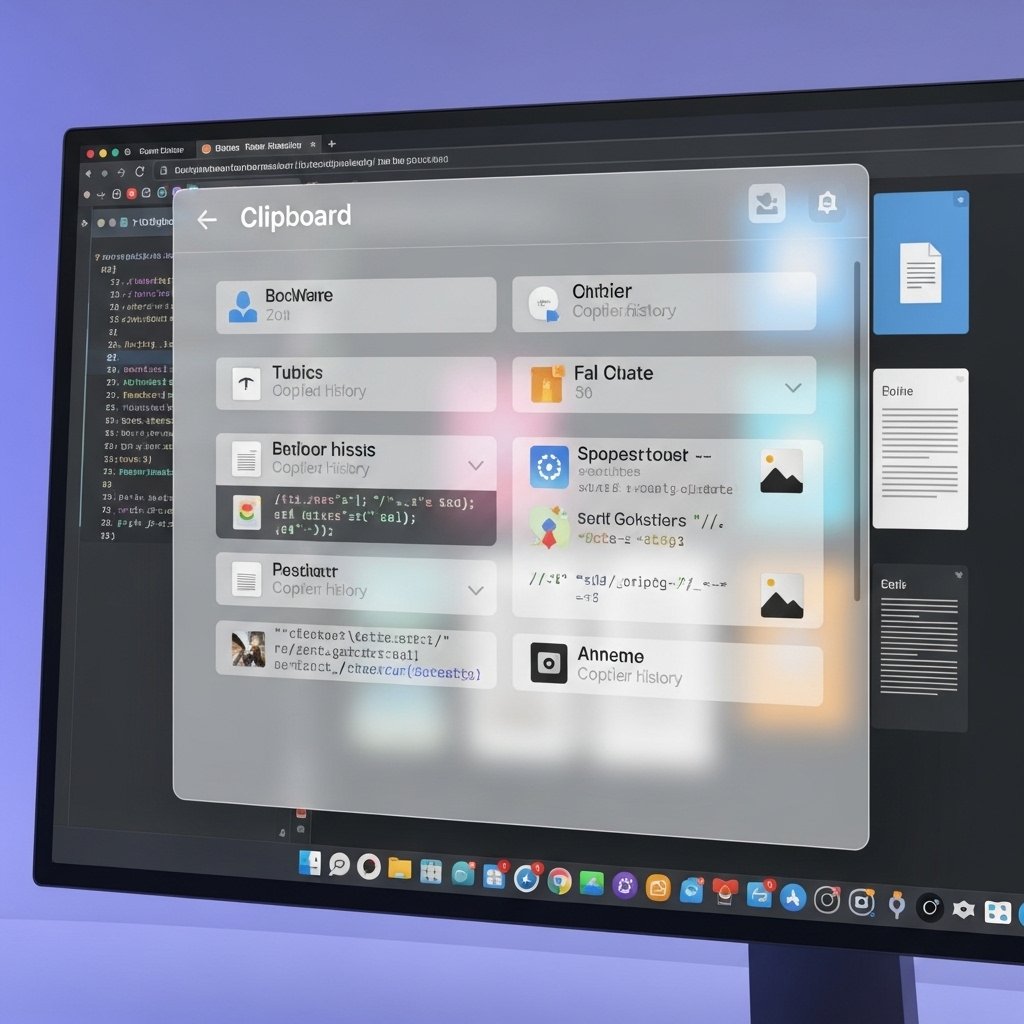
Clipboard history stores multiple copied items, but many users don’t realize it’s disabled by default. Enabling it allows quick access to previously copied text or images, making multitasking more efficient and seamless.
Power Mode Optimization
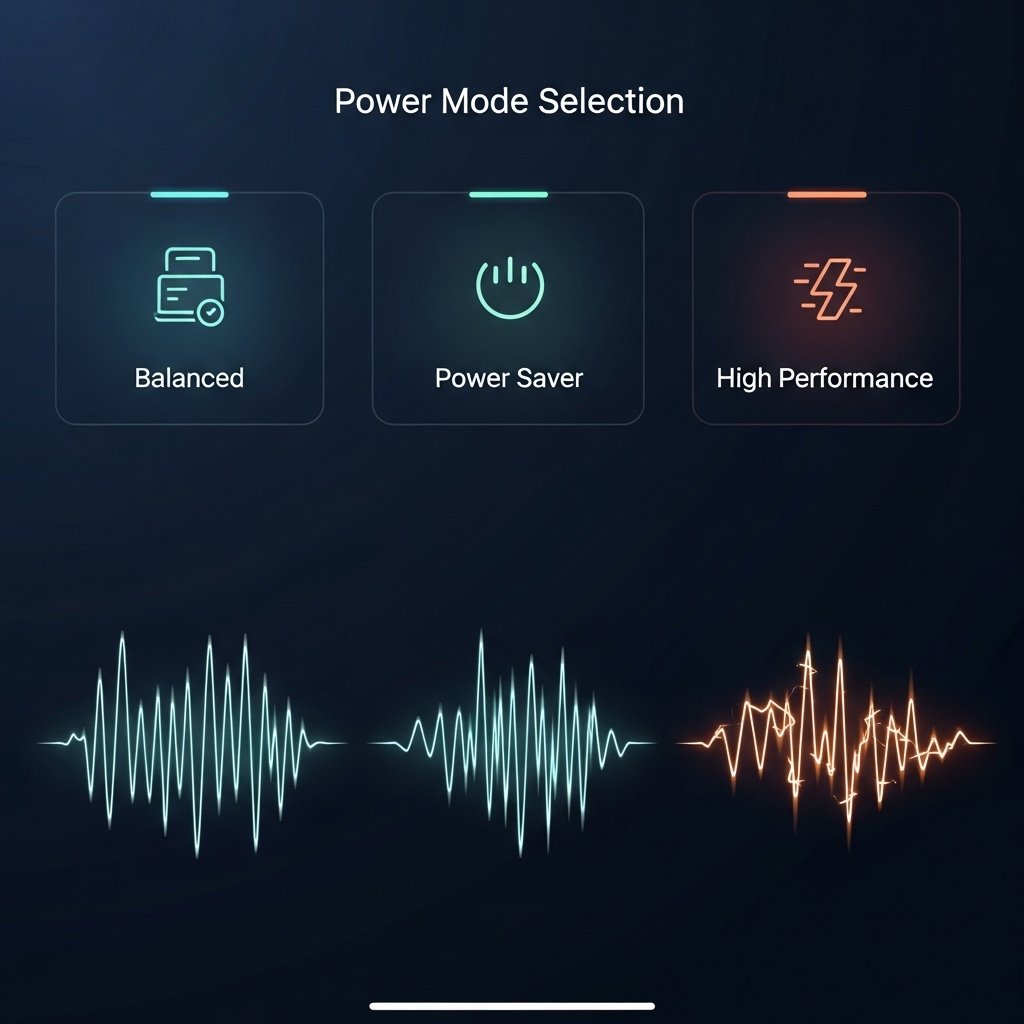
Windows 11 includes hidden power modes that influence performance and energy usage. Switching between balanced, power-saving, or high-performance modes can help tailor your device based on your daily needs.
File Explorer Display Options
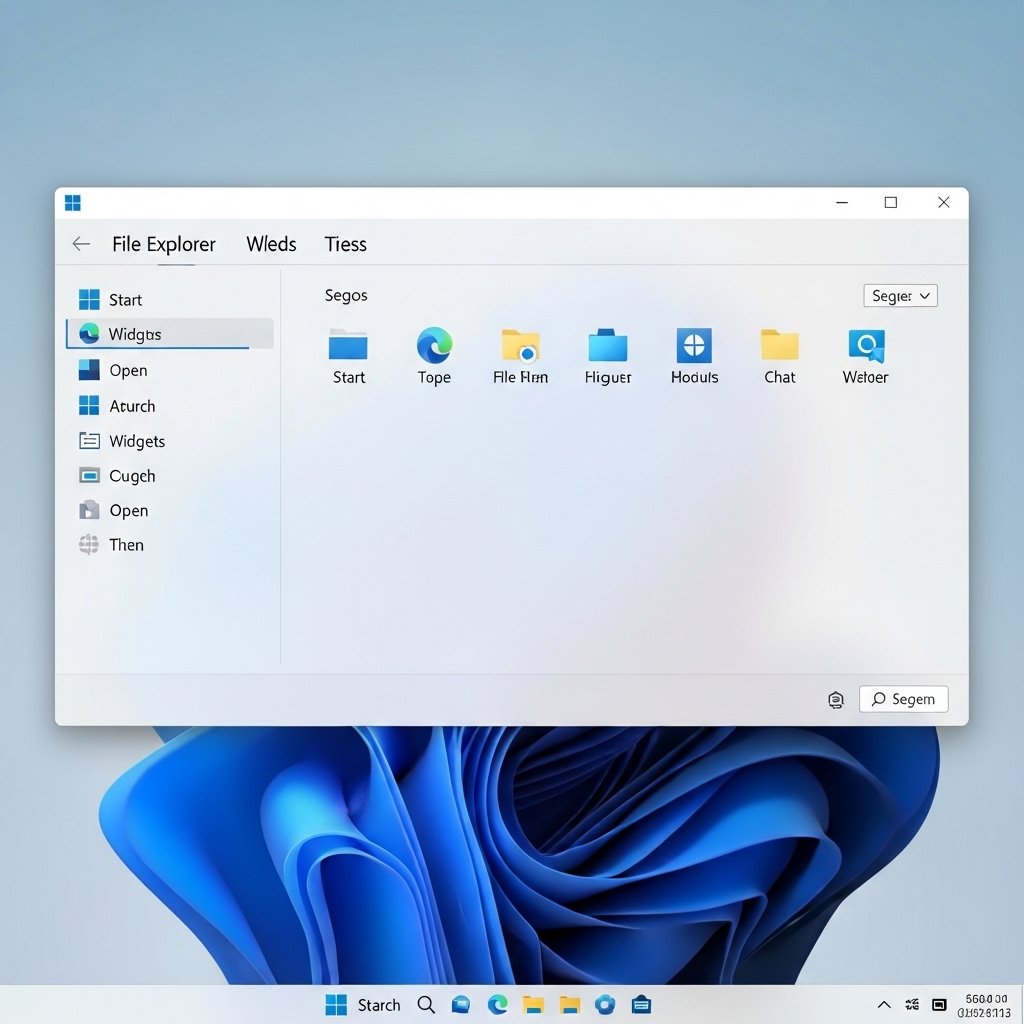
File Explorer has advanced settings that control how files and folders appear. Tweaking these options can simplify navigation, improve visibility, and make it easier to locate important documents quickly.
Privacy Location Access
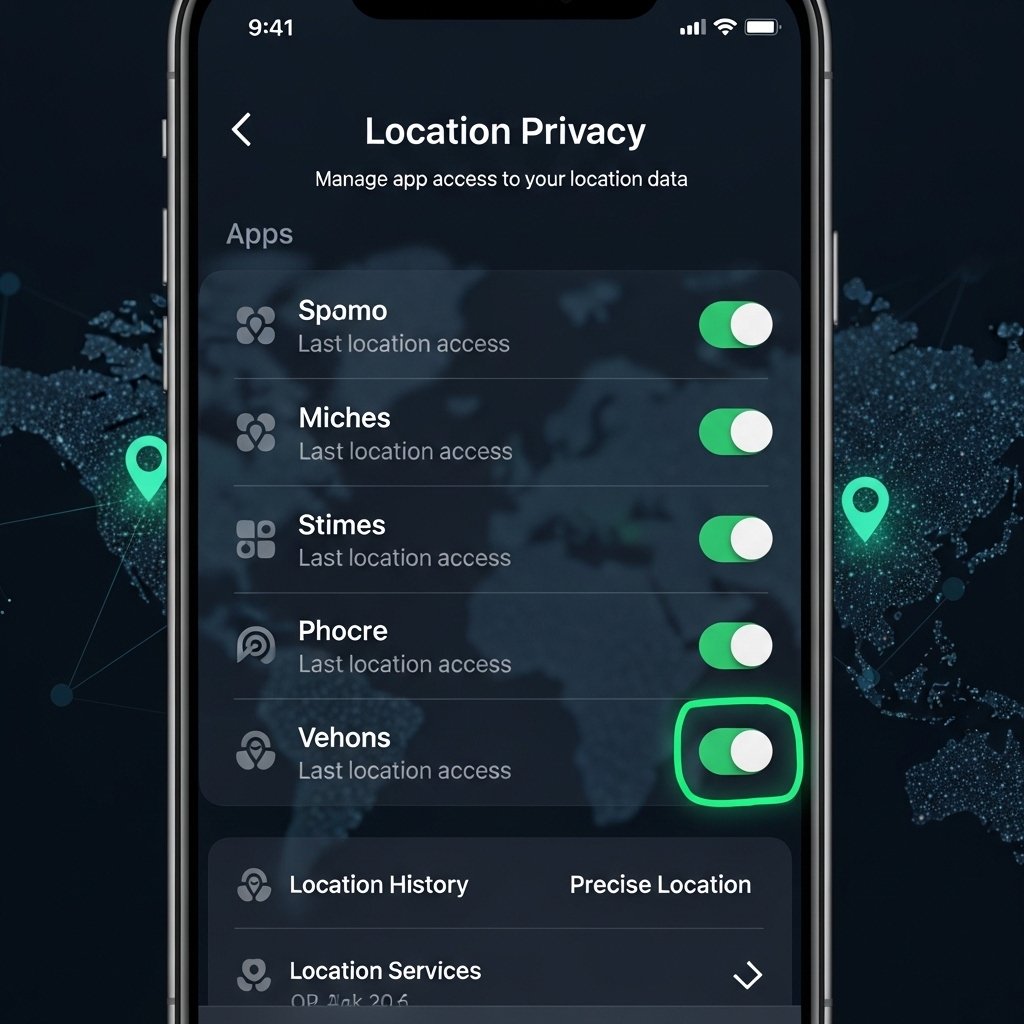
Apps may access your location without you noticing. Reviewing and limiting location permissions ensures only trusted applications can use this feature, helping maintain your privacy without disrupting essential services.
Virtual Desktop Customization
Virtual desktops allow you to separate workspaces, but customization options are often overlooked. Renaming desktops and assigning specific apps can improve organization and productivity across different tasks.
Keyboard Shortcut Enhancements

Windows 11 includes several shortcut settings that can be customized or enabled. Learning and adjusting these shortcuts can save time and streamline repetitive actions, especially during multitasking sessions.
Storage Sense Automation
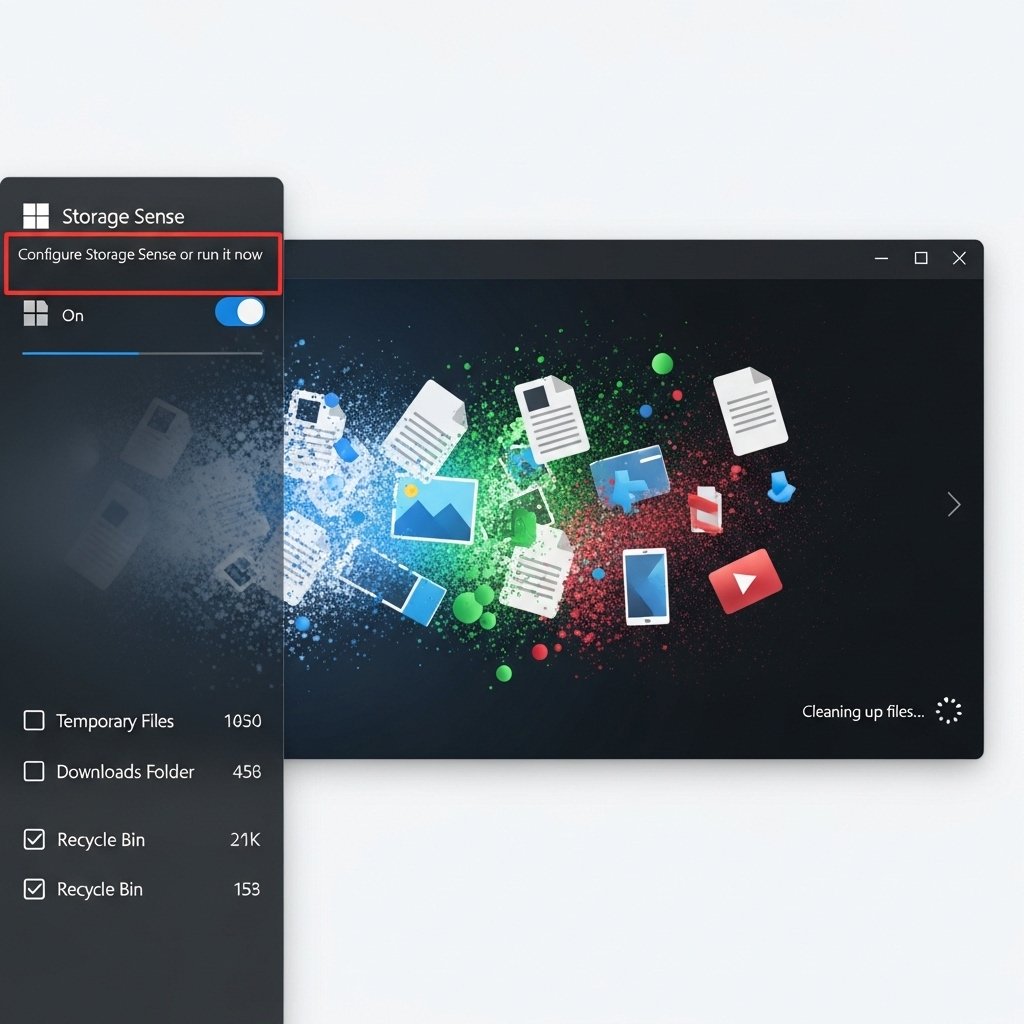
Storage Sense automatically clears temporary files and manages disk space. Configuring it properly ensures your system stays clutter-free without manual effort, helping maintain consistent performance over time.
