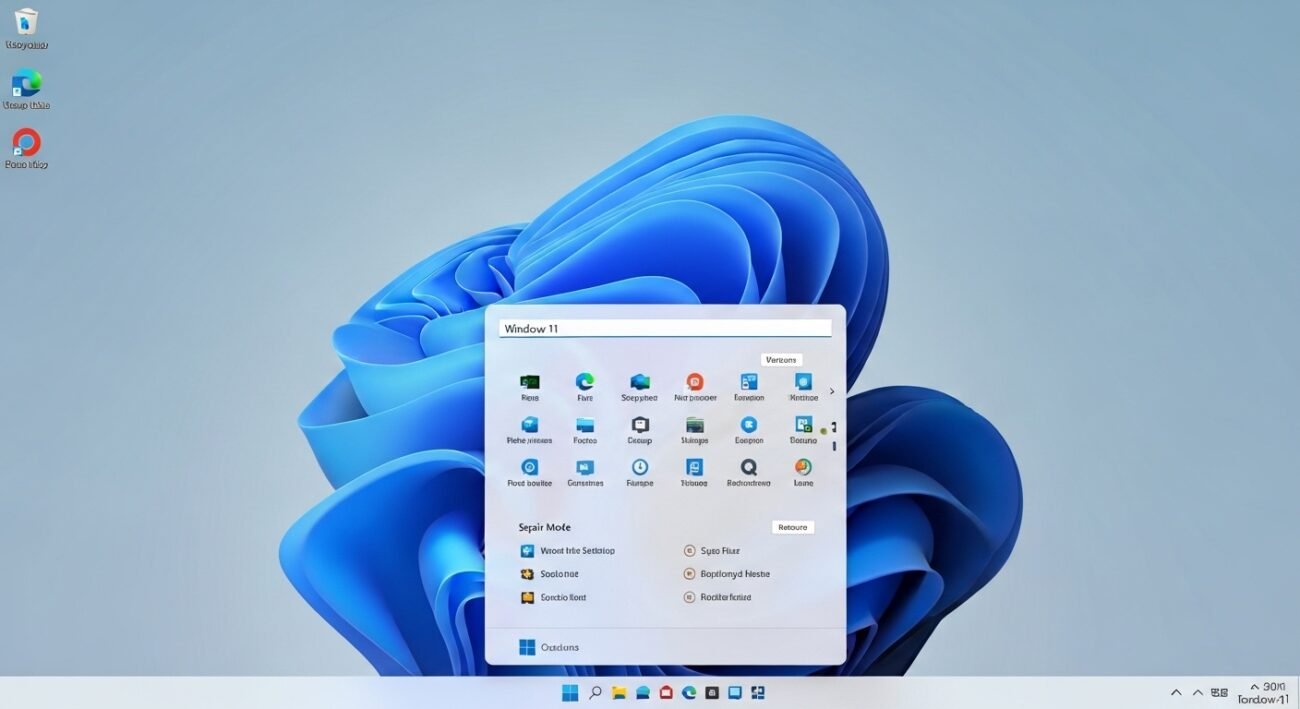
Windows 11 includes a powerful built-in recovery feature that many users overlook. This self-repair mode can fix common system issues without needing a USB drive or external tools. Whether your PC is running slow, facing startup errors, or experiencing unexpected crashes, this feature provides a convenient way to restore stability. It is especially helpful for users who prefer simple, built-in solutions rather than complex troubleshooting methods. By accessing recovery settings directly from your system, you can resolve problems quickly while keeping your files safe. Understanding how this repair mode works can save time, reduce stress, and keep your computer performing smoothly without additional hardware or technical expertise.
Access Recovery Settings Easily

You can open recovery options directly from system settings. Navigate to System, then Recovery, and choose advanced startup. This allows your PC to restart into a repair environment without needing any external installation media.
Advanced Startup Option

Advanced startup gives access to troubleshooting tools. It reboots your computer into a special menu where multiple repair options are available, helping you diagnose and fix problems that prevent normal system operation.
Startup Repair Tool
Startup Repair automatically scans for issues that stop Windows from loading properly. It detects missing or corrupted files and attempts to fix them, making it one of the simplest ways to resolve boot-related problems.
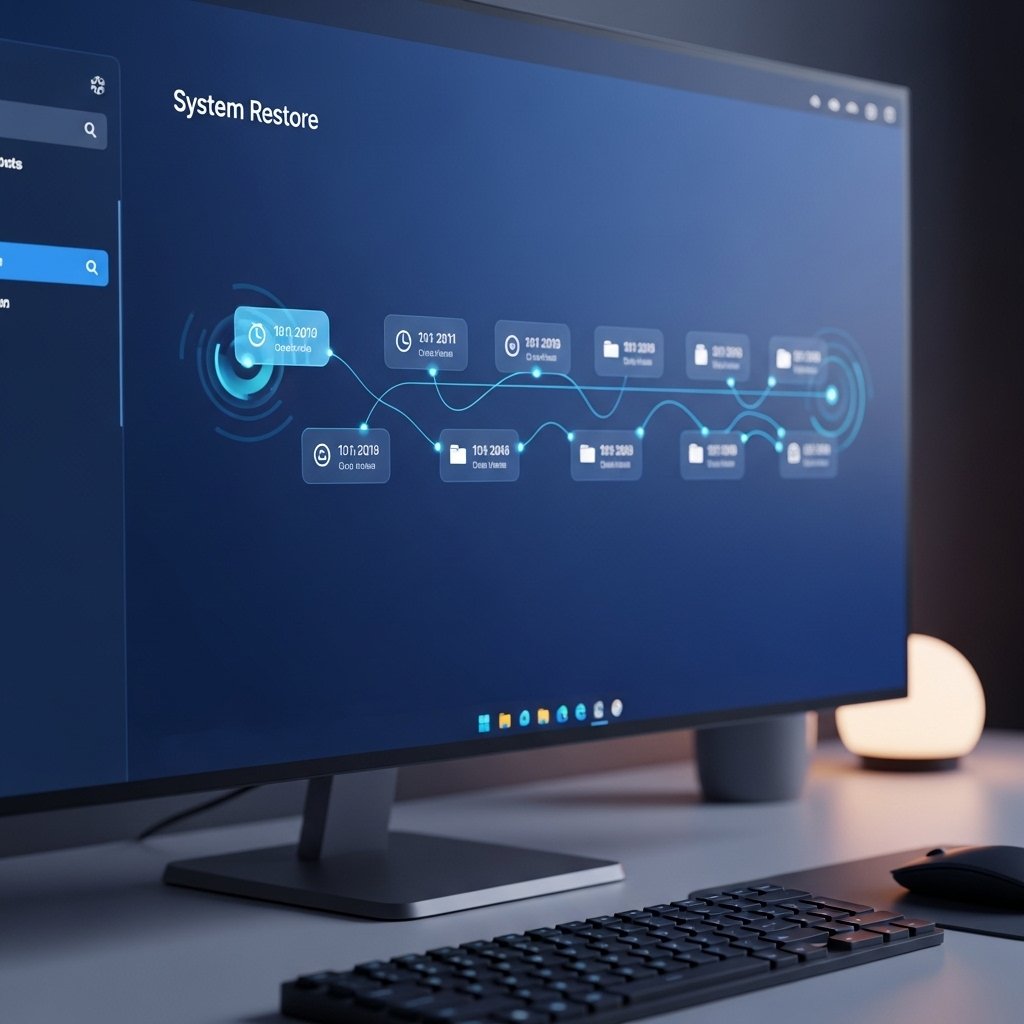
System Restore Feature
System Restore allows you to return your computer to an earlier working state. It uses saved restore points, helping you undo recent changes that may have caused instability without affecting personal files.
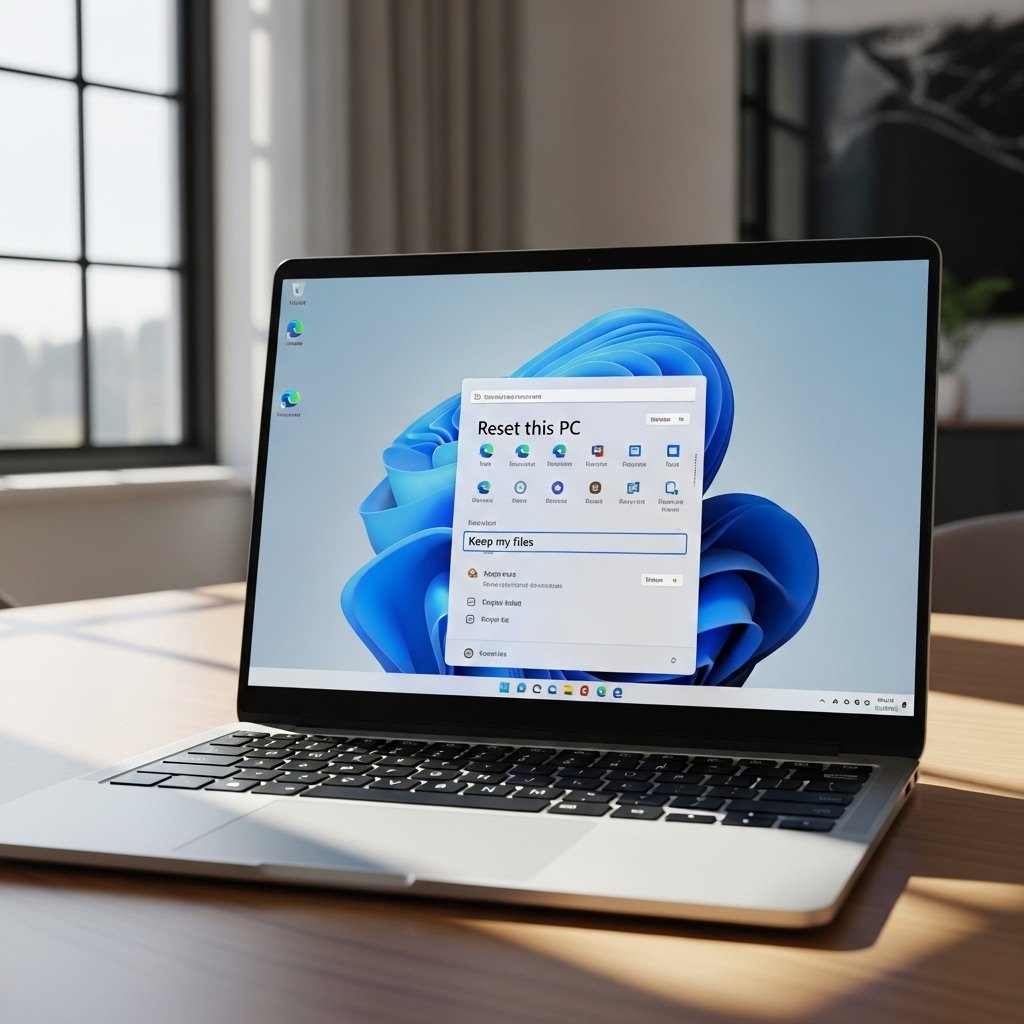
Reset This PC Option

This feature reinstalls Windows while giving you the choice to keep your personal files. It is useful when problems persist and other repair methods do not fully resolve system performance issues.
Safe Mode Access

Safe Mode starts Windows with minimal drivers and services. It helps you identify whether background programs or drivers are causing issues, making troubleshooting more focused and manageable.
Command Prompt Tool

The Command Prompt in recovery mode provides advanced repair capabilities. You can run system scans, fix disk errors, and repair boot records using simple commands designed for system recovery tasks.
Uninstall Updates Feature
Sometimes updates can cause unexpected problems. This option allows you to remove recent updates, helping restore system stability if an update introduced compatibility or performance issues.
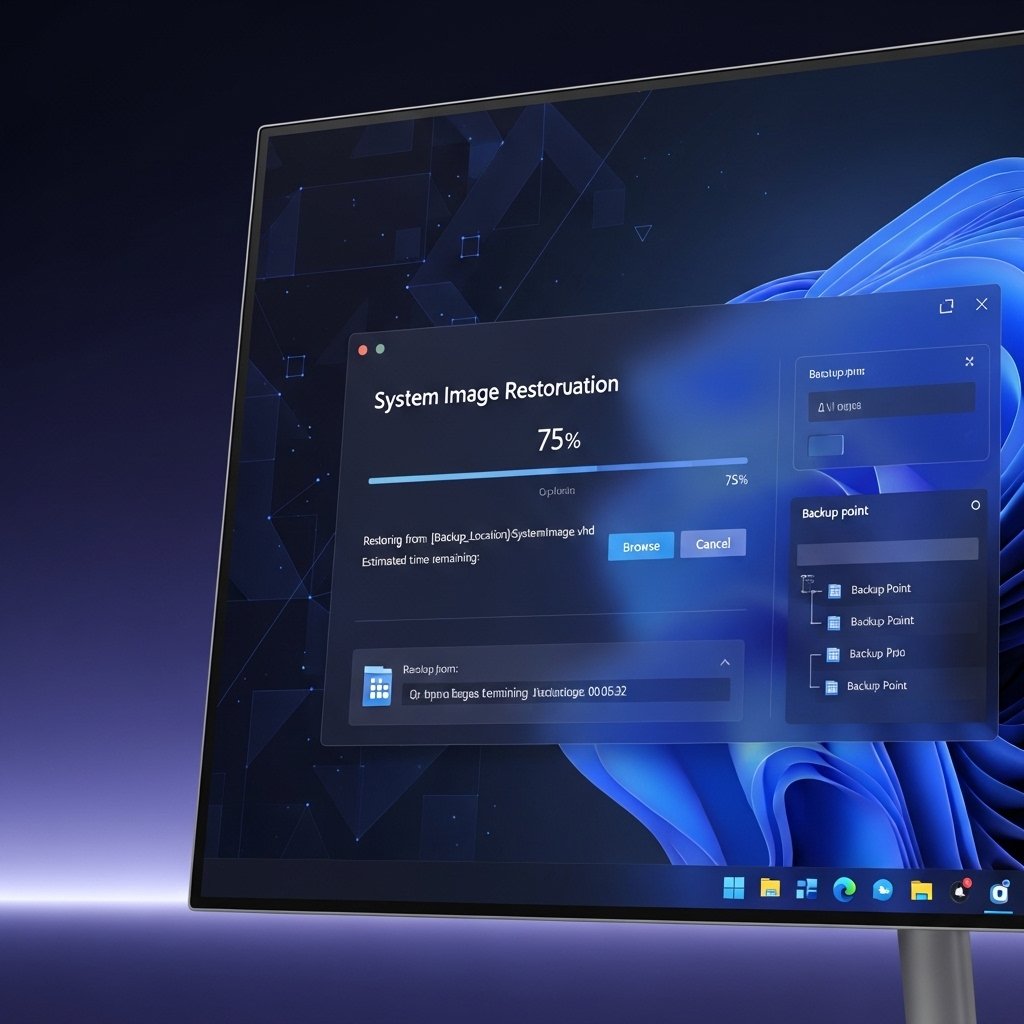
System Image Recovery
If you have previously created a system image, this feature lets you restore your entire system to that saved state. It is useful for complete recovery when major issues occur.
Automatic Repair Trigger

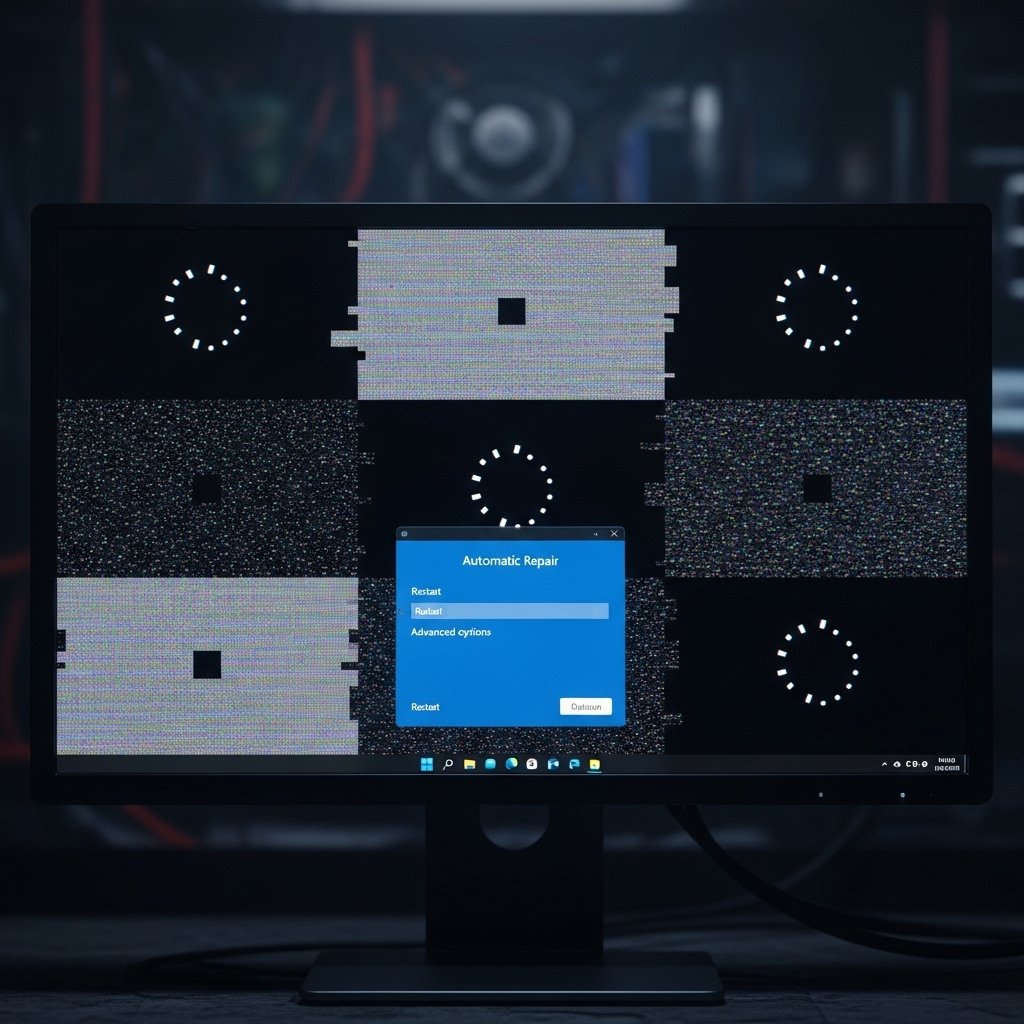
Windows can automatically enter repair mode if it detects repeated startup failures. This ensures users can access recovery tools even when the system cannot load normally.
No External Tools Required

All these repair options are built into Windows 11. You do not need a USB drive or additional software, making it convenient for users who want a quick and reliable solution.
