Ever had your internet slow down when you’re trying to watch an episode of your favorite TV show or go on a video call? New research on network performance, one of IEEE Spectrum’s cover stories, demonstrates the sneaky way background data transfers can taint your home bandwidth. One of the primary reasons may be a default option in Windows that copies system update files onto random computers throughout the world.
Uncover the Hidden Background Sharing Feature
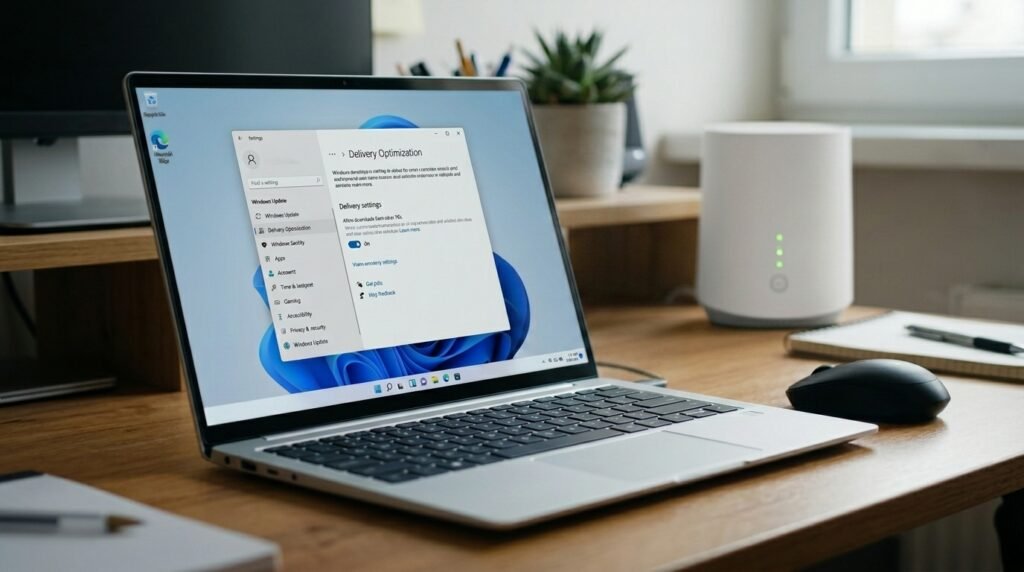
Microsoft has a peer-to-peer system known as Delivery Optimization, which can make your computer upload previously downloaded system patches to other internet users without your awareness.
Understand the Real Impact on Bandwidth

TechCrunch network data research indicates that uploading to strangers could potentially cause an internet user to have lower upload speeds. This background activity may cause lag during online gaming and streaming.
Navigate directly to your Windows Settings

To correct this, tap on the Start menu, open the main Settings application, and then search for Windows Update, which contains all the basic operating system maintenance tools and options.
Open the Delivery Optimization Menu
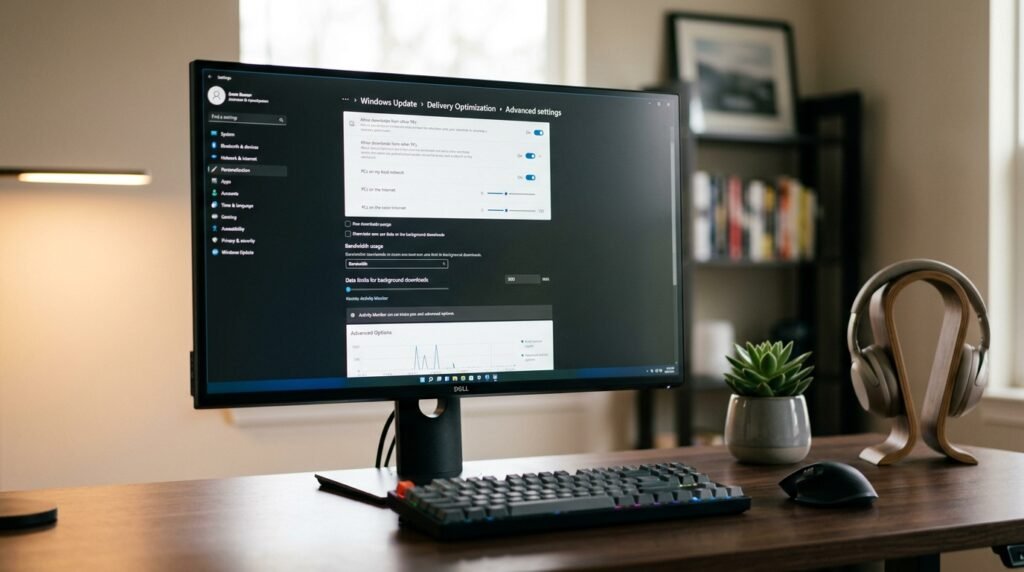
In advanced options, you’ll find delivery optimization. This particular menu controls communication between your computer and other computers that exchange data packets, updates, and other application files from the Microsoft Store.
Disable the Main Peer Sharing Switch
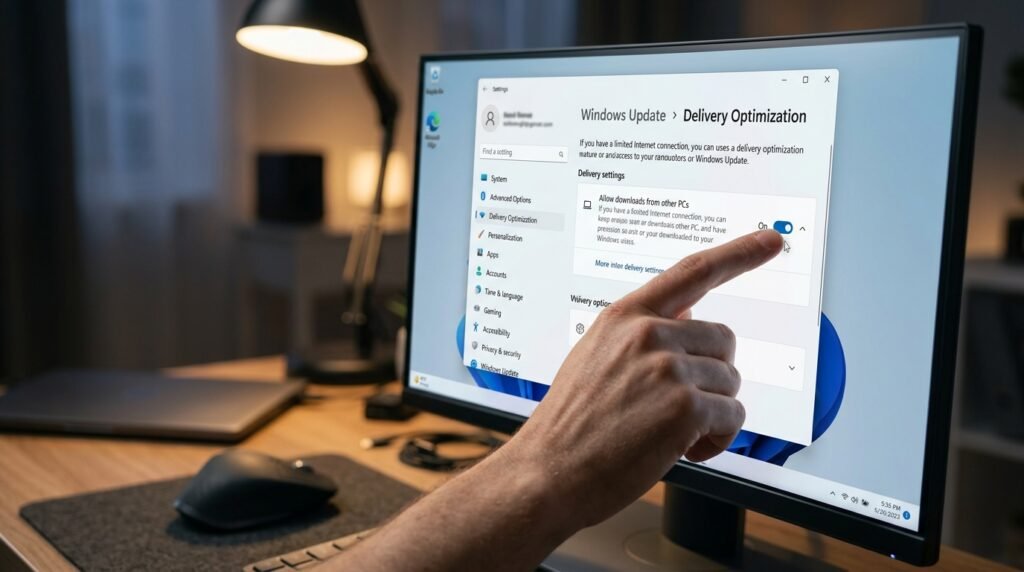
There’s a toggle switch called Allow Downloads From Other PCs. Just by switching this off, your computer no longer consumes your valuable upload bandwidth to unrecognized computers on the internet.
Choose the Local Network Alternative Instead

If you use several computers in your home, you may select the Devices on My Local Network option. This enables you to smoothly share updates within the house PCs without having to save all the data for yourself.
Check Your Current Data Activity Monitor

To see how much data your machine has already uploaded, click on the Activity Monitor link. It offers you a clear figure of the number of gigabytes your configuration has shared with the public.
Set Up a Metered Internet Connection

Experiments show that setting up your home network as a “metered connection” will automatically stop large amounts of data from being uploaded in the background and save bandwidth for your month.
Adjust the Absolute Bandwidth Limits Manually
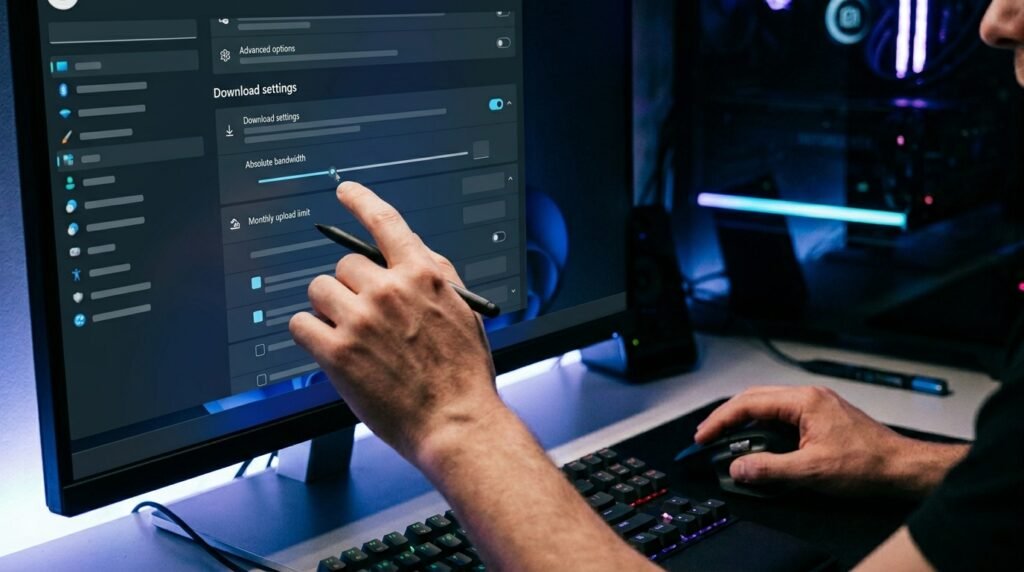
If you want to leave the feature turned on, you can go to “advanced upload limits.” Note: This section will limit the exact percentage of bandwidth that can be used for background activities within Windows.
Establish a Monthly Shared Data Cap

Other advanced settings include defining a limit in gigabytes for the amount of data that can be shared with others each month so that the data does not grow too large.
Review Your Organization Group Policies

If the sharing toggle remains grayed out while using a work computer, the sharing option is probably controlled by the company’s IT administrator. Often impose P2P sharing to save bandwidth in the office.
