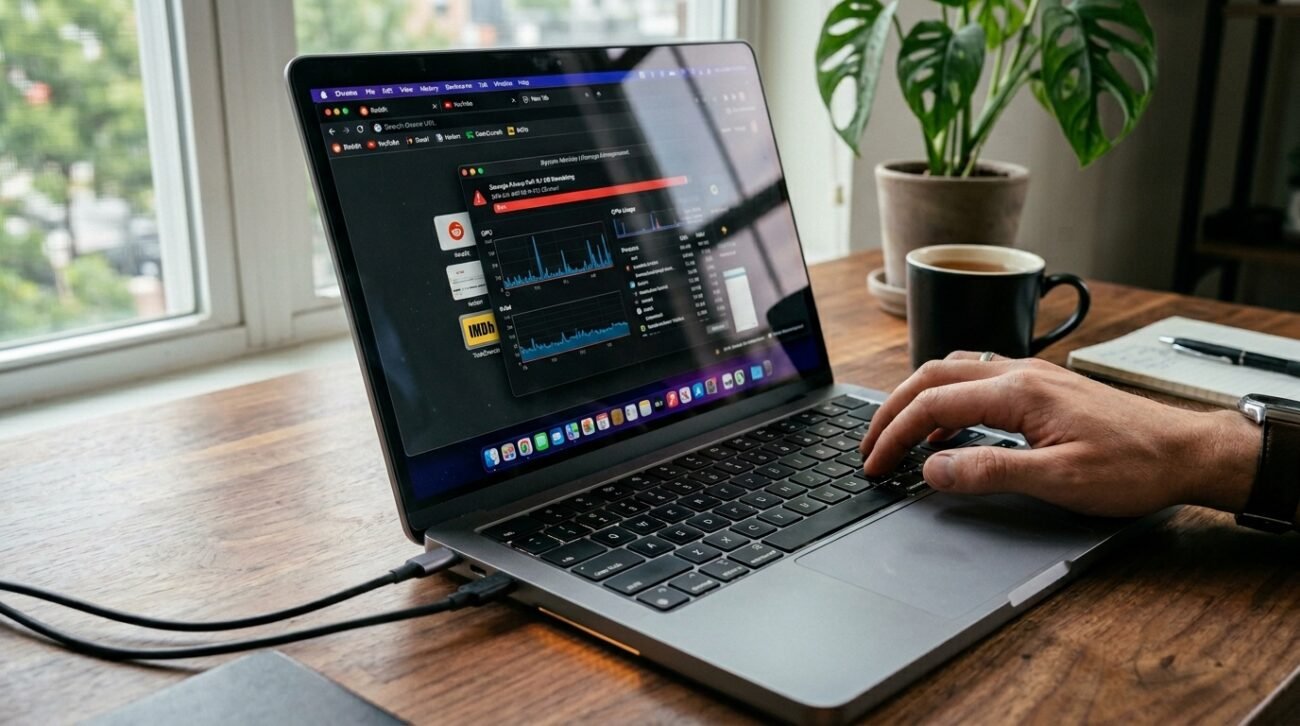
Have you been seeing a slight increase in laptop fan speed or an unexpected drop in storage space this week? You’re not alone. Security researchers such as Alexander Hanff recently indicated that Google Chrome could be silently downloading a large AI model called Gemini Nano, which is said to be 4 GB in size. By moving to on-device processing, this goal is to maintain the privacy and locality of your data.
Understand The Purpose Of Gemini Nano

This model is probably responsible for capabilities such as “Help me write” and the use of advanced tabs. Google may be trying to process your data without sending it to the cloud by running these tasks locally.
Check Your Hardware Compatibility Status
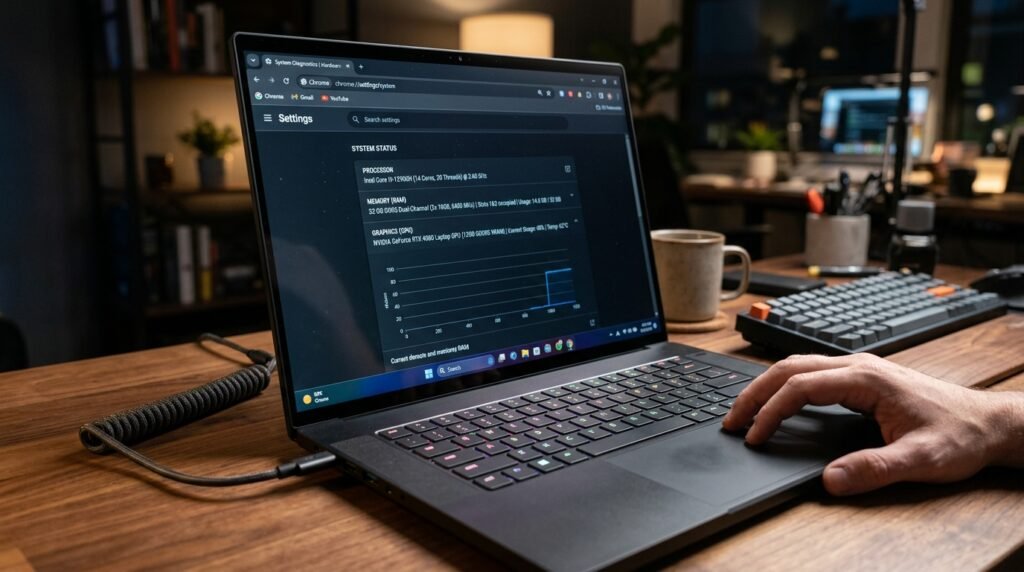
Chrome will usually check your RAM and GPU before starting the download. The browser may already have determined that your machine is capable of these high-performance tasks and has decided it is ready to use local AI.
Locate The Hidden Folder On Windows
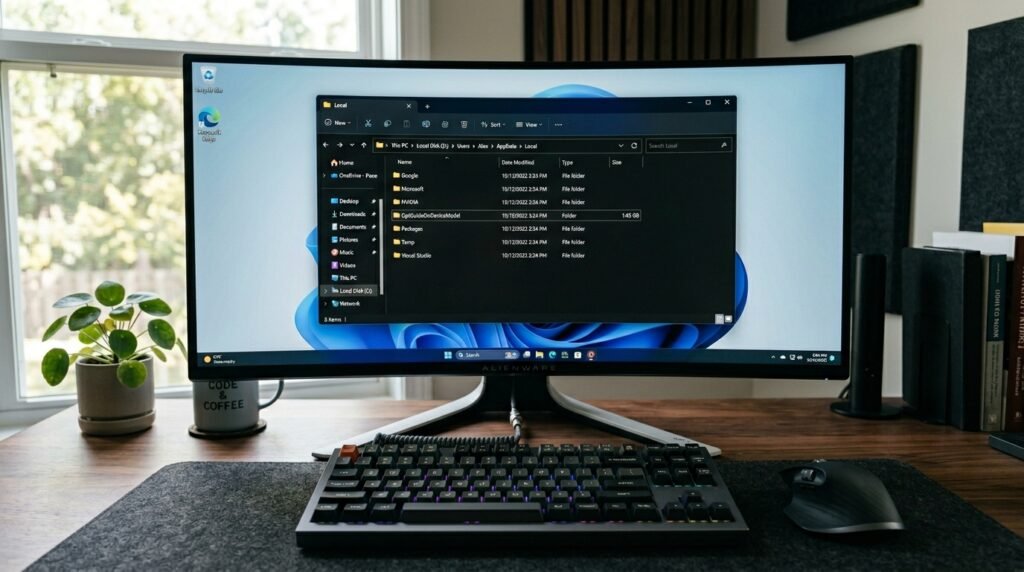
These files tend to be hidden in the “User Data” directory. Check in your local app data folder for a folder called “OptGuideOnDeviceModel.”
Find The Model Files On MacOS
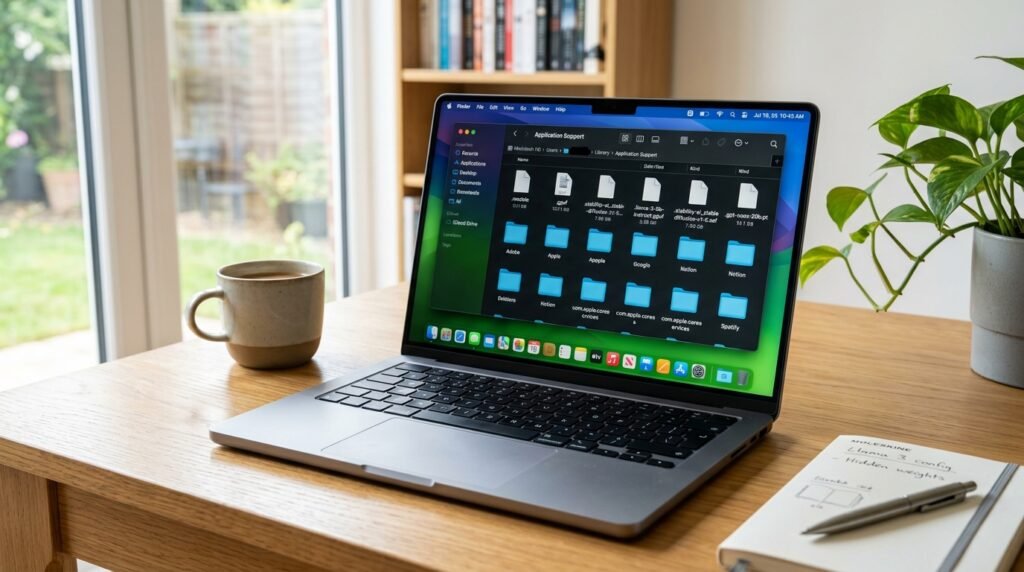
If you’re a Mac user, you could discover the 4 GB payload in the Application Support library. Your system files’ activity logs may show whether Chrome used this space when you were idly browsing the internet.
Identify The Weights Bin File
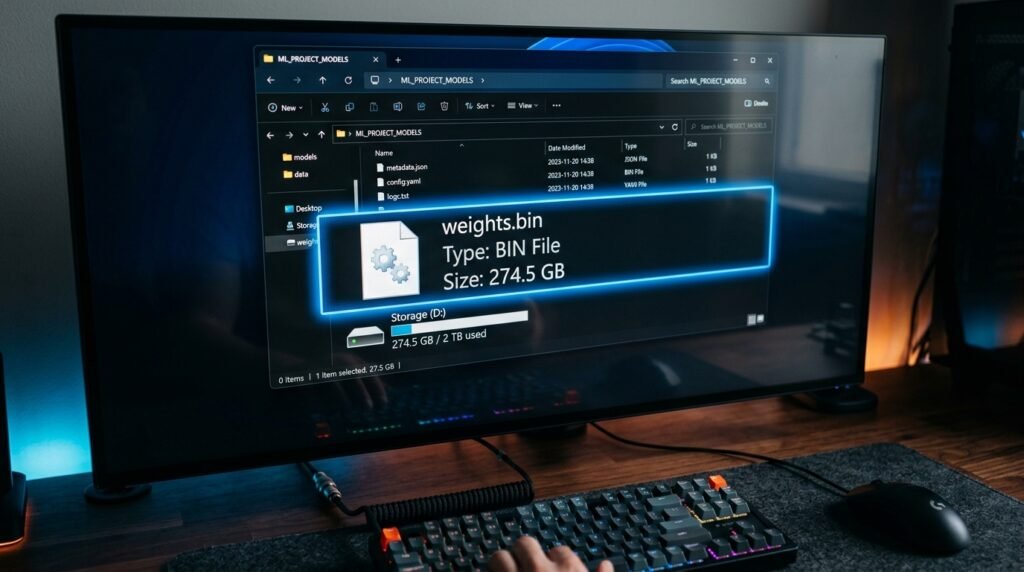
Within the model folder, you should be able to find a big file called “weights.bin.” This large file is the file containing the actual neural network data, which is used to understand and generate text by the browser.
Monitor Your Background Data Usage
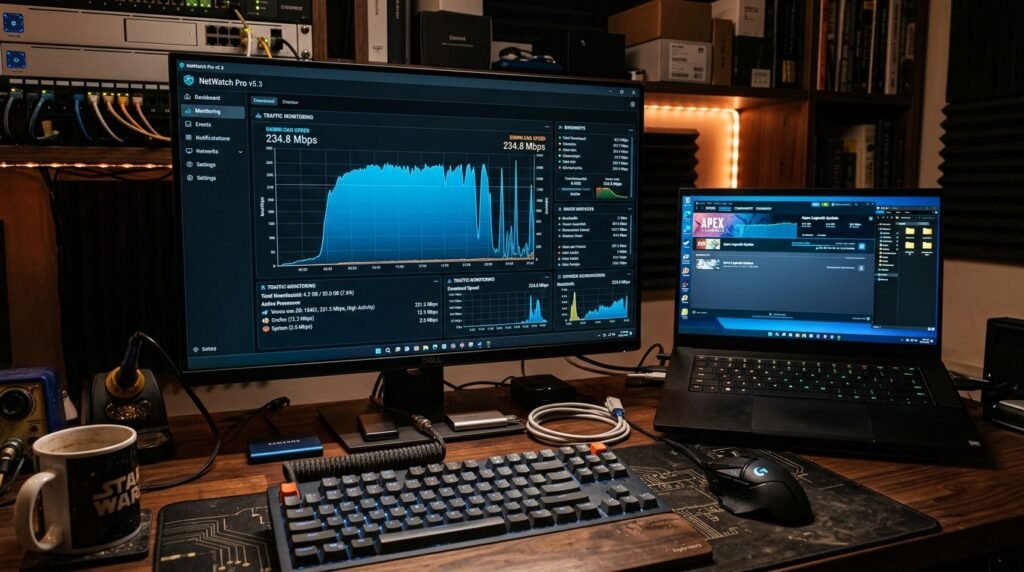
If you are on a metered connection or on a mobile hotspot, you may have a big hit when you get a 4 GB download. One way to detect these hidden transfers is to monitor your network monitor.
Access The Experimental Chrome Flags
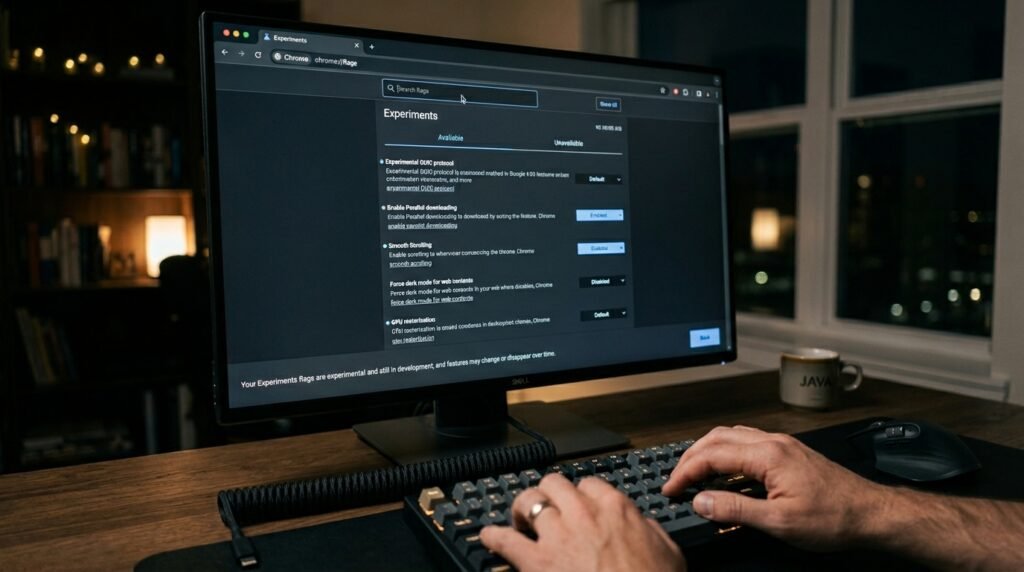
You may have to type “chrome://flags” in your browser’s address bar to prevent the model from returning. Here, you can enable or disable the experimental features that enable the automatic background downloads.
Disable The Optimization Guide Feature
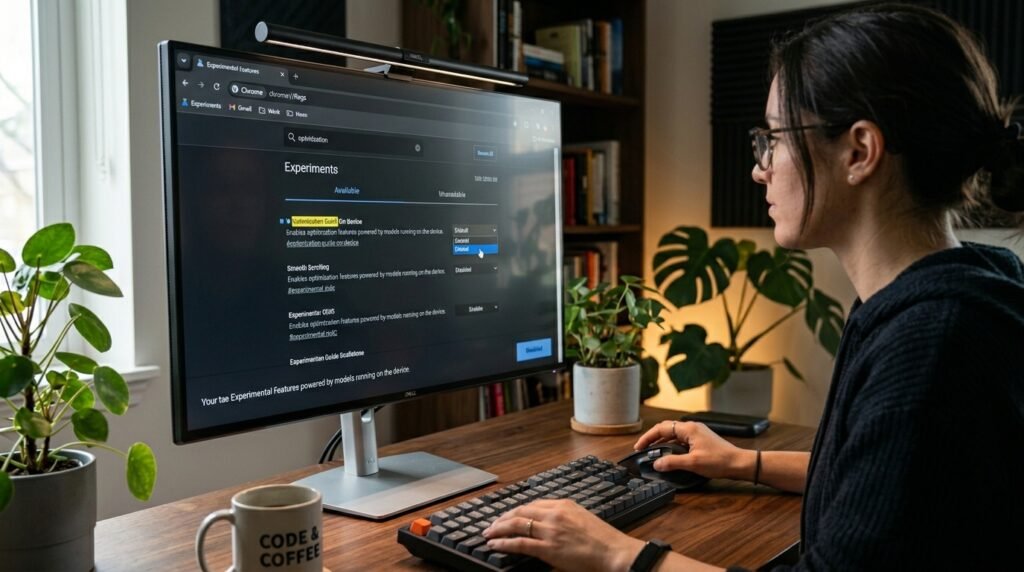
Look up “Enables optimization guide on device” and change the setting to “Disabled.” In doing so, the browser may not know to install the AI model on the hard drive.
Delete The Files Manually
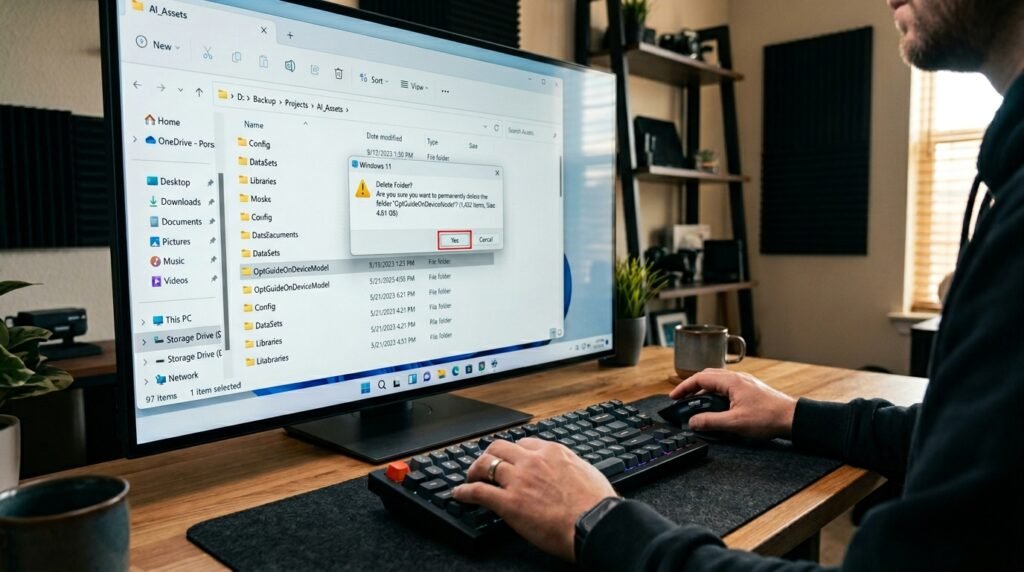
After disabling the settings, you might want to remove the “OptGuideOnDeviceModel” folder. Once you’ve deleted the source files, you’re getting back four gigabytes of valuable real estate on your device!
Evaluate Your Privacy Needs

The downside of local AI is that it doesn’t provide transparency, something that many people are worried about. The convenience of AI should not be taken into account when considering the storage control you want.
