
Nothing is so annoying as a rotating loading wheel when you are attempting to complete a project or even stream your favorite show. Original research in the Journal of Network and Computer Applications demonstrates that network latency is usually a result of software bottlenecks and not due to mere limitations of hardware. Although your provider may set the limit, some changes to a few internal Windows settings could possibly open the doors to a far smoother and more responsive Web experience.
Update Your Network Drivers

The software that is out of date may lead to errors in communication between your hardware and the web. The potential solution is to check the Device Manager to see the latest updates, and hopefully, this should resolve some stability problems and also increase the speed of your data generally.
Disable Background Delivery Optimization
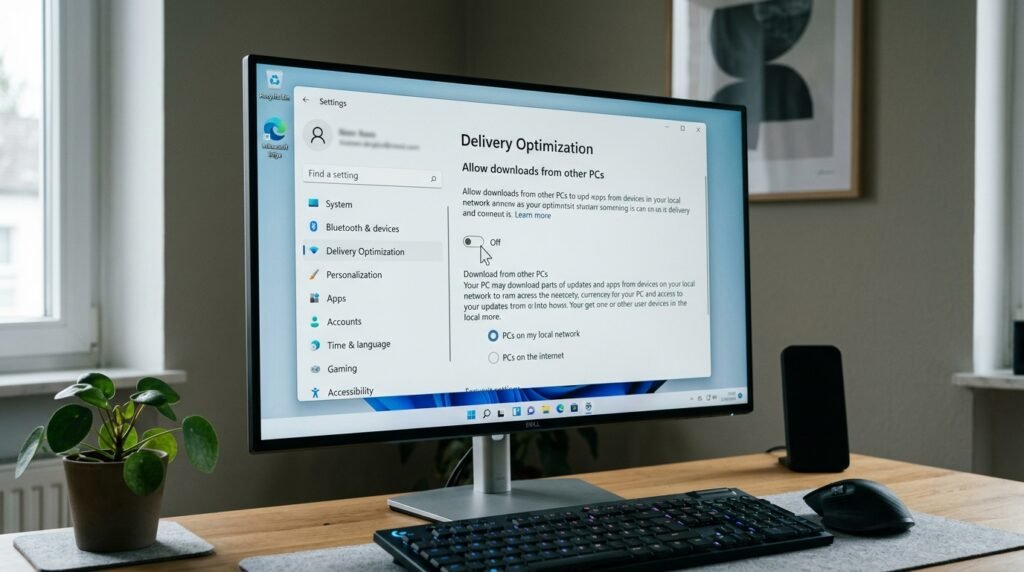
Windows also spends your bandwidth to update other PCs over the internet. Switching this option off in your settings may possibly allow you to utilize a large chunk of your connection for yourself.
Adjust the Reserved Bandwidth
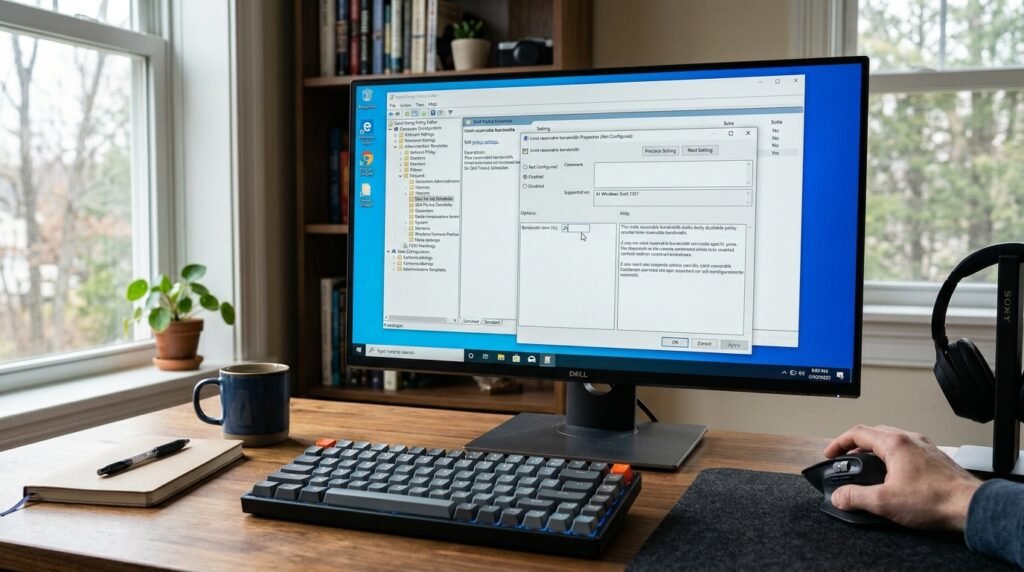
Windows can take a share of your bandwidth for particular system operations and updates. This change with the Group Policy Editor may enable your browser to utilize a greater portion of your overall connection speed.
Switch to a Wired Connection
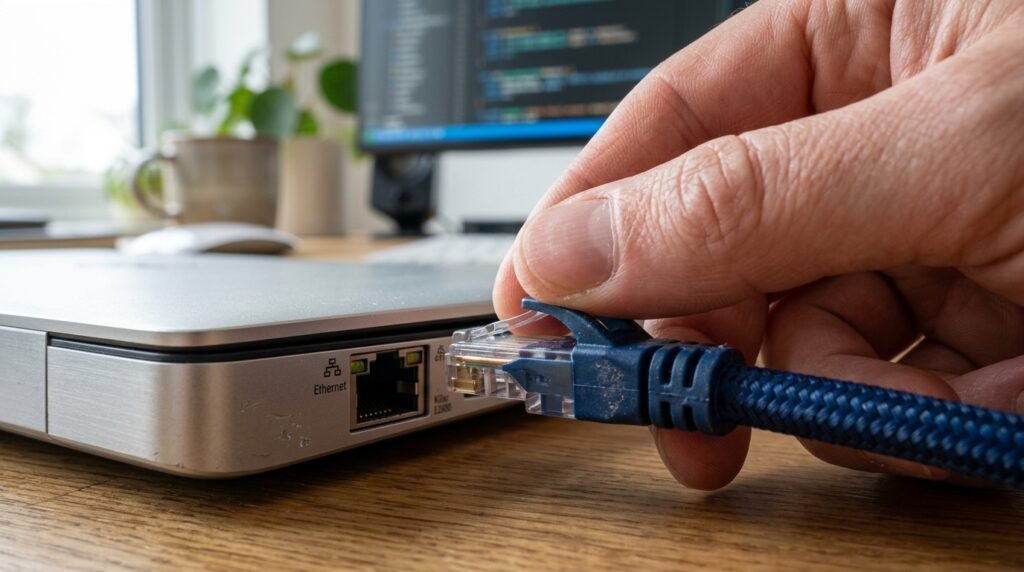
Even though Wi-Fi is extremely convenient, a physical Ethernet cable can typically provide a more reliable and high-speed connection. Technical literature tends to indicate that wired links experience much less interference compared to wireless transmissions.
Scan for Background Bandwidth Hogs
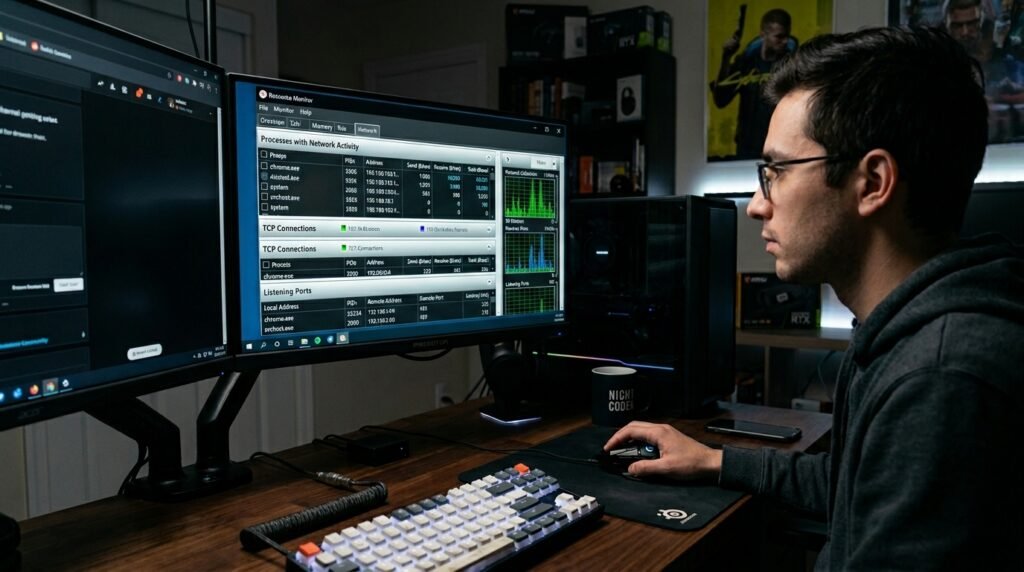
Unnoticed apps normally update or synchronize files without you even being aware of it. The Resource Monitor can assist you in determining these “hogs” so that you may close them and hopefully recover your lost speed.
Optimize Your Browser Cache
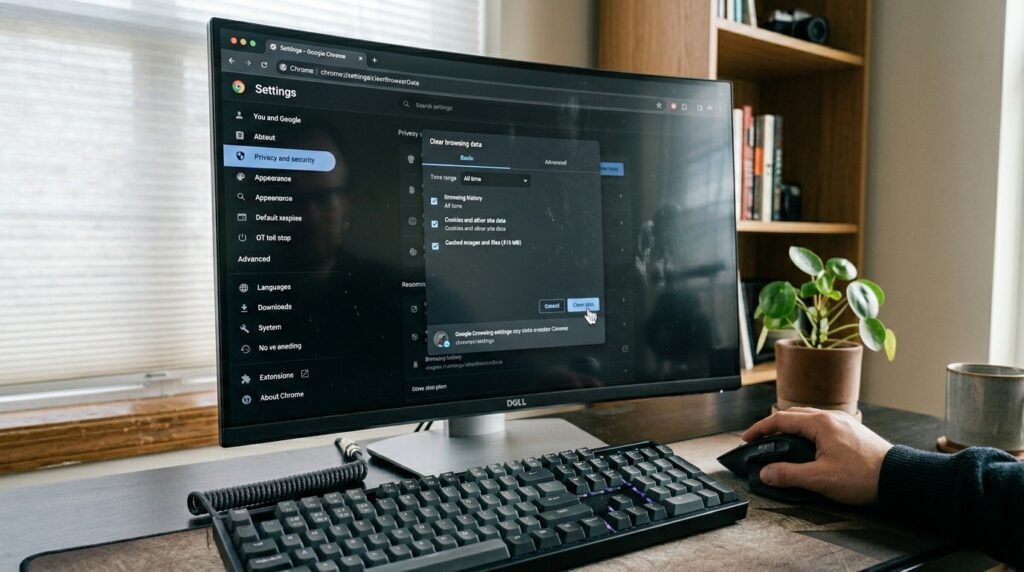
A clogged cache can even make your surfing experience slow instead of making it fast. Periodically deleting old temporary files could enable your browser to present new web content much more effectively than previously.
Disable Excessive Browser Extensions

Each extension you install needs a small amount of data to operate. Uninstalling those that you hardly ever use may potentially simplify your web traffic and make the page-loading experience much more responsive and snappy.
Reposition Your Wireless Router
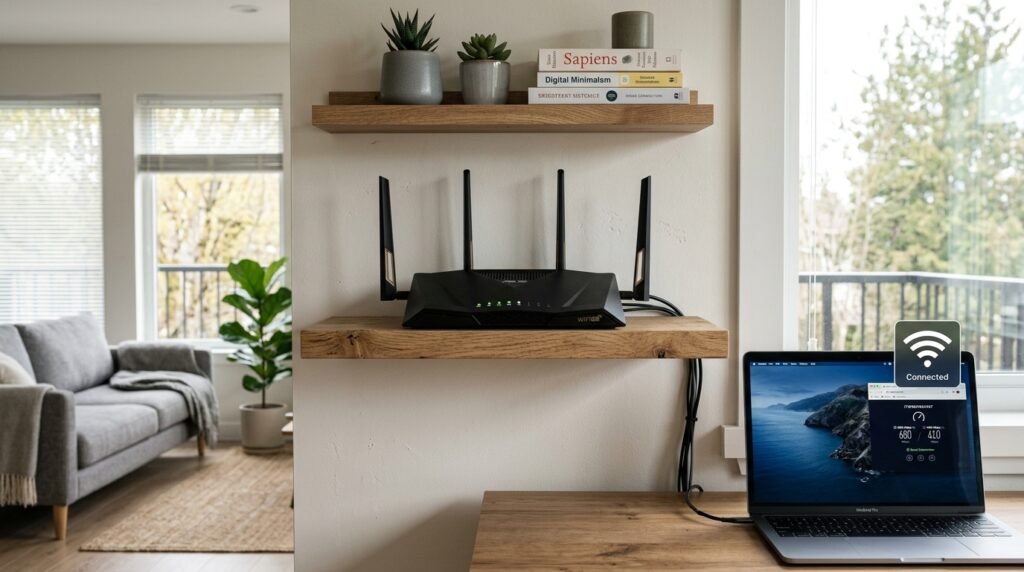
Where your router is physically located is more important than you may think. Placing it in the heart of the room, a high position without touching the walls, may possibly enhance your PC signal strength and speed.
Update Your Windows System

Microsoft often issues patches to enhance the behavior of Windows 10 and 11 with regard to network protocols. Keeping up with such updates could potentially resolve the bugs that are presently holding your connection speeds at ransom.
Use a High-Quality Cable
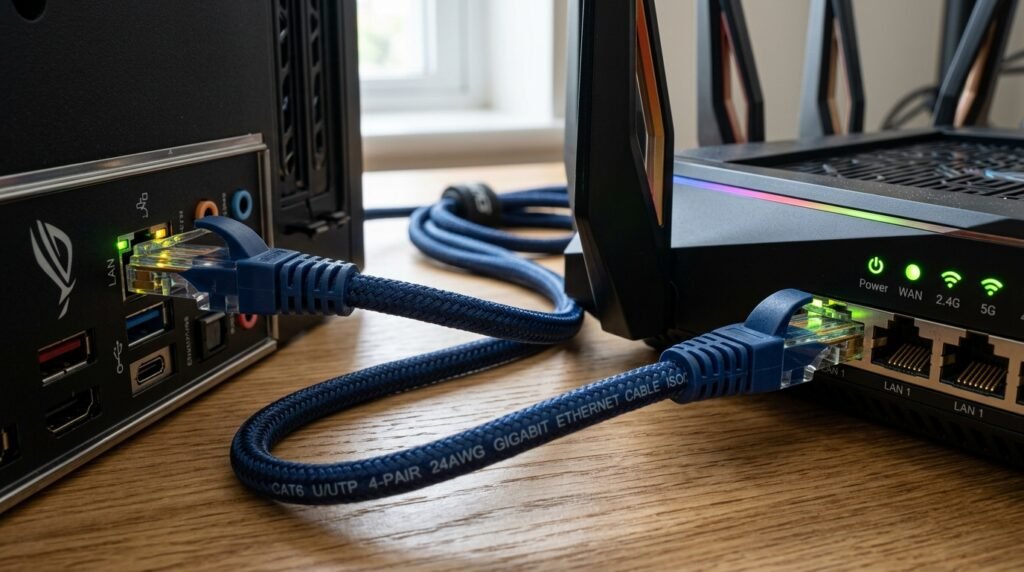
Not all Ethernet cables are made equally, and older ones may restrict your speed. There is a possibility that upgrading to a Cat6 or more cable would help you to get the best out of your router.
Close Unnecessary Cloud Syncing

Applications such as OneDrive or Dropbox can be very heavy on the upload bandwidth as they sync photos. Breaking these services in the middle of your work may potentially give your active browsing the priority with which it can soar.
