
Have you ever felt that your computer can recall more about your day than you do? As it happens, Windows maintains detailed, under-the-hood logs of just about every click, crash, and connection. Research on digital forensic automated logs published in 2026, Digital Forensic Research Publications in The Journal of Cybersecurity, showed that these automated logs are necessary to monitor the health of a system but can also be quite revealing of personal activity. Just go around the digital curtain, and you will know precisely what has been recorded by your PC.
Explore the Event Viewer
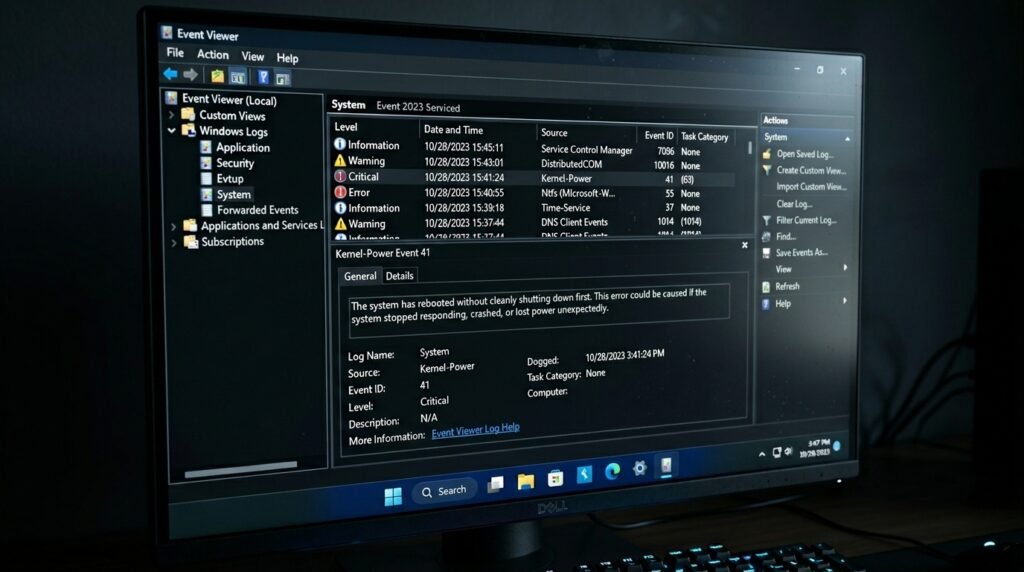
The main center of all the system hiccups or successful logins is the Event Viewer. The technical documentation of Microsoft records that this tool logs “Event IDs” of all software updates, suspicious attempts at remote access, etc.
View Your Reliability History
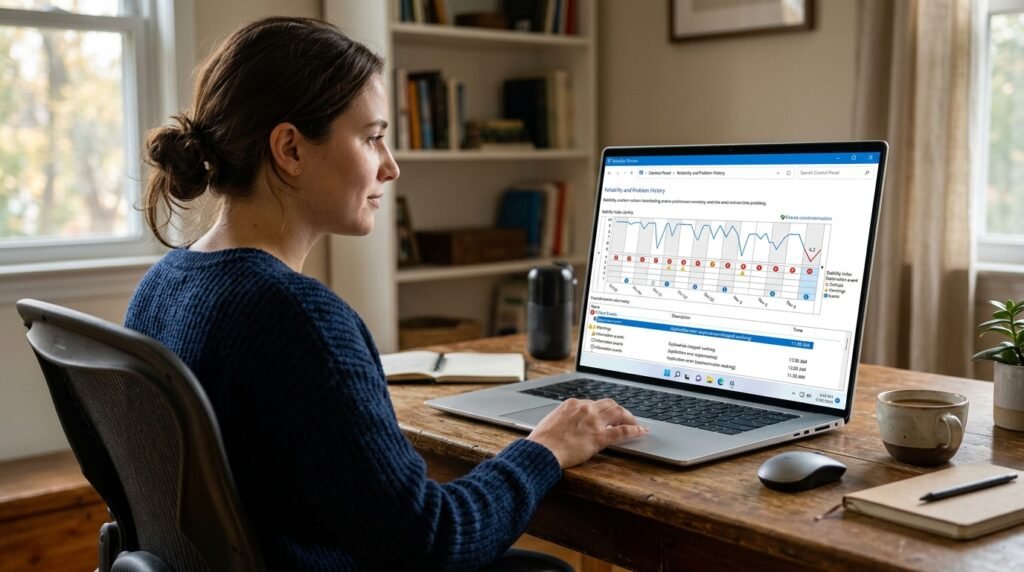
To get a basic “health score” of your PC, search the Reliability Monitor. The recent 2026 technology update displays this concealed chart that tracks application failures and Windows updates on a user-friendly time scale.
Review Your Activity History

Windows 11 will be able to monitor the apps you open and the websites you visit. To check whether your “Activity History” is locally stored or synchronized, privacy experts tend to suggest checking your settings.
Inspect the Security Log
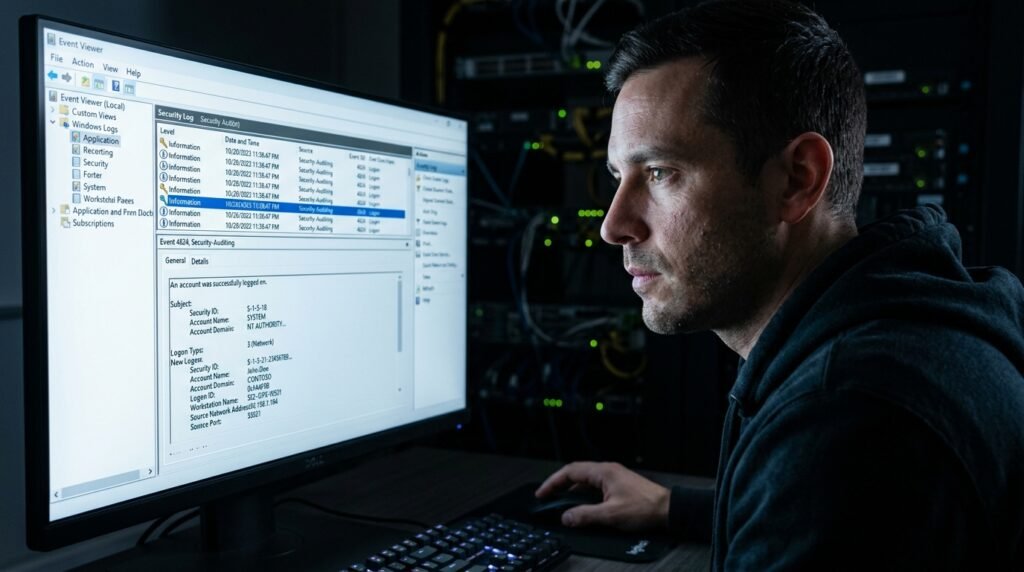
The Security Log within Event Viewer records the number of times that one attempts to log in. This is one of the most critical points to check in case you feel that somebody else may be attempting to access your personal files.
Audit Your Update History

Windows keeps a strict history of all patches and drivers that are installed. It has been shown that maintaining a watch on this log may assist you in determining whether a particular update has generated problems with the performance of the system recently.
Monitor App Usage Data
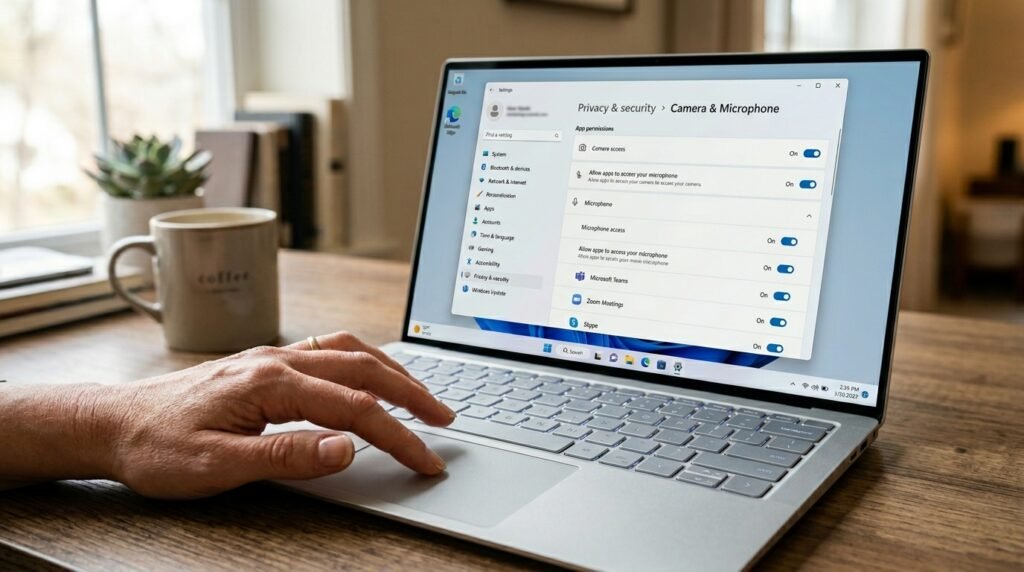
The list of applications that have used your camera or microphone is hidden in privacy settings. This log plays a crucial role in making sure that none of the background software is listening in without your express consent.
Check Your DNS Cache
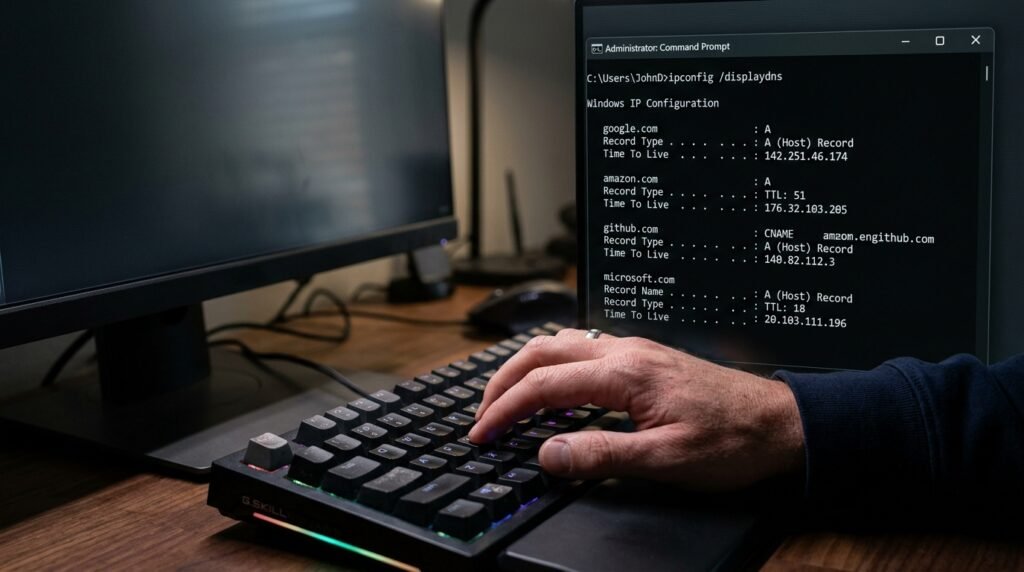
To reduce the time taken to load your web pages, your computer maintains a temporary record of all the websites you have accessed. This “DNS cache” is a short-term history log, which can be reviewed using the command prompt.
Examine Background Task Logs

Windows monitors “Scheduled Tasks,” which are executed when you are away. Some of them are useful system clean-ups, whereas others may be remnants of the applications that you may have believed you had already removed.
Look at Power Logs

The sleep study report is a specialized log that illustrates what sapped your battery during the night. It shows precisely which applications had been actively used when your laptop lid was shut and helps you save energy.
Review Windows Recall Data

On more modern AI-enabled PCs, there is the so-called Recall feature that periodically takes a snapshot of your screen. According to research by Digital Investigation 2026, it is recommended to review these settings to make sure that your visual history is stored in the exact way that you like.
Trace Browser Download History
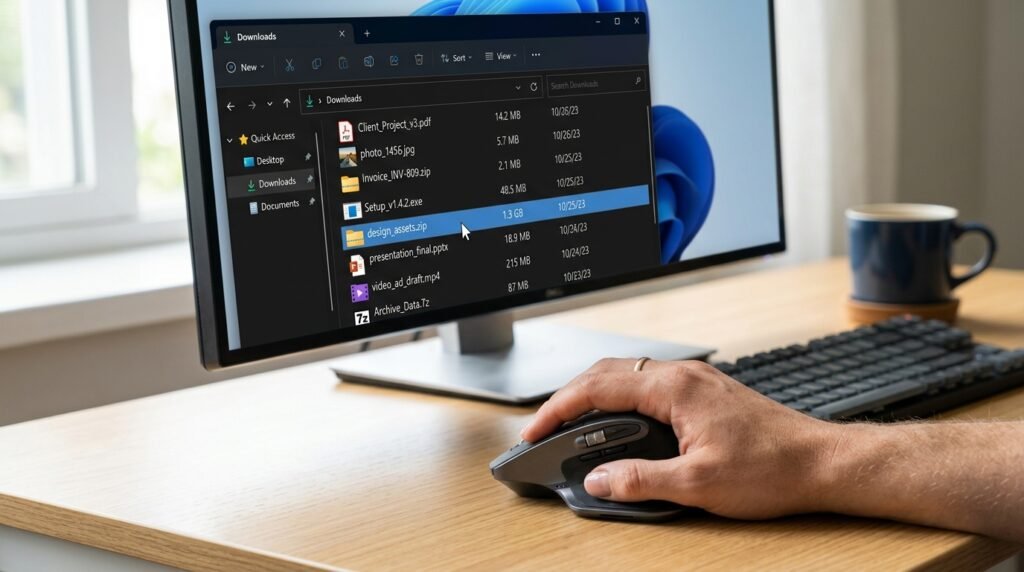
Windows has a tendency to maintain a list of files downloaded in one place in a central folder, even after clearing your browser history. This gives you a clear history of all the installers or PDFs you have saved.
Inspect Location Activity Logs

Your computer can maintain a history of your physical coordinates, should location services be enabled. A review in the Privacy and Security menu will help you control the apps that are aware of your location.
