
As soon as your computer begins to slow, start crashing, or just not execute tasks that require a lot of graphics, determining the precise type of GPU within your system becomes a very important step towards solving your problem. It can be in driver conflicts, performance declines, or compatibility issues, but having knowledge of your graphics hardware can enable you to make wise decisions in troubleshooting. In this guide, you will learn to diagnose your computer effectively and confidently by following effective and trustworthy steps of locating the type of graphics card installed in your computer.
The Rationale behind having a GPU

Your graphics card is at the heart of visualizing images, gaming, and accelerating creative or technical tasks. In the case of problems, like flickering screen or bad performance, a point of origin will usually be traced to the graphics hardware or its drivers. Determining your GPU will also make sure that you install the right updates and implement pertinent fixes.
Monitoring GPU using Task Manager

The fastest method of determining your GPU is using the Task Manager in Windows. After going to the Performance tab, you will be able to see a variety of information about your graphics card, such as its name and statistics of usage. This technique comes in handy when one wants to perform a fast check without having to install any extra software.
Hardware Details with device Manager

The Device Manager offers a closer view of the hardware which is attached to your system. You can enlarge the Display Adapters section and the exact model of your GPU will be displayed. This is a good method to make sure that your system is properly identifying the graphics hardware.
Locating GPU Data by means of the System Information Tool

The System Information utility enables you to view the complete list of the components of your computer including the GPU. To see more detailed specifications (e.g., adapter type and memory), go to the Components section and click on Display. This is a useful technique in cases where you require greater technical understanding to troubleshoot.
Viewing the GPU through the DirectX Diagnostic Tool
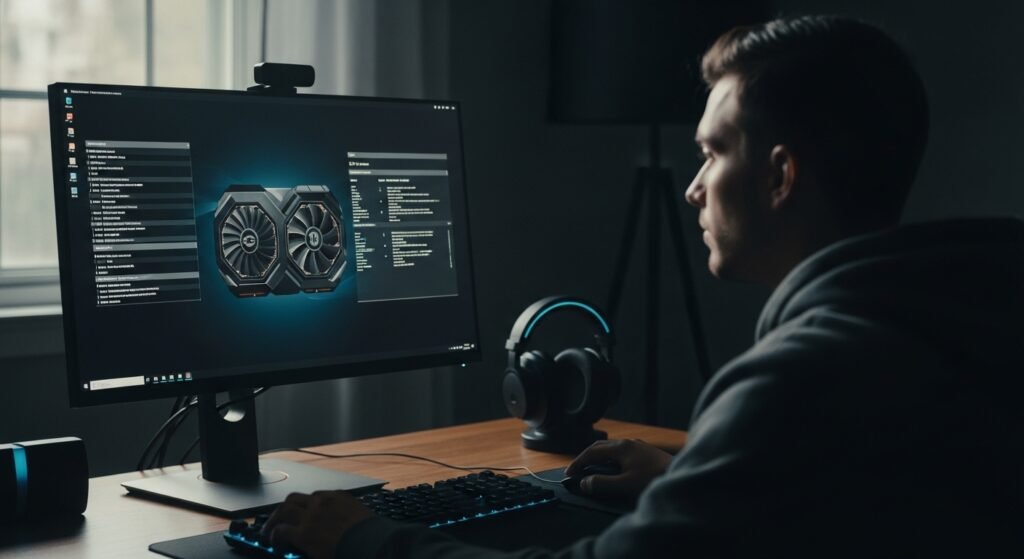
Another built-in feature is the DirectX Diagnostic Tool that displays the information about the GPUs in a simplified format. On clicking the Display tab, graphics card will be detected with information on drivers and feature support. The tool is especially applicable in the diagnosis of problems with gaming or multimedia performance.
With Detailed Insights with Third-Party Software

To do very detailed troubleshooting, you can use third-party software to give you detailed information about your GPU. All these tools reveal the temperature, clock speeds and driver versions and more; they provide a full picture of your hardware state. This amount of detailed data can be useful in identifying performance bottlenecks or overheating problems.
Determining GPU By Physical Inspection
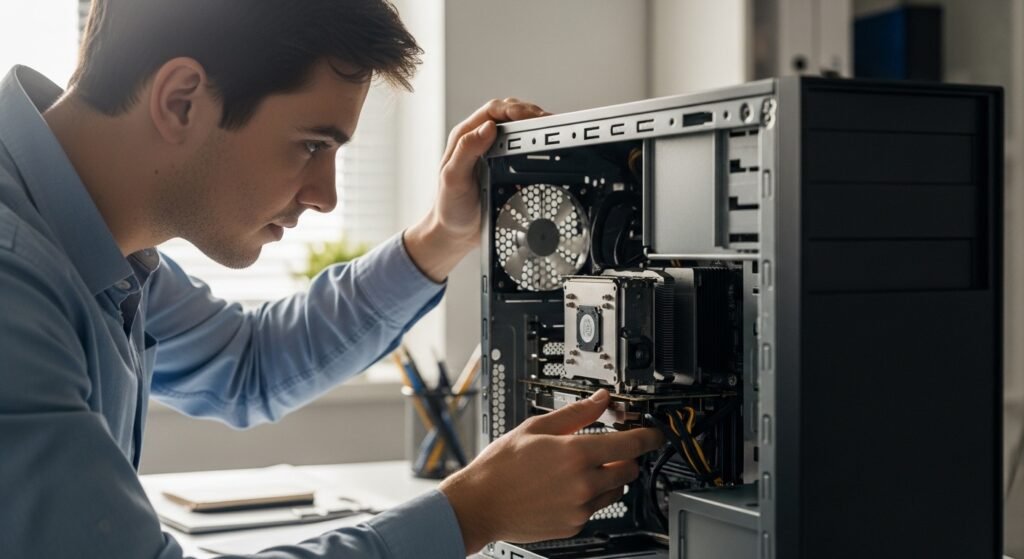
Physically inspecting the GPU may be required in certain instances particularly with custom-built desktops. To read the name of the model printed on the card, simply open the case. This approach comes in handy when software cannot give the right or complete information.
Looking at GPU Information in macOS

In case you are with a macOS machine, the information on the GPUs can be viewed in the system settings, in the about section. Here, you can see a good perspective of the graphics card that is installed in your computer. This information is important in fixing compatibility and performance issues with the Apple devices.
The Identification to Troubleshoot is Accurately Identified

The first step to effective troubleshooting is to accurately determine what your GPU is. After learning the model of your graphics card, you are able to download the appropriate drivers, verify whether there are known problems and implement specific solutions. By doing this, you will rule out the guesses and have a high probability of troubleshooting any technical issues effectively.
