Many people experience slow internet connections or unusual activity at times. Most people never check what is connected to their Wi-Fi network. But it is easy to identify who is using your connection or accessing your data without your knowledge. These tips focus on routine checks to help you stay informed about your home Wi-Fi without needing advanced technical knowledge.
Check Your Router’s Device List
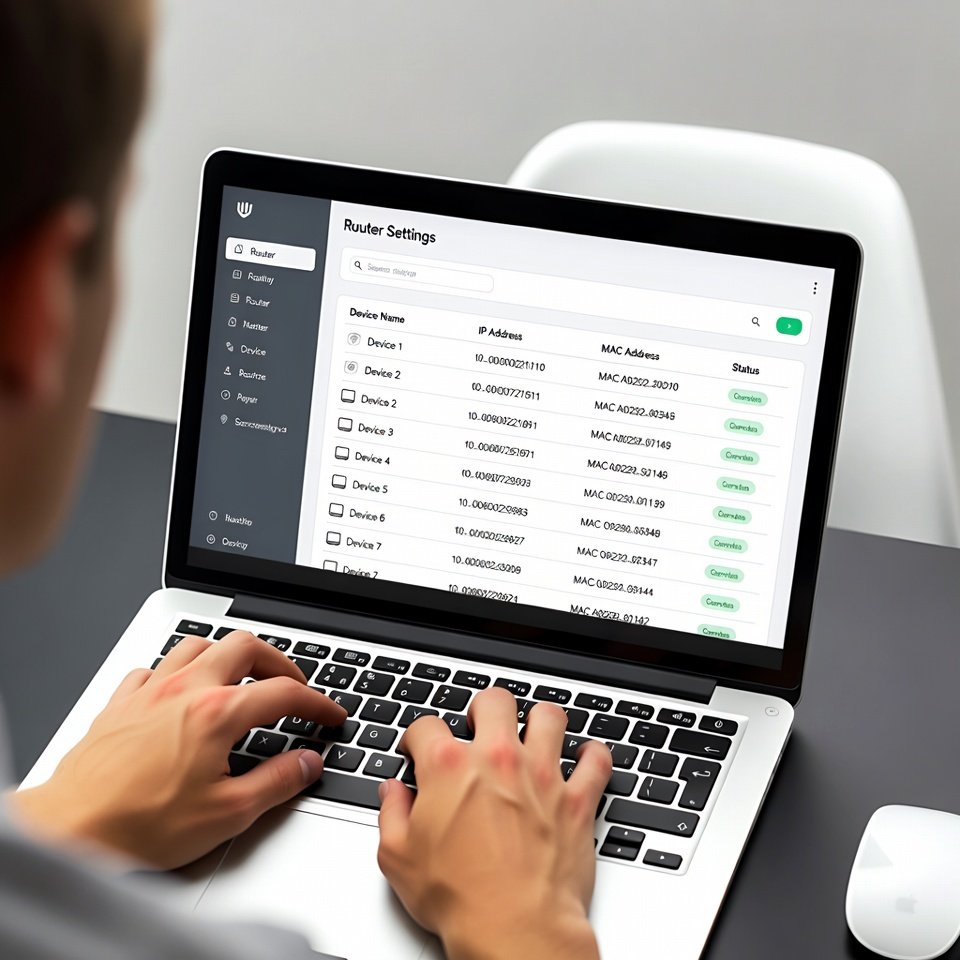
In case you don’t know, most routers show a list of connected devices inside their settings. So, log in to your router dashboard and you can see names, IP addresses, or device types connected to your network previously and presently.
Use Your Router’s Mobile App
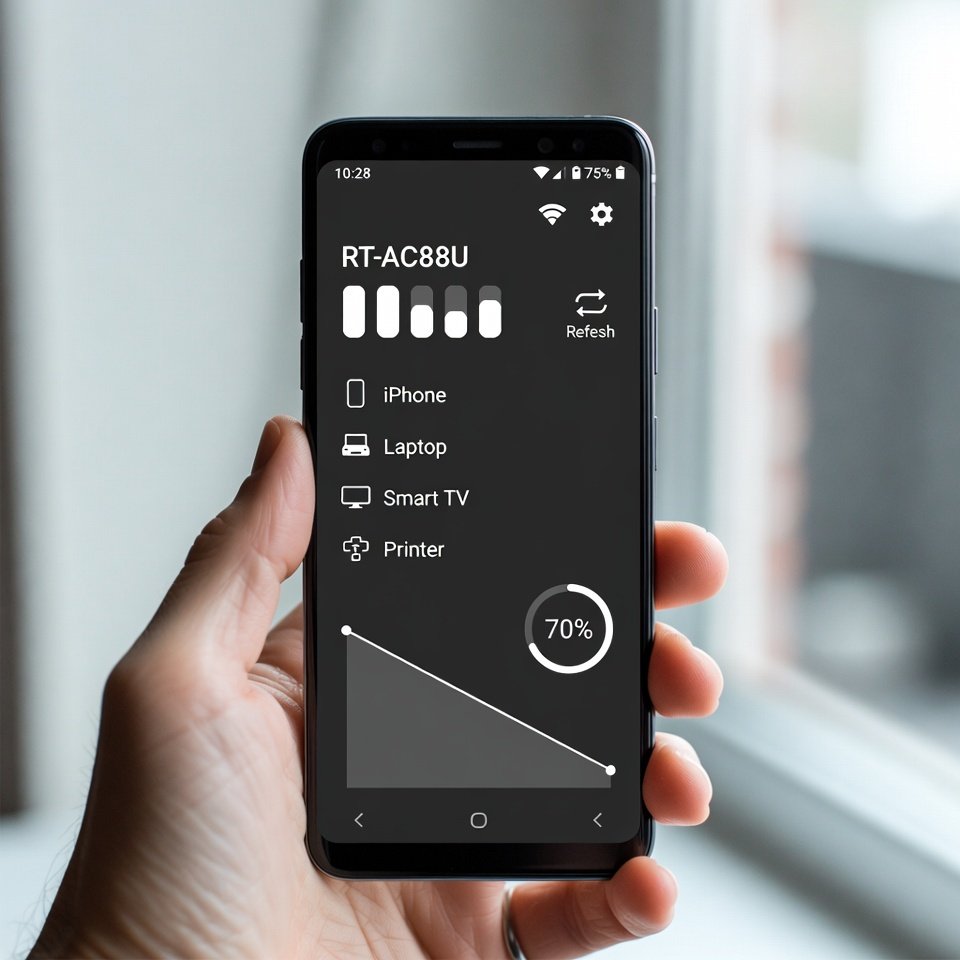
Another trick to identify unknown devices is by checking the router’s mobile application. Many internet providers offer companion apps for routers. These apps display connected devices in a simple layout.
Look for Unfamiliar Device Names
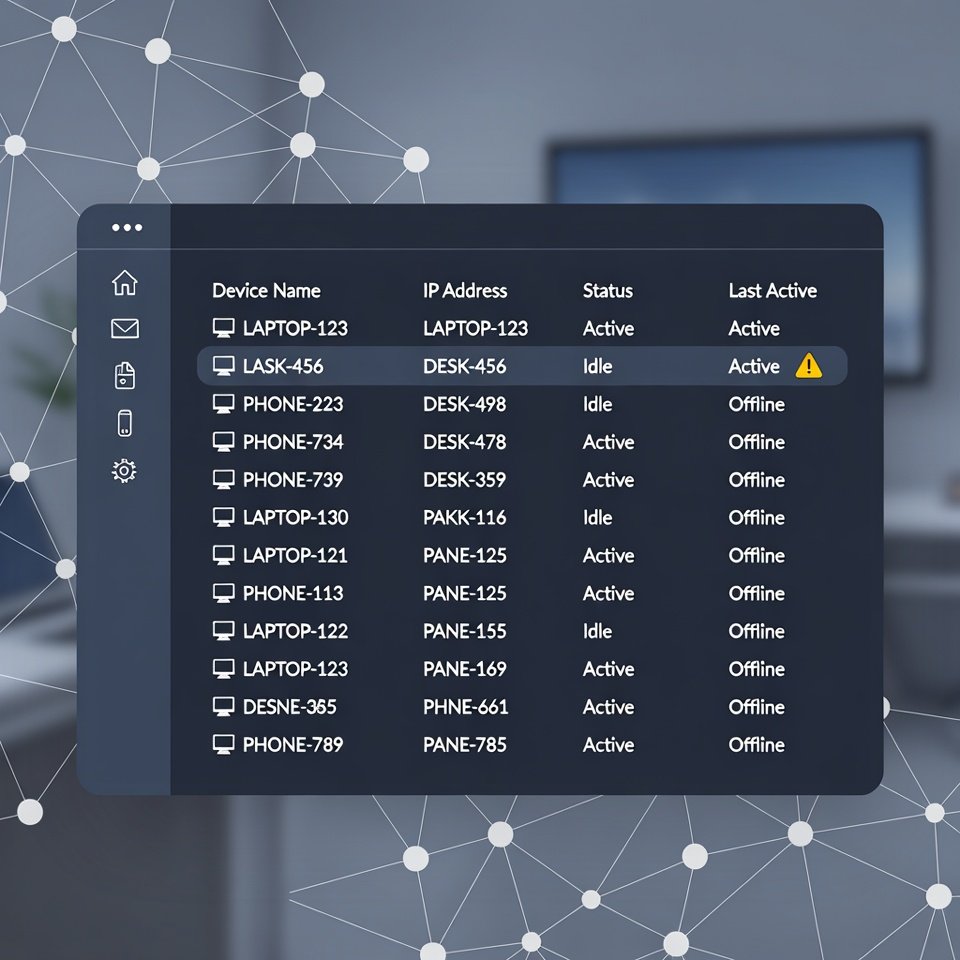
Some devices appear with brand names or model numbers. Anything that doesn’t match phones, laptops, or smart devices in your home, it means someone unknown is using your home internet.
Check Connected Devices Regularly
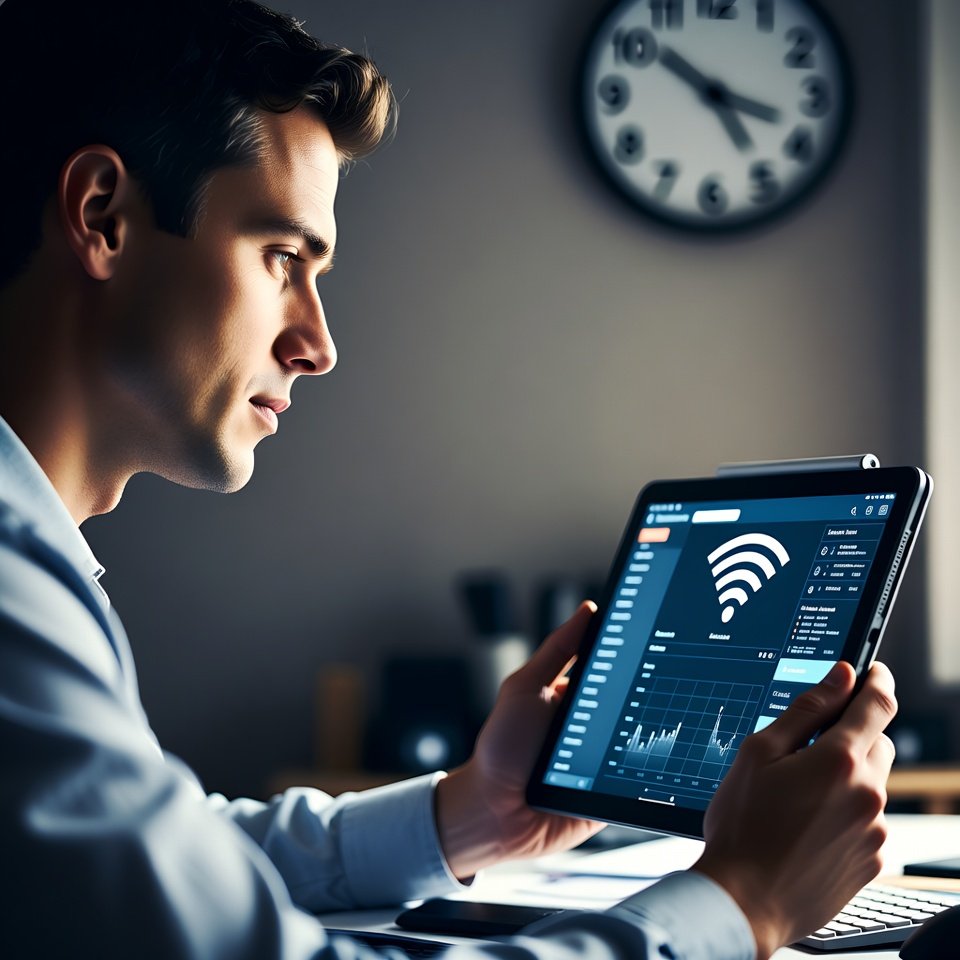
Router dashboards update when a new device is connected. Regularly checking and monitoring who is using your connection on a daily basis may reveal some potential clues as well.
Use Network Scanning Apps
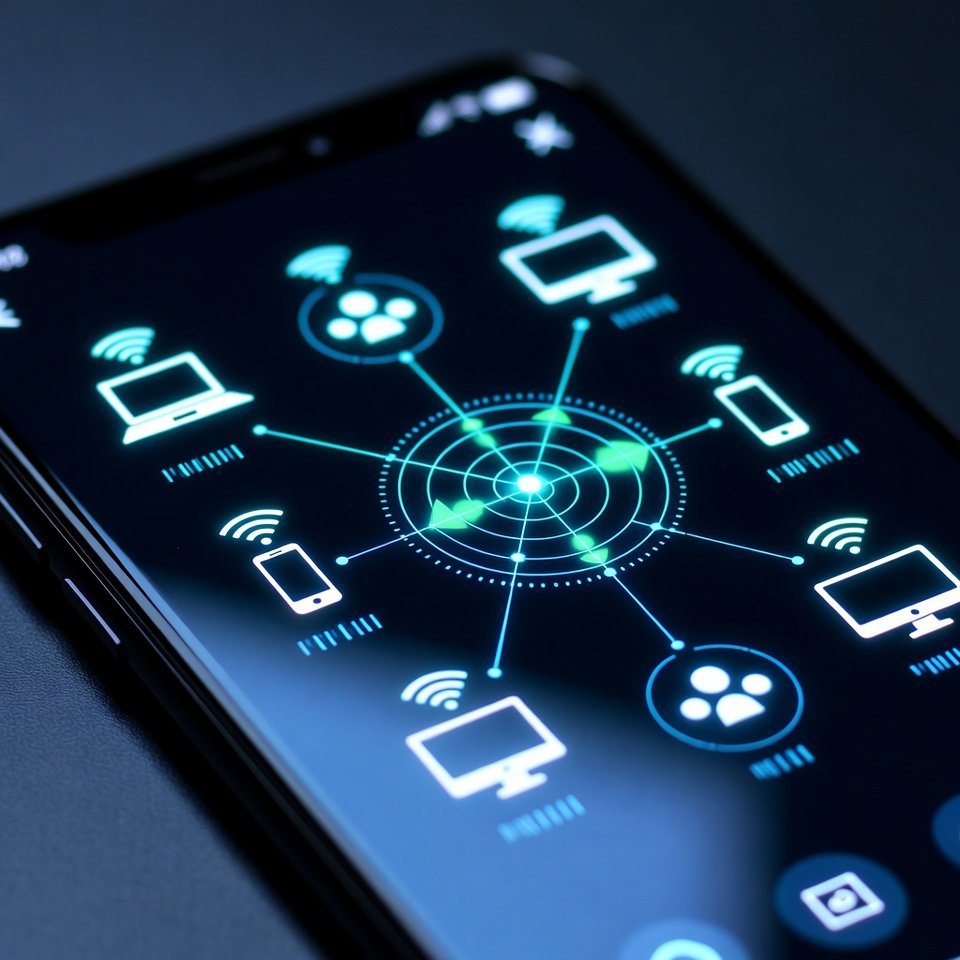
Indeed, there are some network scanning apps in the market that may help you identify unknown devices to your router. When in progress, Wi-Fi scanners show devices connected to the same network.
Compare With Household Devices

Make a quick list of phones, TVs, laptops, and smart gadgets at home that you think they run through internet connection. Comparing this with the router list helps confirm which connections need a closer look.
Block Suspicious Devices
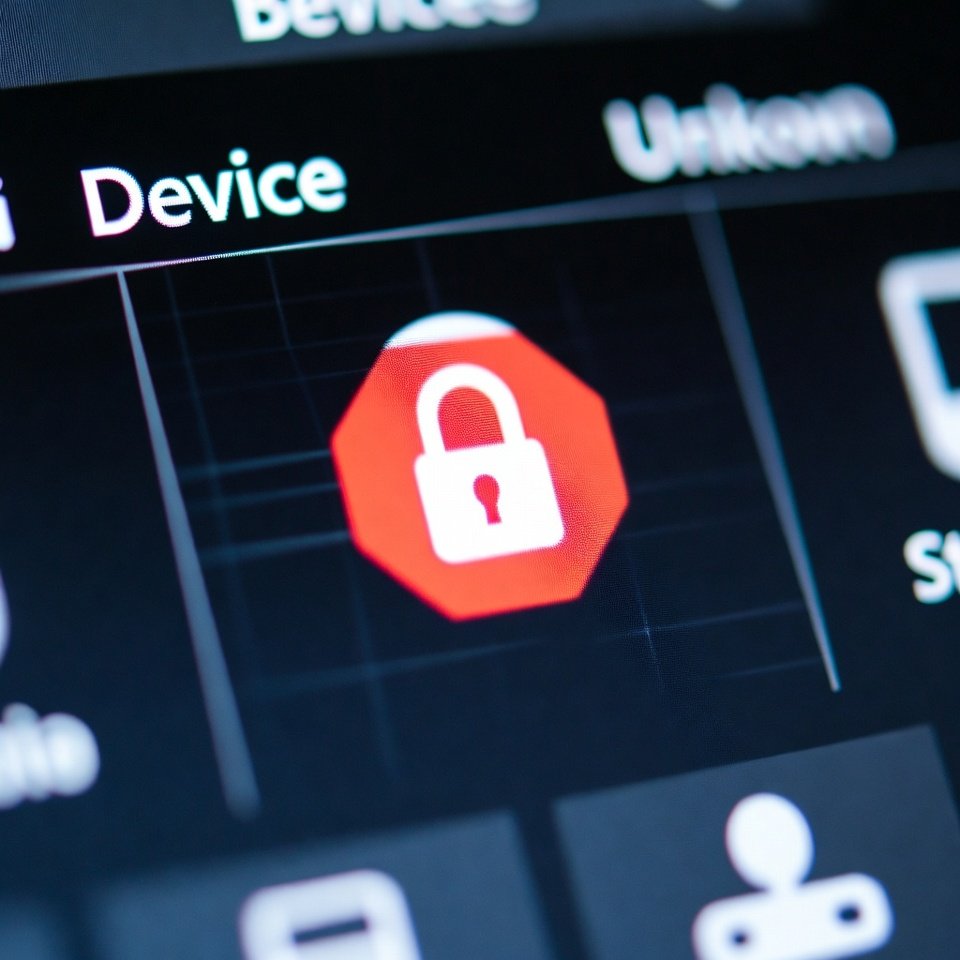
Many routers allow pausing or blocking devices temporarily. This feature is great when you think that someone is stealing your internet sincerely. You can then control it by tweaking settings like limited connectivity or changing password with a more secured one.
Change Your Wi-Fi Password
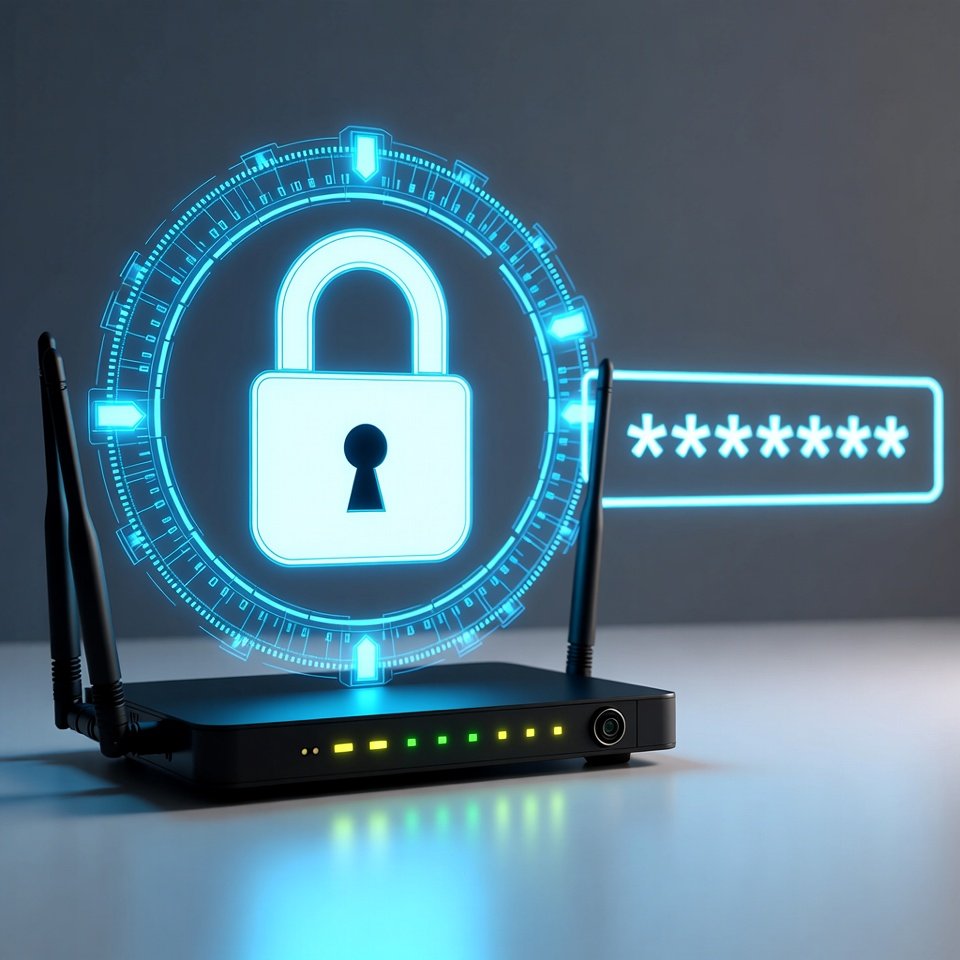
Updating the Wi-Fi password disconnects all devices and reconnecting only your known devices. This step often clears out unknown connections and feels like a clean reset which may give you a piece of mind.
Enable Network Notifications
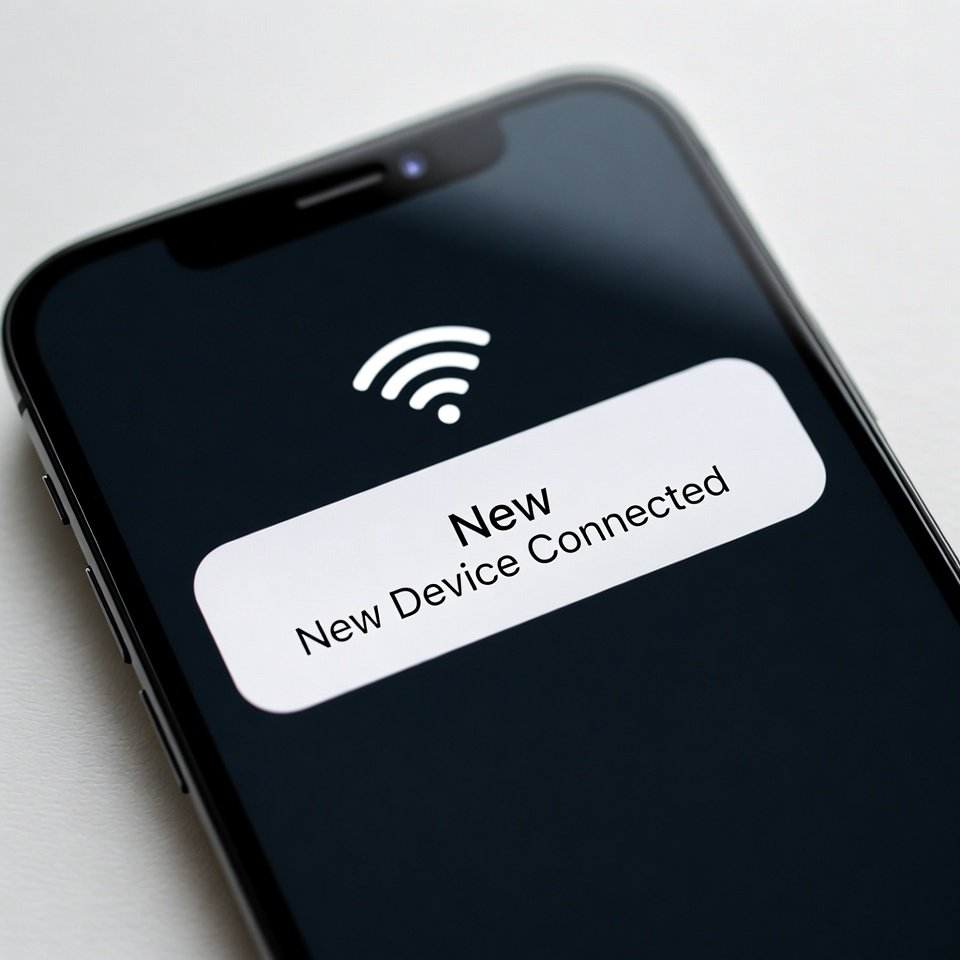
Finally, you can enable network notifications that alert you when new devices connect. These notifications make it easier to notice changes without constantly checking your router settings manually.
