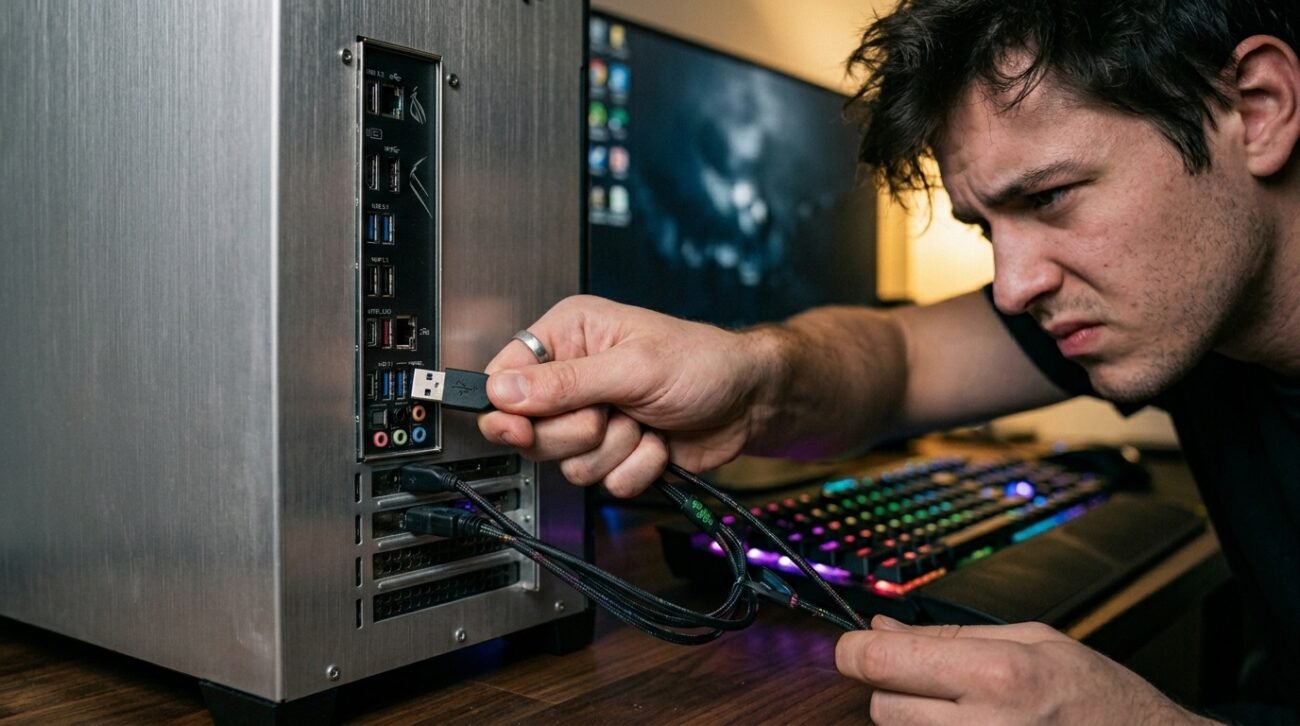
We’ve all done it, scooted around frantically, trying to tap out some mouse clicks as we race to meet a deadline, only for that mouse to be unresponsive. While it seems like any rectangular slot will do, recent technical deep dives and hardware enthusiast benchmarks suggest your choice of port might actually hinder performance. According to research from tech analysts at sites like Tom’s Hardware, the specific bus architecture of your motherboard dictates how efficiently your peripherals communicate with your system.
High Polling Rates Demand Better Connections
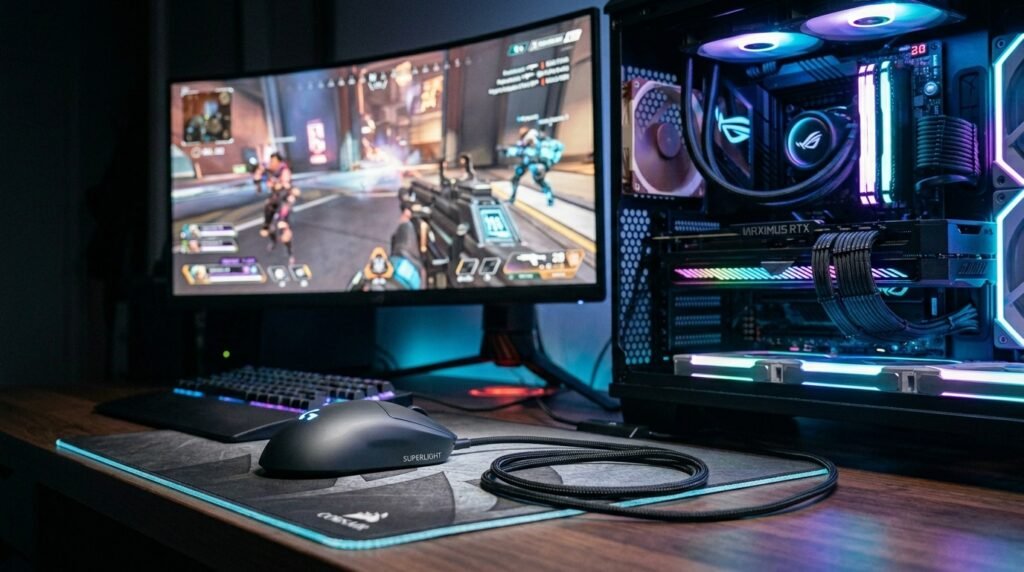
The modern gaming mouse elevates the polling rate to keep itself responsive. If externally connected to a slower, shared port, you may notice some minor micro-stutters that make your cursor feel slightly heavy or laggy.
The Problem With Front Panel Headers
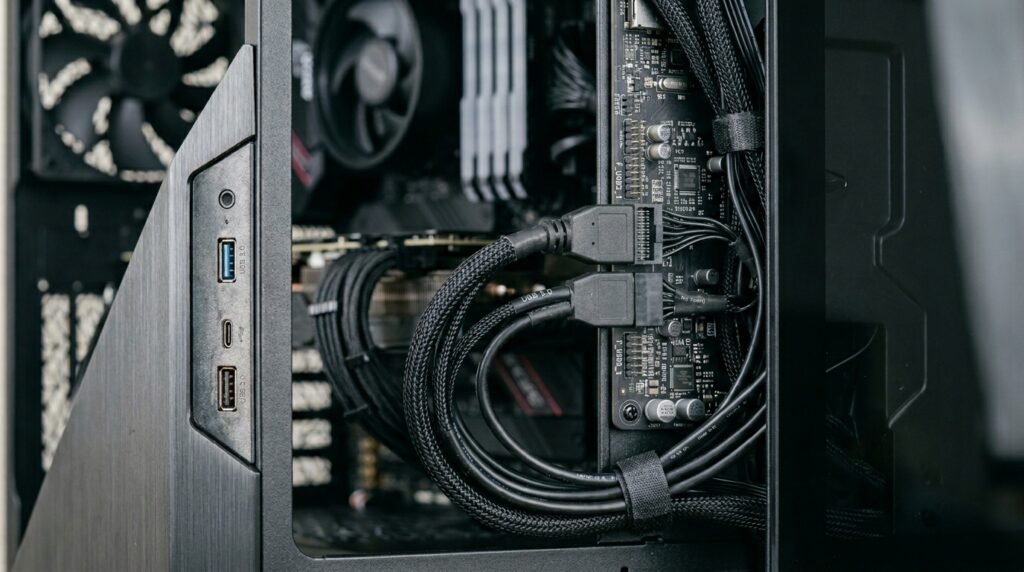
Case manufacturers often use lower-quality cables to connect front-facing ports to the motherboard. Using these can occasionally result in electrical interference or signal degradation compared to the direct ports on the back.
USB Two Versus USB Three
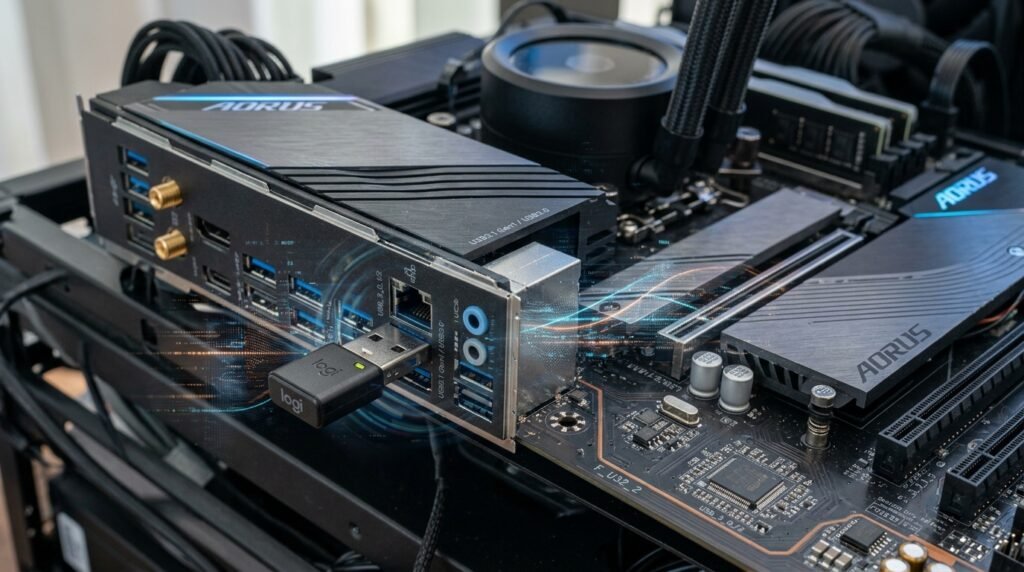
While a mouse doesn’t need massive bandwidth, USB 3.0 ports sometimes offer more stable power delivery. However, some older wireless dongles might actually face 2.4 GHz interference when placed in blue USB 3.0 slots.
Bandwidth Sharing Is a Real Thing
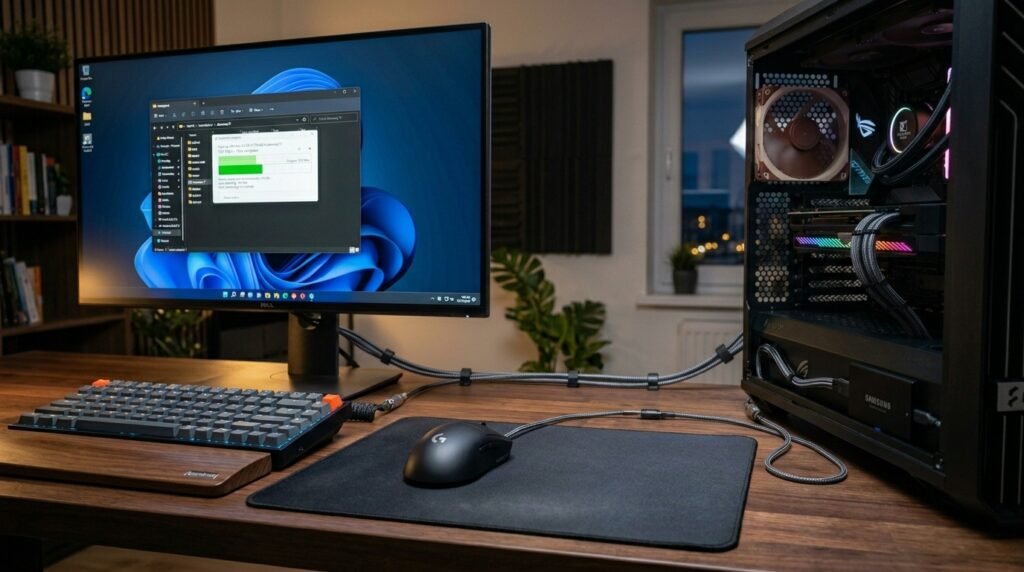
Many motherboards share lanes between USB ports and other components. If you have a high-speed external drive running next to your mouse, they might be fighting for the same narrow slice of attention.
Checking for Dedicated Mouse Ports
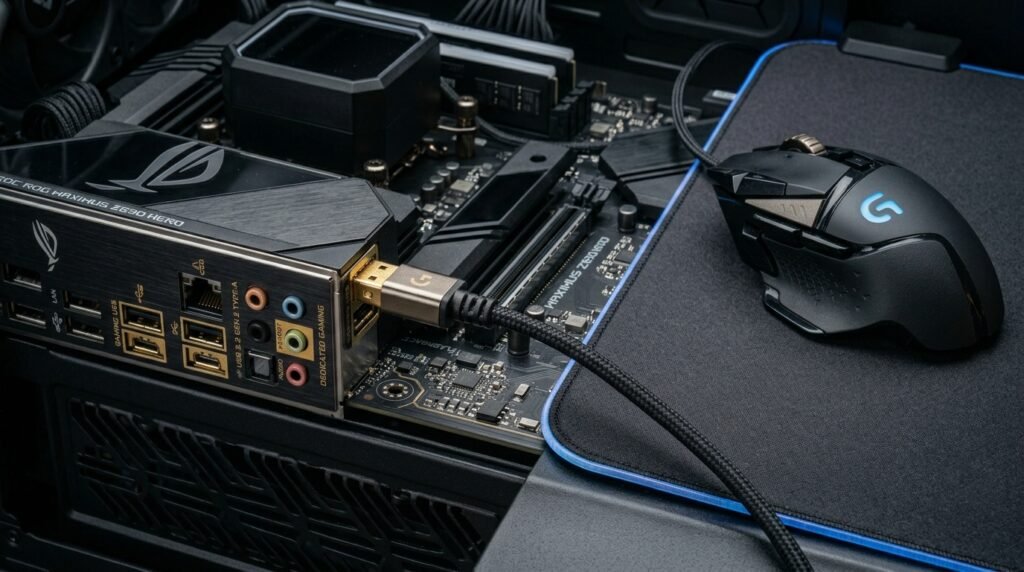
Some high-end boards feature dedicated “gaming” ports with gold plating or specialized controllers. These are designed to prioritize peripheral data, potentially offering a more consistent connection for your most vital input device.
Impact of Hubs and Pass-Throughs
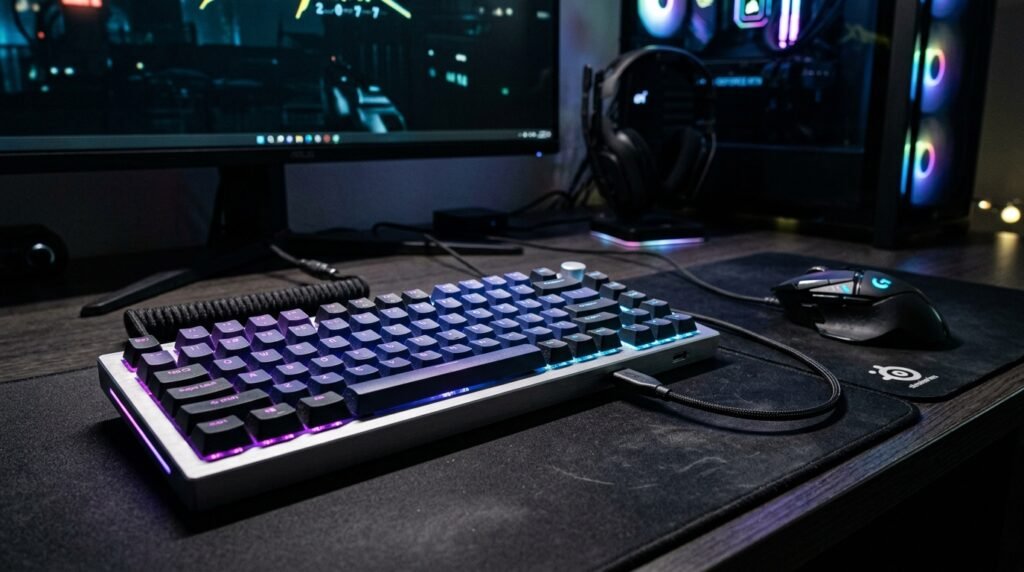
Plugging your mouse into a keyboard pass-through or an unpowered hub can limit the voltage. This could lead to the sensor cutting out intermittently or failing to track fast movements during intense tasks.
Electrical Noise From Other Devices
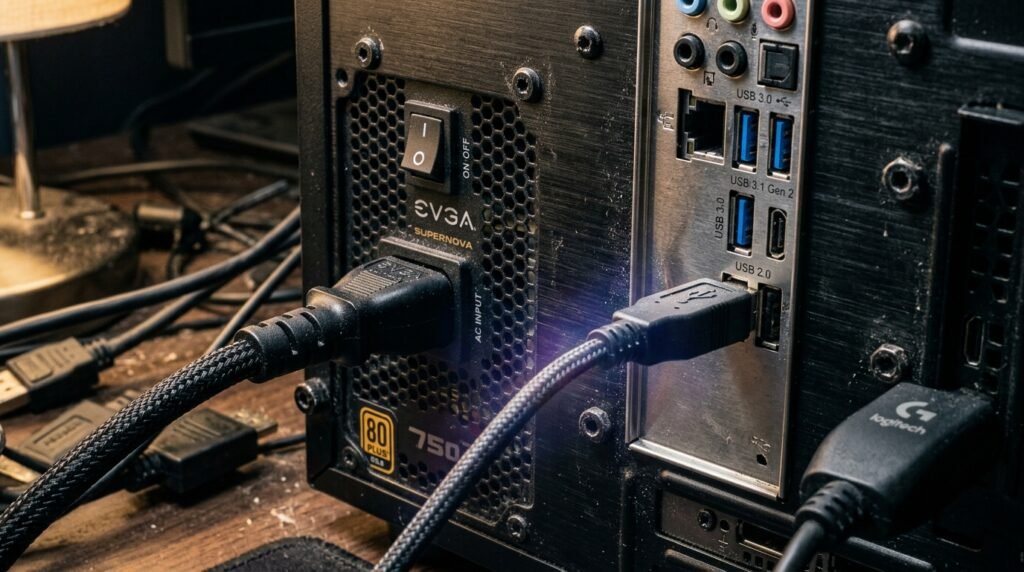
Your PC is a noisy environment for electricity. Plugs situated too close to high-powered components like power supplies might pick up interference, causing the cursor to jump or jitter across the screen.
Latency Concerns for Competitive Use
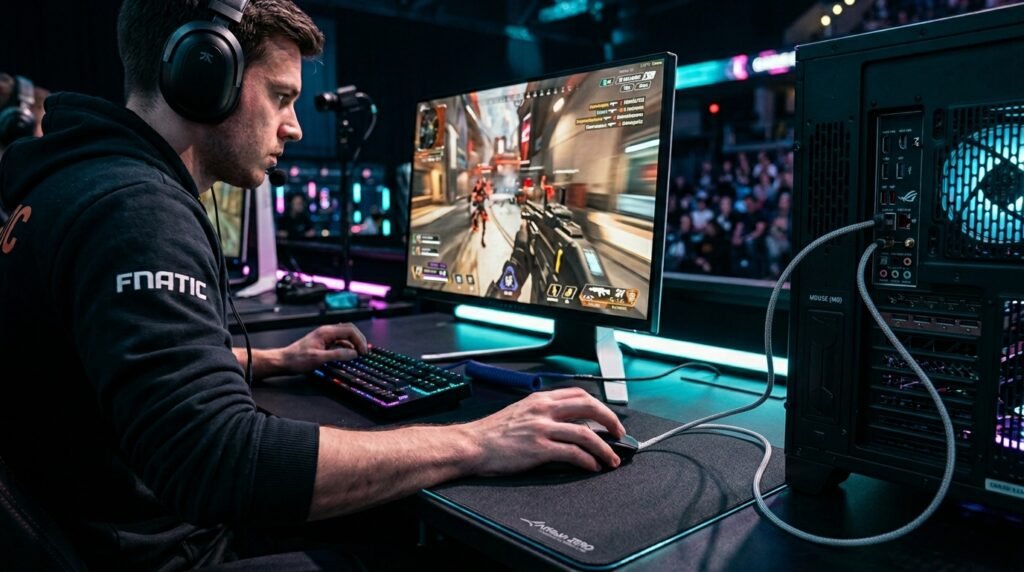
System latency is a cumulative measurement of every hop your data takes. Choosing a port that connects directly to the CPU rather than a secondary chipset may shave off tiny fractions of lag.
Power Management and Sleep Modes
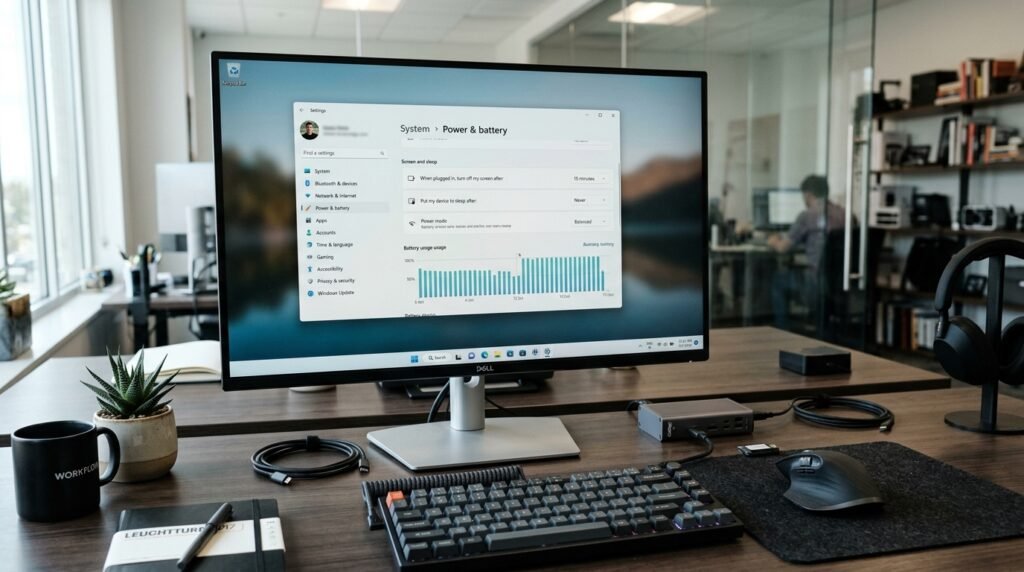
Windows sometimes puts specific USB controllers to sleep to save energy. Your mouse may need to “wake up” after you stop it if you’ve not been moving it for a second and if it’s plugged into a power-managed port.
Testing for Your Best Fit
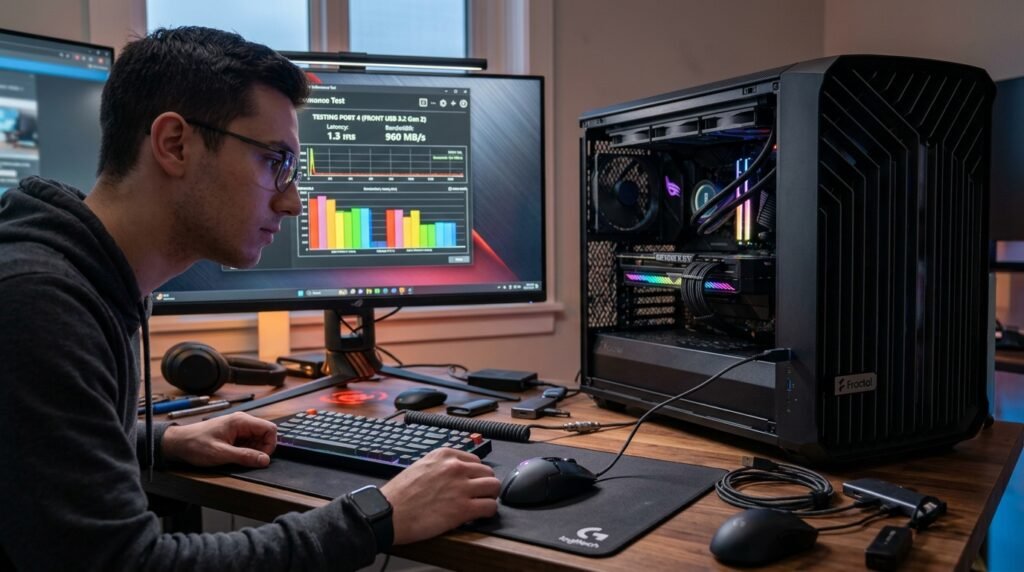
Each PC configuration is different, and no one build is perfect for everyone. Often replacing your mouse with a back, motherboard-direct port is the simplest way to be sure that you are getting performance.
