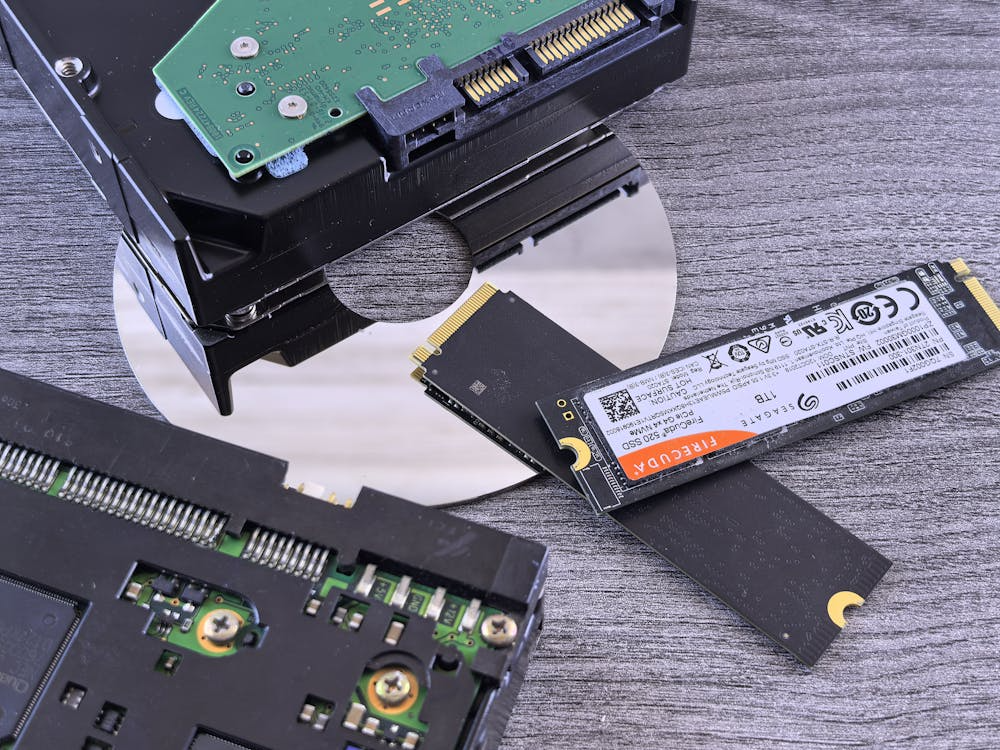
We have all experienced it when we see a frozen display on the screen in the middle of a project, and we just feel like pulling the plug. Although current Solid State Drives are blazingly fast, engineering information given by producers such as Samsung and Western Digital indicates that sudden power failure may sometimes cause corruption of data or the occurrence of bit rot. Knowing how these unexpected closures are affecting your hardware may just save you the very costly and frustrating visit to the repair shop.
Avoid Hard Resets
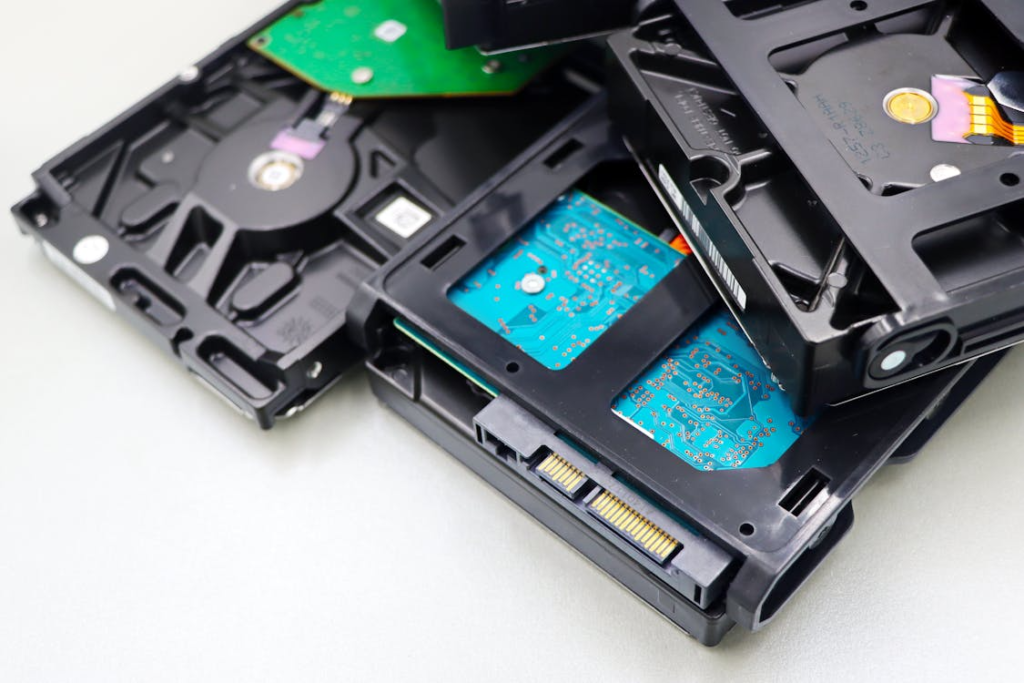
The last option is to press the power button, and this can break the SSD in the process of a write cycle. Such a sudden halt may even lead to file system errors or even irreversible loss of unwritten data.
Mind the Battery

Using your laptop till it shuts down can cause an emergency shutdown. Hardware gurus are recommending that the controller chip, which controls the manner in which data is recorded on your drive, could be worn down in case of constant power outages.
Prevent Overheating Issues
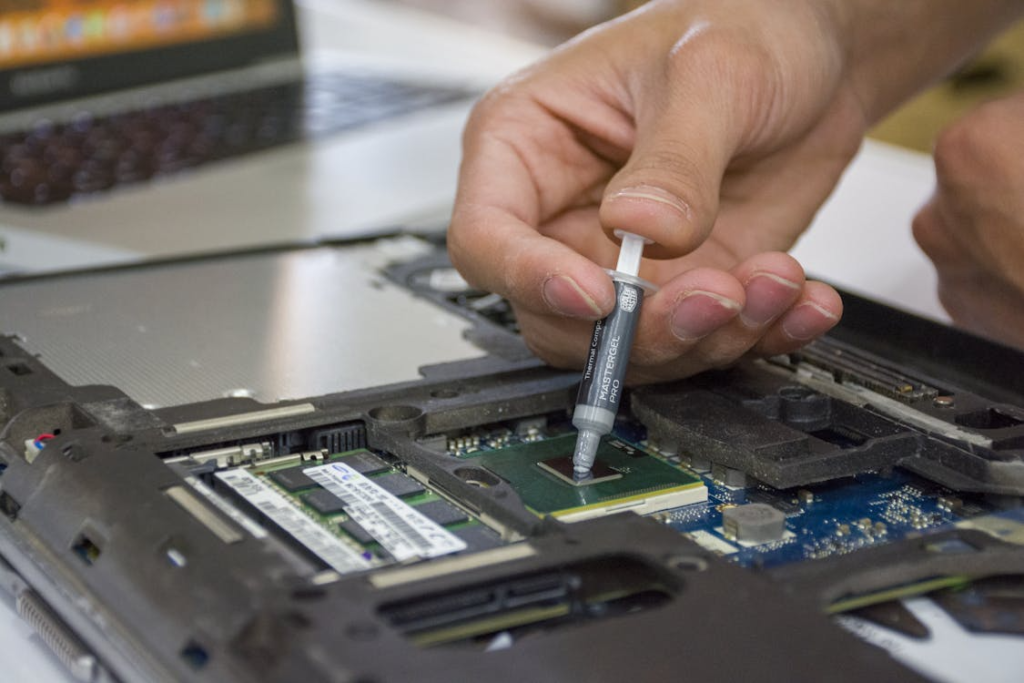
Your computer may automatically shut down when it heats up too much to preserve the processor. Research in thermal dynamics indicates that the NAND flash memory cells may possibly be damaged by extreme heat over time.
Check Power Cords
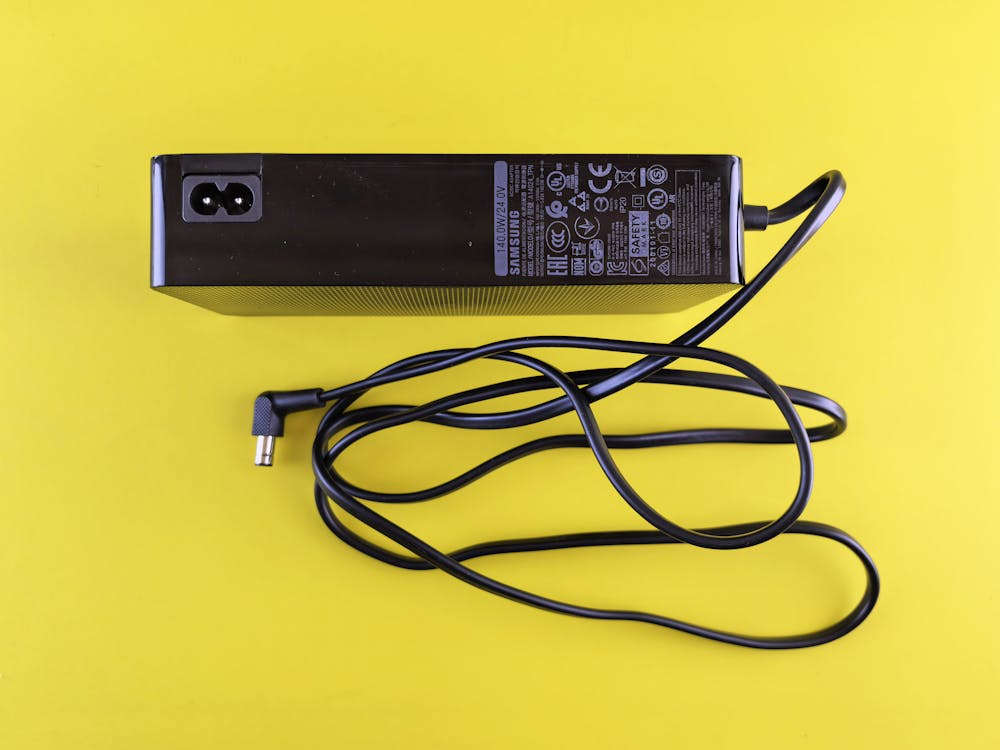
Frayed or loose power cables may lead to interruptions in the power supply that resemble a manual shutdown. Making the connection stable may possibly ensure that the drive does not have to reboot every time there are some unforeseen power interruptions.
Use Surge Protectors

Storms can cause power surges that can lead to an immediate blackout of a system. IEEE research has suggested that voltage spikes might cause damage to the delicate electrical parts that ensure your SSD is operating at the very best speeds.
Manage Massive Downloads
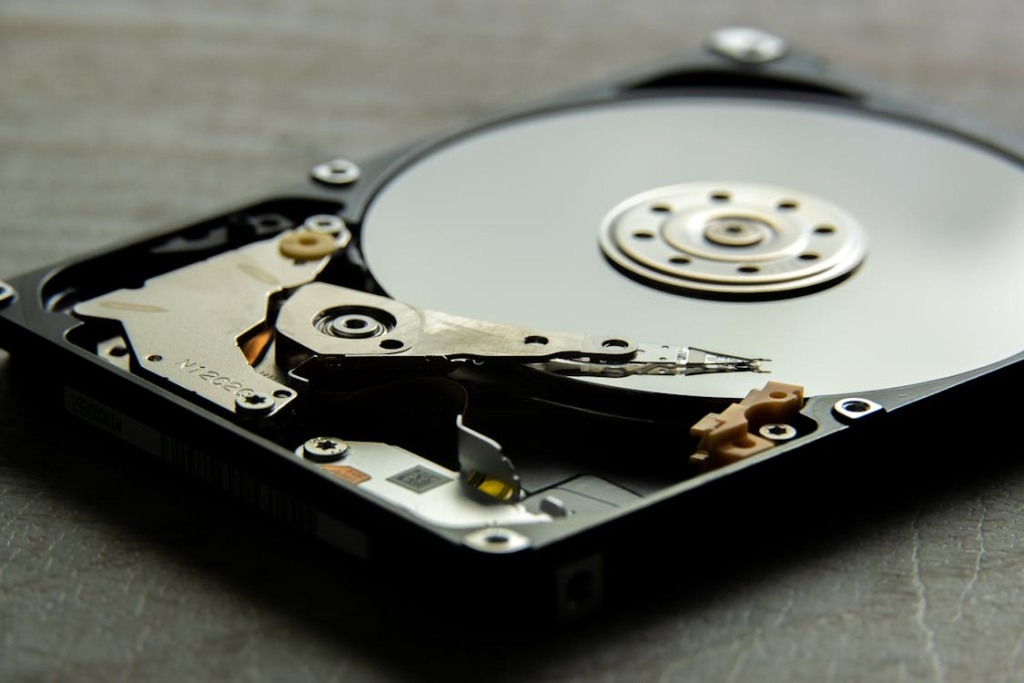
Attempting to close it when a large file is being downloaded could lead to a system freeze. Waiting until the process has completed may possibly ensure that the drive cleans up and then shuts down.
Monitor External Drives
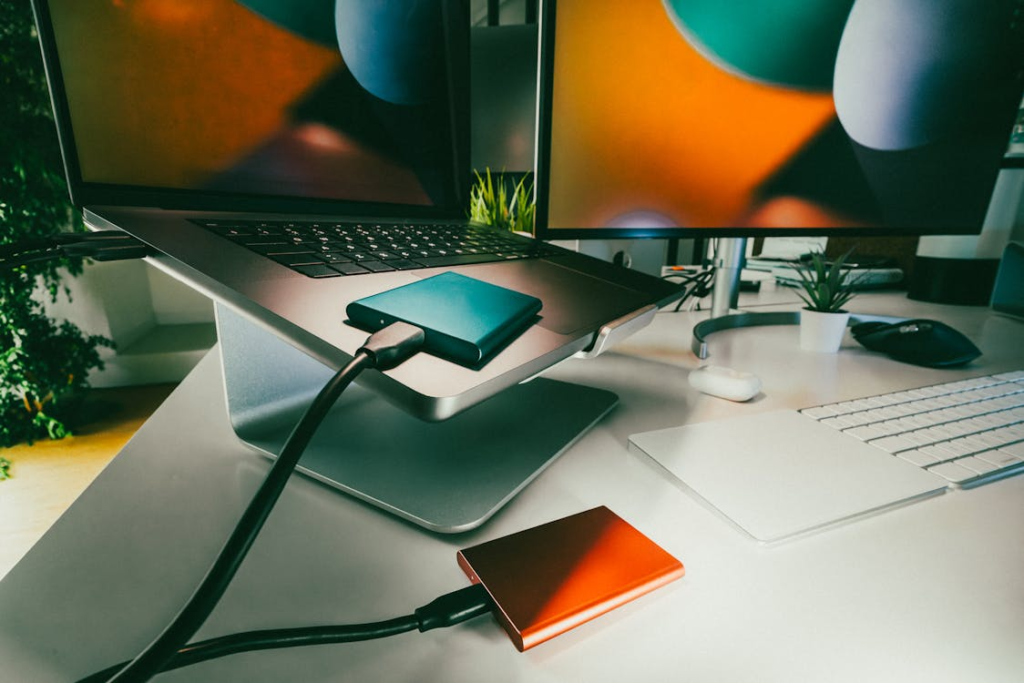
Shutting off an external SSD without un-ejecting it is a localized forced shutdown. This practice could also corrupt the directory structure of the drive so that when you reattach it later, your files will not be readable.
Avoid Multiple Antiviruses
Having two security programs may create conflicts in the system, resulting in the Blue Screen of Death. Such crashes could even cause the SSD to reboot before it can map out its data blocks appropriately.
Clean Dust Buildup
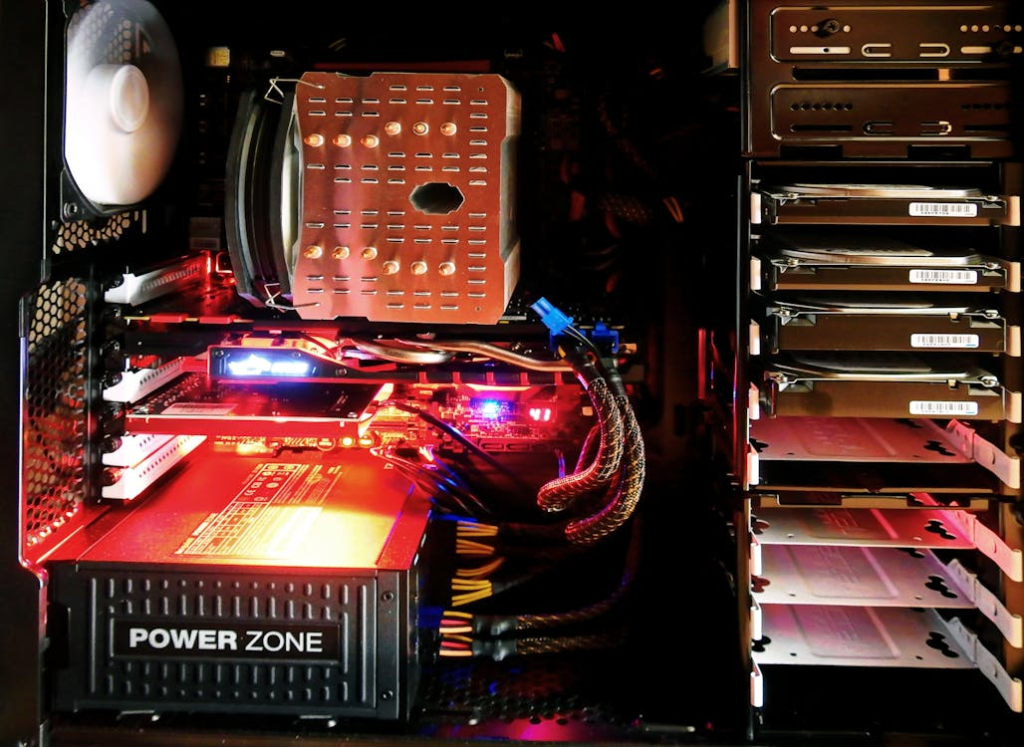
Fan dust causes thermal throttling and unexpected power shutdowns. Cleaning your hardware may potentially enable the SSD to be used in temperatures it is safe to be used in and increase its total functional life.
Inspect Faulty RAM
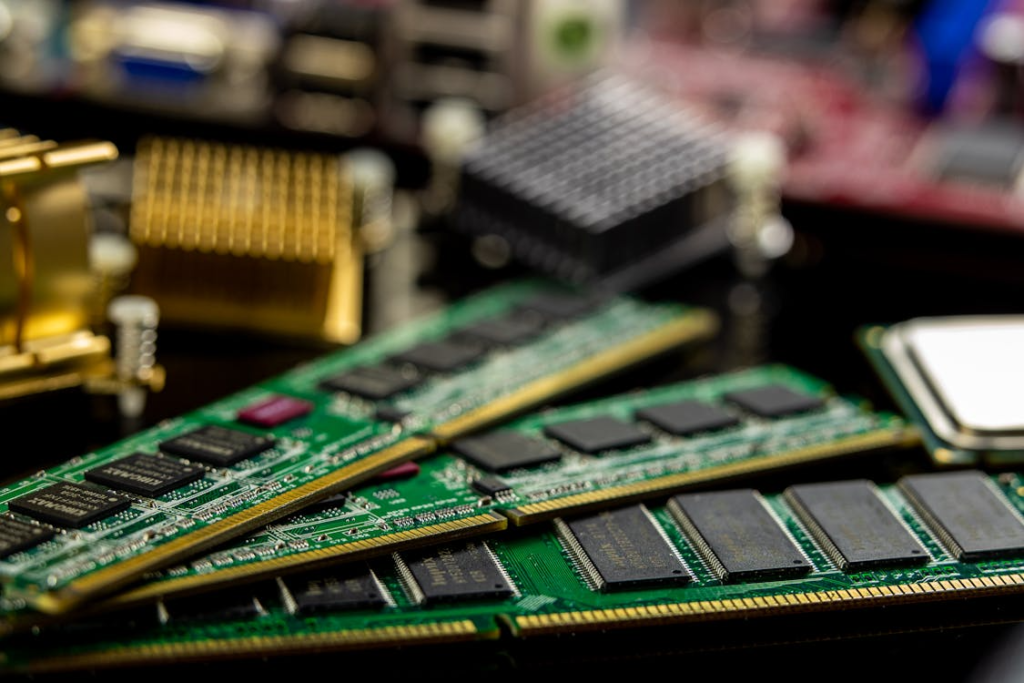
Bad memory modules will tend to cause the whole system to crash unexpectedly. As the SSD depends on a fixed system to operate, there is a possibility of avoiding collateral damage to your storage by replacing damaged RAM.
Upgrade Older Power Supplies
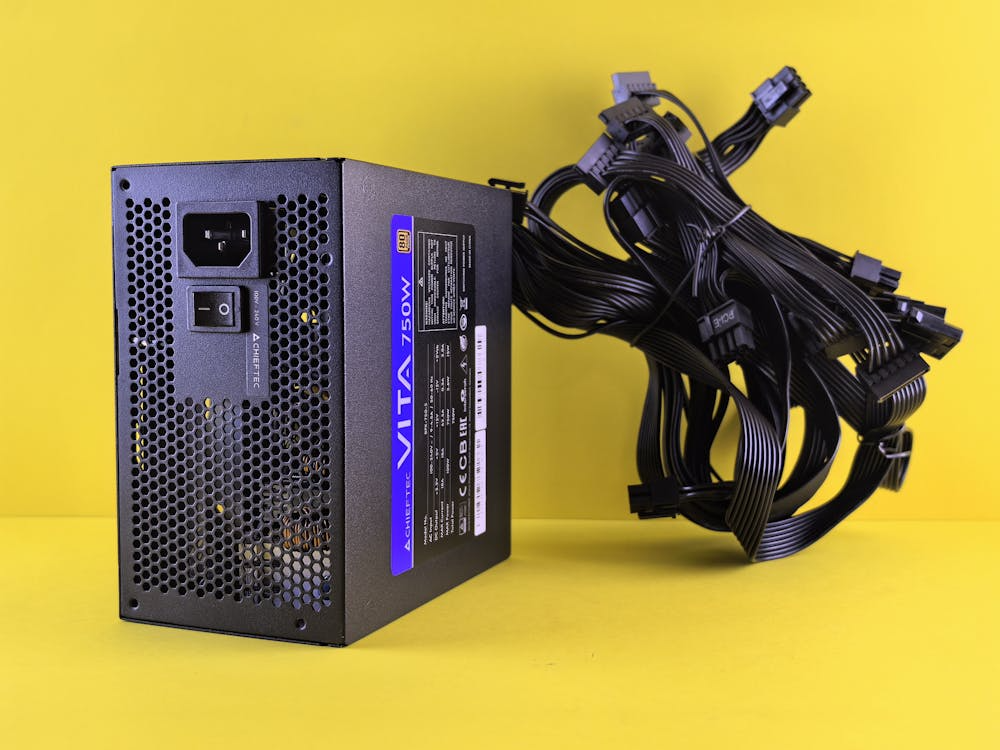
A worn-out version of a power supply unit can supply uneven voltage, resulting in random shut-offs. Maintaining the health of your PSU could possibly offer the stable power needed to ensure your SSD is operational without sudden stops.
