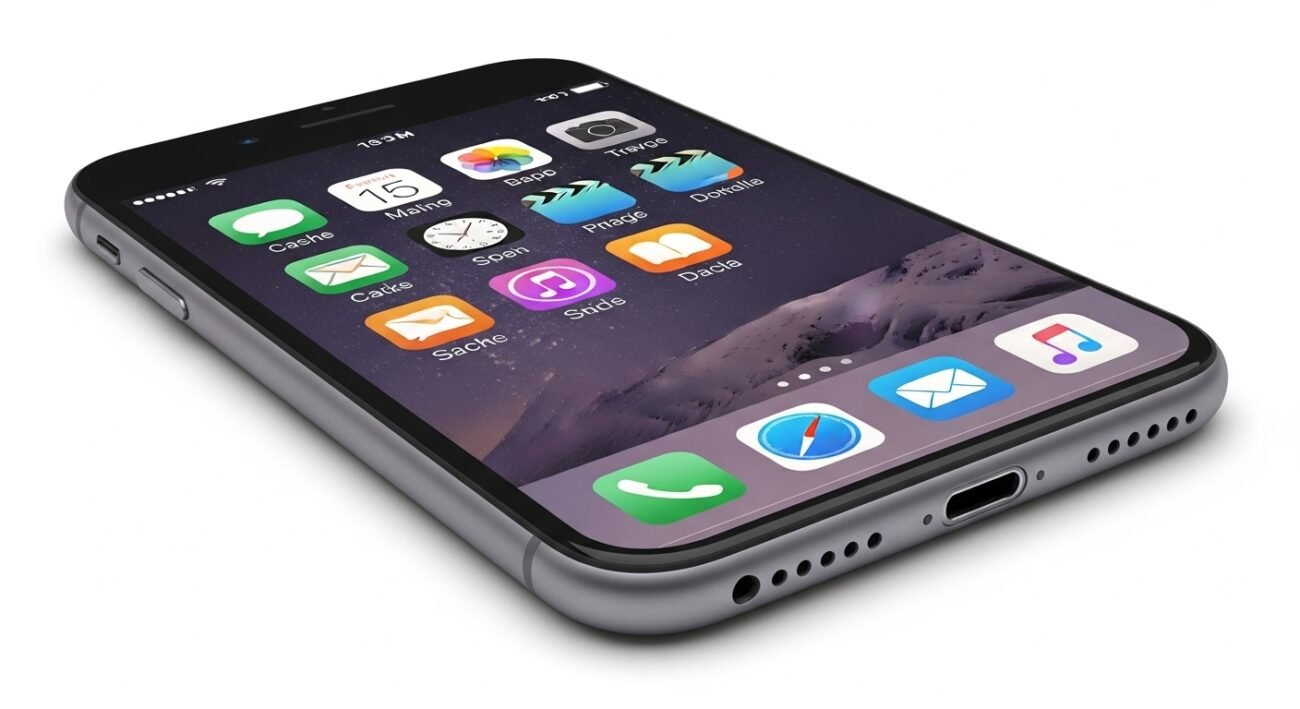
In the long run, even a perfectly maintained iPhone can start to feel slower than it used to. Apps take longer to open. Scrolling feels less smooth. One common reason is cached data quietly piling up in the background. Cache is useful, but excess cache can weigh the system down. Clearing it does not erase personal data. Instead, it refreshes how apps and the system function. Apple does not offer a single “clear cache” button, yet there are practical ways to manage it. With a few careful steps, your iPhone can feel more responsive again without technical effort.
Restart the Device Regularly

Restarting your iPhone clears the temporary system cache. It refreshes memory and closes background processes. This simple habit prevents minor slowdowns from becoming persistent issues. Many users overlook this effective reset step.
Clear Safari Website Data

Safari stores website data to load pages faster. Over time, this builds up. Clearing website data removes outdated files. Pages may reload slightly slower once, but overall browsing performance improves.
Manage App Cache Through Settings

Some apps store large cache files internally. Check iPhone Storage in Settings. Review apps using excess space. Removing and reinstalling them clears the cache without affecting essential account information.
Offload Unused Applications
Offloading removes the app but keeps its data. This clears the hidden cache while preserving documents. It frees storage and improves performance. Reinstalling later restores access without starting from scratch.
Update iOS Software

Apple software updates often include performance improvements. Older cache structures may conflict with newer apps. Updating iOS refreshes system processes. It also reduces background inefficiencies that slow the device.
Reduce Background App Refresh
Background App Refresh allows apps to update quietly. Too many active apps create unnecessary cache. Limiting this feature reduces stored data. It also improves battery and overall system responsiveness.
Clear Message Attachments

Photos and videos in messages create stored data. Old conversations can hold large attachments. Deleting unnecessary media reduces hidden cache. Messages still function normally after cleaning this stored clutter.
Remove Offline Content Downloads

Music, podcasts, and videos stored offline create cache-like data. Review downloaded content regularly. The more things you can remove that you don’t need creates space you create. Streaming is just fine, no playback of saved files.
Reset Keyboard Dictionary

The keyboard learns typing patterns over time. This data can grow large. Resetting the keyboard dictionary erases all words you’ve added, and you can start building your list from scratch. Keystrokes feel good and are responsive once you adjust to the keyboard.
Limit Location-Based Services

Location services store background data for frequent tracking. Restricting access to essential apps reduces cache creation. This improves speed and conserves system resources without affecting basic navigation needs.
Reset Settings Without Data Loss

Resetting settings clears system-level cache without deleting personal data. Wi-Fi and preferences reset. Performance often improves. This is helpful when you are still experiencing slowness even after trying other methods to clear the cache.
