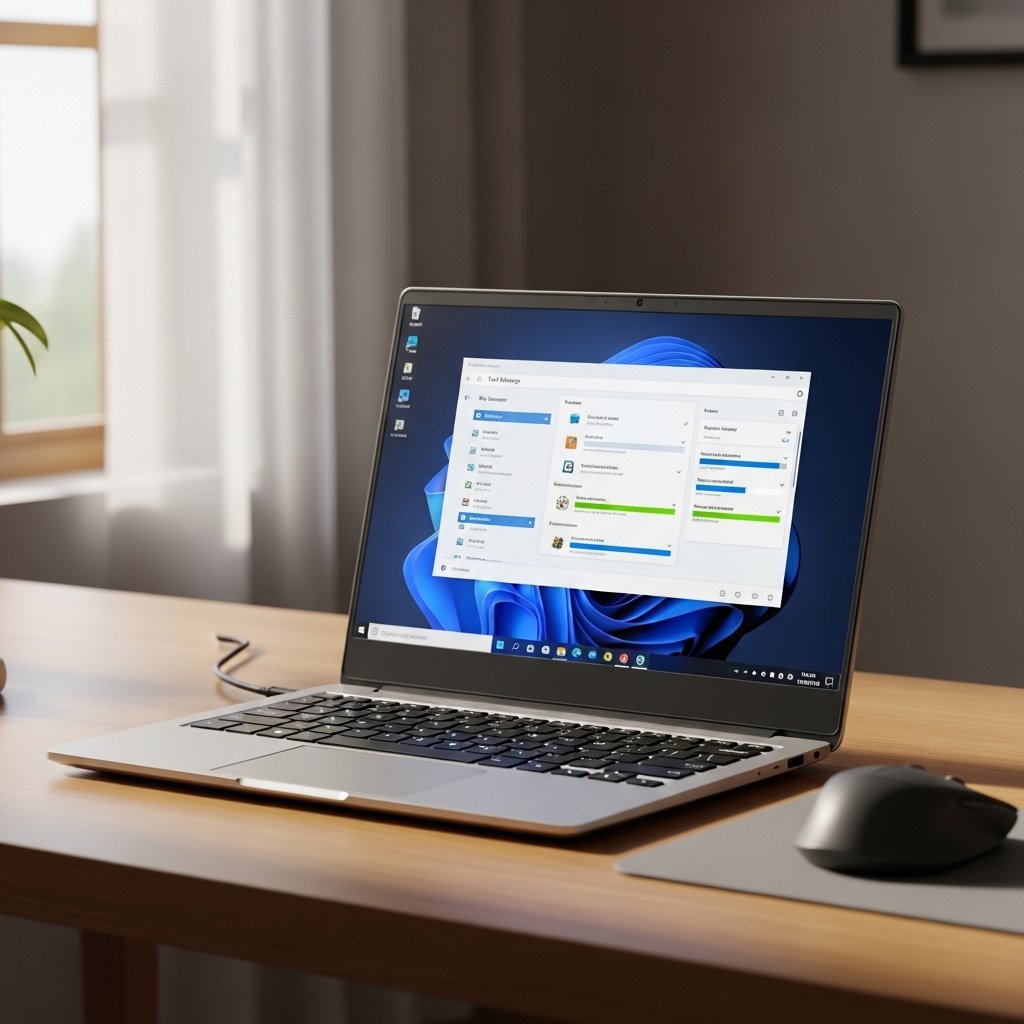
When RAM gets too full on a Windows machine, things start dragging – tasks stall, responses delay, everything feels off. Some think their computer just lacks power, yet often it’s hidden apps running behind the scenes pulling strings. Instead of buying new parts, try checking which programs launch at boot – they might be eating up space quietly. Tweaking how the system handles memory could free enough room to notice real difference. A quick look into active processes may reveal surprises, like forgotten tools hogging resources. Small shifts add up: turning some items off means others get more breathing room. Performance gains show fast once unnecessary load drops away. It runs better not because it’s newer – but because it’s clearer now.
Close background apps you don’t need
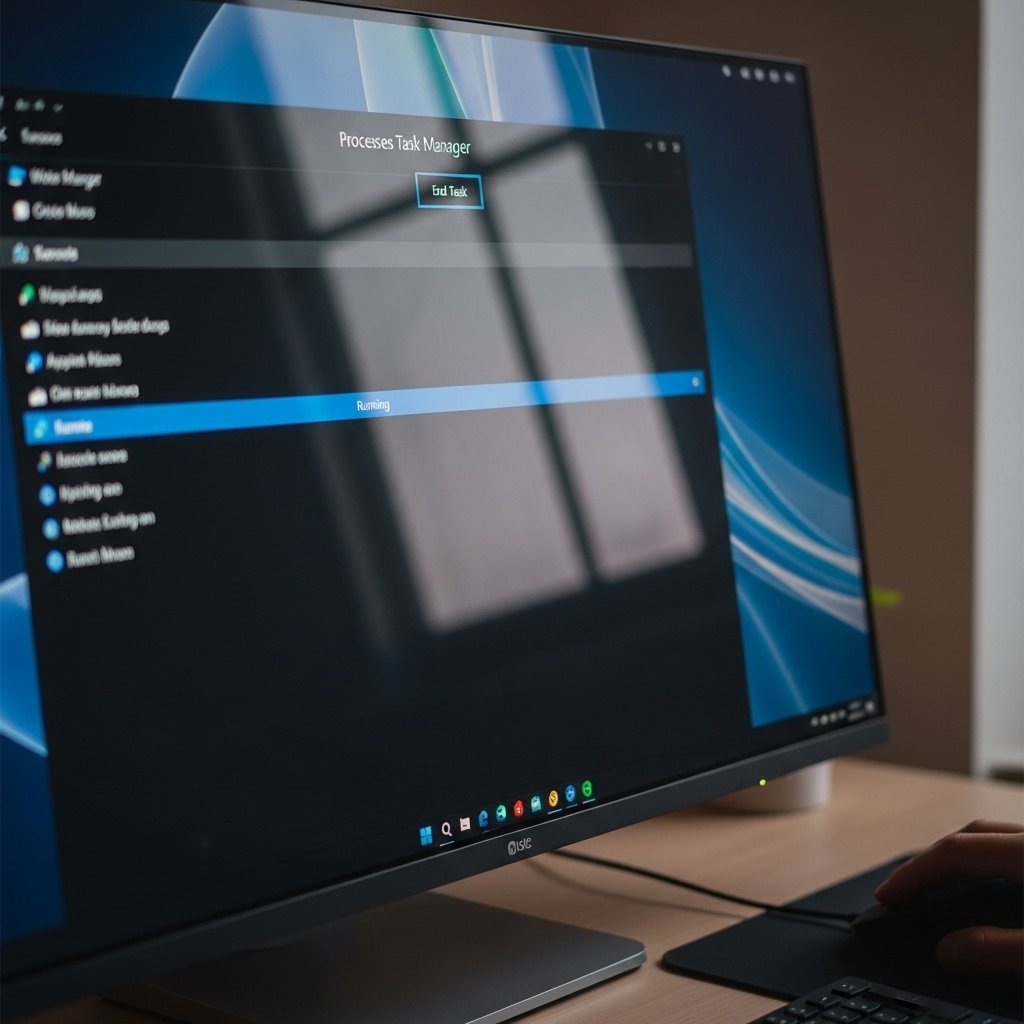
Frozen programs often linger long after you stop touching them. Memory gets eaten slowly by these quiet hangers-on. Hit the Task Manager to shut down what you do not need – space opens fast.
Disable Startup Programs
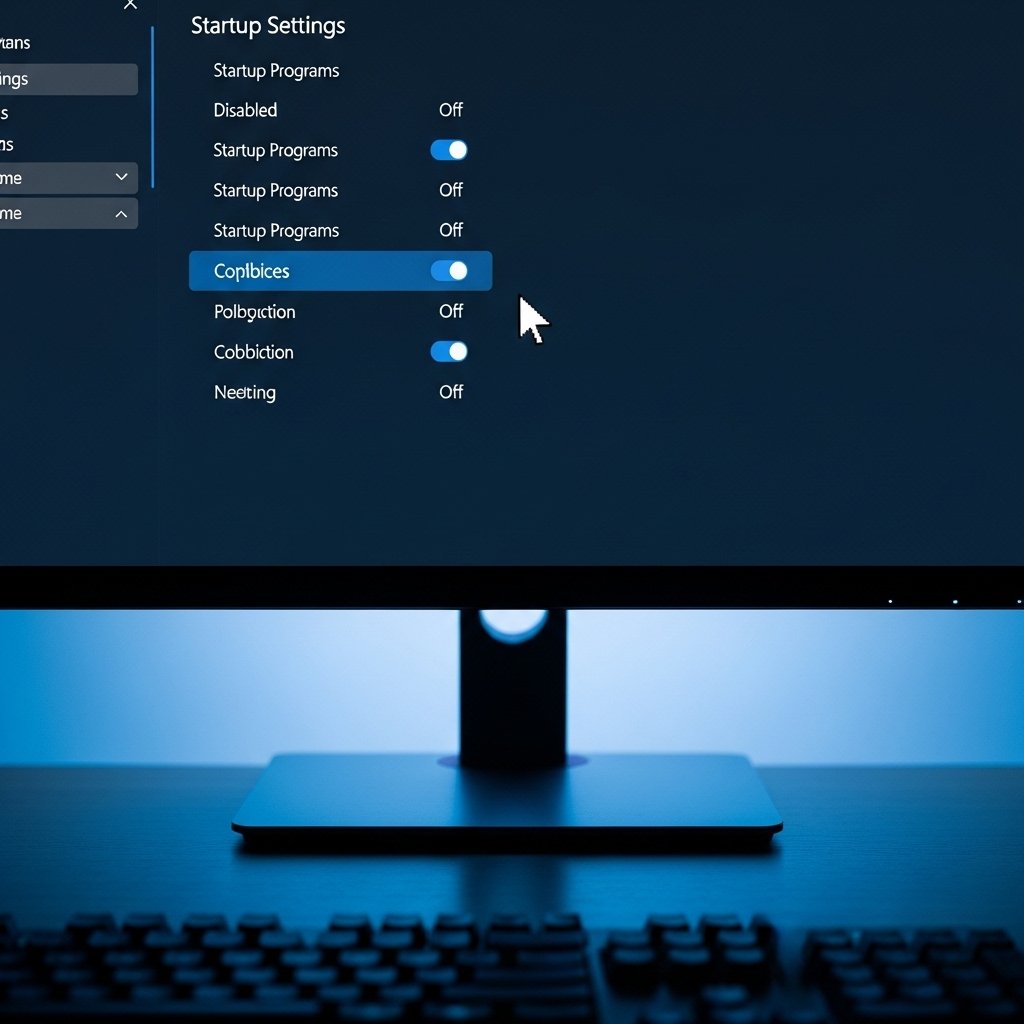
When the computer turns on, certain software launches by itself. Because of this, booting takes longer, while extra memory gets used up. Though helpful in some cases, many of these programs aren’t needed right away. As a result, turning off unnecessary ones helps performance and frees up resources.
Check Task Manager for high usage processes
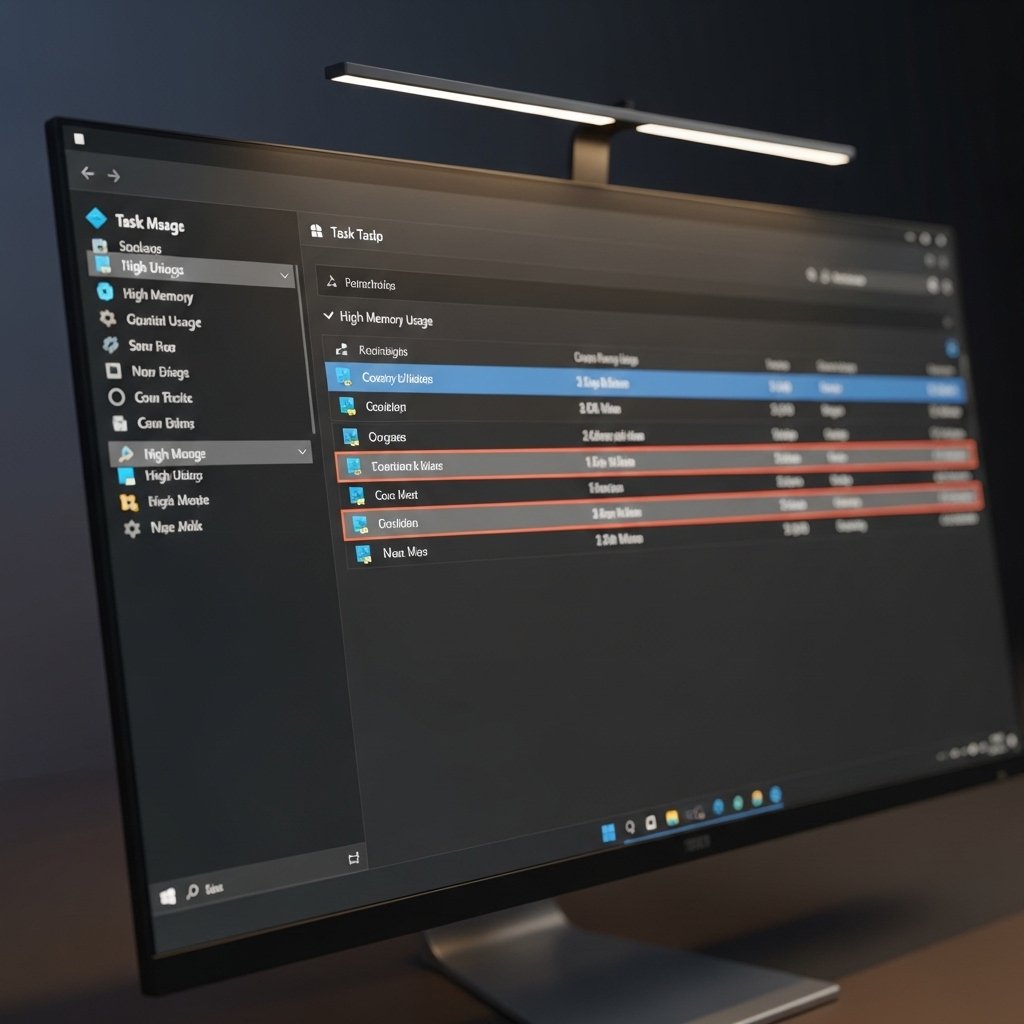
Spotting apps that eat up memory is easier with Task Manager. When checked often, it shows how resources flow across programs. Strange behavior stands out faster this way.
Use Fewer Tabs

Memory gets eaten fast when plenty of pages are running at once inside a browser. Shutting down tabs that aren’t needed helps lighten the load. So does switching to simpler tools built for less strain. Most people try this first because it usually works.
Change Virtual Memory Settings
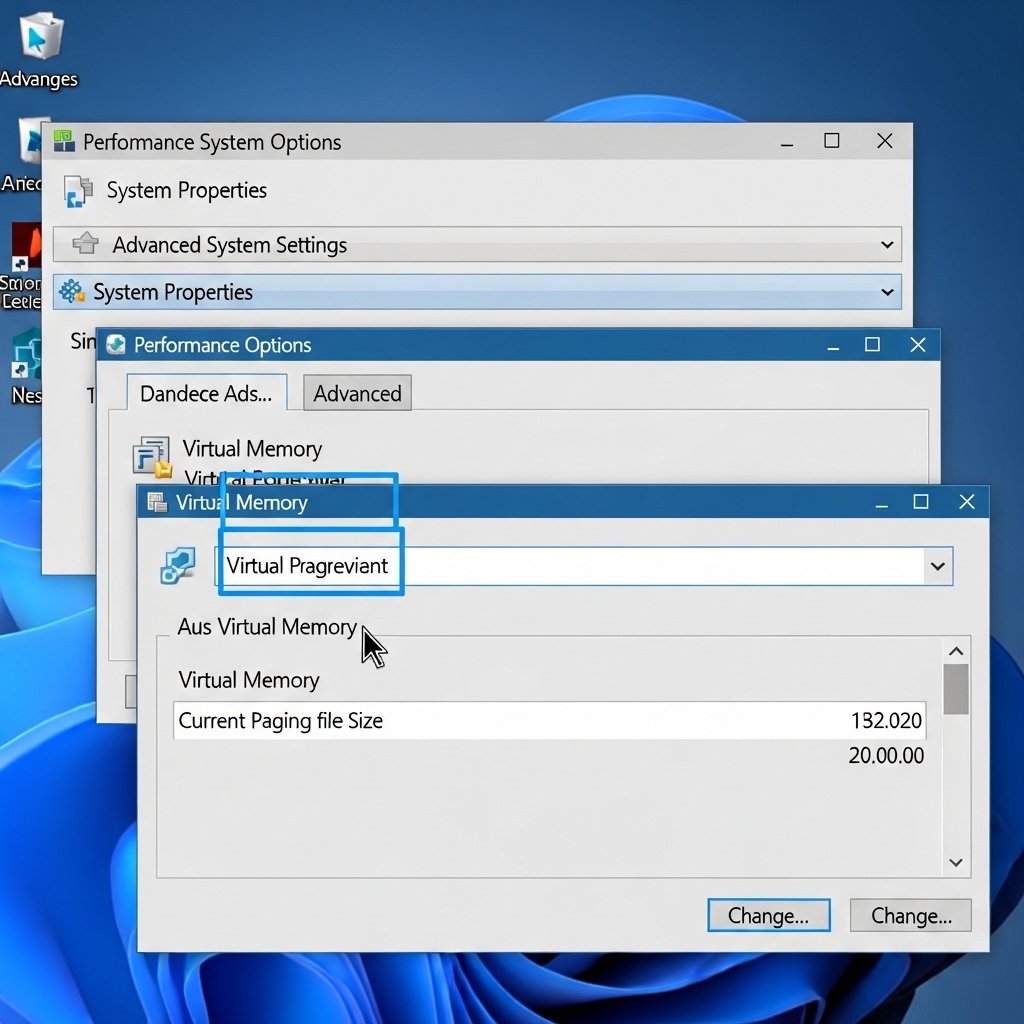
When your computer runs low on memory, it uses part of the hard drive to keep going. Setting this up right makes things run smoother. A small boost might handle busy tasks better.
Uninstall Unused Software
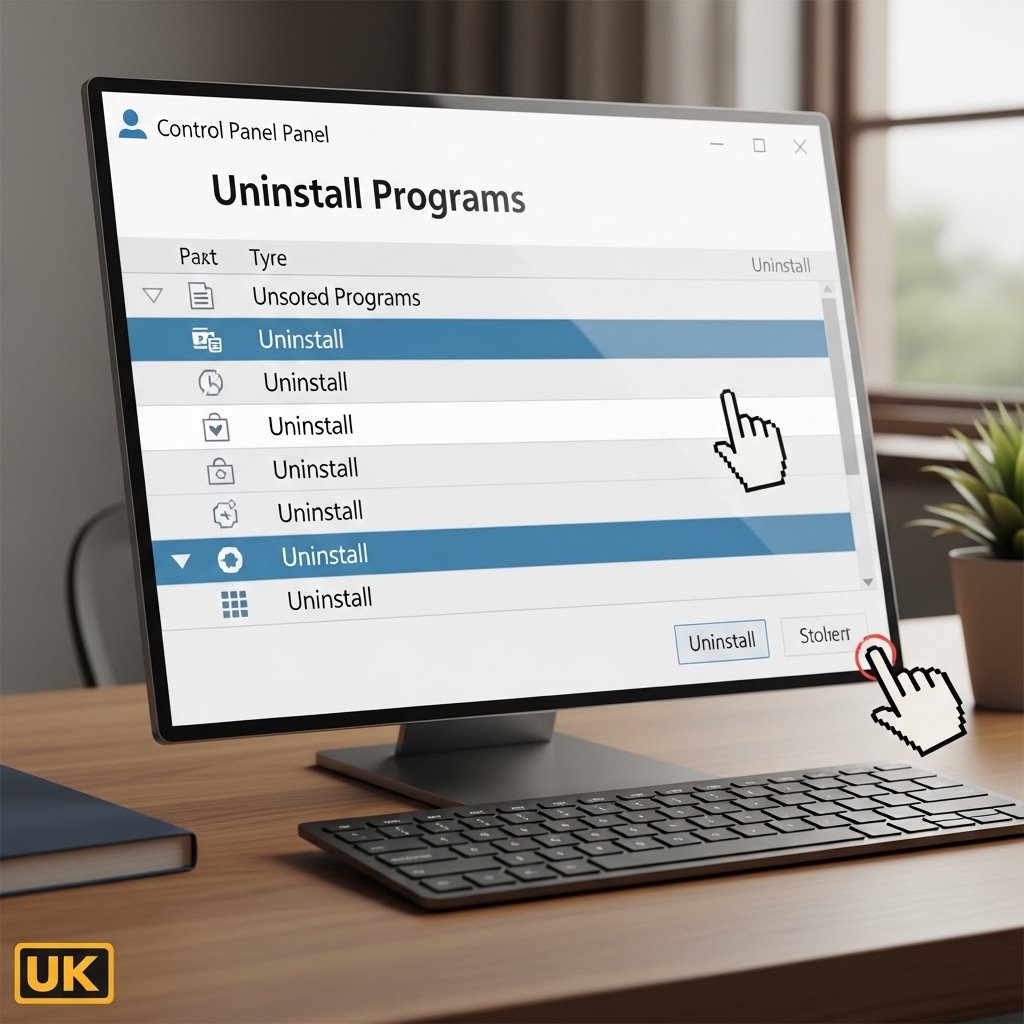
Even when unused, some programs continue running behind the scenes. When they’re removed, space opens up on the drive while RAM gets a boost too. A cleaner setup often runs without slowing down.
Disable background apps through settings
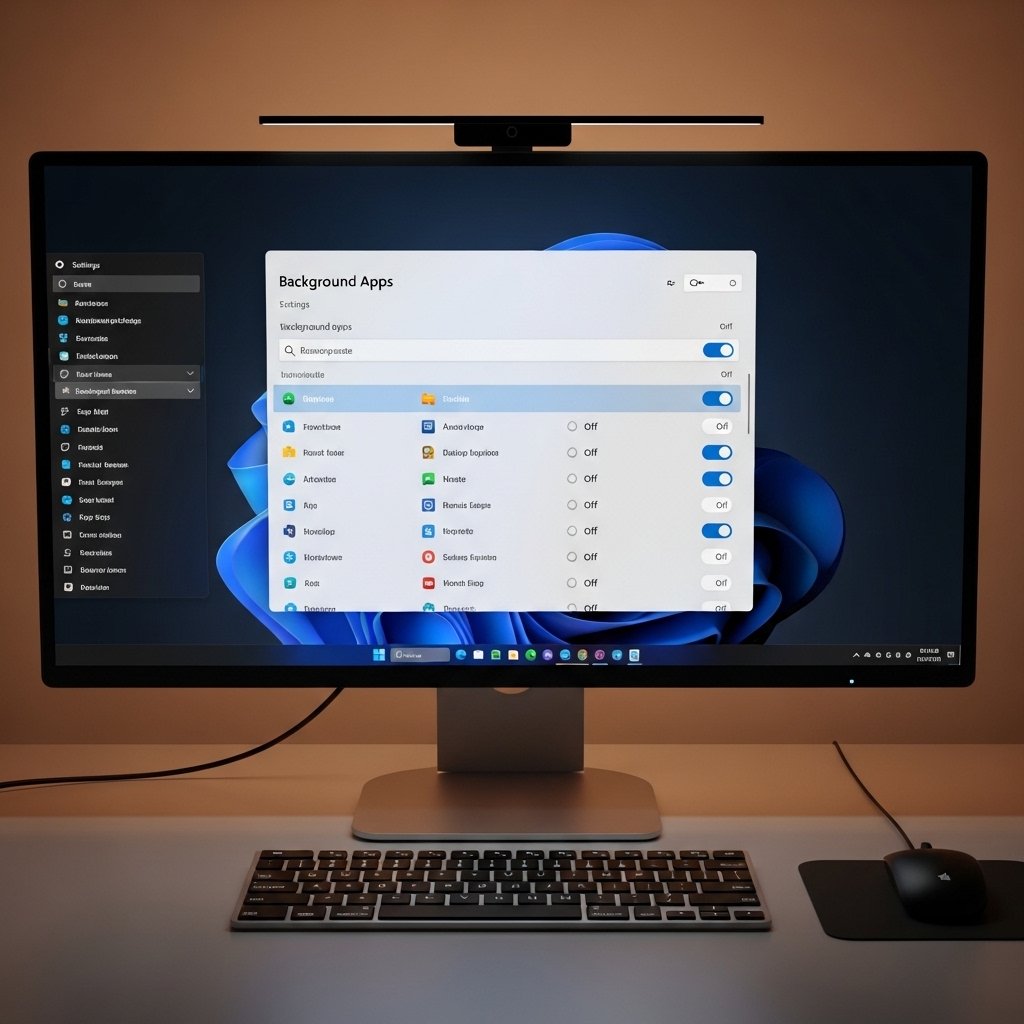
Built-in apps often keep working behind the scenes without being open. When unused programs are blocked from operating in the background, memory load drops. That change helps most with factory-installed software.
Keep Windows Updated
Updates usually bring tweaks that make things run smoother instead of just adding new stuff. Staying current means your machine handles tasks more efficiently over time. Memory hiccups tend to fade when everything inside is speaking the latest version.
Check for Malware or Unwanted Software
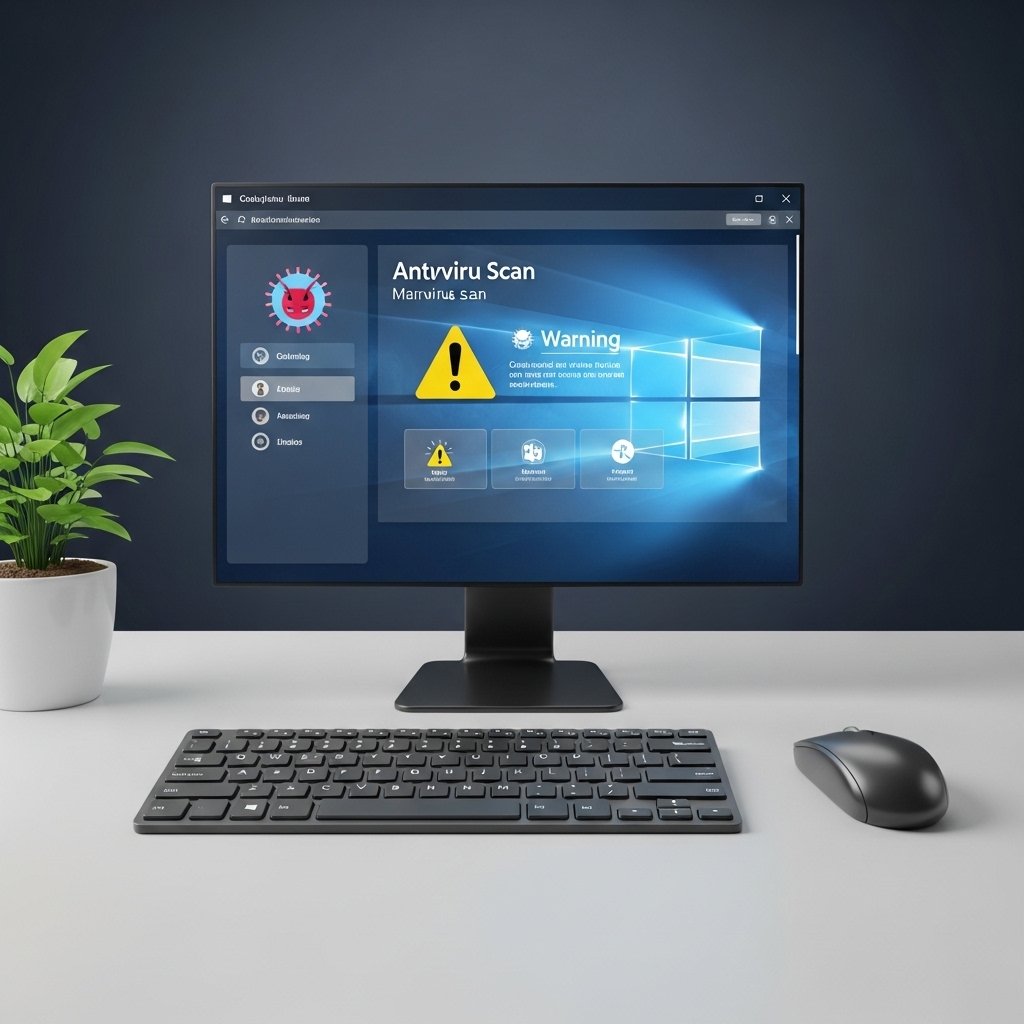
Every now and then, strange programs sneak in and hog your computer’s power. When that happens, a solid checkup spots those hidden troubles fast. Things run smoother once they are gone – also far safer.
