
Task Manager looks simple, yet it hides many helpful tools most people overlook. I used it only to close frozen apps for a long time. Later, I noticed it offers much more insight into performance, startup behavior, and background activity. These small discoveries made everyday computer use smoother. Here are practical Windows 11 Task Manager tricks that feel obvious once noticed but easy to miss early on.
Switching to the New Interface
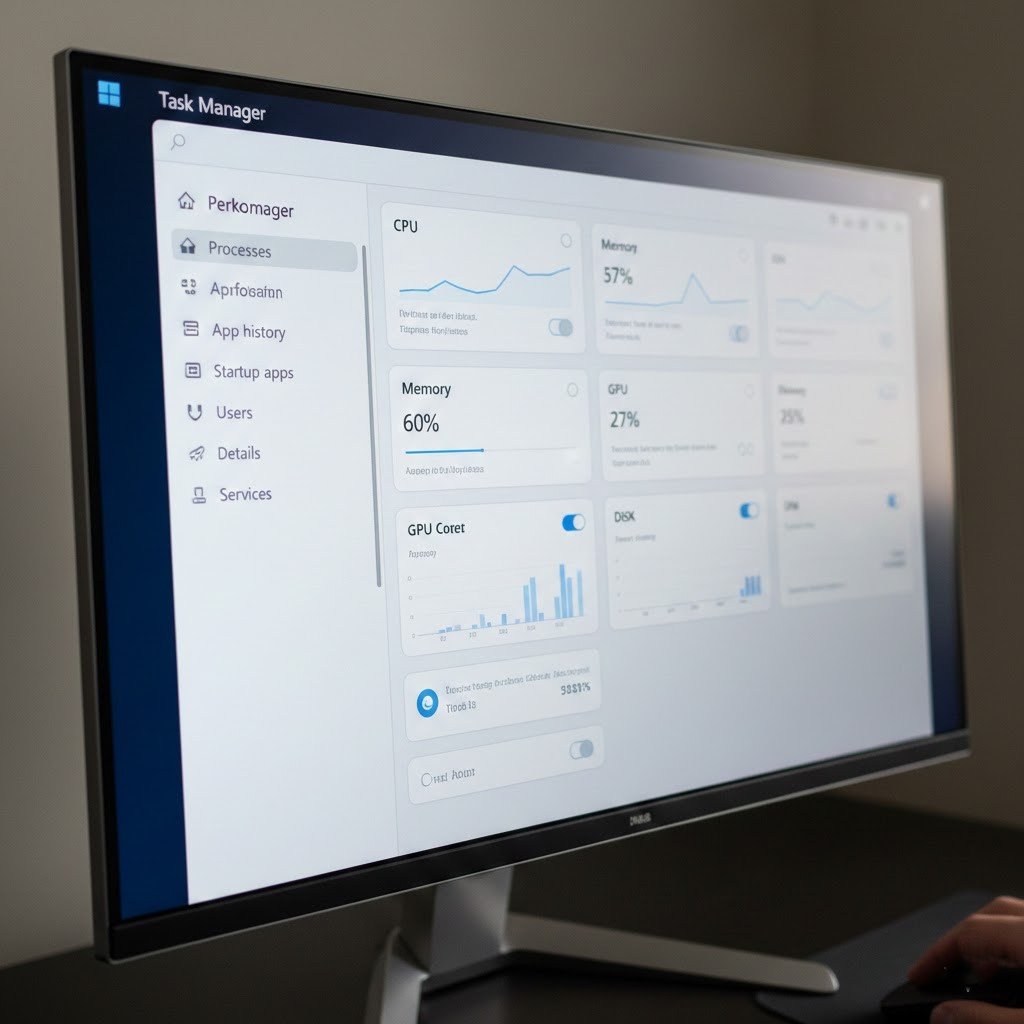
Windows 11 Task Manager opens with a cleaner design. The left-side menu organizes everything clearly. Switching between processes, performance, and startup tabs feels faster and more intuitive than older layouts once explored properly.
Sorting Apps by Resource Usage
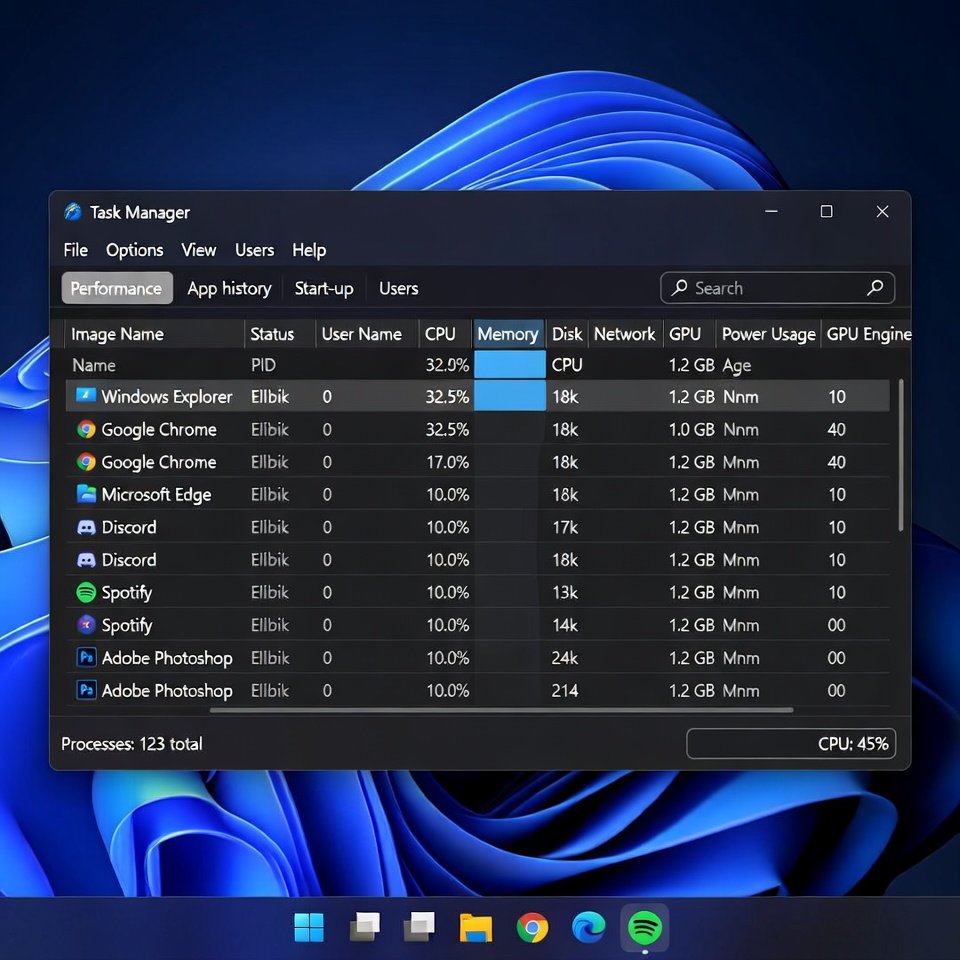
Clicking CPU, Memory, or Disk columns quickly shows what consumes the most power. This helps identify apps slowing things down. It feels more effective than guessing which program causes lag during busy moments.
Using Efficiency Mode
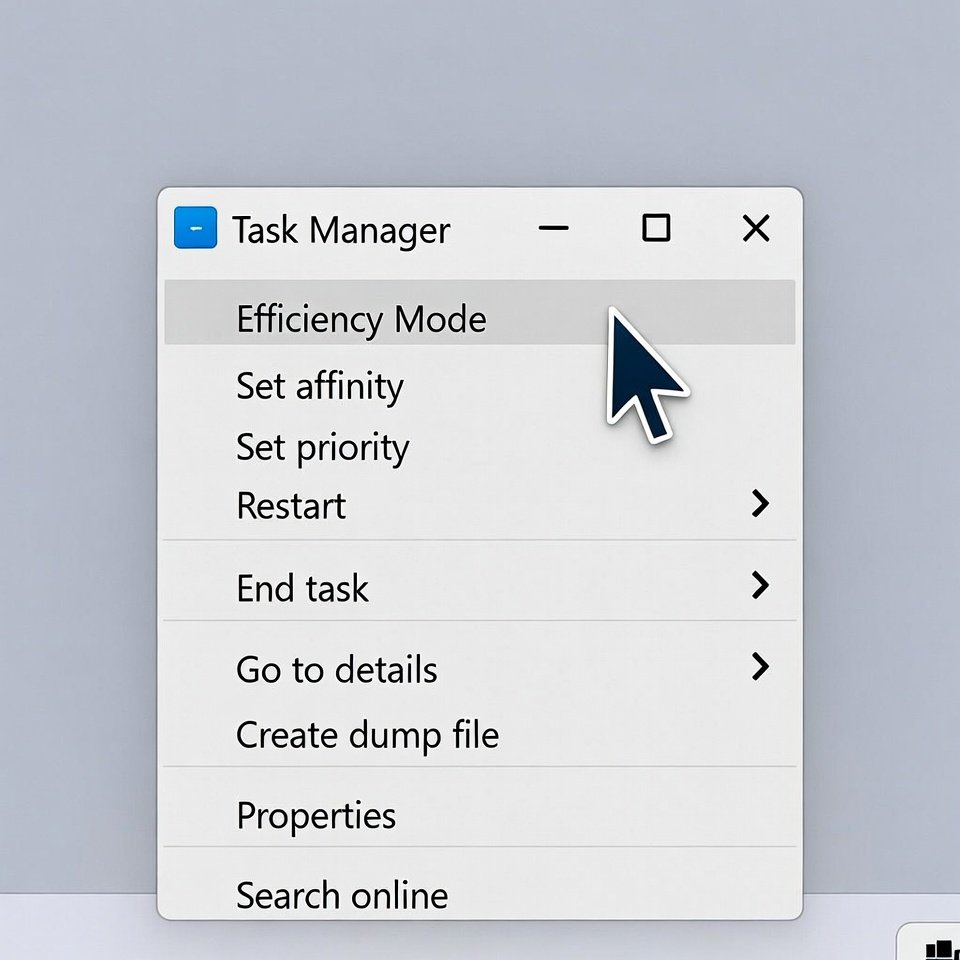
Efficiency Mode reduces resource usage for selected apps. Right-clicking a process activates it easily. This trick helps keep background apps calm while focusing on important tasks without fully closing anything.
Managing Startup Apps Directly
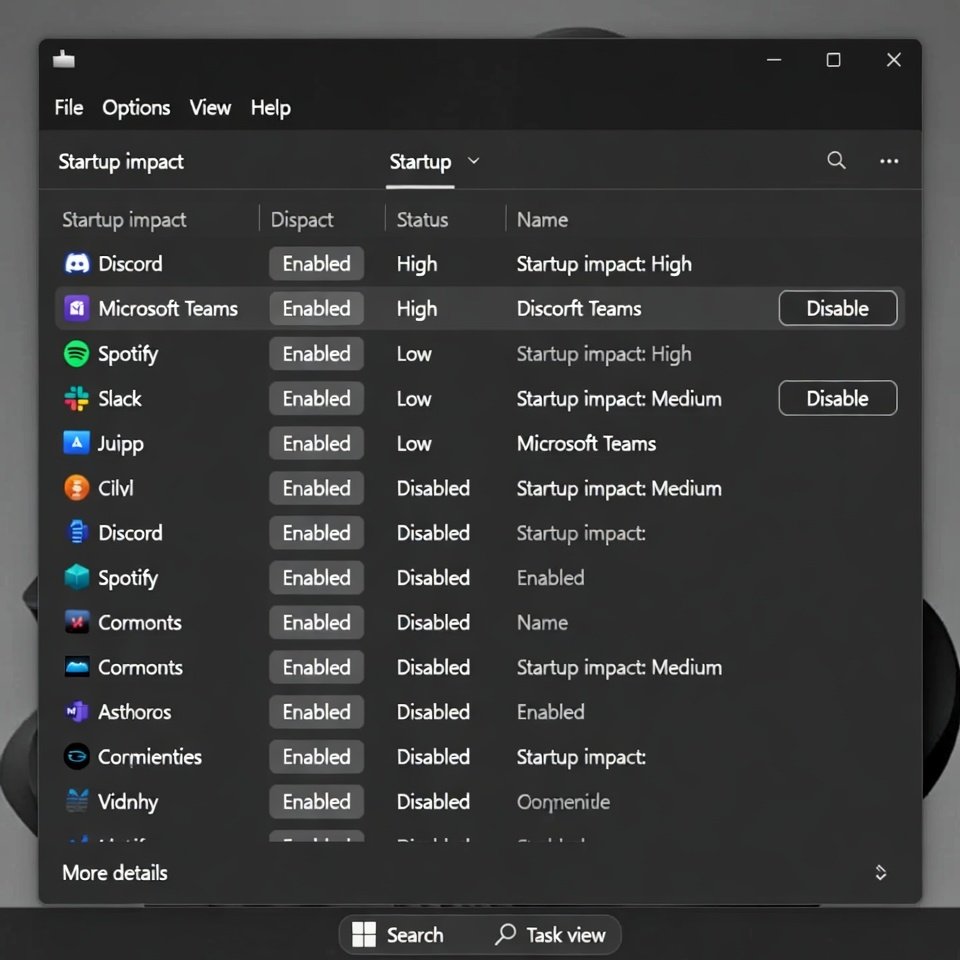
The Startup section shows which apps launch automatically. Disabling unnecessary ones speeds up boot time. This area offers clear impact labels, making decisions easier without needing extra system tools.
Checking App Power Usage
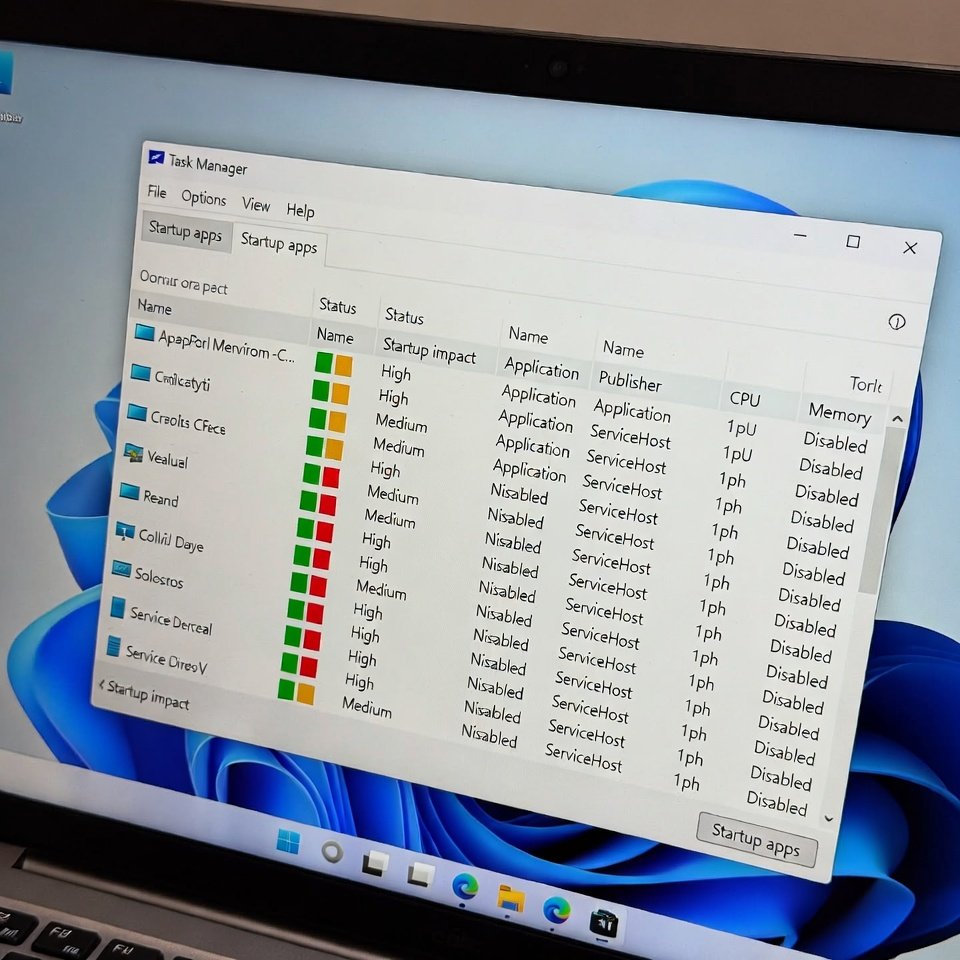
Task Manager shows power usage trends for running apps. This helps understand which programs drain more energy. It feels especially useful on laptops when trying to stretch battery life during long work sessions.
Detailed Performance Graphs
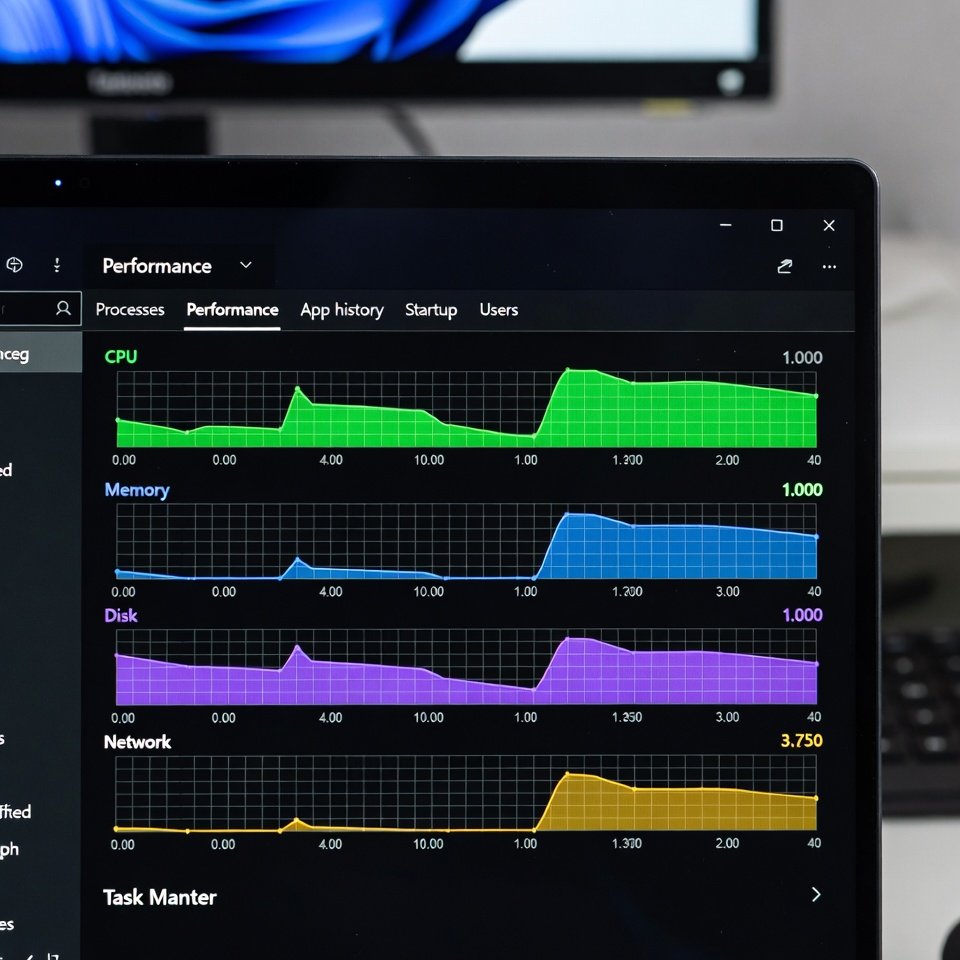
The Performance tab displays live graphs for CPU, memory, disk, and network. Watching these in real time helps connect slowdowns to system activity, offering clarity instead of vague frustration.
Restarting Windows Explorer
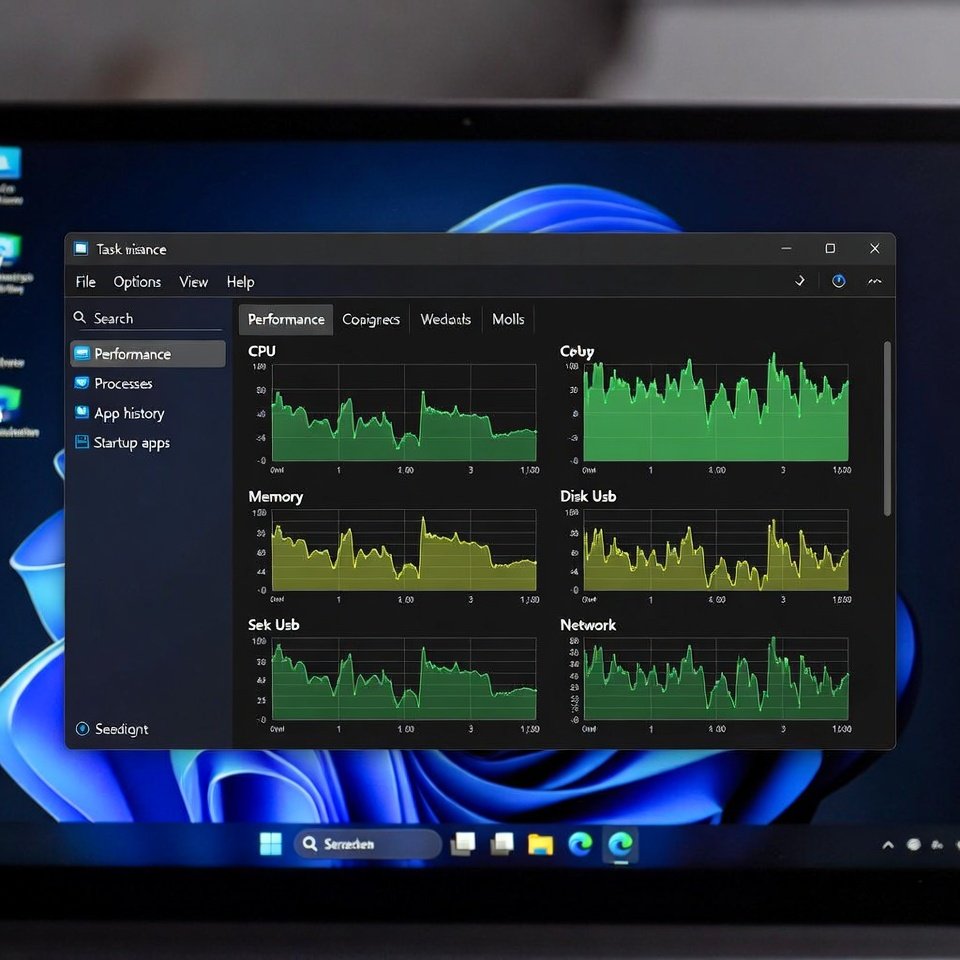
When the taskbar or file explorer acts strange, restarting Windows Explorer from Task Manager refreshes things instantly. This quick fix saves time compared to restarting the entire computer.
Identifying Background Processes
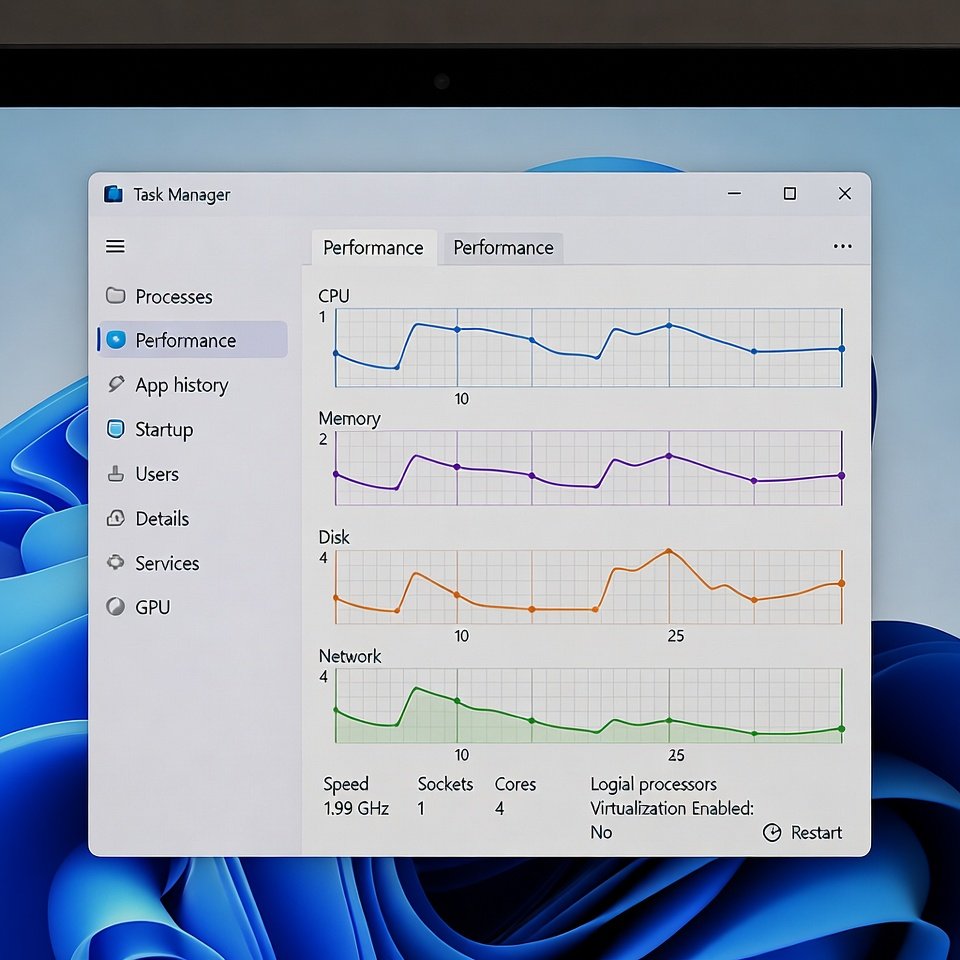
Many background processes run quietly. Task Manager lists them clearly. Scanning this list helps understand what stays active behind the scenes and which items feel unnecessary for daily use.
Searching Online
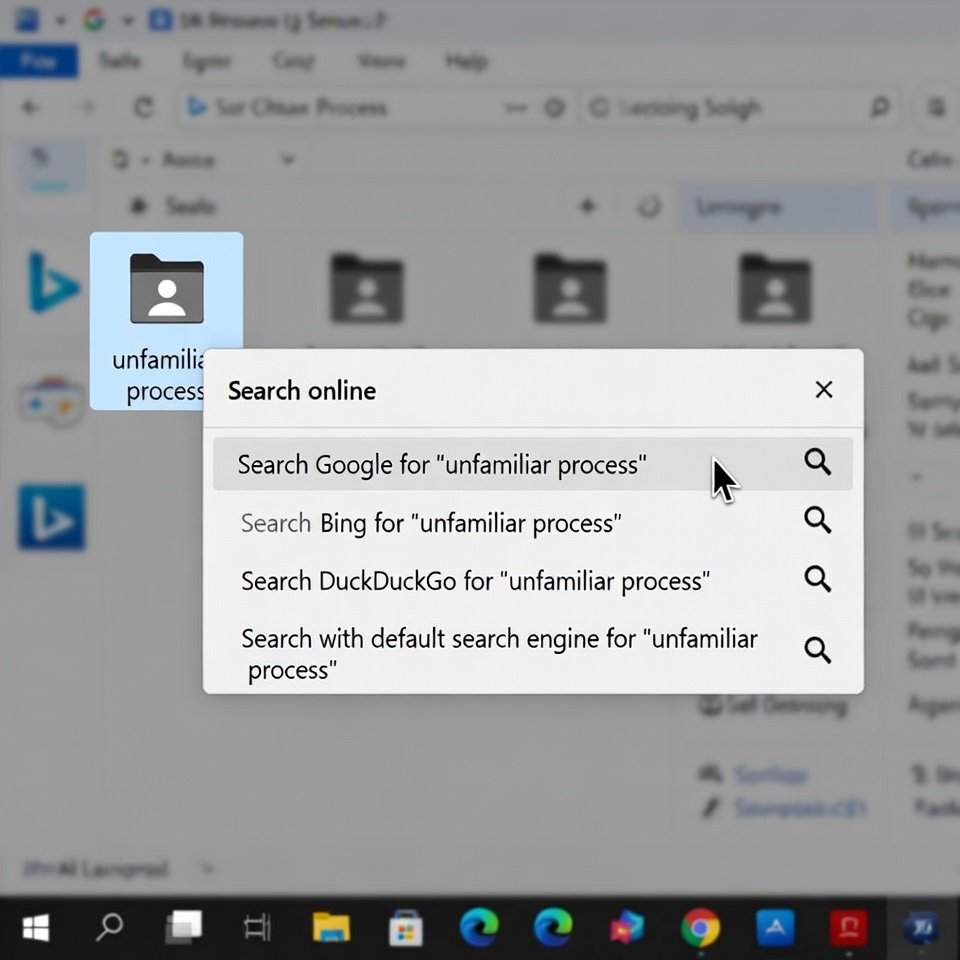
Right-clicking a process offers a search option. This opens quick explanations online about unfamiliar apps. It helps confirm whether something belongs on the system without deep technical knowledge.
Always Accessible
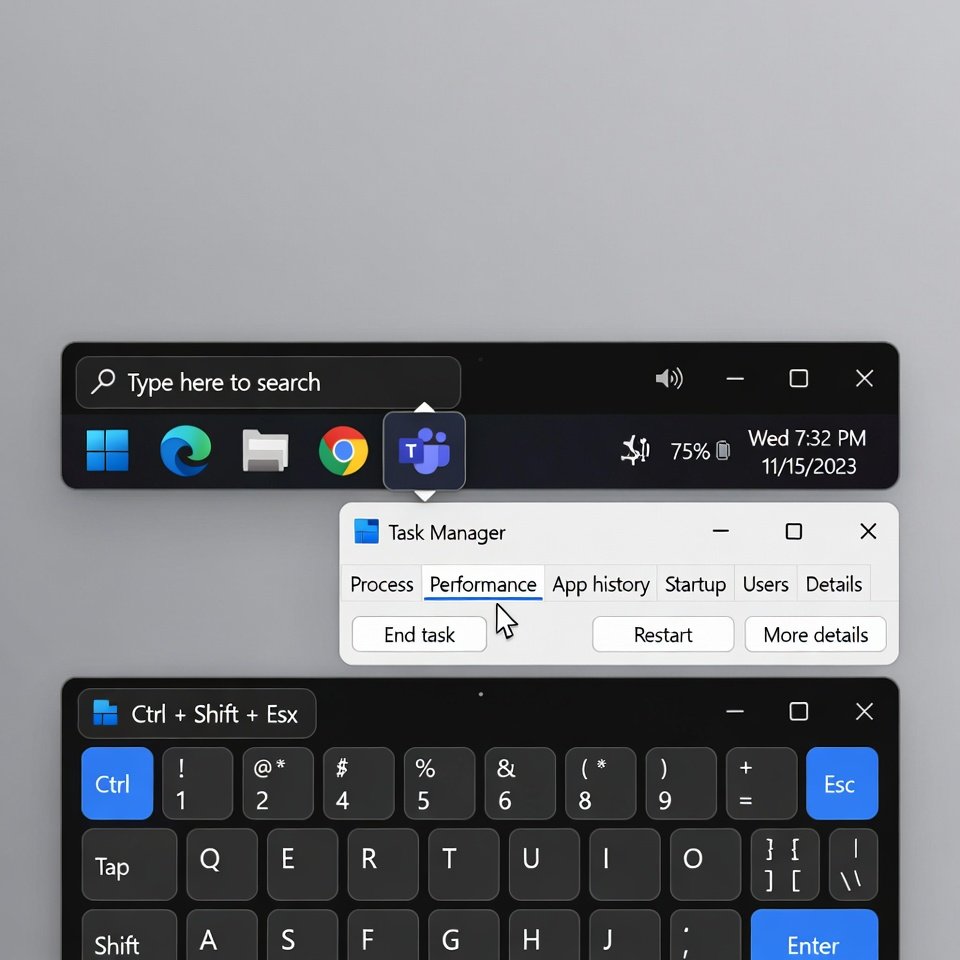
Pinning Task Manager to the taskbar or learning keyboard shortcuts makes access instant. This habit turns it into a regular tool instead of an emergency option used only during freezes.
