
A lot of individuals rely on their laptops to do their daily jobs, reading, banking and communication. The browsers in use tend to be left open all night. They however, silently feed on battery power. When using several tabs, background processes and intensive extensions, energy consumption is raised. In the long run, the battery life and performance decreases in users. This drain can be minimised through small changes. The use of simple settings and clever browsing behaviour makes a definite difference. These are measures that do not involve technical expertise. Their structure is simple to use and convenient for the ordinary user. Laptops are efficient and dependablefor manoeuvring through browsers. A smoother multitasking and enhancement of system health also rely on better battery control.
Limit Open Tabs

Having numerous tabs open boosts the activity of processors and memory consumption. Close unused tabs regularly. Open only the vital pages on which one bookmarks them. The number of tabs is minimised, thus making the browser run smoothly. This minimises battery load and enhances system agility in day-to-day activities.
Disable Unnecessary Extensions
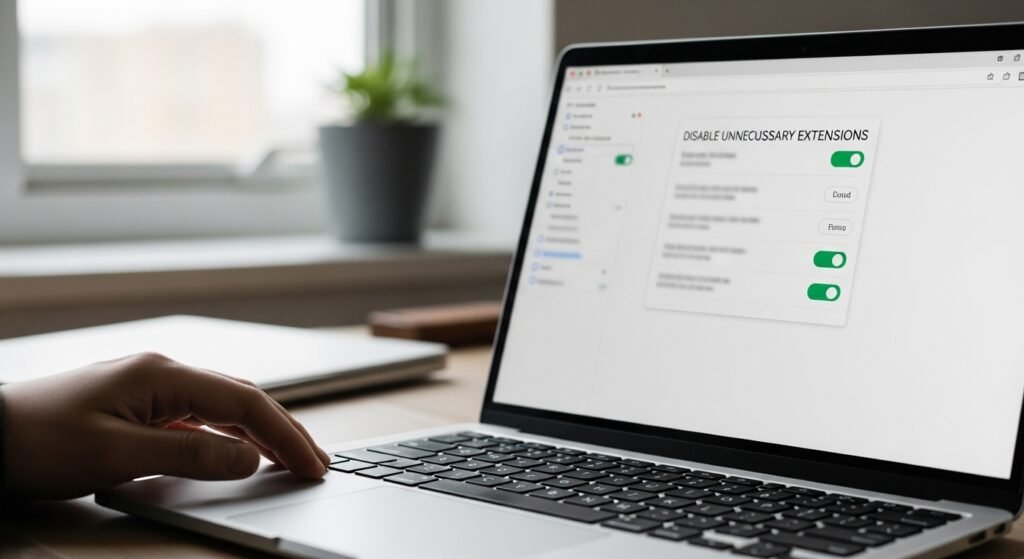
Schedulers are features that do not come free, and they need constant power. Check extensions that are installed and get rid of the ones that are seldom used. Background scripts are also run by certain extensions. Such scripts consume more battery power. Removing unnecessary extensions is helpful so that the efficiency of the browsers improves and performs efficiently.
Reduce Background Activity

Browsers keep running processes even after the windows have been closed. Block background activity in the browser. This eliminates the consumption of power by hidden activities. Having unnecessary background functions off is something to do, as it prolongs battery life and decreases system load when idle.
Adjust Browser Power Settings
Most of the browsers have power-saving settings. Turn on inbuilt efficiency or power savers. These characteristics restrict intense operations and consumption of resources. These settings can be adjusted to ensure the laptops operate efficiently and consume less battery at the same time while supporting long browsing times.
Update the Browser Regularly

Newer browsers are energy optimised and have better performance. The inefficiencies are usual in older versions. There are periodic updates that correct bugs and enhance stability. The use of the most recent version will make sure that the browser is very efficient and can manage better battery usage without compromising on usability.
Lower Screen Brightness During Browsing

Besides, during browsing, bright displays raise the general battery usage. Turn down the brightness to a comfortable level. Moderate brightness brings you a decrease in energy, and also does not affect the visibility. The brightness control, in conjunction with sound browsing habits, makes the battery last longer during day-to-day use of the laptop.
Block Auto-Playing Media

Video and animation use up processing resources and battery energy due to autoplay. Turn off auto-play in your browsers. Use of media when necessary minimises unnecessary system loading. This enhances the speed of browsing and battery sustains other more significant functions.
Use Lightweight Browser Themes
It imposes heavy graphics processing demands due to heavy themes and visual effects. Select plain and bare browser themes. Light themes save on visual resources. This minor change promotes energy consumption and ensures the efficient operation of browsing on various sites.
Monitor Task Manager Activity

A majority of browsers have an inbuilt task manager. Monitor it to verify which extensions or tabs are using all resources. Entangle heavy processes and seal those processes that are not necessary. This is because browsers can be monitored to allow the user to manage battery consumption and balance the system.
Enable Hardware Acceleration Carefully
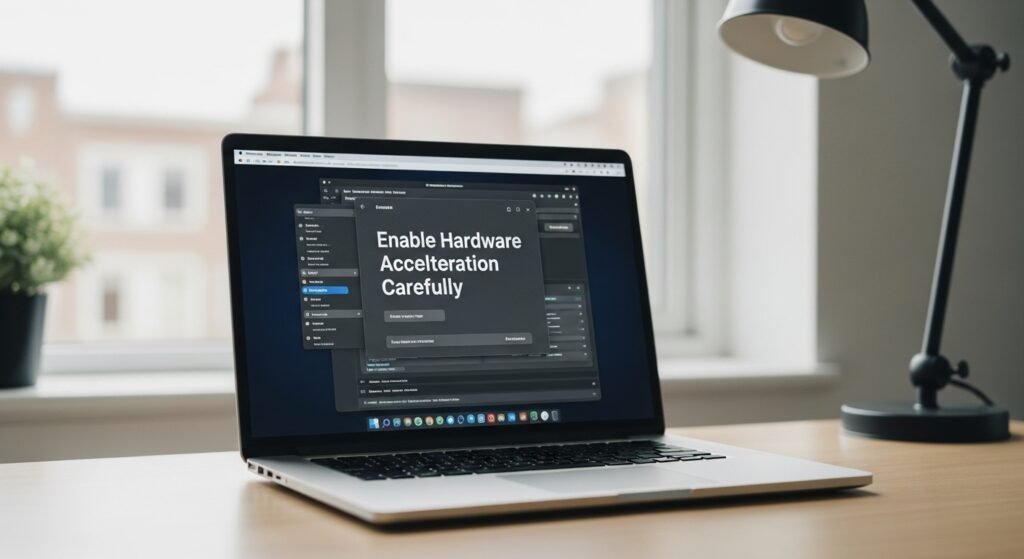
Hardware acceleration enhances performance using graphics hardware. It can however, raise battery consumption in some laptops. Test this setting and monitor battery behaviour. When not needed, disabling it will assist in reducing energy consumption and stabilising the performance of browsers.
Restart Browser Periodically

Browsers store temporary data in the process of prolonged use. Restarting removes the memory load and reinvigorates processes. This saves on energy consumption. Periodic browser restart can be used to ensure uniform performance and assure improved battery capacity in the event of extended working hours.
