
Modern smartphones are packed with thoughtful accessibility features that often go unnoticed. While many people use basic functions daily, these hidden tools can quietly transform how you interact with your device. From improving visibility to simplifying navigation, they are designed to make everyday tasks smoother and less tiring. Whether you struggle with small text, touch sensitivity, or simply want a more comfortable experience, these features can help without requiring technical knowledge. Exploring them can save time, reduce frustration, and make your phone feel more intuitive. Here are some lesser-known accessibility settings that can genuinely improve your daily smartphone use.
Text Scaling

Text scaling lets you increase font size across apps, making reading messages, emails, and articles more comfortable without straining your eyes. It’s especially helpful for long reading sessions on smaller screens.
Magnification Gestures
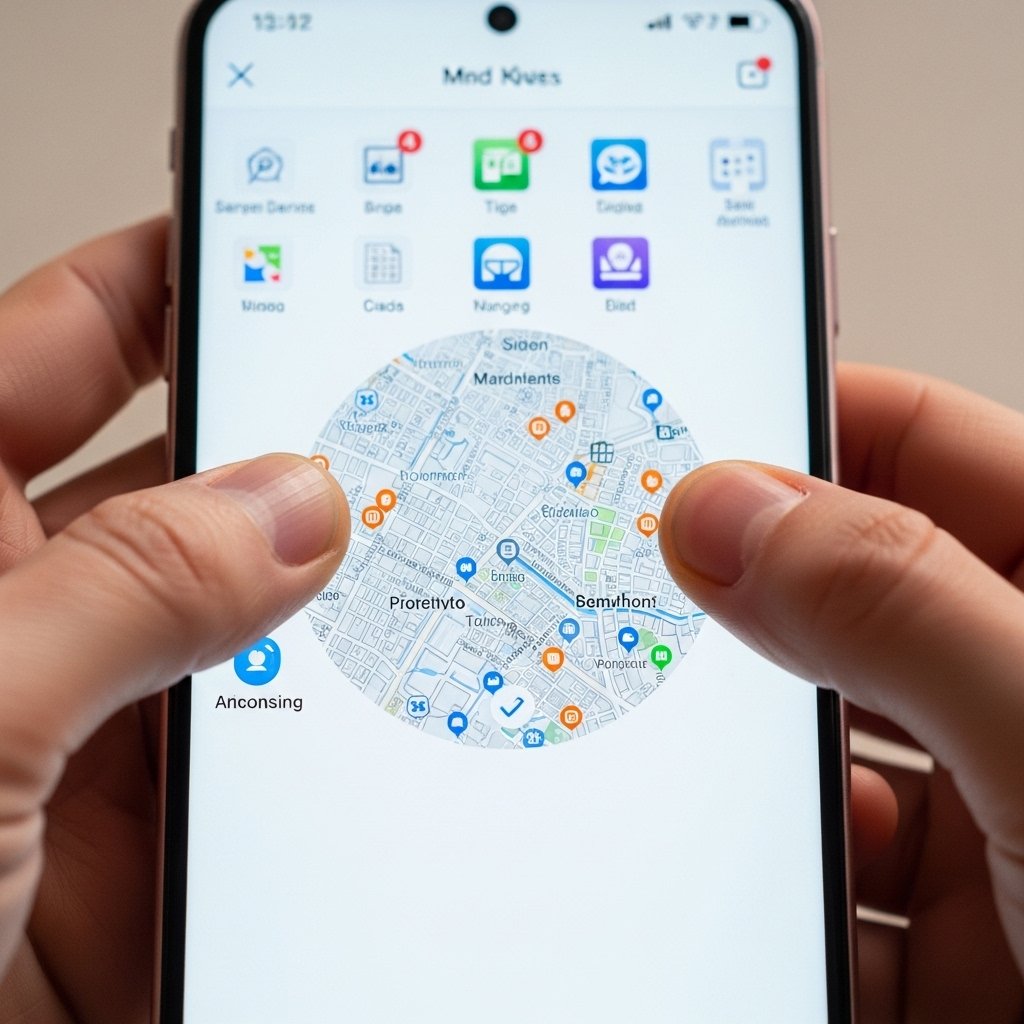
This feature allows you to zoom into any part of your screen with simple gestures. It works system-wide, helping you view fine details like images, maps, or small text effortlessly.
Voice Control

Voice control enables hands-free navigation by letting you open apps, type messages, and control settings using spoken commands, reducing the need for constant touch interaction.
Color Correction
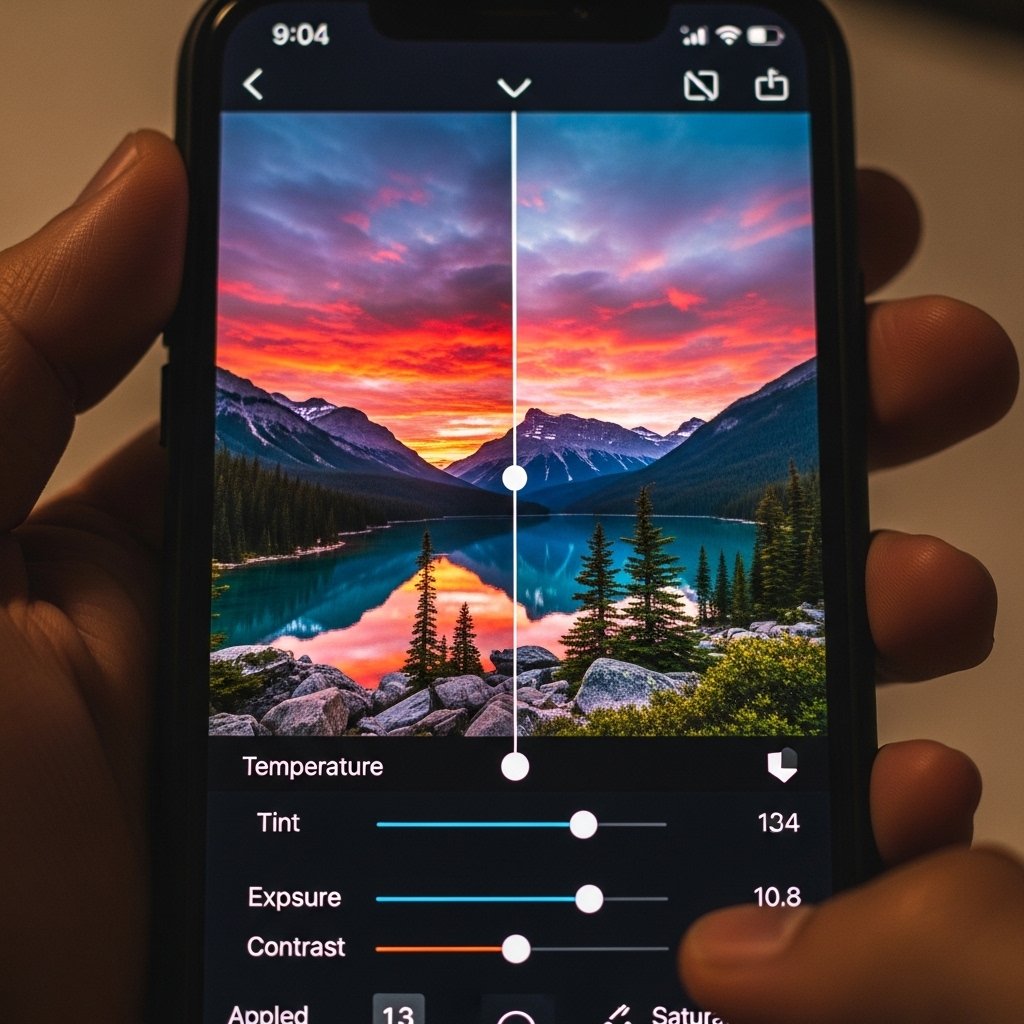
Color correction adjusts screen colors for better clarity, especially for those who find certain shades difficult to distinguish, improving readability and overall viewing comfort.
Mono Audio
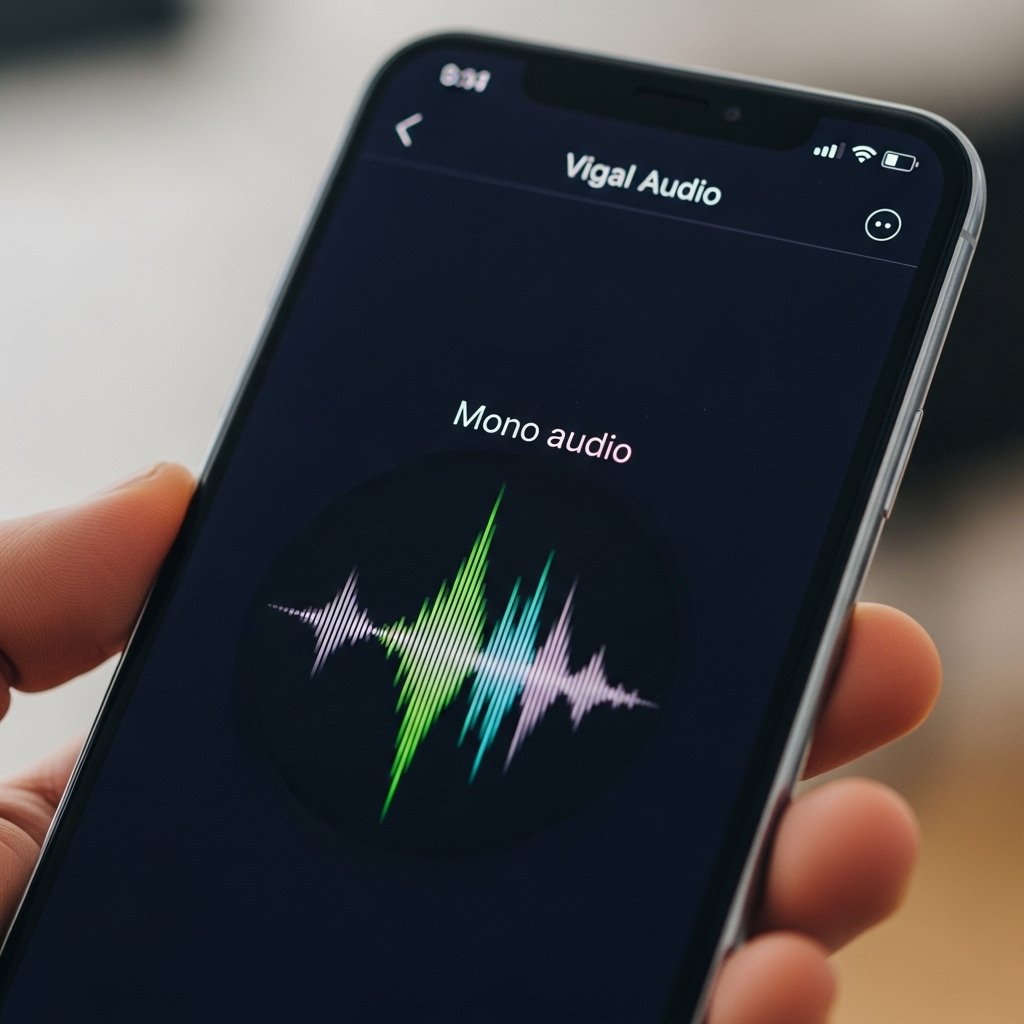
Mono audio combines left and right sound channels, ensuring you don’t miss important audio details when using a single earbud or if hearing is stronger in one ear.
Live Captions

Live captions automatically generate subtitles for videos, podcasts, and even voice messages, making audio content easier to follow in noisy environments or quiet settings.
Touch and Hold Delay
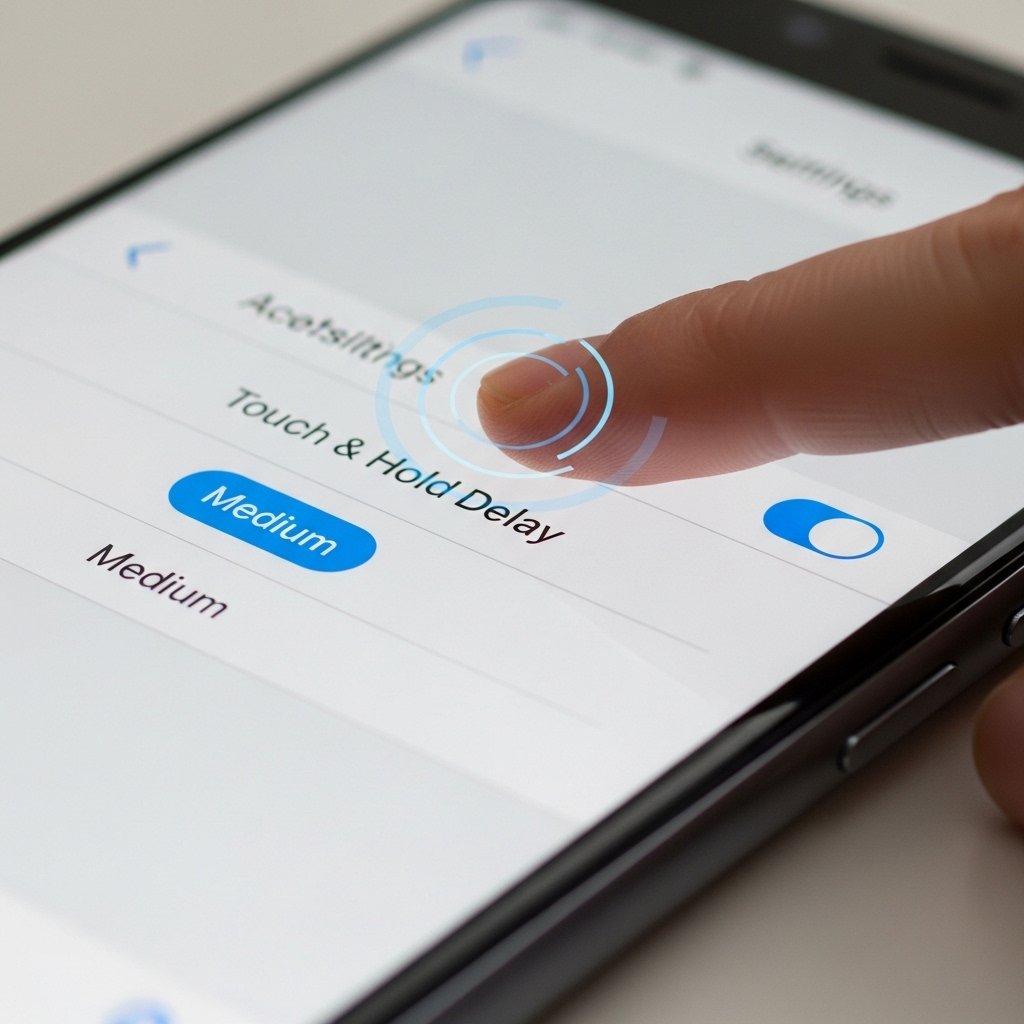
This setting adjusts how long you need to press the screen for actions, helping prevent accidental touches and making navigation more precise and controlled.
Screen Reader
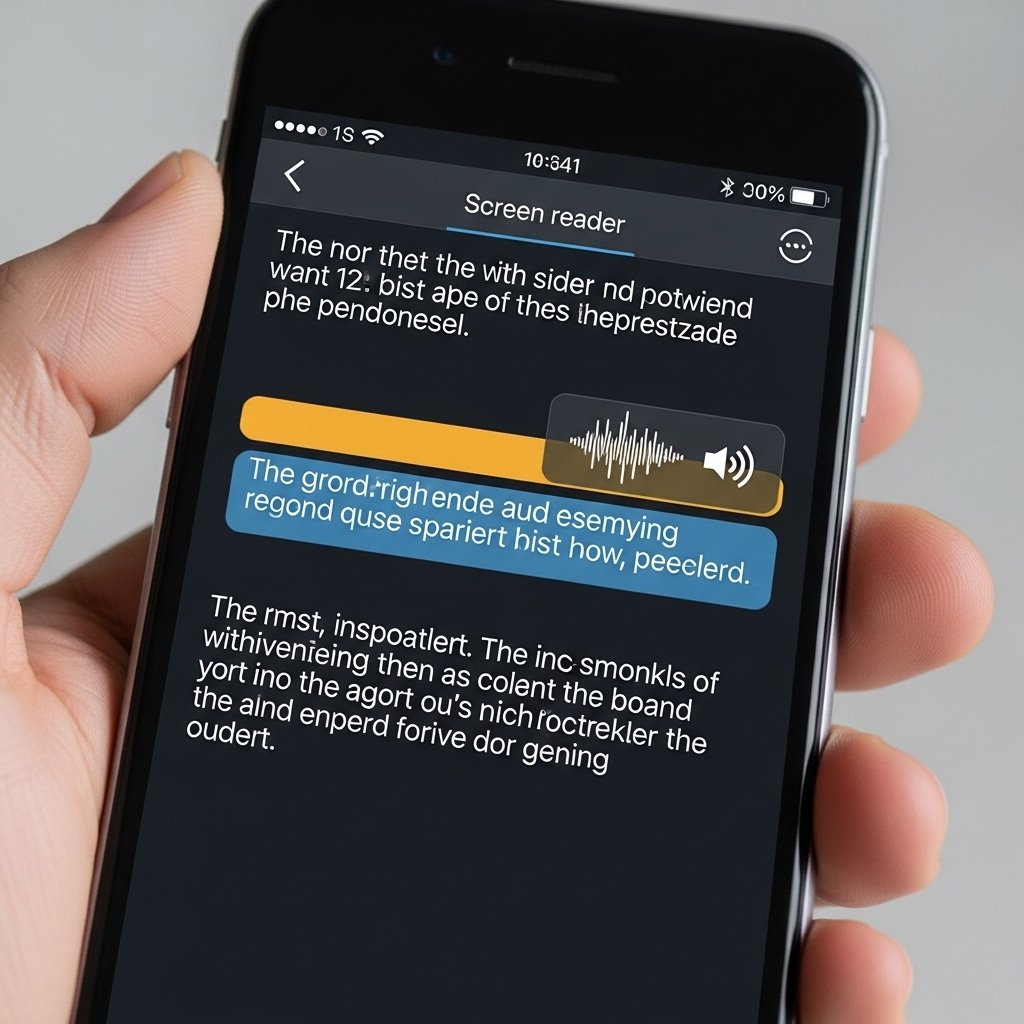
A screen reader reads out on-screen content, guiding you through apps and menus with audio cues, making smartphone use smoother without relying heavily on visuals.
Reduce Motion

Reducing motion minimizes animations and transitions, which can make the phone feel faster and more comfortable, especially for users sensitive to excessive screen movement.
Assistive Menu
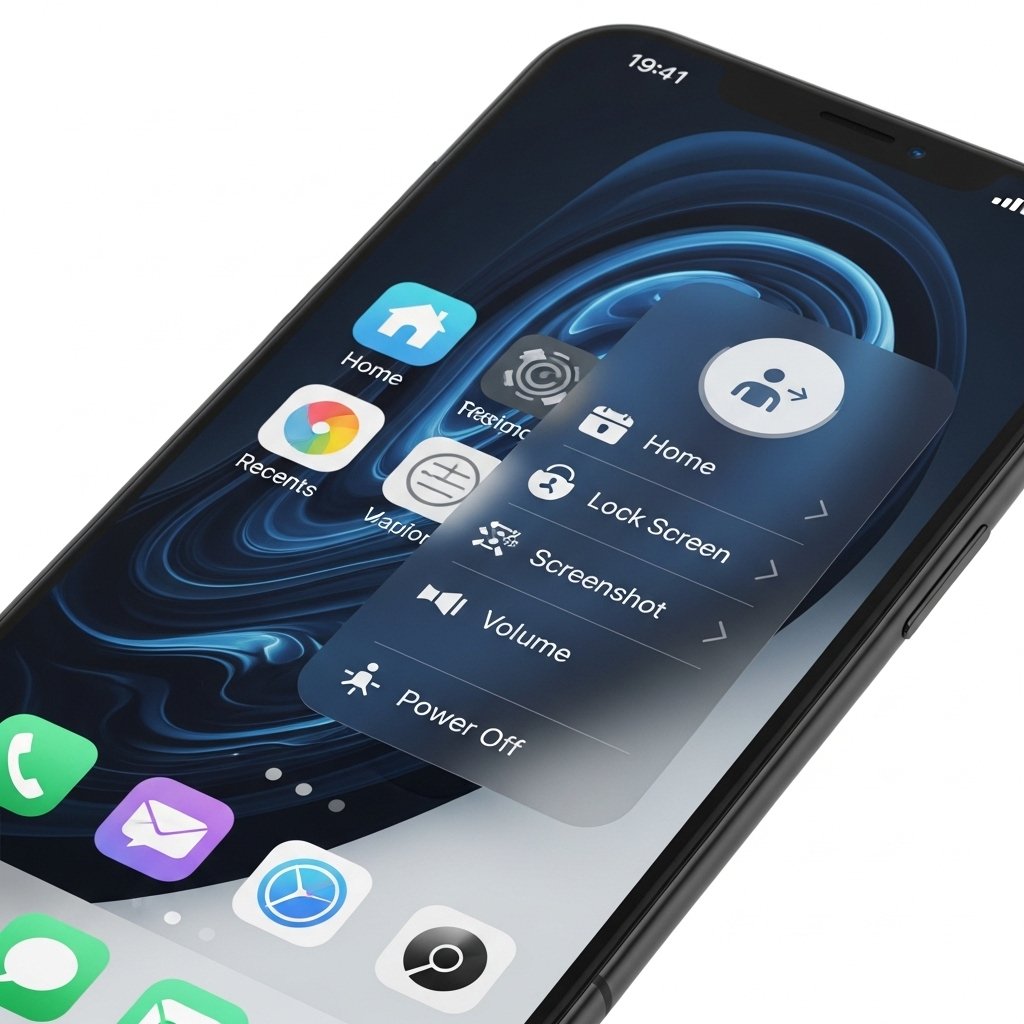
This floating menu gives quick access to essential controls like volume, screenshots, and navigation buttons, reducing the need to use physical buttons repeatedly.
Sound Amplifier
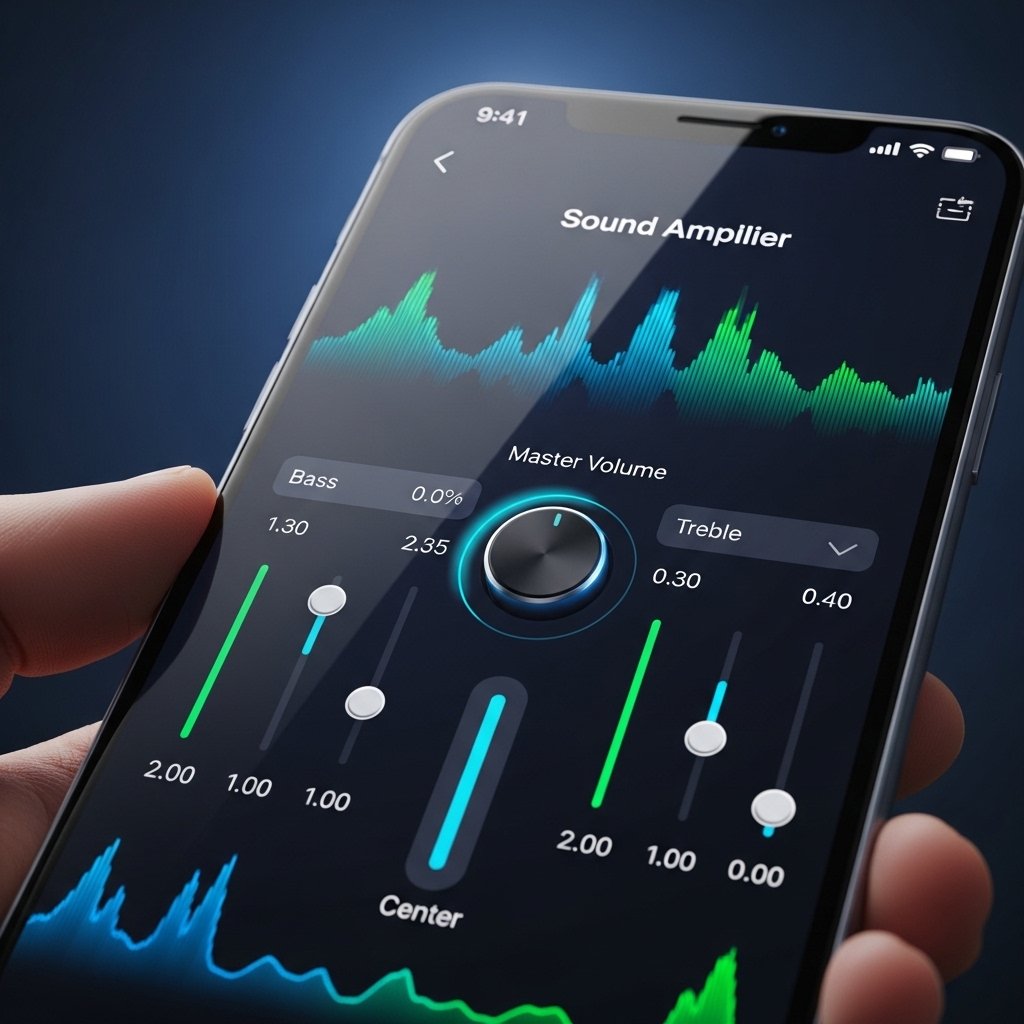
Sound amplifier enhances surrounding audio when using headphones, making conversations and environmental sounds clearer, especially in crowded or noisy areas.
