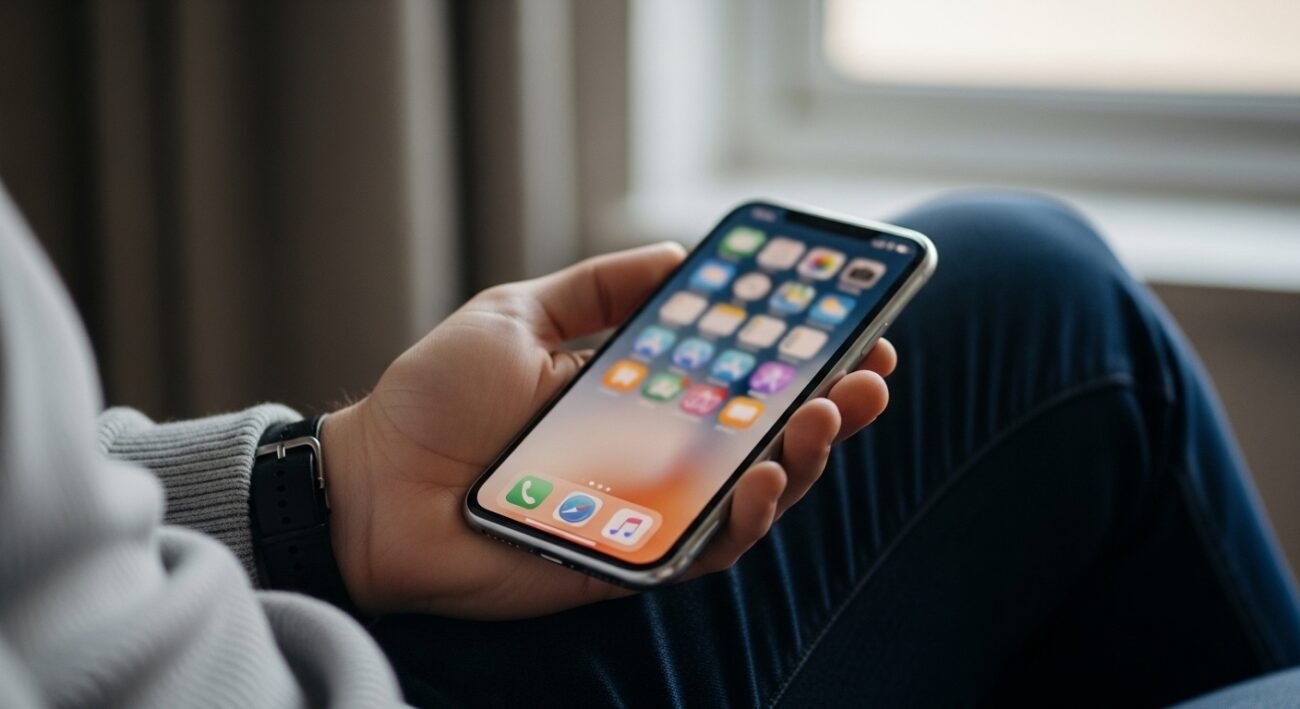
Leaving your iPhone with a person to do a small job is quite innocent. But curiosity is a curse that may degenerate into undesirable scrolling in a matter of seconds. There is access to messages, photos, and apps either accidentally or otherwise. Guided Access, provided by Apple, provides one of the most effective solutions in a quiet manner. It allows you to secure your iPhone to a single app and lock down the touchscreen or buttons. Upon activation, the phone will remain on a single screen until you leave the phone with your passcode or face scans. This is an in-built feature that is simple to activate and applicable in everyday life. It defends privacy without defiance or embarrassing excuses.
Enable Guided Access in Settings
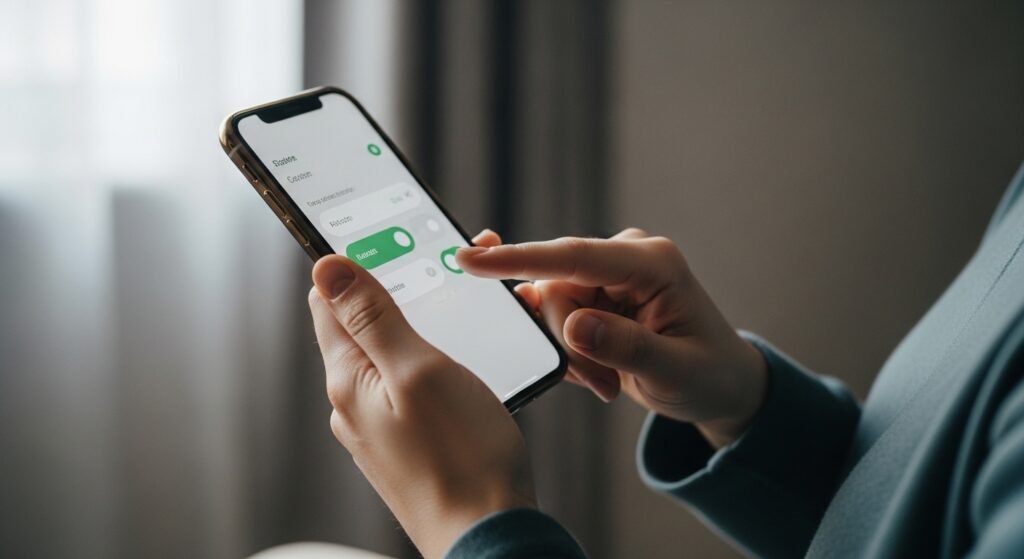
Open Settings, tap Accessibility and then tap Guided Access. Once you’ve enabled the feature, it’s time to set a passcode and start using it. This passcode determines when Guided Access lifts. Select something easy to remember and safe.
Use Guided Access When Sharing Your Phone

When you hand it to them, just have the necessary app open on your iPhone. Toggle on Guided Access by pressing the side button three times. The phone remains locked to that only.
Control Which Areas Can Be Touched
With guided access, you can turn off portions of the screen. Circle what you don’t want to be revealed. This ensures that the tabs on menus or links you do not want others to get into are blocked.
Disable Physical Buttons if Needed

The volume buttons, side button or keyboard can be turned off. This prevents users from leaving the app or changing settings. It introduces another form of control in temporary phone sharing.
Set Time Limits for Extra Control

Guided Access permits time constraints. A session automatically stops after the time is over. This will come in handy when you borrow your phone temporarily and leave it without reminders to get back to normal use.
Use Face ID or Touch ID to Exit

To be convenient, turn on Face ID or Touch ID to terminate Guided Access. This prevents the need to enter a pass code in a crowd. It also makes the exit process faster and more private.
Prevent App Switching Completely

Guided access prevents switching between apps. The user is not able to swipe away, open notifications or navigate. This helps to stay focused and guard personal data.
Ideal for Photos, Calls, and Forms

Guided Access is effective in cases of displaying pictures, calling, or using forms. It eliminates the possibility of accidentally swiping into personal albums, messages, or emails on Grit and grains interactions.
Helpful in Work and Public Situations

Guided Access provides a sense of security in meetings or places of publicity. When somebody requires your phone temporarily, you are the one who is sure that no personal information has been accessed during the time.
Easy to Turn Off Anytime
In order to leave Guided Access, you must triple-click the side button and verify. Your phone is back to normal immediately. The feature is not permanent and thus flexible and stress-free.
A Quiet Way to Set Boundaries

Guided Access creates digital barriers without reason. You remain courteous without intrusion. It lets you avoid embarrassing situations and have everything under your control, and it is an effective habit to make among iPhone users.
