Any of us can forget a phone password. A long day, a hasty change or an underused backup method can leave you locked out. Android includes several built-in recovery options designed for real users in real situations. These methods focus on identity verification, account access, and official system tools. Some options protect your data, while others require a reset. The correct decision to make is determined by what phone model you have, your device settings and access to your accounts. Knowing these options before doing so is what helps you act coolly. The methods below are safe, and as far as I know, there are no risks of damaging your device or, per say violating any privacy rules.
Google Find My Device
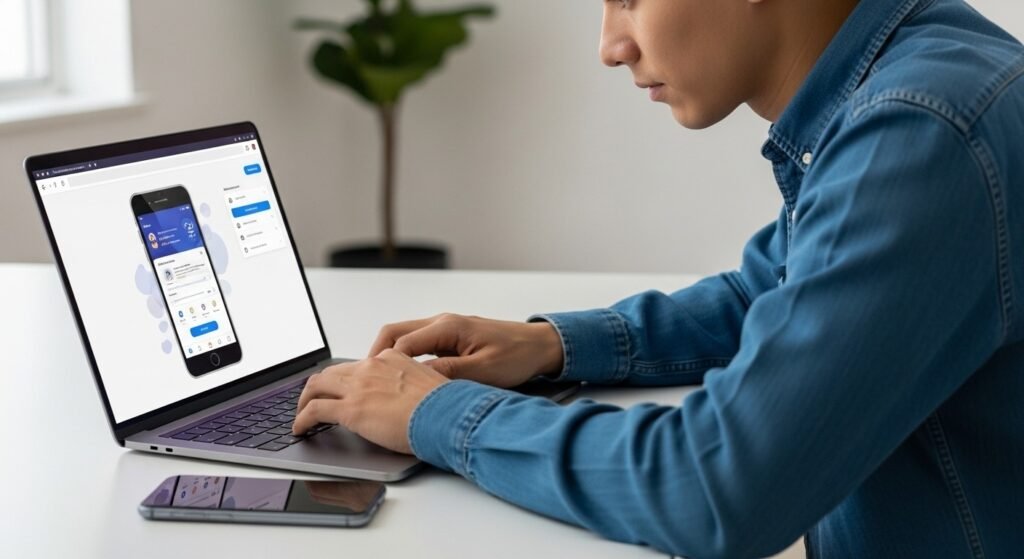
Google Find My Device lets users clear out a locked phone remotely. Log in with your Google account. Select the device. Choose the erase device. After reset, sign in again to regain access.
Factory Reset via Recovery Mode
Recovery mode lets owners reset the phone using hardware buttons. Power off the device. Use the button combination to enter recovery. Choose factory reset. Google account verification is still required after a reset.
Smart Lock Trusted Devices
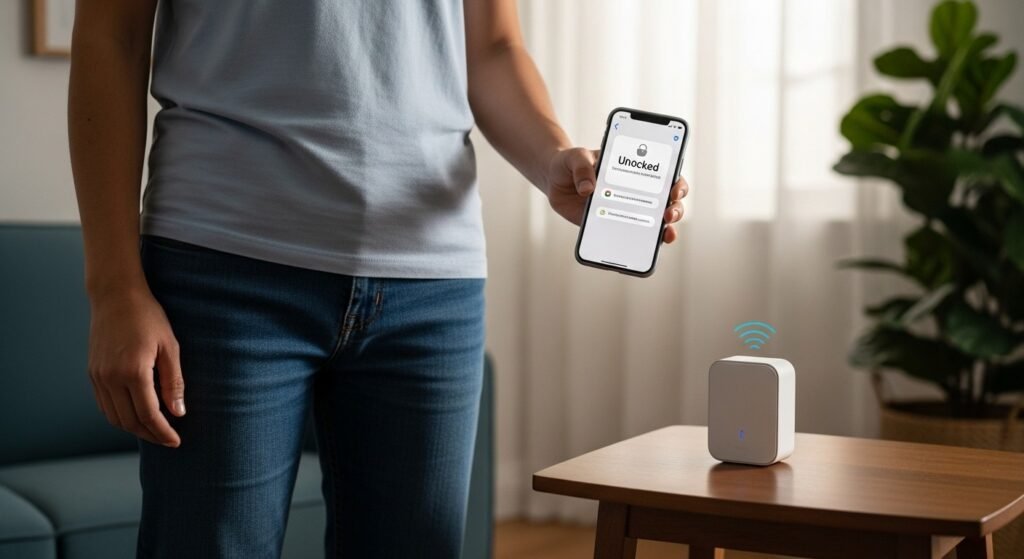
Smart Lock will not let your phone stay unlocked while it’s near trusted devices. Bluetooth watches, cars or speakers might unlock the phone for you. This only works if Smart Lock was already enabled and the trusted device is close by.
Smart Lock Trusted Locations

Trusted locations allow automatic unlocking in familiar places. Home or office locations may remove the lock screen. This method depends on location services and only works if set up before the lock occurred.
Backup PIN or Pattern
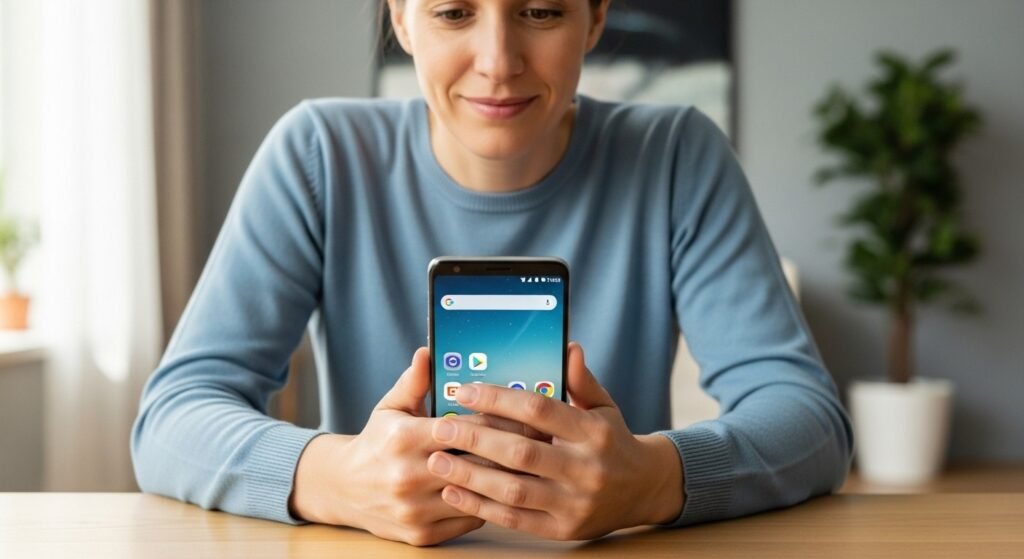
Some Android versions allow a backup PIN or pattern. After several failed attempts, an alternate unlock option may appear. Type the backup password to turn it off and unlock the device without data loss.
Fingerprint or Face Recognition
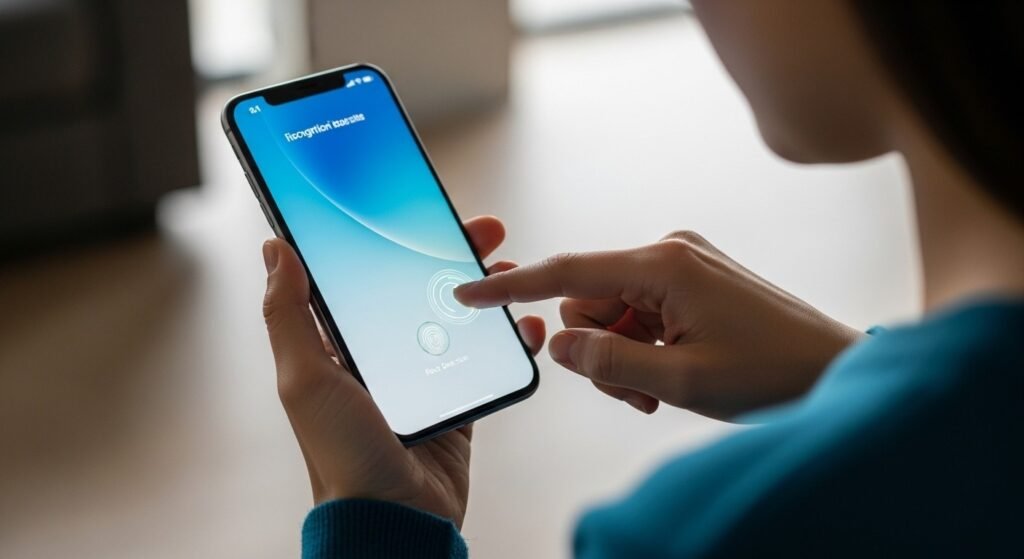
Unlock with biometrics can sometimes be achieved even when the password is forgotten. Use registered fingerprints or face recognition. This option depends on phone settings and may require the password after a restart.
Samsung Find My Mobile

Samsung-owners can unlock their phones using a Samsung account. Sign in online. Select the device. Choose unlock. This feature works only if remote unlocking was enabled beforehand.
Google Account Verification Reset
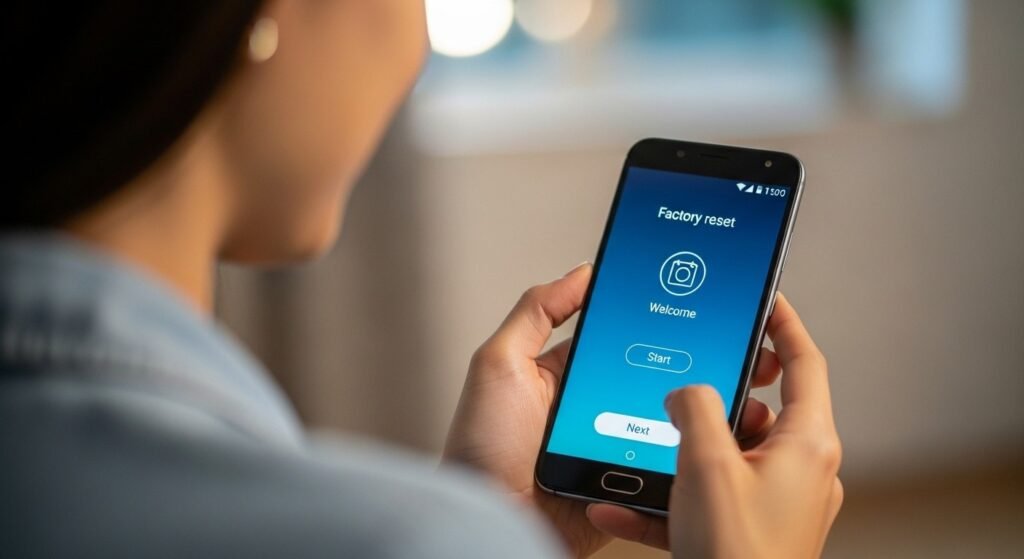
After a reset, Android asks for the original Google account. Enter the correct credentials to complete setup. This security step confirms ownership and prevents misuse of factory-reset devices.
Manufacturer Service Centre Help
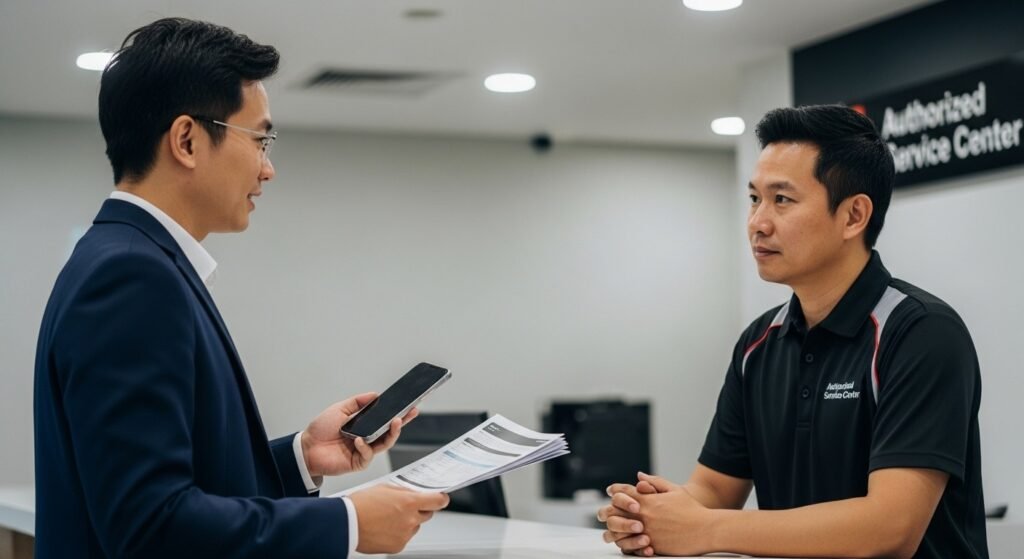
Authorised service centres can help verify ownership. Carry proof of purchase and identification. Technicians may reset the device safely using official tools without harming hardware or software.
Android Device Manager Reset
Older Android versions support Device Manager resets. Log in using the registered Google account. Select the phone. Choose reset. Data may be erased, but access is restored securely.
Professional Data Recovery Support

Certified professionals may recover access or data. This option is useful when important files exist. Always choose authorised providers. Avoid unverified software that may damage data or privacy.
