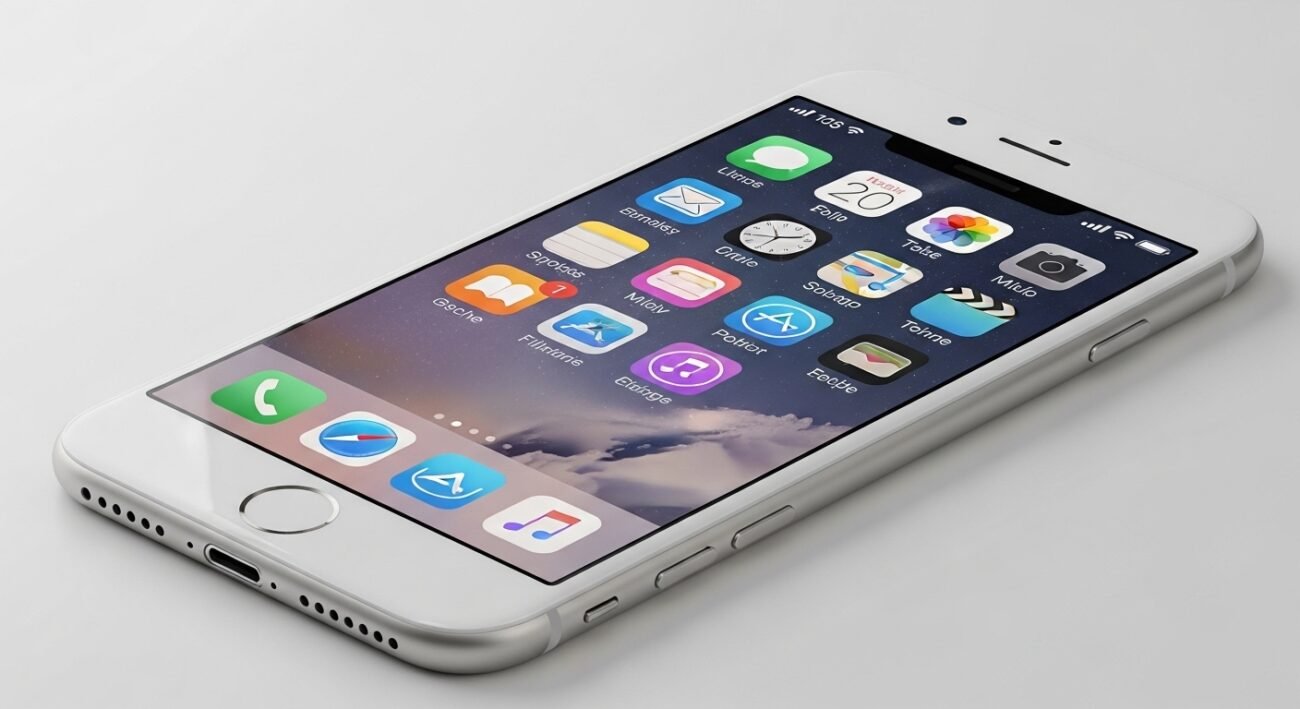
Over time, your iPhone quietly stores temporary data called cache to help apps and websites load faster. While this can improve speed initially, excessive cache buildup often leads to sluggish performance, storage issues, and occasional glitches. Many users overlook this simple maintenance step, not realizing how much it can improve their device experience. Clearing your iPhone cache is not complicated, and doing it regularly can make your phone feel faster and more responsive. Whether you browse frequently, use multiple apps, or stream content, understanding how cache works and how to clear it can significantly enhance your device’s overall performance and usability.
Safari Cache Cleanup

Safari stores browsing data like cookies and history. Clearing this cache removes outdated files, improves loading speed, and enhances privacy. Simply go to Settings, find Safari, and clear history and website data.
App Cache Reset

Many apps store temporary data that piles up over time. Deleting and reinstalling apps is an effective way to clear hidden cache, especially for social media and streaming apps that consume significant storage space.
Offload Unused Apps
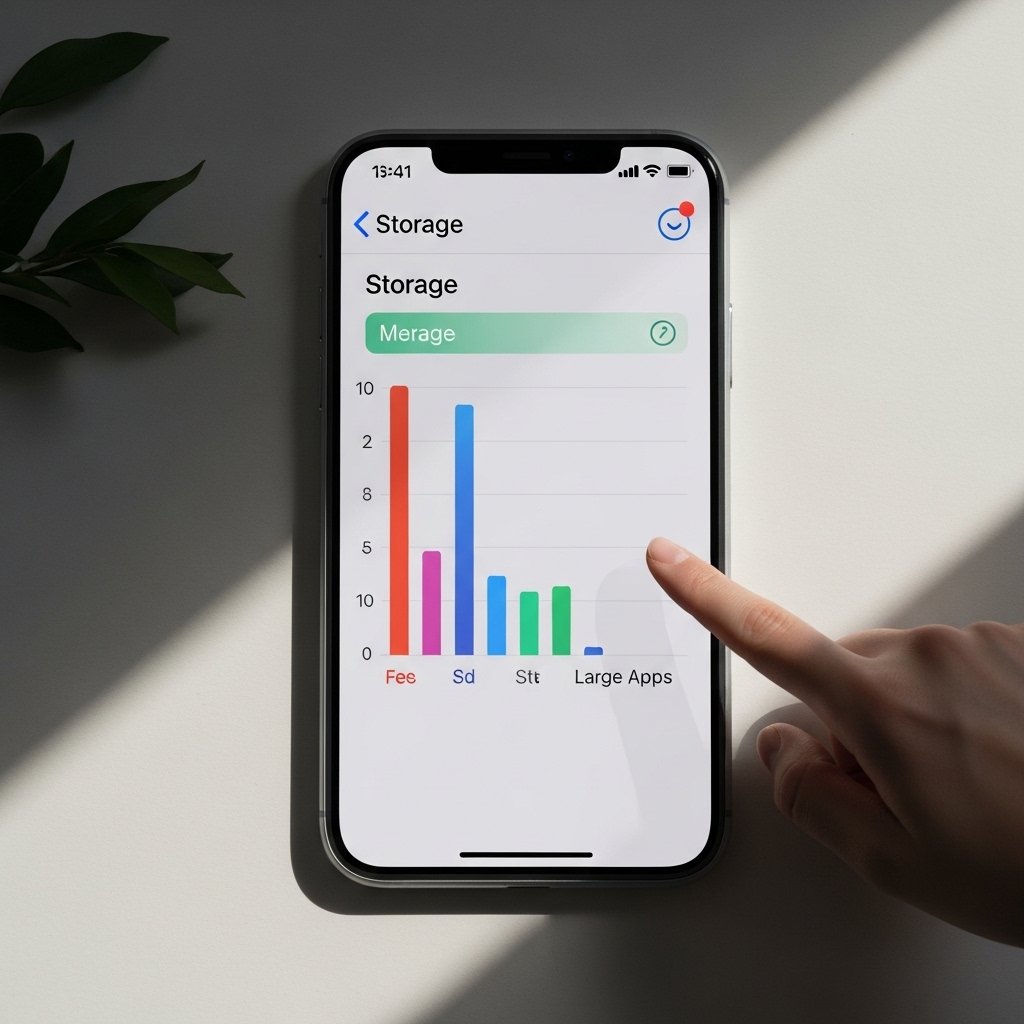
Unused apps still hold cached data. Offloading removes the app but keeps its documents. This frees storage while preserving important data, helping your iPhone stay efficient without losing essential information.
Restart Your iPhone

Restarting your device clears temporary system cache and refreshes memory. It’s a simple yet powerful step that can resolve minor glitches, improve responsiveness, and ensure smoother daily performance.
Clear Message Attachments

Messages with images, videos, and files can accumulate large amounts of cached data. Deleting old conversations or attachments helps free space and keeps your messaging app running efficiently.
Manage Storage Settings

Check iPhone storage settings to identify apps using excessive space. This allows you to remove unnecessary data, clear cache-heavy apps, and optimize overall device storage without affecting essential files.
Update iOS Regularly

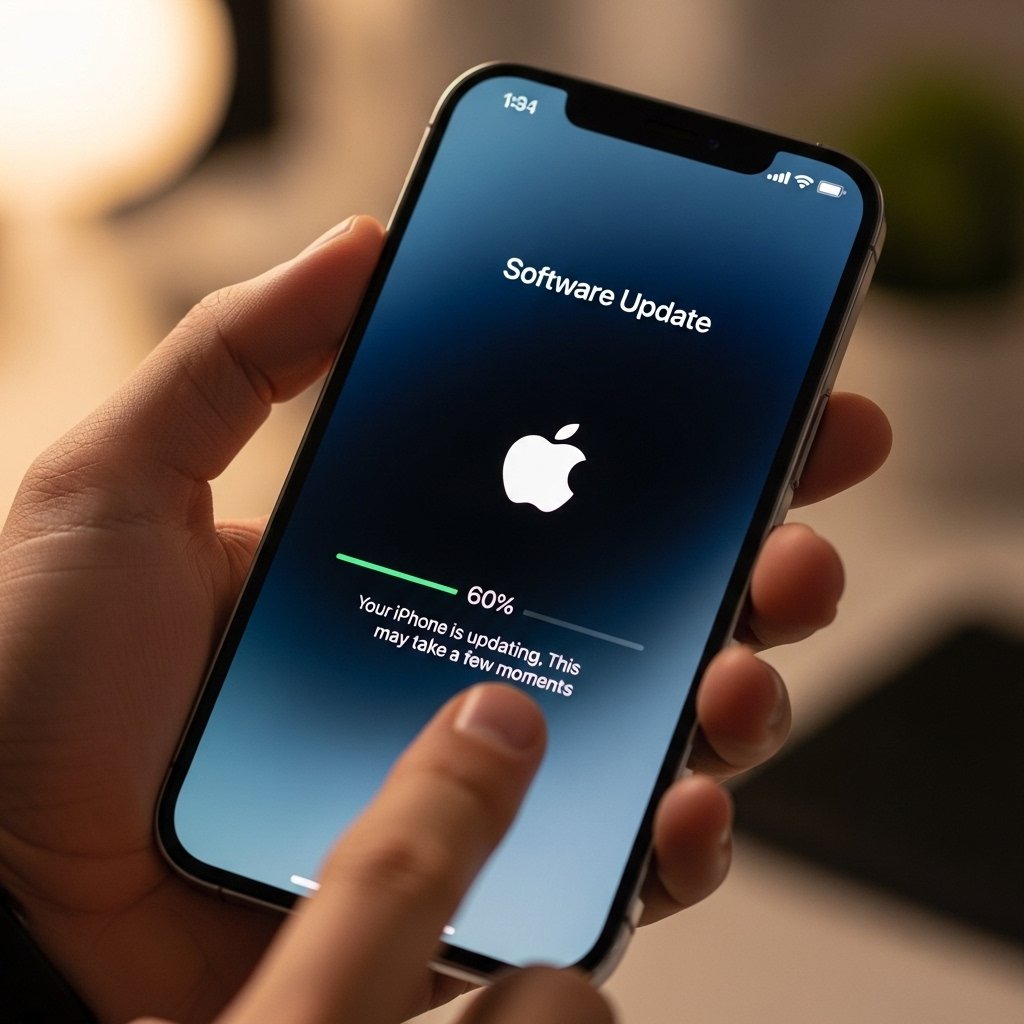
Software updates often include system optimizations that manage cache better. Keeping your iPhone updated ensures improved performance, enhanced security, and more efficient handling of temporary data.
Clear Browser Cache in Apps
Third-party browsers and apps with built-in browsers store their own cache. Clearing this data within app settings helps reduce storage usage and improves browsing speed within those applications.
Reduce Streaming Cache Load

Streaming apps store temporary data for smoother playback. Limiting downloads, clearing watched content, or resetting the app helps prevent unnecessary storage consumption and keeps performance stable.
Reset All Settings Carefully

If your phone feels consistently slow, resetting settings can clear deeper system cache. This does not erase personal data but restores default configurations, often improving speed and responsiveness.
Why Cache Clearing Matters

Regular cache clearing improves speed, frees storage, reduces app crashes, and enhances overall performance. It ensures your iPhone runs efficiently, especially when used heavily for browsing, apps, and multitasking tasks.
