
Apple TV is built for a fast and smooth experience, but even the most powerful streaming device can start to feel slow after some time. Background processes, old settings, unused apps, and several other problems that float almost invisibly under the surface can slow down your Mac. Menus may stall, apps may lag in opening and video playback could lose its customary fluidity. This sluggishness is often the result of easy-to-remedy configuration issues rather than hardware problems. Reviewing and adjusting a few built-in settings can refresh your device, improve responsiveness, and help restore reliable streaming. The following practical checks focus on efficiency, storage, and connectivity to keep everyday entertainment running comfortably.
Restart Device Routine

When you restart Apple TV, temporary files and background processes are refreshed. While a quick reboot can defuse those minor glitches and return smoother navigation and faster response times to the device, it doesn’t automatically delete installed apps, your saved preferences or your personal viewing history.
Update tvOS Software
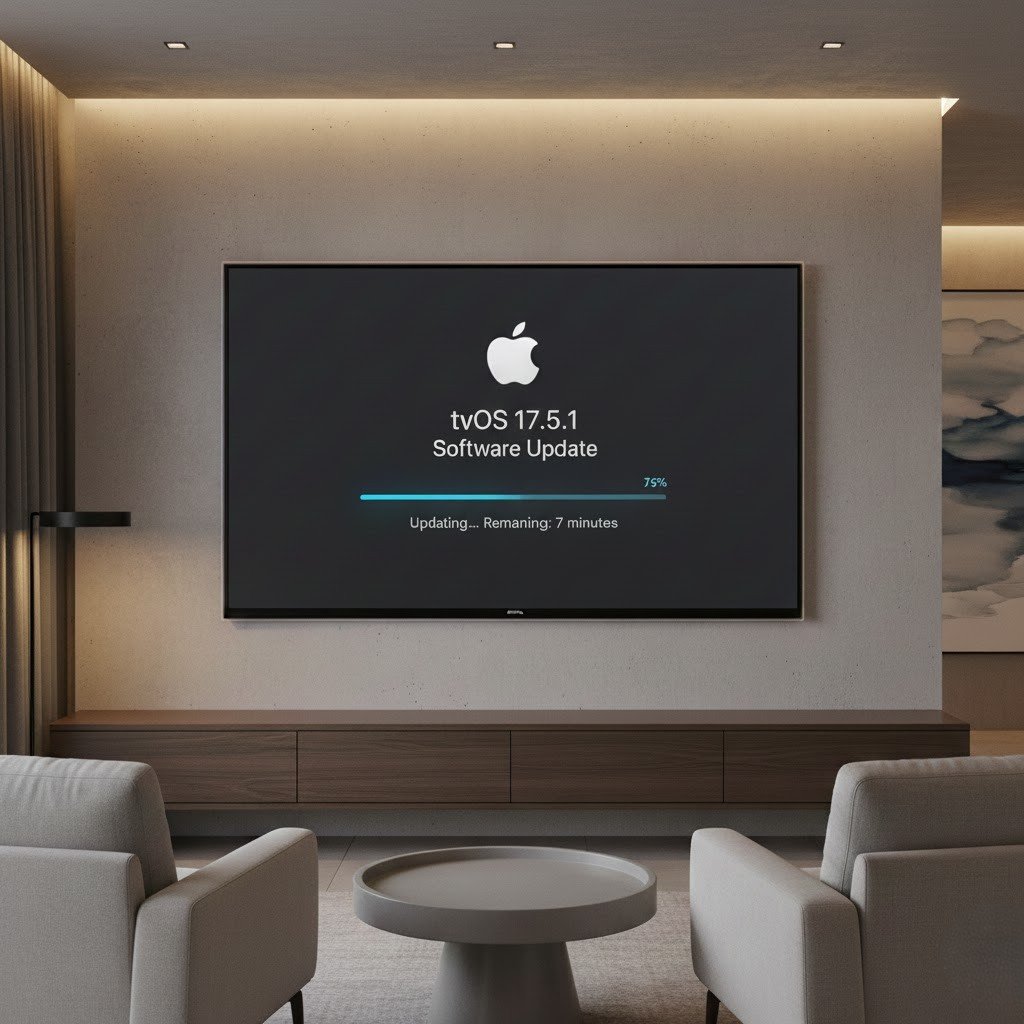
Keeping tvOS updated ensures access to performance improvements, security refinements, and compatibility fixes. Outdated software can slow down navigation, create app conflicts, and reduce stability, while regular updates maintain smooth menu transitions and reliable streaming functions.
Remove Unused Apps

Unused apps that reside on the home screen continue to consume storage and potentially update in the background. When these things are cleared, it will release internal storage, relieve system load and bring frequently used apps back at a faster opening speed and the overall use experience.
Manage Storage Space
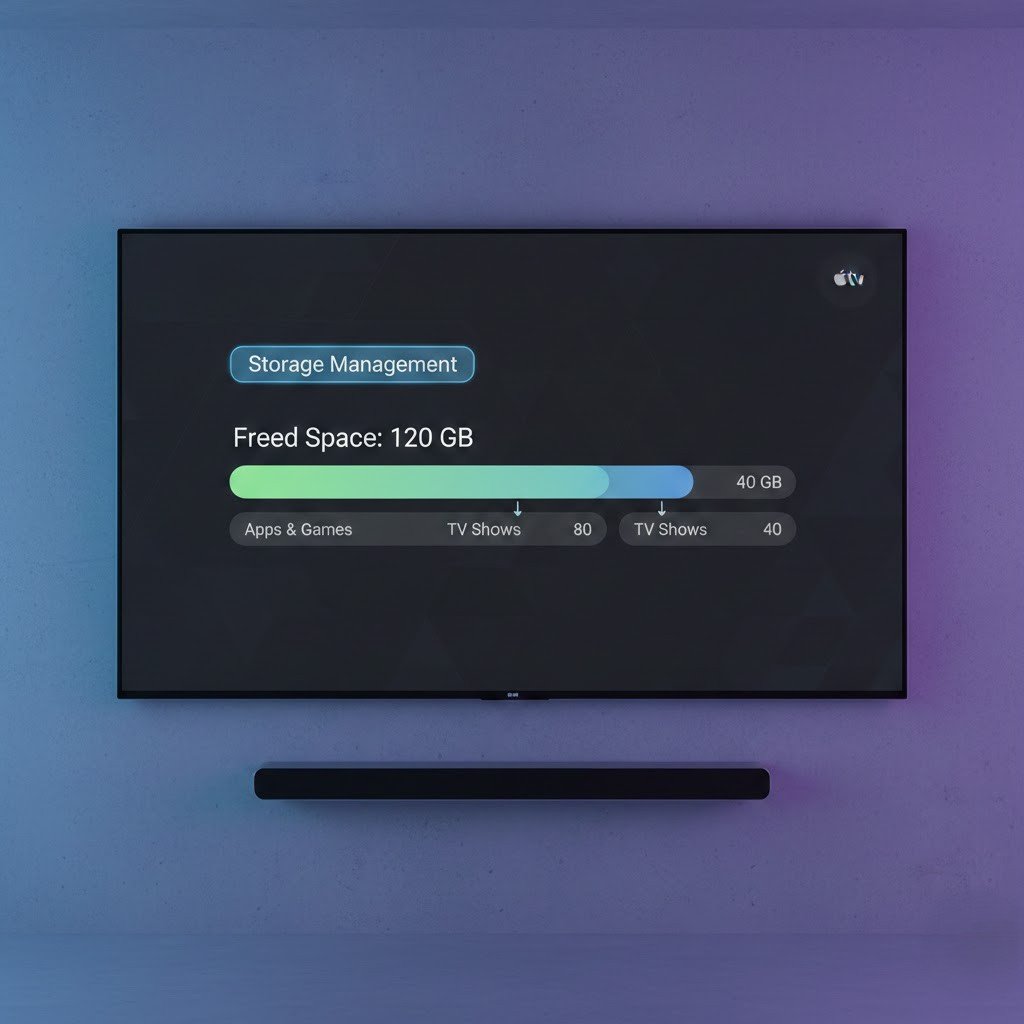
Low storage can cause slow loading and delayed actions. Reviewing stored content, cached data, and unnecessary downloads helps create breathing room for the system, allowing Apple TV to perform everyday operations more smoothly.
Reduce Background App Refresh

Disabling unnecessary background refresh prevents apps from updating when not in use. This setting lowers background activity, reduces memory strain, and improves menu responsiveness while conserving bandwidth for active streaming sessions.
Adjust Video Output Settings

Setting resolution and refresh rate appropriately for your television avoids extra processing. Matching output to display capability prevents unnecessary scaling, resulting in faster menu movement and more consistent video playback.
Disable Unused Siri Features

If voice assistance is rarely used, turning off related background listening and suggestions can reduce system activity. This simple change frees memory resources and helps the interface respond faster to remote commands.
Check Network Connection
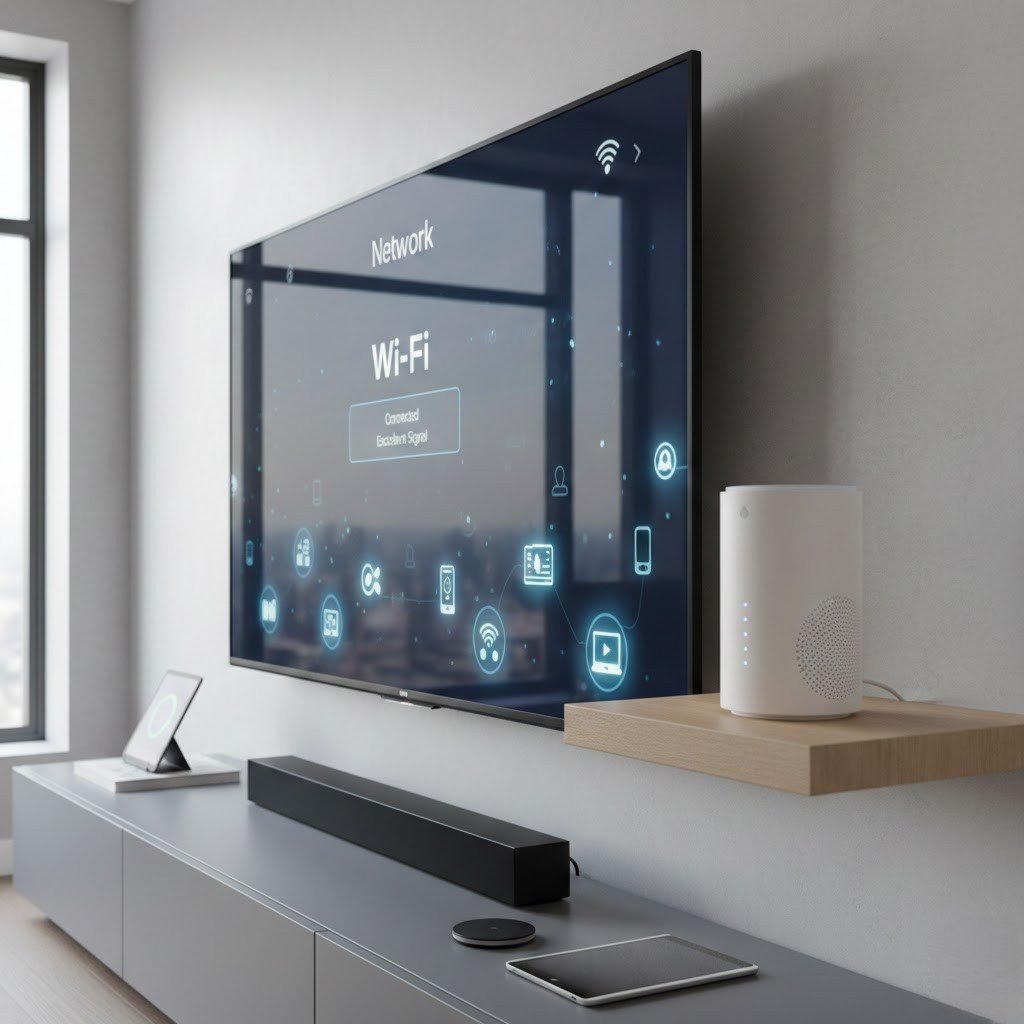
A weak Wi-Fi signal can appear as device slowness. Ensuring strong router placement, stable connections, and minimal interference improves streaming reliability, shortens loading times, and supports smooth browsing across apps.
Limit Automatic Downloads

Automatic app and update downloads may occur silently, slowing other functions. Restricting this feature prevents background activity during viewing sessions, allowing Apple TV to focus resources on playback and navigation.
Reset Home Screen Layout
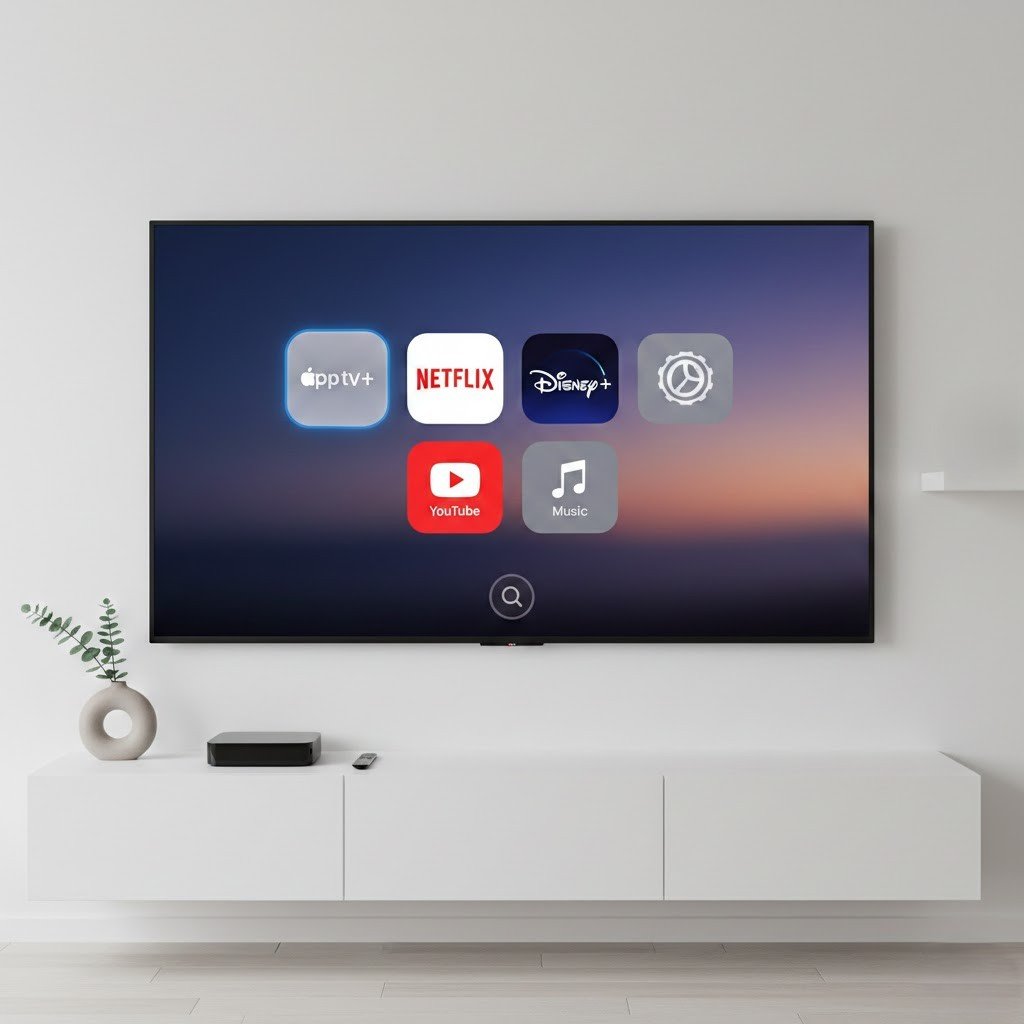
A crowded home screen with many folders and icons can slightly slow menu movement. Simplifying the layout by removing unnecessary tiles improves navigation clarity and contributes to quicker visual transitions.
Perform Periodic Factory Reset

When performance remains inconsistent after basic adjustments, a factory reset can restore original system efficiency. Reinstalling essential apps only helps remove hidden clutter and returns the device to its intended responsive state.
