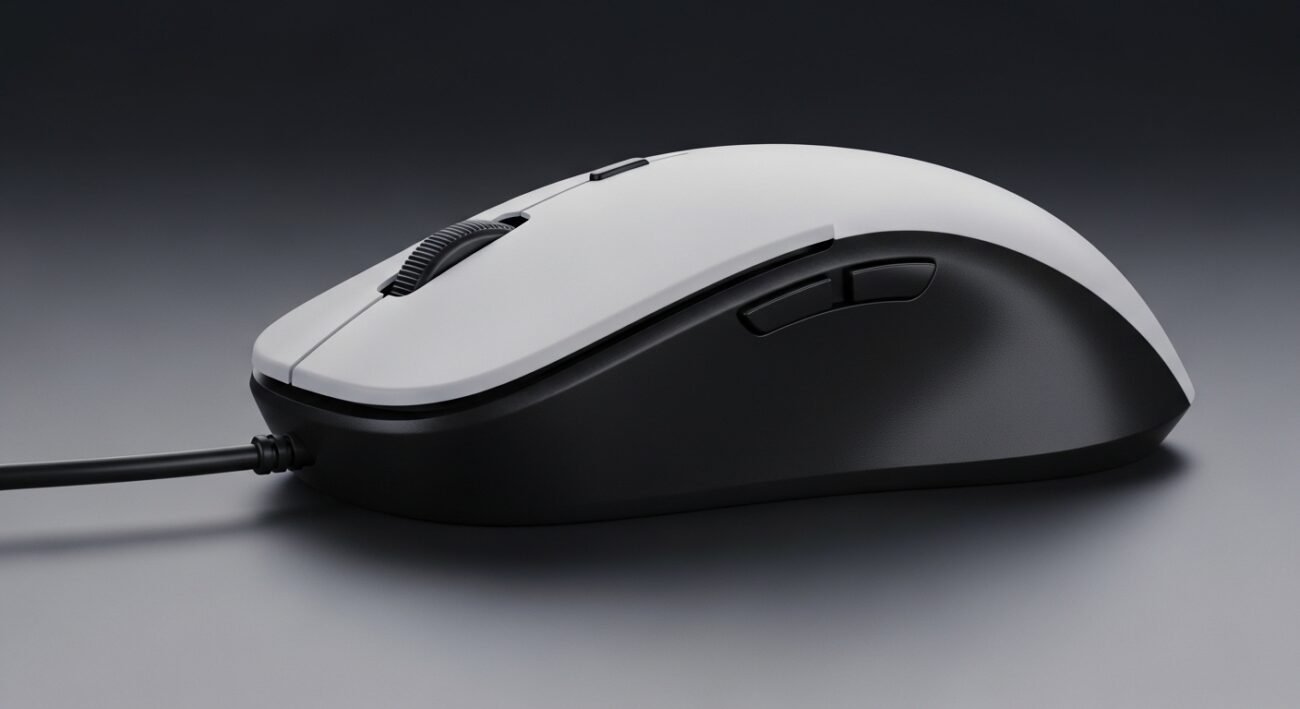
A mouse that suddenly stops working can disrupt even the simplest tasks, creating unnecessary frustration. Often, the issue is not with the mouse itself but with where and how it is connected. Many users overlook the importance of USB ports and how their placement or condition can affect performance. Understanding these small yet impactful details can save time and prevent repeated troubleshooting. By learning a few practical insights, you can quickly identify the root cause and restore smooth functionality. This guide explains why your mouse may be plugged into the wrong USB port and how to fix it effectively.
Port Placement Matters
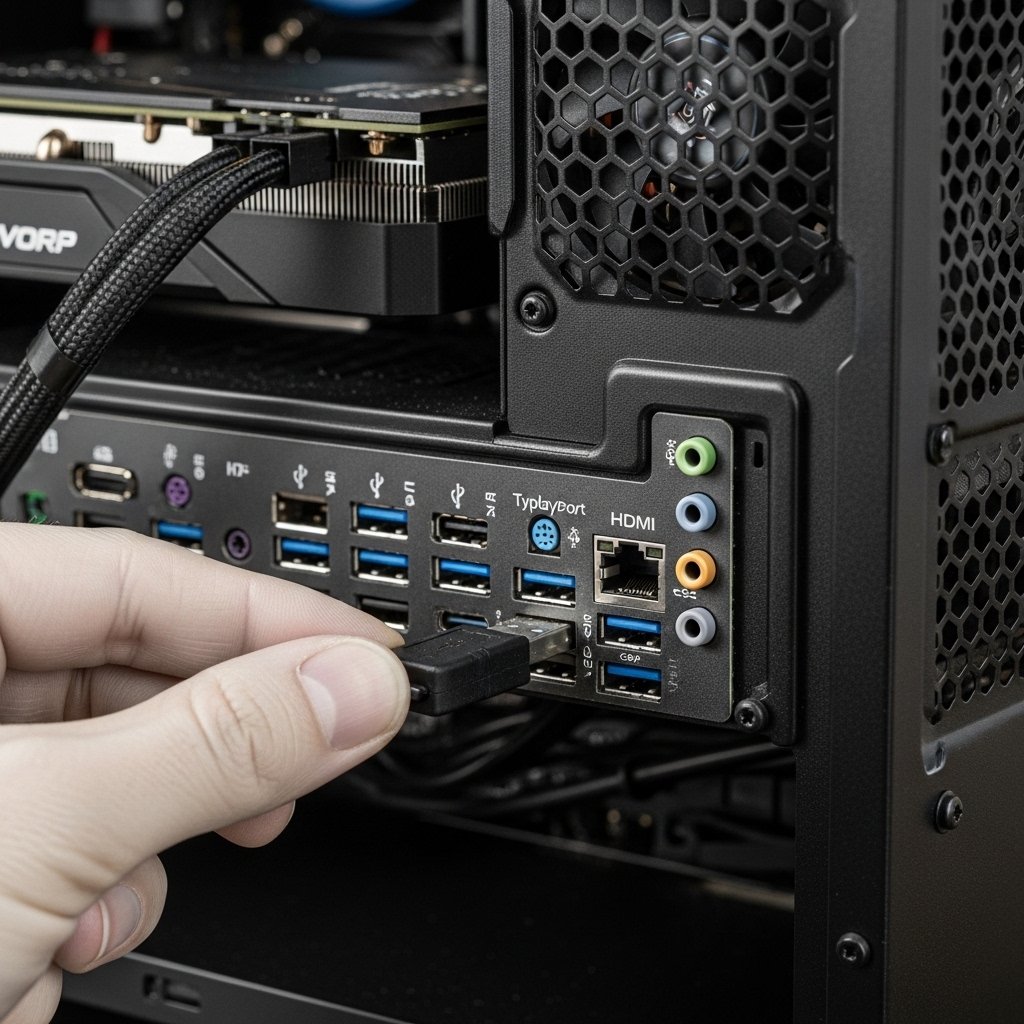
Front USB ports on desktops are sometimes less reliable than rear ports because they connect through internal cables. Switching your mouse to a direct motherboard port can improve stability and ensure consistent performance without interruptions.
Power Supply Differences

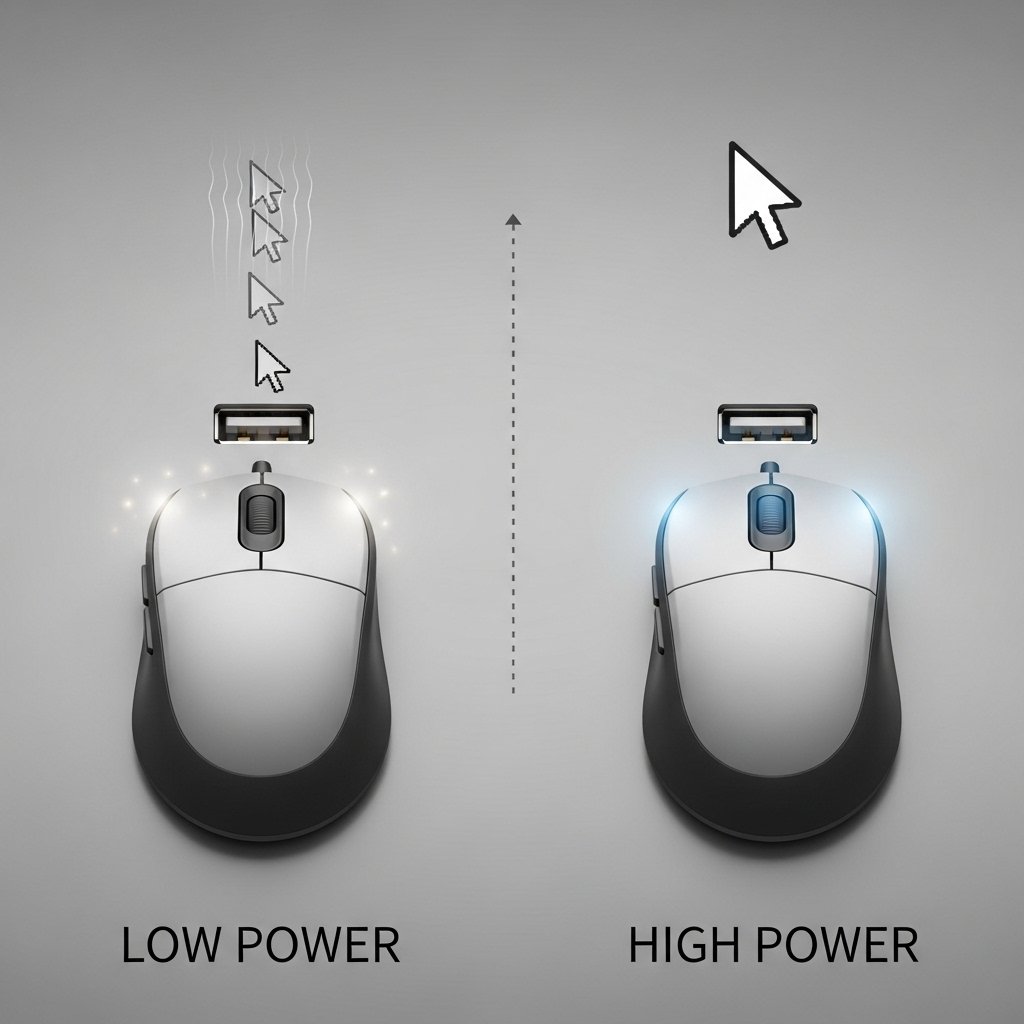
Not all USB ports deliver the same power. Some may provide lower power output, especially on older systems. A mouse plugged into a low-power port may lag or disconnect, making it essential to choose a fully powered port.
USB Version Compatibility
Different USB versions such as 2.0 and 3.0 can behave differently with certain devices. While most mice work across versions, some perform better in USB 2.0 ports, especially if compatibility issues arise.
Faulty Port Issues
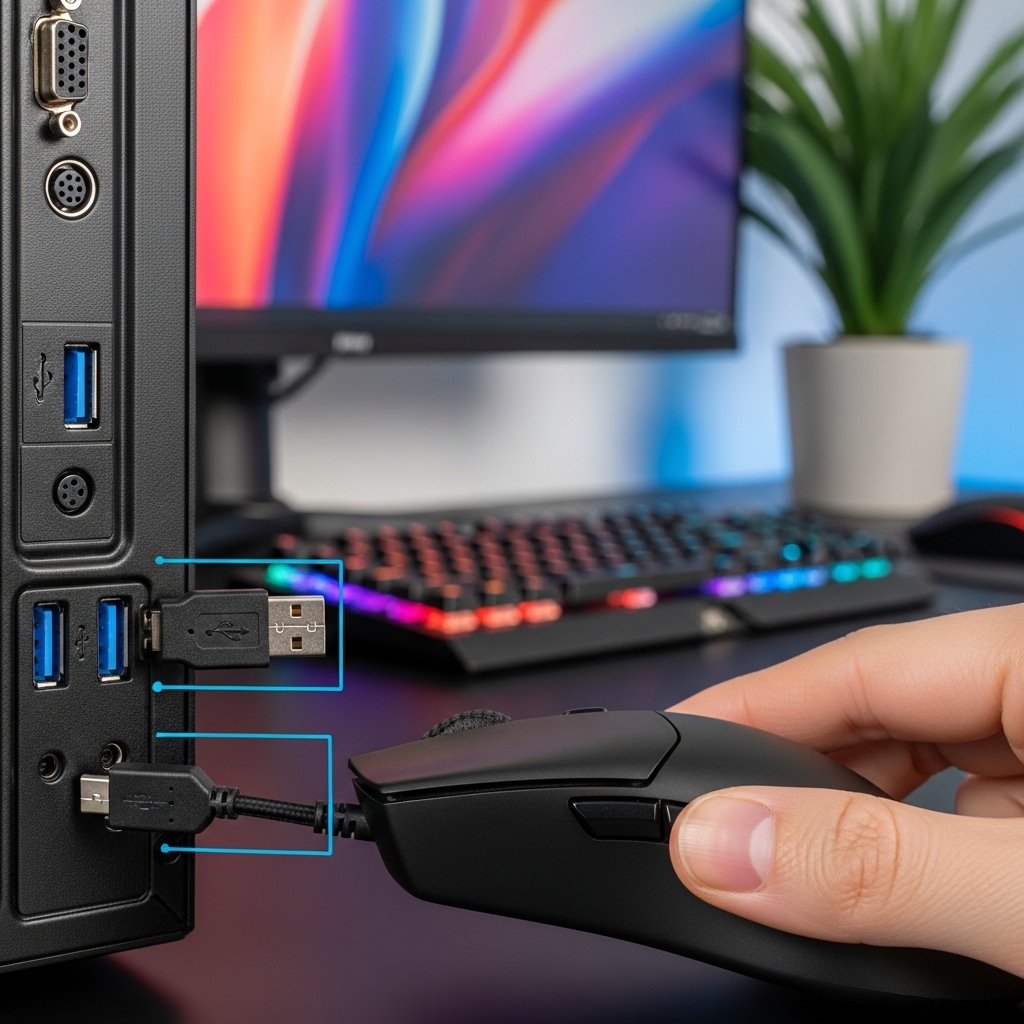
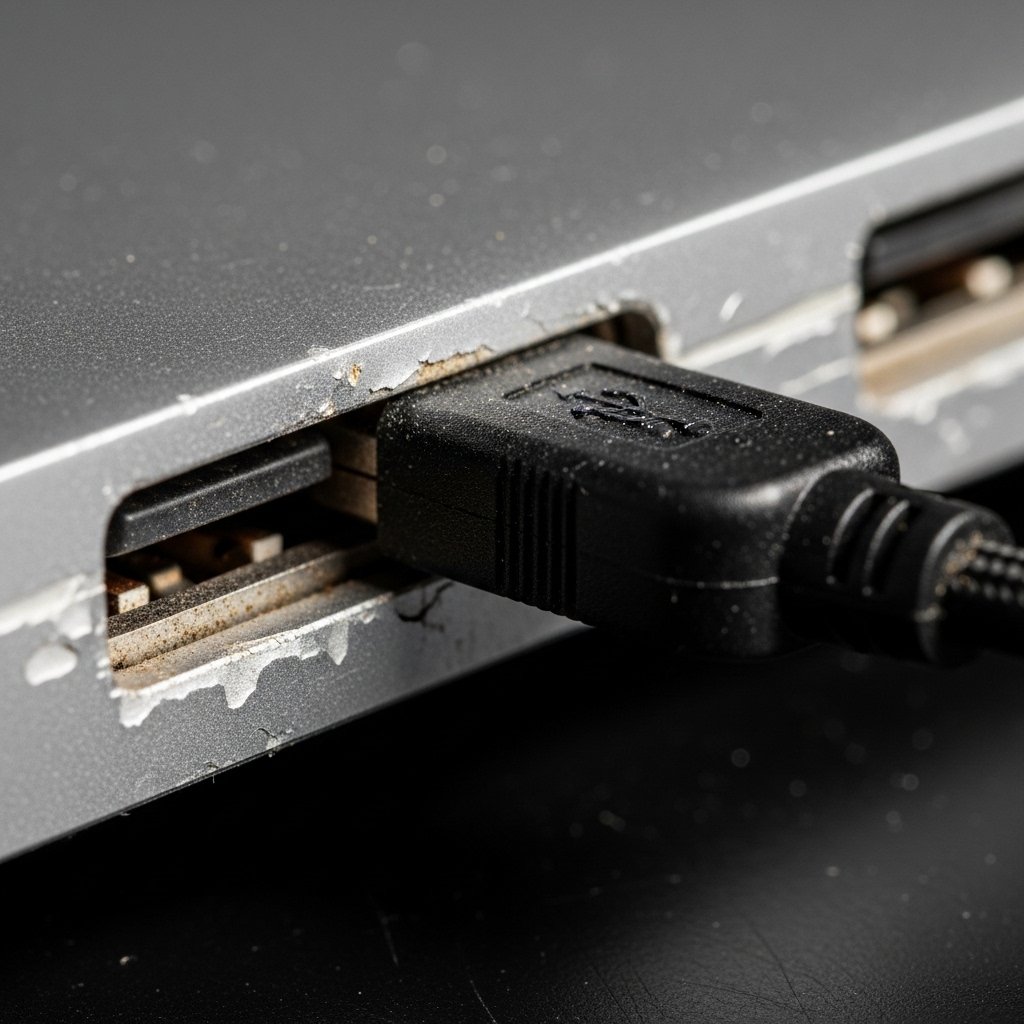
A damaged or worn-out USB port can cause intermittent connectivity. If your mouse stops responding randomly, try another port to rule out physical damage as the main issue.
Driver Recognition Delays
Sometimes, the system may take longer to recognize devices connected to specific ports. Switching ports can prompt quicker detection and reduce delays in functionality.
Interference from Other Devices

When multiple devices are connected close together, interference can occur. Moving your mouse to a different USB port can reduce signal disruption and improve responsiveness.
Hub vs Direct Connection
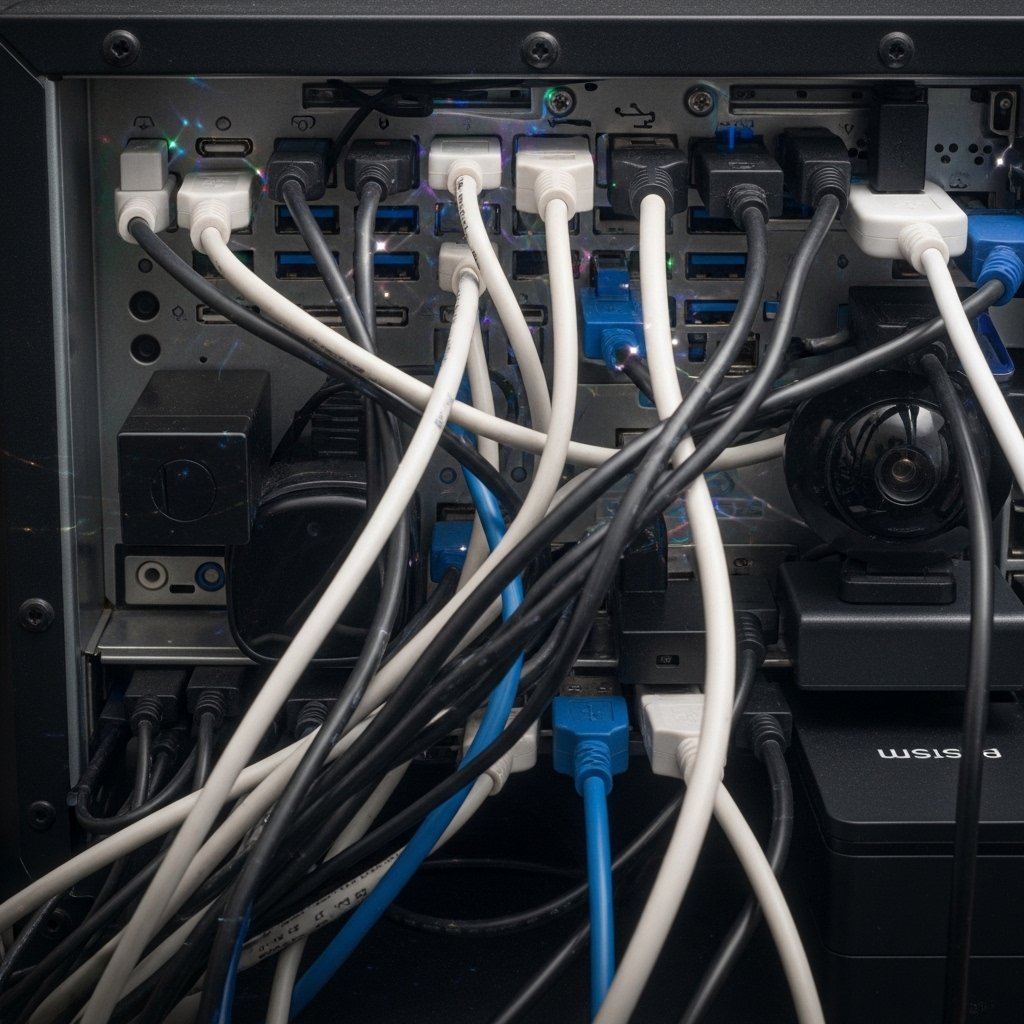
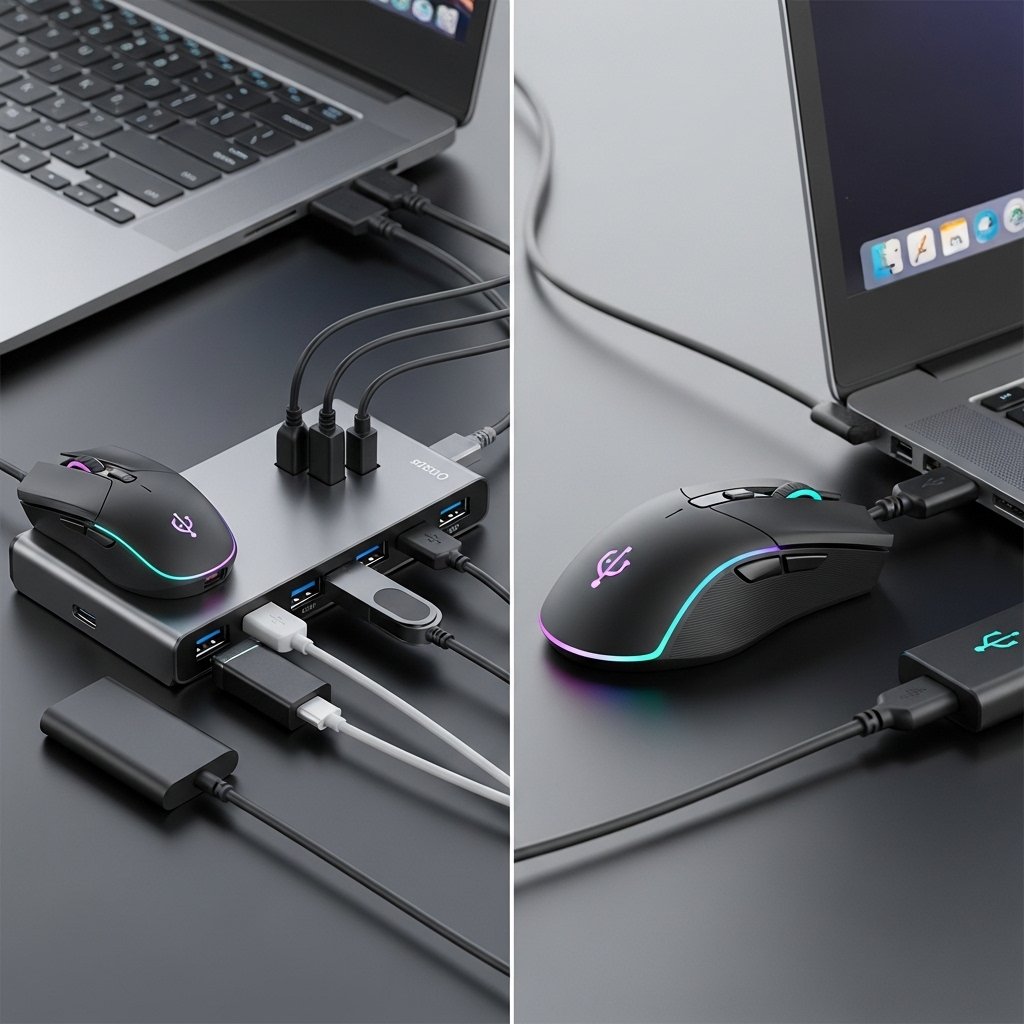
Using a USB hub may reduce performance if several devices share the same connection. Plugging your mouse directly into the computer ensures a more stable and reliable connection.
System Resource Allocation
Computers distribute resources differently across ports. Certain ports may prioritize essential devices, so relocating your mouse can help it receive better system support.
Port Cleanliness and Dust

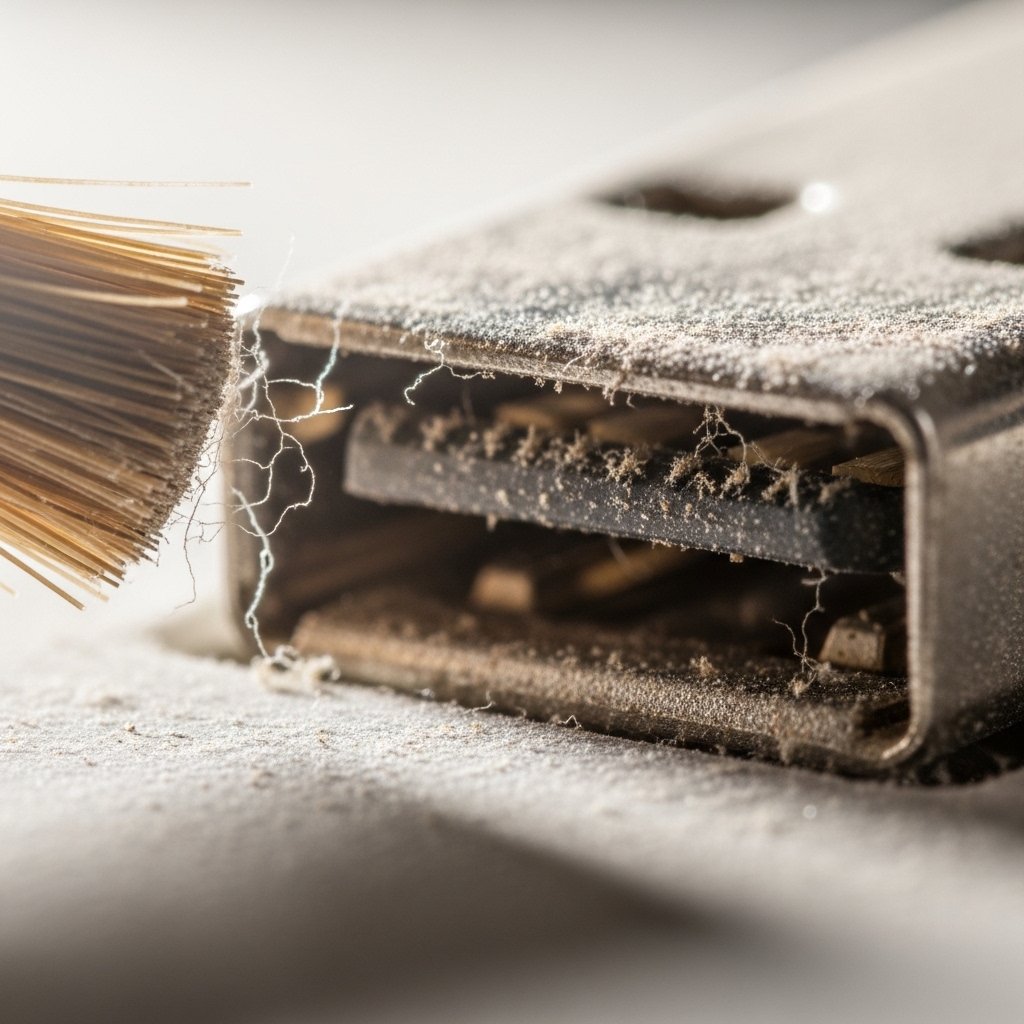
Dust accumulation inside USB ports can weaken connections. Cleaning the port gently or switching to a cleaner one can immediately restore proper functionality.
Cable Length Impact
Longer cables, especially through extensions or hubs, can reduce signal strength. Using a shorter, direct connection improves accuracy and responsiveness.
Operating System Glitches
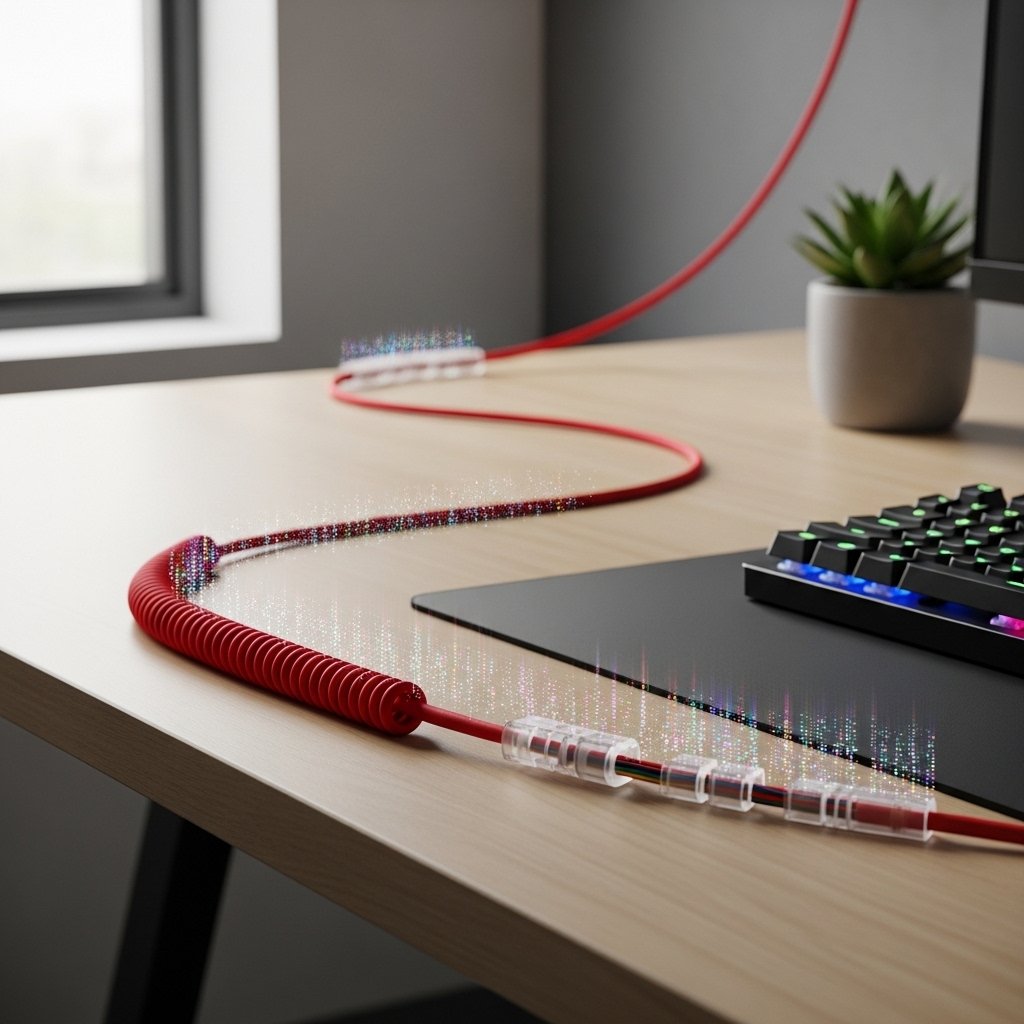
Sometimes, the issue lies in how the operating system interacts with a specific port. Restarting the system or changing the port can resolve minor glitches quickly.
Wear from Frequent Use

Ports used frequently may loosen over time. Choosing a less-used port can provide a firmer connection and reduce disconnection issues.
BIOS or Hardware Settings
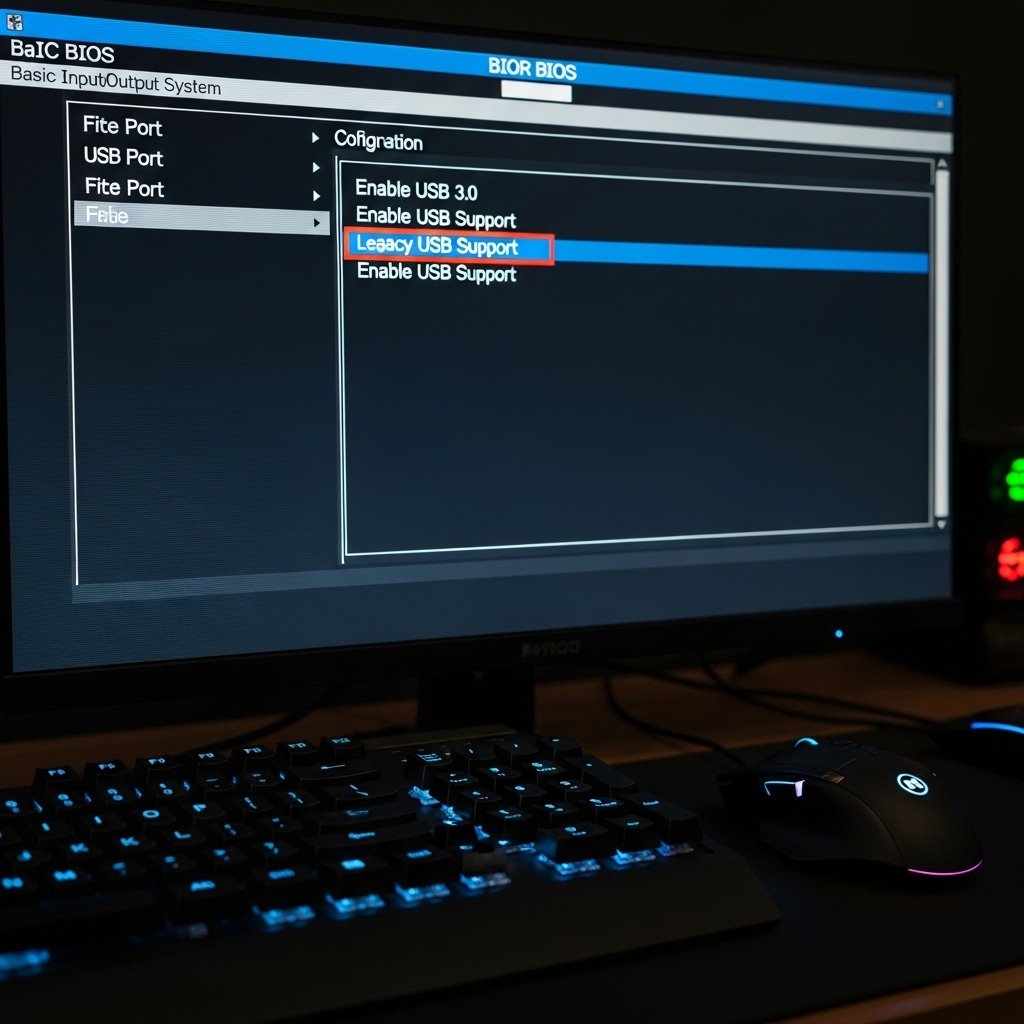
Certain system settings may disable or limit specific USB ports. Checking basic hardware configurations or switching ports can bypass such restrictions without complex adjustments.
